A business posts something on Google from its Google Business Profile by choosing one of three post types, an update, an offer or an event, and the post then appears on that profile in Google Search and Google Maps.
How do I post something on Google as a business? Open your verified Business Profile's post form, choose update, offer or event, fill the fields that type asks for, and publish. Circleboom Publish creates all three Google Business Profile post types in one composer and publishes or schedules them to one or several profiles.
→ Post something on Google as a business
The type you pick decides what a searcher can do with the post, so start there.
Where a Google business post appears and who reads it
A Google business post appears on the business's own profile. Google's help page on how to make a post and track its status names the spots. Posts sit in the Updates or Overview tabs on mobile and in the "From the owner" section on a computer, on Search and Maps alike.
The reader is not a follower. It is someone searching nearby for what the business sells, often comparing it with other businesses on the same screen.
That changes what a post has to do: it has to give a stranger a reason to act now.
The profile has to exist and be verified before any of this works. Setting it up happens in Google itself; posting is what comes after.
Circleboom Publish is the publishing side of that routine. It writes, designs, schedules and publishes Google Business Profile posts, and it keeps the three post types separate so each one carries the right fields. The page on posting on Google for a business shows the composer those posts are built in.
Announce, sell or fill a date: the Google post type decision
Choose the post type by the outcome you want, not by the content you have. The fork is short:
- If you want to announce something: choose an update and attach a button.
- If you want to sell with a code or a deal: choose an offer and fill the coupon fields.
- If something happens on a date: choose an event and fill the start and end times.
In the Circleboom Publish composer, that fork is one dropdown labelled "Is this a Google My Business Event or Offer?" with three answers: No, Event and Offer. No produces a Standard post, which Google calls an Update.
An offer carries no button you choose, because the coupon box is its call to action.
That observation also explains two beginner mistakes. People look for a Book or Call Now button on an offer and cannot find it, or they publish a sale as an update and lose the coupon box that made it look redeemable.
When the right Google post type is not obvious
Some announcements fit two types. Decide by the action you want, because that action is what the type is built to collect:
- A grand opening with a discount: if the goal is a crowd on the day, post an Event; if the goal is redemptions over a week, post an Offer.
- A seasonal sale that needs booking: post an Event with Book, since an Offer cannot carry a button you pick.
- A weekly tip with no date or deal: post an update and give it the one button that matches the next step.
When in doubt, ask what a stranger would do if the post worked. The answer names the type.
Each type gets its own section below, with the question it answers and the fields it uses. When you are ready to build one, start with that type choice and create your Google Business Profile post in the composer.
The update: when you want to announce something on Google
An update answers the searcher's question "what's new here?" It is the everyday Google post: a tip, a new service, a photo of finished work, a change in what the business offers.
Its fields in the composer are a text box of up to 1,500 characters, media, and an optional button. The button comes from six choices: Call Now, Learn More, Book, Sign Up, Order Online and Buy.
A plumber is a good example. A post on how to clear a slow drain without chemicals can reach someone who has never heard of the business, and a Call Now button turns that reader into a phone call.
Choose the button by the next action you want; Learn More is the fallback, not the default.
Write updates around what people nearby actually type into Google. A florist answering "how long do cut tulips last" or a bike shop explaining "when to replace a chain" can appear for searches that never included the business name, which is the reach a silent profile never gets.
The event: when something happens on a date
An event answers "what's on, and when?" Use it for a workshop, a class, a sale day, an opening or a tasting.
The Event form asks for a title of up to 58 characters, the text, and an "Add Optional Time Fields" switch that reveals the start date, start time, end date and end time. It takes the same six buttons as an update.
Fill the times every time. Google's posts page says an event without a start or end time shows as lasting 24 hours on its dates, which makes a two-hour bike repair workshop look like an all-day blur. Pair the dates with Book or Sign Up so the person who finds it can reserve a place in one tap.
Timing helps too. Post an event several days to a couple of weeks ahead so Google has time to surface it while people are still making plans.
Name the benefit in the title ("Free chain check Saturday") rather than the category ("Spring event").
The offer: when you want to sell with a code
An offer answers "what will this cost me, and is there a deal?" Use it for a discount, a coupon, a bundle or a limited-time price.
The Offer form replaces the button menu with coupon fields: title, text, Coupon Code, Redeem Online Url, Terms and Conditions, and optional time fields for the validity window. The preview shows a "Redeem online" link and a dashed coupon box with "Show this code at the store" above the code.
On Google's side, the posts page says an offer requires a title, dates and time, and that it automatically includes a "View Offer" button.
So a florist running a weekday discount does not lose a call to action by choosing Offer; it gets the coupon box, the redeem link and Google's own button.
Fill the offer completely. A visible coupon code reads as a real deal even when the discount does not strictly need one, complete terms prevent arguments at the counter, and a real end date gives people a reason to act this week.
One post can only be one type, so a dated sale that also needs a booking button belongs in an Event, not in an Offer with an extra button.
Does alt text on a Google post image do anything?
Yes. Alt text describes the image to Google's image index, which cannot see a photo and has to be told what it shows. Without it, the picture on your post goes out with no description for Google Image search.
Google Business Profile is one of the platforms where Circleboom Publish lets you write custom alt text on each image, and the field is blank by default.
That default is the trap: a post goes out with no description whenever nobody types one.
Write one short sentence that says what the photo shows. A line like "Hand-tied tulip bouquet in a glass vase on the shop counter" beats a single word such as flowers.
For the same habit on other platforms, see how to add alt text to images on social media.
The image itself has limits in the composer: JPG or PNG, up to 5 MB each and up to 10 per post. For layout and readability, the social media post design practices apply to a Google post as much as to any feed.
Canva opens inside the same composer. Designing Google Business Profile posts and writing the alt text happen in one pass before you post something on Google.
How to post something on Google as a business
An event built from the dropdown up: title, dates and times filled in the order a searcher will read them on Google.
To post something on Google as a business with Circleboom Publish, you open the Google composer, pick the type, fill that type's fields and publish or schedule. The four steps below cover every type, and the dropdown in step 3 is the only decision that changes what you fill in.
- Log in to Circleboom Publish and confirm your verified Google Business Profile appears among the connected accounts.
- Open the Google Business Specific Post composer from the dashboard card or the Create New Post menu; one connected profile is selected automatically, and several can be ticked together.
- Choose No, Event or Offer in the dropdown, then fill the fields that type shows: a button for an update or an event, dates for an event, coupon fields for an offer.
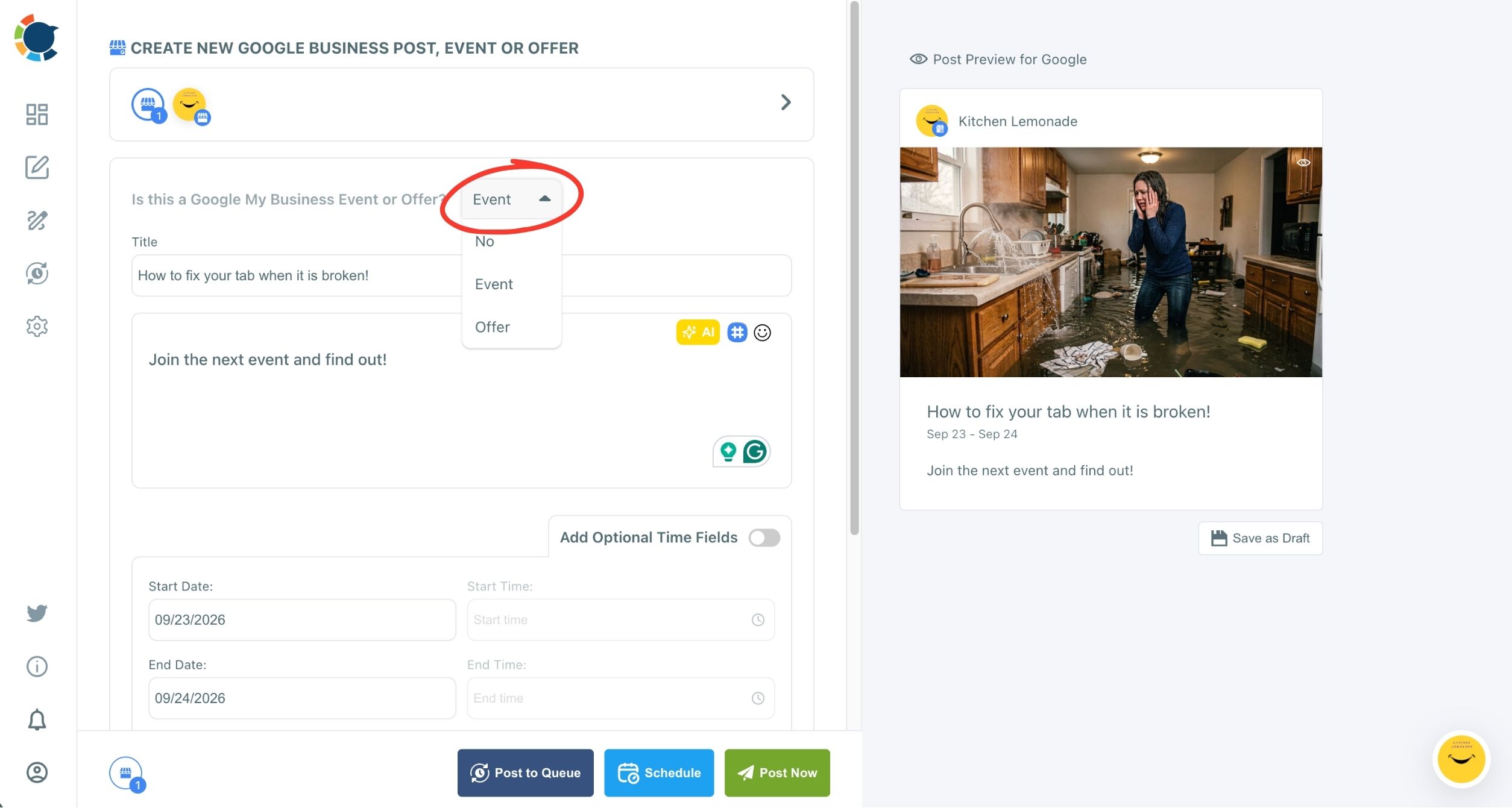
- Attach the image with its alt text, check the Post Preview for Google, and click Post Now, Schedule or Post to Queue; with Schedule, pick a suggested slot.
The order matters because the type decides the form: once the dropdown is set, every field you see belongs to that post, so nothing has to be removed or retyped later.
What the Google post preview catches
The preview is the check that catches type mistakes. It renders the post as it will appear on the listing, so an event with no times or an offer with no code is obvious before you post something on Google.
How do I know whether anyone acted on a Google post?
Check Google's performance report and tag your links. Google's guide to Business Profile performance and insights lists calls, direction requests and website clicks among its metrics, and notes that performance data is available only for verified profiles.
Those numbers describe the whole profile, not one post.
To see what a single button sent, add UTM tags to the button link or the Redeem Online link before you paste it. For the basics, see what UTM is in social media.
With tagged links, Google Analytics shows which post, and which type, brought the visit. Over a few weeks that tells you whether your updates, events or offers move people, and which buttons they press.
Google also counts profile views carefully: its page says a person is counted only once a day, however often they look that day.
Sending the same news to Google and a social account
Many businesses announce the same thing on Google and on a social page. Circleboom Publish lets the same news go to Facebook, Instagram and the other platforms through its multi-platform composer, all in one Outbox calendar.
Already posting company news on LinkedIn? See how to share a LinkedIn company page post on Google My Business.
Businesses with several locations add one more layer. The account selector can send one Google post to many profiles in a single action, and you can manage multiple social media accounts from the same workspace.
On Google, the post type is the message
Whenever you post something on Google as a business, the post makes one promise: news, a date or a deal. Choose the type that matches the promise, fill the fields it gives you, and the post tells a stranger exactly what to do next.
→ Choose your post type and post something on Google
Google Business post types: Questions answered
My first Google post is live, so how do I line up the next ones?
Write them now and give each a future date. The Schedule window takes any date and time, and Post to Queue drops a post into the profile's next open slot. That way the Google Business Profile post scheduler can publish a week or a month of posts without daily work.
Should I post from Google's own dashboard or from Circleboom Publish?
Both publish real posts. Google's dashboard creates updates, offers and events, schedules them, repeats them and can share one post across profiles you manage. Circleboom Publish adds AI writing, a Canva template sized for Google, an alt text field, suggested time slots and the same news to other platforms from one calendar.
Can AI write the text of a Google offer or event?
Yes. The AI button in the composer writes the post text for all three types from a short instruction, while the coupon code, redeem link, terms and dates are filled in their own fields. Check every date and offer detail before publishing, because they appear on your public listing.