Most advice on sharing a YouTube video on Instagram is about where to put the link. That is the wrong question: Instagram rewards the video file posted as a Reel, and a link leaves Instagram nothing to play.
Pasted link: a YouTube URL in a Story or caption, seen mostly by followers and opened by the few who leave the app. Native Reel: Circleboom Publish uploads the video file from its Instagram Reels tab, publishes it as a Reel Instagram can show to non-followers, and sends the same file to TikTok and Facebook in one action.
→ Cross-post your YouTube videos to Instagram
How do you post a YouTube video on Instagram? The comparison, the file prep and a four-step upload follow.
Why a pasted YouTube link is the weak way to put a video on Instagram
A YouTube link on Instagram asks the viewer to stop using Instagram, and very few people scrolling a feed want to do that. Followers who already like your channel may tap it. Everyone else scrolls past, because a link post gives them nothing to watch in place.
There is a second cost that rarely gets mentioned. A link post spends your best video on an audience that would have found it anyway. Your subscribers get a reminder, which is pleasant, but the channel gains few new viewers, and the Instagram account stays a mirror of YouTube instead of an entry point to it.
The fix is posting the video itself. When the clip lives on Instagram as a Reel, it plays inside the feed, it can be recommended beyond your followers, and the full YouTube video becomes the next step for the viewers it wins. That is the core of how to get a YouTube video onto Instagram so it does real work for the channel.
Circleboom Publish is built for this job on the Instagram side. Its Instagram composer has a Reels tab where one uploaded video becomes an Instagram Reel, with an AI caption, a cover frame, an optional music track and a schedule. The same Reels window lets Circleboom Publish copy that video to TikTok profiles, YouTube channels and Facebook Pages in a single publish action.
Link in a Story or caption vs a native Reel: which one reaches new viewers?
A native Reel reaches new viewers; a link mostly reaches the people who already follow you. Instagram's own creator guidance on finding success on Reels says Reels up to 3 minutes are eligible to be seen by non-followers in the Reels tab and Explore. The same update says creators of all sizes have an equal chance of reaching new audiences.
| Question | Link in a Story or caption | Native Reel from the video file |
|---|---|---|
| Who sees it | Mostly existing followers | Followers, plus non-followers in the Reels tab and Explore |
| What the viewer does | Leaves Instagram to watch | Watches in the feed |
| Where it sits in reach terms | An announcement | Instagram's widely cited highest-average-reach format |
| What it needs from you | A URL | The file, trimmed to fit |
| Where the full video fits | It is the only thing offered | The next step, in the first comment |
A link asks for attention you already have; a Reel earns attention you do not have yet.
So the honest answer to how to post a YouTube video on Instagram for growth is the right column of that table every time. If the goal is new subscribers, post YouTube videos to Instagram as Reels. Let the link ride along in the first comment, where it serves the viewers the Reel has already won.
When a Story link is still worth posting
I still use Story links for one job: telling current followers a new upload is live. That is a loyalty move, and treating it as the whole Instagram plan is a common reason channels give up on the platform.
Instagram's advice in the same creator update is to post original content consistently. A Reel cut from your own long video is exactly that, which is why the native route fits the platform's own rules rather than working around them.
What makes a YouTube video ready to post on Instagram
A YouTube video is ready for Instagram when you have the file, it fits Instagram's Reel frame and it is short enough to be recommended. Three checks cover it.
Get the video file onto your device
You need the video itself on your device. For a public YouTube Short you own or have rights to, the YouTube Shorts downloader saves the file from the Short's link. A long video on your own channel comes out of YouTube Studio's own download.
For clips that started on another network, Circleboom's wider social media video downloader set does the same job for those platforms.
Once the file is on your device, it behaves like any other clip you might move between accounts. That is the same logic behind how to repost a video on Instagram.
Fit the frame and the length
Instagram's page on Reel size and aspect ratios accepts uploads between 1.91:1 and 9:16, at 30 FPS and 720 pixels minimum. A horizontal export will upload, but a 9:16 crop is what fills the screen.
Keep the cut under 3 minutes so it stays eligible for non-followers. Go to 60 seconds or less if you also want it on YouTube as a Short from the same upload.
Shorter is usually better even inside the 3-minute window. A Reel cut from a long video competes with clips made for the format, and a tight 30 to 60 seconds built around one idea gives viewers less reason to swipe away before the point lands.
Whether the Short deserves its own push is a separate question, covered in how to get more views on YouTube Shorts.
Under 3 minutes for reach, 60 seconds or less for a four-platform send, under 300 MB for the Instagram side of the composer.
Where Circleboom Publish fits in a YouTube-to-Reel workflow
Circleboom Publish fits after the cut: it takes the finished file and handles everything from upload to publish across your short-video accounts. The Reels tab of its Instagram composer opens a "Create Reels Post" window with four account rows, your Instagram account first, then TikTok, YouTube and Facebook.
Each destination row is a checklist rather than a single choice. You can check several Facebook Pages or TikTok profiles, and every checked account receives the same video in the same publish action. Facebook destinations are Pages only.
That is the practical reason to share a YouTube video on Instagram through the Reels tab instead of the Instagram app.
The app reaches Instagram; the Reels tab reaches Instagram and the other networks where the same clip can find viewers, without a second upload.
Limits and sound handled in the same window
The composer's own limits decide what one send can carry. The Instagram side takes video up to 300 MB, TikTok up to 10 minutes and 4 GB, Facebook up to 10 GB, and YouTube Shorts up to 60 seconds. A clip sent to all four has to fit the strictest of those: 60 seconds or less and under 300 MB.
Sound is handled in the same window. The built-in Add Music library is filterable by Genre, Tempo and Mood, and a track picked once travels with the video to every destination it is cross-posted to.
It is optional; a clip where you are talking to camera usually needs no track, while a clip with no voice of its own is the case the library is for.
Before the upload, only the Instagram business account has to be connected; TikTok, YouTube and Facebook accounts are needed only if they should receive the clip.
If the source clip is a TikTok rather than a YouTube video, the same Reels-tab flow applies. The file prep for that case is covered in whether you can post TikTok videos on Instagram Reels.
How to post a YouTube video on Instagram as a Reel
To post a YouTube video on Instagram as a Reel, upload the trimmed video file in a Reels composer, give it a fresh caption and a first comment with the full video's link, and schedule it. In Circleboom Publish this takes four steps in one window, and the same upload can go to TikTok and Facebook along the way.
- Log in to Circleboom with the Instagram business account that will publish the Reel already added.
- Go to the Reels tab in the Instagram composer, which opens the "Create Reels Post" window.
- Upload the video file, set the cover with Edit cover Image, and check the TikTok profiles and Facebook Pages that should get the same clip.
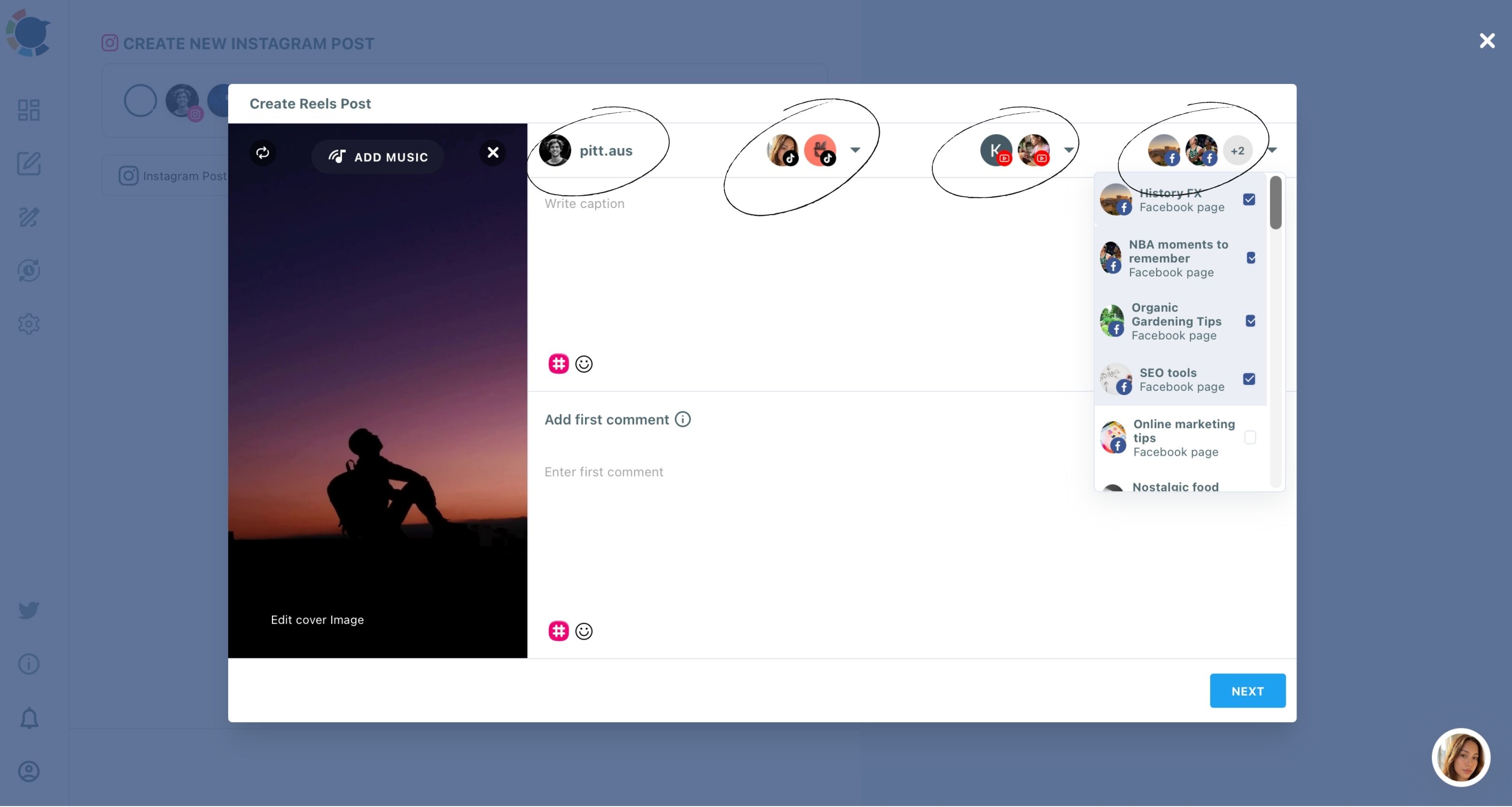
- Write the caption with the AI button, add the YouTube link in Add first comment, preview, and choose Schedule, Post to Queue or Post Now.
Doing it in this order means the expensive choices happen once: one upload, one cover, one set of destinations, and a caption written after you know where the clip is going. Adding a track with Add Music is optional and fits between steps 3 and 4 when the clip has no audio of its own.
Schedule the link and the next Reel
Scheduling that first comment together with the Reel is a small feature that does a lot of the YouTube-funnel work.
First comment, scheduled with the post: how the comment carrying your YouTube link goes live at the same moment as the Instagram post itself.
For a channel that uploads every week, there is no RSS route into Instagram. The automation is the Queue, set up through the Instagram auto poster, where recurring time slots catch each new Reel you add.
Why your YouTube description should not become the Instagram caption
Your YouTube description should not be pasted in as the Instagram caption, because platforms dislike duplicate content and the description was written for a different reader. A YouTube description serves search and a viewer who already chose to watch; a Reel caption has to support a clip someone is deciding about while it plays.
The fix in Circleboom Publish is the AI button in the Reels caption field. You describe the clip and who it is for, the AI writes the caption, and you refine it shorter or punchier and add hashtags with the toolbar. When the same Reel goes to TikTok and Facebook too, the AI can give each destination a fresh caption instead of one text copied everywhere.
What a good Reel caption carries, in practice:
- A first line that adds to the clip rather than describing it.
- A reason to watch to the end.
- A pointer to the first comment for the full video.
The caption sells the clip; the first comment sells the channel.
One clip, a different caption per network
The destinations differ too. A Facebook Page audience may know your brand from other posts, while a TikTok viewer meets the clip cold, so a caption that works as a hello on one can read as a repeat on another. I give the AI one sentence about each audience and let it adjust the opening line for each.
Keeping those two jobs apart is what stops the caption from turning into a wall of links and chapter timestamps, which is what a pasted YouTube description usually becomes on Instagram.
A five-point checklist for your first YouTube Reel
Posting a YouTube video on Instagram works when the video arrives as a Reel, fits the frame and points back to the full upload.
The first one takes the longest, because you are learning which moments in your long videos stand on their own. After a few, the cut becomes the only real work, and the upload is one window and a few checkboxes.
Before you publish the first one, run this list:
- Export your own video or Short as a file, never a link.
- Crop it to 9:16 and cut it under 3 minutes, or to 60 seconds for a four-platform send.
- Upload it once from the Reels tab and check your TikTok and Facebook accounts.
- Let the AI write a fresh caption instead of the YouTube description.
- Put the full video's URL in the first comment and schedule the Reel.
One video on several platforms, each version written for its audience, is what multichannel marketing means in practice. A single Reels-tab upload is the cheapest way a channel can do it.
→ Start posting YouTube videos on Instagram as Reels
What People Ask about YouTube videos on Instagram
Where should the link to the full YouTube video go?
Put it in the Reel's first comment, written in the Add first comment field of the Reels window and published together with the Reel. Viewers read the first comment right after watching, and scheduling it yourself means your link holds the top spot instead of a random comment.
Can I post a YouTube video on Instagram without copyright problems?
Yes, when the video is your own or you have permission to use it. YouTube Studio's download covers your own uploads, while the Shorts downloader asks you to accept a copyright disclaimer that makes you responsible for the rights, so it is not a route for reposting other creators' videos.