Most advice on social templates starts in a design tool, with a layout you like. That order is backwards: a template starts with a post you already publish every week, and the design comes second.
How to create social templates: list the post types you publish every week, then give each one a saved visual frame, a caption skeleton and a fixed set of target accounts. Circleboom Publish builds all three in its Create New Post composer and sends the filled posts to Instagram, Facebook, LinkedIn, Pinterest and Google Business Profile accounts in one pass.
→ Start creating social templates
Below: which post types earn a template, the canvas each one needs, and four steps to build it.
What is a social template?
A social template is a reusable frame for one recurring post type, made of three parts: a visual frame, a caption skeleton and a target list of accounts.
The visual frame holds the layout, brand colours and fonts. The caption skeleton holds the fixed opener, the closing call to action and the hashtag set. The target list says which platforms and accounts that post type always goes to.
Circleboom Publish keeps those three parts together in one saved post for your Instagram, Facebook, LinkedIn, Pinterest or Google Business Profile accounts, so a template opens with its design, its words and its accounts already in place.
That is the difference between a template and a downloaded graphic: the graphic covers one part of three.
The weekly job then shrinks to the fill: a new photo, a new headline, a new middle for the caption, a date.
Templates fail for a predictable reason. People build them around a look they like instead of a post they repeat, so the template has no slot in the week and no caption plan.
The result is a folder of designs that never gets opened.
Starting from the post type fixes that. It is also why Circleboom's ready-made post templates are organised by platform, the place each post type actually goes.
Which recurring posts deserve a template?
A post type deserves a template when it repeats on a fixed rhythm, keeps the same structure each time, and goes to the same accounts. Posts that change shape every time, like a reaction to news or a one-off announcement, stay hand-made.
The taxonomy below maps the post types most small businesses and creators repeat to the template parts each one needs and the canvas its main platform displays best. Canvas figures come from each platform's own help pages where those pages state one.
| Recurring post type | Visual frame | Caption skeleton | Main platform and canvas |
|---|---|---|---|
| Tip or how to | Multi slide carousel with one point per slide | "One thing to try this week" opener, numbered points, save prompt | LinkedIn: at least 552 x 276 px, 1080 px wide recommended, ratio 3:1 to 4:5 |
| Quote | Quote card with a fixed font and attribution line | Quote, one line of context, a question | Pinterest: vertical design, usually 2:3 |
| Product or service spotlight | Photo frame with a name and price strip | Benefit first, one detail, call to action | Instagram: 1080 px wide, ratio 1.91:1 to 3:4 |
| Local offer or update | Offer banner with dates and a clear button line | Offer, dates, how to claim | Google Business Profile: JPG or PNG, 10 KB to 5 MB, 720 x 720 px recommended |
| Engagement question | Plain question card in brand colors | One question, an easy way to answer | Facebook: start from a Facebook post template |
| Seasonal or holiday post | Holiday frame reused each year | Greeting, offer or story, call to action | The platform you post that season to most |
Template the post types that repeat; hand-make the ones that react. Four to six templated types usually cover a full week, with room left for one unplanned post.
A quick test for which post types qualify
A quick test tells you which types qualify. Look back over a month of your own posts and group them by job: educating, demonstrating, inviting replies, promoting, marking a date. Any group that appears every week with the same structure is a template candidate.
Any group whose structure changed each time, such as reactions to news or event recaps with different formats, stays hand-made. That one review usually produces a shortlist of four or five frames, which is a manageable first set to build in a single sitting.
Seasonal and engagement templates
Seasonal posts are the easiest to forget, because the frame returns only once a year. Saving the holiday design as a draft means next year starts from a finished frame. The ideas in Valentine's Day social media posts show how many angles one seasonal frame can carry.
Engagement questions are the opposite: they repeat every week and ask almost nothing of the design. The plain question card works because people answer it, and the patterns behind Facebook engagement posts translate directly into a weekly question template.
Can a social template be a carousel instead of a single image?
Yes. A template can be a multi-slide carousel, and for tips, lists and step-by-step posts it is often the better frame, because each slide holds one point and the layout repeats from slide to slide.
Circleboom's AI Carousel Generator sits in the composer's media bar. It turns a short instruction into a set of slides, with a choice of AI model and fully editable templates, fonts and colours.
Once a carousel design fits your brand, the slide style becomes the frame and only the points change each week.
Two platform limits shape a carousel template. LinkedIn's help on sharing photos on LinkedIn says a multi-photo post can hold up to 20 photos.
Inside Circleboom Publish, Instagram and Facebook take up to 10 images per post, while Pinterest takes 1, so a carousel frame meant for Pinterest has to work as a single cover image.
A text-graphic frame also works as a carousel cover. The layout behind LinkedIn quote posts is a good first slide for a weekly series, because the quote sets the topic and the next slides carry the detail.
Does each platform need its own template size?
Yes, when a post type is built mainly for one platform. A frame sized for its main platform avoids the weekly crop, and Circleboom offers ready-made post templates for each supported platform, already sized for that network, which can also be customized to a specific size.
Google's photo guidelines for Business Profiles recommend a 720 by 720 pixel image in JPG or PNG, between 10 KB and 5 MB. A local offer frame built at that square size goes up without awkward cropping. The Google Business Profile post template starts at a shape that fits.
Pinterest rewards vertical designs, and a quote frame translates well into that format. The method in quotes for Pinterest shows how one quote layout becomes a repeatable pin.
For Facebook, the Facebook post template covers the same job for an engagement or offer frame.
One frame per post type, sized for the platform that post type serves most. When the same post goes everywhere, check the Post Preview for each network before sending.
Where does a template's caption skeleton come from?
The caption skeleton comes from the composer's AI writer: you describe the post type once, keep the parts that should repeat, and mark the middle as the part that changes. Circleboom Publish includes that AI button in every composer, so the skeleton is written in the same place the visual is attached.
The AI popup works in two ways. With an empty text box, it writes a full draft from a prompt. A weekly tip template might start from "a short tip post for a bakery, friendly tone, ending with a question."
With text already in the box, it offers one-click edits such as Condense, Improve Structure and Spacing, Add Hashtags and Fix Grammar. A second field, "Improve this response...", takes follow-up instructions until the draft fits, and Use this text drops it into the post.
One limit matters for templates. The AI writer does not adjust to each platform's character limit on its own, so tell it the ceiling of the strictest platform in the template. Inside Circleboom Publish those ceilings are 500 characters for Pinterest, 1,300 for LinkedIn, 1,500 for Google Business Profile and 2,200 for Instagram.
Write the skeleton to the strictest platform's limit once, and every weekly refill already fits.
Handling limits this way is a large part of creating social templates that survive a busy week. The limits live in the frame, so nobody rediscovers them every Monday.
The Hashtag button finishes the skeleton. It finds hashtag groups that match the post's topic and adds them in bulk, which makes a saved core set for each post type quick to build.
Does reusing a template every week create duplicate content?
It can, if the words repeat. Platforms treat the same text posted again and again, or the exact same post sent to several accounts on one platform, as duplicate content, and that can limit an account's reach and, in serious cases, get it restricted.
The template protects the frame, not the sentences. Keep three things moving every week:
- The middle of the caption, rewritten from a new example, tip or question.
- The wording of repeated lines, refreshed with the AI writer's Rephrase for Clarity, More Punchier or Continue Writing shortcuts.
- A separate AI version for each account when one post goes to several accounts on the same platform.
The frame stays fixed so followers recognise the post; the words change so the platform sees something new.
I keep one practical habit here: before scheduling a refilled template, I read the caption next to last week's version. If more than the opener and the closing line match, the middle needs another rewrite.
How to create social templates in Circleboom Publish
To create a social template in Circleboom Publish, open the Create New Post composer, choose the accounts the post type always reaches, build the visual and the caption skeleton, and save the result as a draft. The draft becomes the template: each week you reopen it, change the fill and send it.
The four steps below build one template; repeat them for each post type in the taxonomy.
- Open Circleboom Publish and confirm that every platform the template targets has a connected account, since a template can only reach accounts that are already linked.
- Name the post type you are building for, such as the weekly tip or the Friday offer, and decide its accounts and its platform canvas from the taxonomy table.
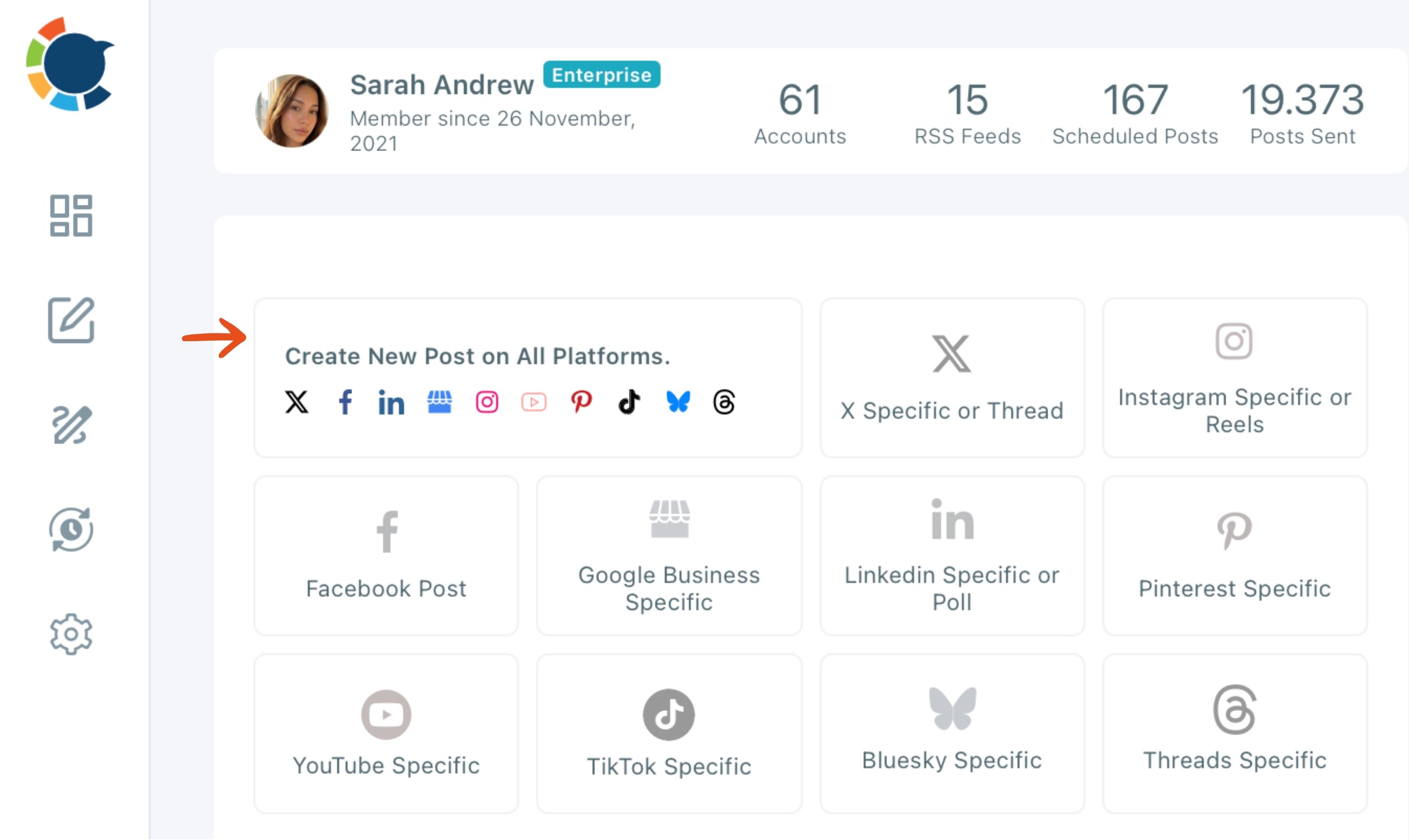
- Click Create New Post on All Platforms on the dashboard, select the accounts, then design the frame with Canva or a ready-made template from the media bar and write the caption skeleton with the AI button.
- Save it as a draft, so the accounts, text and media stay together as the template you reopen every week.
The template works because each decision is attached to the post itself: the design, the words and the accounts travel together, so the weekly refill never reopens a settled choice.
LinkedIn example, start to finish: a ready-made LinkedIn layout edited into a frame worth saving.
Once the templates are filled, Post to Queue drops each one into its account's next open time slot, so the week goes out without a time picked for every post.
The Outbox Calendar View then shows the week laid out by day, which is where a missing slot or a quiet platform becomes obvious.
Whether you design in Canva or start from a ready-made template matters less than keeping the same choice for a post type week after week.
Your template checklist
A social template is a saved frame for a post you repeat. Build one per recurring post type and the week becomes a refill.
- List the post types you publish every week and mark the ones that keep the same structure.
- Pick each type's main platform and build its frame at that platform's canvas.
- Write a caption skeleton with a fixed opener, a changing middle and a closing call to action.
- Save each frame as a draft with its accounts attached.
- Refill weekly, rewrite the middle with the AI writer, and send the week through the Queue.
→ Template the posts you repeat
Social template FAQ for busy weeks
How do I tell which of my templates performs best?
Duplicate a templated post, change one variable such as the opening line or the cover image, publish both, and compare their results in Circleboom's post analytics. Run the same comparison twice before redesigning a template around it.
Can I turn a post that already went out into next week's template?
Yes. Share Again on Sent Items copies a published post into an editable version, and Repost From Sent Items in the composer opens every published post so a proven one can be refreshed and sent again.
Can my team use the same templates without posting to the wrong accounts?
Yes. Save each client's or branch's accounts as a Share Group so one click selects the right bundle, and use Team Management to give each person access only to the accounts they handle, with a User's posts held for approval.
Do templates work for Google Business Profile offers and events?
Yes. The Google Business Profile composer asks whether a post is a standard post, an Event or an Offer, so you can keep a separate saved frame for each type and refill the dates and details every week.
What if I have nothing to put in a template this week?
Use Discover Articles to find outside articles on your topic and send them to the Queue, or reopen a strong post from Sent Items and refresh it. The template's slot stays filled even in a thin week.