
Can you add videos to a Google Business Profile? Yes: Google accepts short clips on the profile itself and inside posts, and the only hard part is meeting four numbers and keeping the clips coming.
What this answer covers.
• Google's four video numbers for the profile, from Google's own help page.
• The limits Circleboom Publish's Google composer enforces on video posts.
• A weekly routine that keeps video and photo posts going without a designer.
Add video to scheduled Google Business Profile posts every week, with photos, AI copy and templates in the same composer.
Two places a video can live on your Google listing
A video can sit in two places on a Google Business Profile: the profile's photos and videos section, and inside a post.
The photos and videos section is the profile's gallery. You upload a clip in Google, Google reviews it, and it stays on the profile with the rest of your media.
Google's page on managing Business Profile photos and videos lists the requirements and says your photos and videos show on Google only after the profile is verified.
A post is news. Google's posts help says Updates, Offers and Events can each include a video next to the text, a button or a coupon. A post shows up in the profile's Updates or "From the owner" area, and posts older than 6 months are archived unless a date range is set.
Which clip belongs where
Each place suits a different kind of clip. The gallery wants the evergreen shot: the storefront at opening time, the dining room, the workshop floor.
A post wants the clip with a reason to watch this week: today's special, Saturday's class, the first batch of a seasonal product.
So when someone asks whether they can add videos to their Google Business Profile, the useful follow-up is "which video, and for how long?"
A gallery clip can stay for years. A post clip has a shelf life, and that shapes how many you need.
An Event or Offer post can carry a video as well. A 20-second clip of last month's workshop under next month's Event, or a pour of the drink inside a weekday Offer, gives the date or the coupon something to look at.
Circleboom Publish works on the second place: it writes, schedules and automates the Google Business Profile posts that carry your clips. It does not edit the profile or upload to the gallery, and the posts are where most of the ongoing work sits.
The shortest route to a steady stream of clips is to turn clips into Google Business Profile posts on a schedule rather than one at a time.
Google's video specs next to the composer's limits
Google's gallery and Circleboom Publish's Google composer stop at the same two ceilings: 30 seconds and 75 MB. One clip cut to those numbers fits both places.
| What is measured | Google's gallery (Google's help page) | Circleboom Publish Google composer (posts) |
|---|---|---|
| Length | Up to 30 seconds | 3 to 30 seconds |
| File size | Up to 75 MB | Up to 75 MB |
| Resolution | 720p or higher | Not listed in the composer limits; aim for Google's 720p |
| Media per post | Not applicable | Up to 10 images and videos combined |
| Time to appear | Can take up to 24 to 48 hours to show | Publishes at the scheduled date and time |
| Lifespan | Stays in the gallery | Posts older than 6 months are archived unless a date range is set |
| When a clip is over | Trim it to 30 seconds and 75 MB | Trim it, or split it into two posts |
Cut once to Google's two ceilings, and the same file serves the gallery and every scheduled post.
What the numbers mean for a routine
Three readings of the table matter for a routine.
- The gallery is slow and permanent. It suits one clip that shows the place.
- Posts are fast and temporary. They suit clips tied to a dish, a deal or a date.
- The 6-month archive means a post routine has to be refilled. A clip that went out in spring is out of view by autumn.
Posts also fade well before they archive. A Google post tends to lose most of its views within about a week, which is why a regular rhythm matters more than one strong video.
As a friendly benchmark rather than a rule, about six posts a week keeps a profile looking current; three of them can carry a clip and three a photo.
Images follow their own numbers. In the Circleboom Publish composer a Google image is JPG or PNG, 400×300 to 10,000×10,000 pixels and up to 5 MB. The guide to social media image sizes compares those dimensions across platforms.
What do you do when a clip runs past 30 seconds or 75 MB?
Trim it to 30 seconds or less before upload, because Google's gallery and Circleboom Publish's Google composer both stop at 30 seconds and 75 MB.
Length is the usual culprit. A phone clip of a service, a tour or a busy evening often runs well past 30 seconds, because nobody stops recording at the limit.
The fix is to choose the single strongest moment and cut around it.
When the content will not fit in 30 seconds, split it. Two clips of 25 seconds each can go out as two posts a few days apart, which also doubles the number of fresh posts on the profile.
File size is the second culprit. A 30-second clip of a shop easily stays under 75 MB, so an oversized file is usually a sign the clip is still too long. The media limits for each social platform page lists the composer's limits for every platform side by side.
The 3-second floor matters too. A loop of a logo or a sign that runs under 3 seconds falls below the composer's video minimum, so post it as an image instead.
No clip and no designer this week: where a strong visual comes from
A week without a clip does not have to be a week without a post. The Google composer in Circleboom Publish pulls visuals from several sources without leaving the page.
Before writing the post, check that one of these is in hand:
- A clip or photo already on your phone, uploaded from the device.
- A shot from your Google Photos library, pulled straight into the composer.
- A stock photo found through the Unsplash picker.
- A designed image built in Canva, starting from a template sized for Google.
- A GIF from Giphy for a lighter, reaction-style update.
Phone libraries are the most overlooked source. The same Google Photos library that serves the Google post can feed other channels too, for example when you post from Google Photos to Instagram.
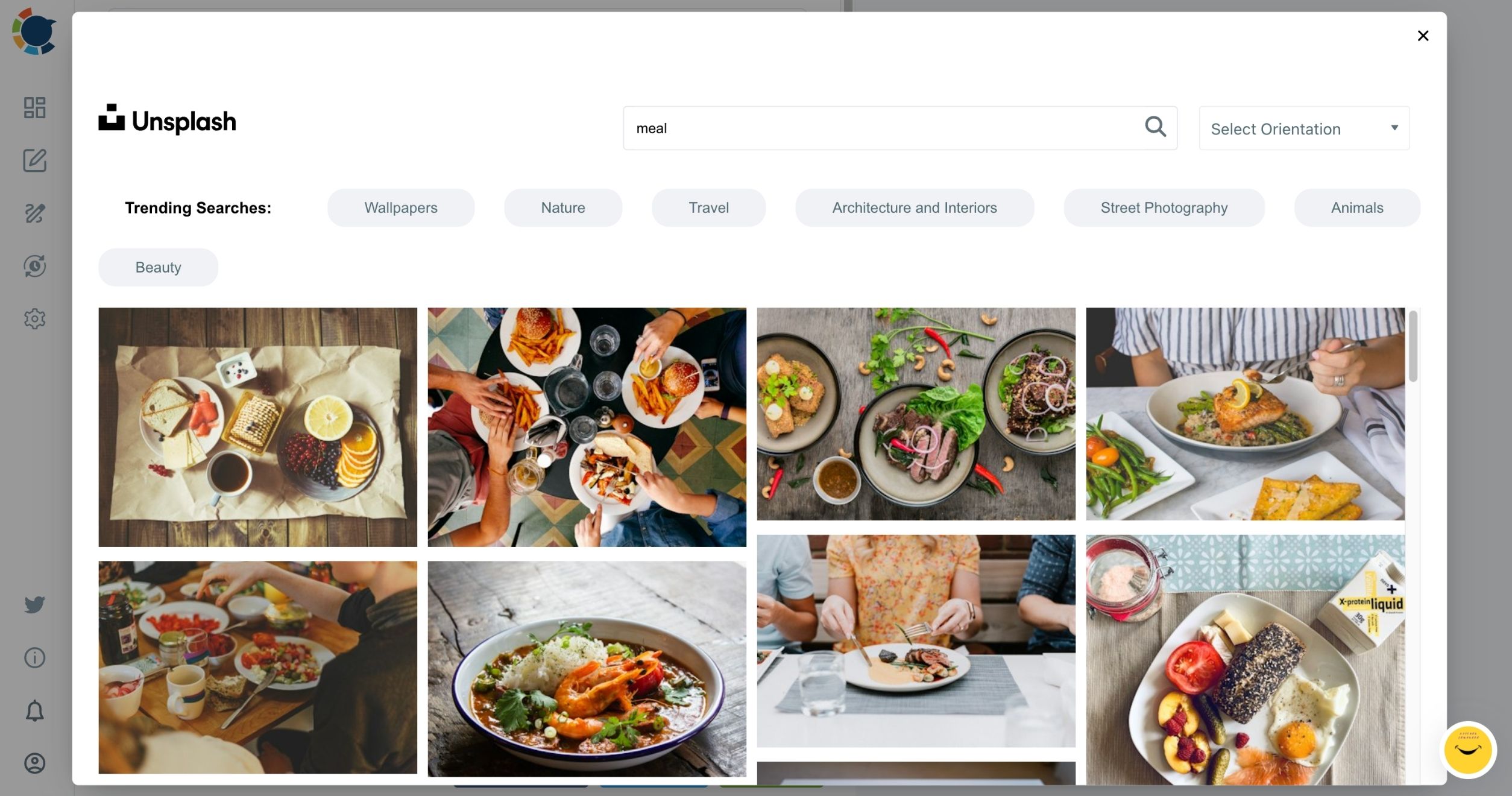
The Unsplash picker is the fastest fallback. Search a word like "meal" and a grid of ready photos appears inside the composer.
For a designed post, the Google Business Profile Post Template page shows templates already sized for Google, which removes the guesswork about dimensions. The principles of social media post design still apply: one subject, readable text, a clear reason to tap.
When the week needs real photos rather than stock, Photo Curation is the page on finding images to share.
Once the visual is in place, the post can be saved, reviewed with the rest of the plan and scheduled later.
How Circleboom Publish keeps Google video posts going
Circleboom Publish keeps a Google Business Profile posting on schedule by letting you write a week of Standard posts, Events and Offers in one sitting, attach clips or photos to each, and give each one its own date and time. That is how to keep a Google Business Profile video schedule without opening the profile every day.
Google's own dashboard can schedule posts too, with a "Schedule this post" switch, a "Repeats" menu and sharing across several managed profiles. The difference in Circleboom Publish is everything around the schedule:
- An AI writer for the post text, included in the membership.
- Account-specific best-time suggestions and a Queue that fills open slots.
- Canva, Unsplash, Google Photos and Giphy inside the composer.
- One Outbox calendar across Google and the other platforms.
The composer opens from the Google Business Specific card on the dashboard, and when only one profile is connected it is selected automatically. If the profile is not connected yet, the help page on how to add a Google Business account walks through that once.
The same clip can also go to Facebook and Instagram from Circleboom's universal composer; when one post goes to several platforms, the strictest limit applies, and for video that is Google's.
A weekly video routine for a small business
A routine that works for a small business with phone-shot clips:
- Shoot three or four clips of 30 seconds or less in one session.
- Upload the single best clip of the place to the gallery in Google.
- Attach the others to Standard, Event or Offer posts in Circleboom Publish.
- Add a still and its alt text to each post, plus a button that fits the clip.
- Schedule them across the week and check the Outbox after they go out.
Multi-location businesses get the most out of this routine. Google Business Profile management covers sending one post to several profiles in one action.
I treat that list as a weekly habit rather than a project, and it is the simplest way I know to keep putting videos on a Google Business Profile without a video editor on staff. A profile that shows a new clip or photo every few days reads as an open, active business.
Why a Google video post failed or shows no media
A scheduled post that did not publish appears in Failed Items in the Circleboom Publish Outbox, with the specific error reason next to it.
The Outbox menu lists four sections, each with a live count:
- Outbox, for posts still waiting for their date.
- Sent Items, for posts that published.
- Failed Items, for posts that were scheduled but not published.
- Drafts, for posts saved before they were finished.
Reading the error reason first saves guessing. Check the clip against the limits in the table above, then look at the connection to the profile.
When a post published but its media is missing, read the help page on missing images on Google My Business posts before reposting.
When failures repeat for one profile, check the connection itself. The page on why a Google My Business account gets disconnected covers that case.
A failed post can be copied with Share Again from Failed Items, fixed and scheduled again.
The same check works as a weekly review. A Failed Items count of zero and a Sent Items list with a clip every few days is the quickest proof that your plan to add videos to your Google Business Profile is running, without opening the profile itself.
Drafts holds anything half finished, such as a post still waiting for its clip.
A video checklist for your Google Business Profile
Use this list before the next clip goes out:
- Trim every clip to 30 seconds or less and keep it under 75 MB.
- Upload one clip of the place to the gallery and give it up to 48 hours.
- Put every other clip into a Standard, Event or Offer post with a matching still.
- Schedule a week of posts in one sitting, then refill before older ones archive.
- Check Failed Items in the Outbox and fix the reason it shows.
A profile that follows those five lines shows customers a business that is open and active this week.
The question was never only whether you can add videos to your Google Business Profile; it was whether you can keep doing it every week without it eating the week.
→ Plan your next video posts for your Google Business Profile
Video upload questions answered
Should I upload my video to the profile's gallery or post it on a schedule?
Use both, for different clips. Upload one clip that shows the place to the gallery in Google, where it stays after review. Put clips tied to a dish, an event or an offer into scheduled posts, which read as news and can carry a button.
Should my Google Business Profile lean on photos or on video?
Photos cover what customers check at a glance, and short videos show movement that a still cannot. Either way, a blurry or dark file makes customers doubt the business itself. Before choosing a mix, read the post on how different types of visual content impact engagement as a next step.
Why is my video still pending on Google Business Profile?
Pending means the media is still uploading or processing, or the profile is not verified yet. Google says it can take up to 24 to 48 hours before photos and videos show, and pending media is not shown to customers on Search or Maps.
What content rules apply to videos and posts on my profile?
Google's photos, videos and posts content policy applies its prohibited and restricted content rules to everything you upload. It also says posts with unverified contact information, such as a phone number in the text, may be removed, so use the Call Now button instead.
Can one Google post hold both photos and a video?
Yes. In Circleboom Publish a Google Business Profile post holds up to 10 images and videos combined, with each image up to 5 MB and each video between 3 and 30 seconds and up to 75 MB.