
A batch of 100 real estate social media posts made with Claude and Circleboom is a useful reminder: daily posting does not require daily writing. The accounts that never seem to go quiet are usually run in batches. This guide shows the three-phase routine that gets a full week of posts drafted, checked and queued in one sitting.
Manual: every post written from scratch, one platform at a time, at roughly 20 minutes each. Circleboom Publish: one weekly sitting where AI drafts posts from your links or notes and queues them to Instagram, Facebook, LinkedIn and Pinterest accounts.
→ Draft a week of social media content at once
Below is how to create content for social media with no time: the full gather, draft and queue routine.
Why "no time" for social media usually means "no system"
Most people who say they have no time for social media are describing a method, not a calendar. They start each post from a blank box, find a picture afterward, pick a time by guessing, and repeat it per platform. Every post becomes a small project.
The trouble is rarely a lack of ideas. The work is scattered across the week in five- and ten-minute pieces, and those pieces are the first to vanish when the business gets busy.
The fix is to change the unit of work. Instead of one post at a time, the unit becomes one sitting that produces a week. That shift is the real answer to how to create content for social media when the calendar is full.
What the scattered method really costs
Every platform you add multiplies the manual work, because the same idea has to be rebuilt, resized and posted again for each network. That multiplication is the most common reason an account goes quiet on at least one of the platforms it claims to be active on.
A batch reverses the math. A couple of hours once a week, or even once a month, can buy daily presence across every account for the stretch that follows. Creating content for social media stops being a seven-day obligation and becomes a bounded task with a start and an end.
Three habits make the sitting short:
- Start from material that already exists: a link, a newsletter, a note.
- Let AI write the first draft, and spend your time editing.
- Release the posts through a queue instead of posting live.
If the blocker is ideas rather than time, a list of B2B social media post ideas gives you raw prompts to feed the routine below. Either way, the routine itself lives in one place, where you create content for social media with AI inside Circleboom Publish.
What changes when AI drafts your social posts and you edit
Circleboom Publish creates social media content with AI: it turns an article link or a pasted text into a draft post for Instagram, Facebook, LinkedIn, Pinterest and other networks, then schedules it from one composer. For a solo operator, drafting and scheduling happen in the same place.
Two AI entry points do the drafting. Generate Post from URL and Generate Post from Text sit in the AI Features menu and rewrite a source into a platform-native post with a chosen goal, tone, language and target platform. The gold AI button inside the composer handles everything after that: prompts, rewrites and one-click edits.
The time math changes because writing turns into editing. Generating a draft takes under a minute; editing it to sound like you takes a few more. A week of posts that once filled several evenings fits into one block, and the social media post generator is where that block starts.
Set up the queue once before the first sitting
The queue is what lets a batch go out on its own. In Time and Queue Settings, each connected account gets its own recurring time slots, and Add Best Times to Post can fill those slots with times suggested from that account's own followers' activity. Do it once, and every later sitting is only about the content.
Keep your review step
Accuracy still belongs to you. Google's guidance on using generative AI content tells website owners to fact-check and review AI output. It also warns that generating many pages without adding value may break its scaled content abuse policy.
That page is written for websites in Google Search, but the habit applies to social posts too: review before you publish.
For anyone working out how to create content for social media with AI for the first time, the order matters more than the tool. Draft from a real source, edit for your own voice, check each network, then queue. Skipping straight from a prompt to the queue is how generic posts reach your followers.
AI saves the writing time; your review is what keeps the post worth reading.
Hands-on with the AI generator: a Facebook post drafted from an idea and finished inside Circleboom Publish.
Where do the visuals come from without a designer?
They come from the composer's media bar, which pulls images without leaving the post. Having no photo on hand doesn't have to stop a post, because the bar offers five sources:
- Unsplash: stock photos for any topic.
- Canva: design a new graphic or edit an existing image.
- Giphy: GIFs for any reaction or topic.
- Google Photos: your own library, without moving files to your device.
- AI Carousel Generator: multi-slide posts from a short instruction.
Picking the right source for each post
The split that saves the most time is simple. Use Unsplash when a real-world photo fits, and Canva when the image needs your brand colors, a quote or a montage. For a stock-first approach across many posts, photo curation covers how to pick images by topic.
Carousels deserve a default slot in the week rather than a special-occasion one. The AI carousel generator builds the slides from one instruction, with editable templates, fonts and colors, so a list post or a step-by-step tip becomes swipeable without design work.
Two smaller habits help on visuals. Pull your own photos from Google Photos when you already have the right shot, since an authentic image of your work usually beats stock for social media content about your business.
On platforms that support image alt text, such as Facebook, Pinterest and Threads, add a short description so people searching that topic can find the post.
One media rule catches people: networks differ. A text-only post can be fine on one network and rejected on Instagram, which needs at least one image or video. That's why the visual comes before the queue in the routine below.
How to create content for social media in one weekly sitting
The process to create social media content in one sitting runs in three phases, in this order.
Gather the raw material before drafting anything
- Log in to Circleboom Publish and start from the dashboard, where the AI Features menu and the Create New Post card sit side by side.
- Confirm every account you post to is connected under Manage Social Accounts in Settings, so the drafts have somewhere to go.
- Collect one source per planned post: a blog link, a newsletter, a news story worth commenting on, or a rough note with no URL.
Draft each post with AI, then add a visual
- Open Generate Post from URL in the AI Features menu and paste the article link into the Enter Article URL field.
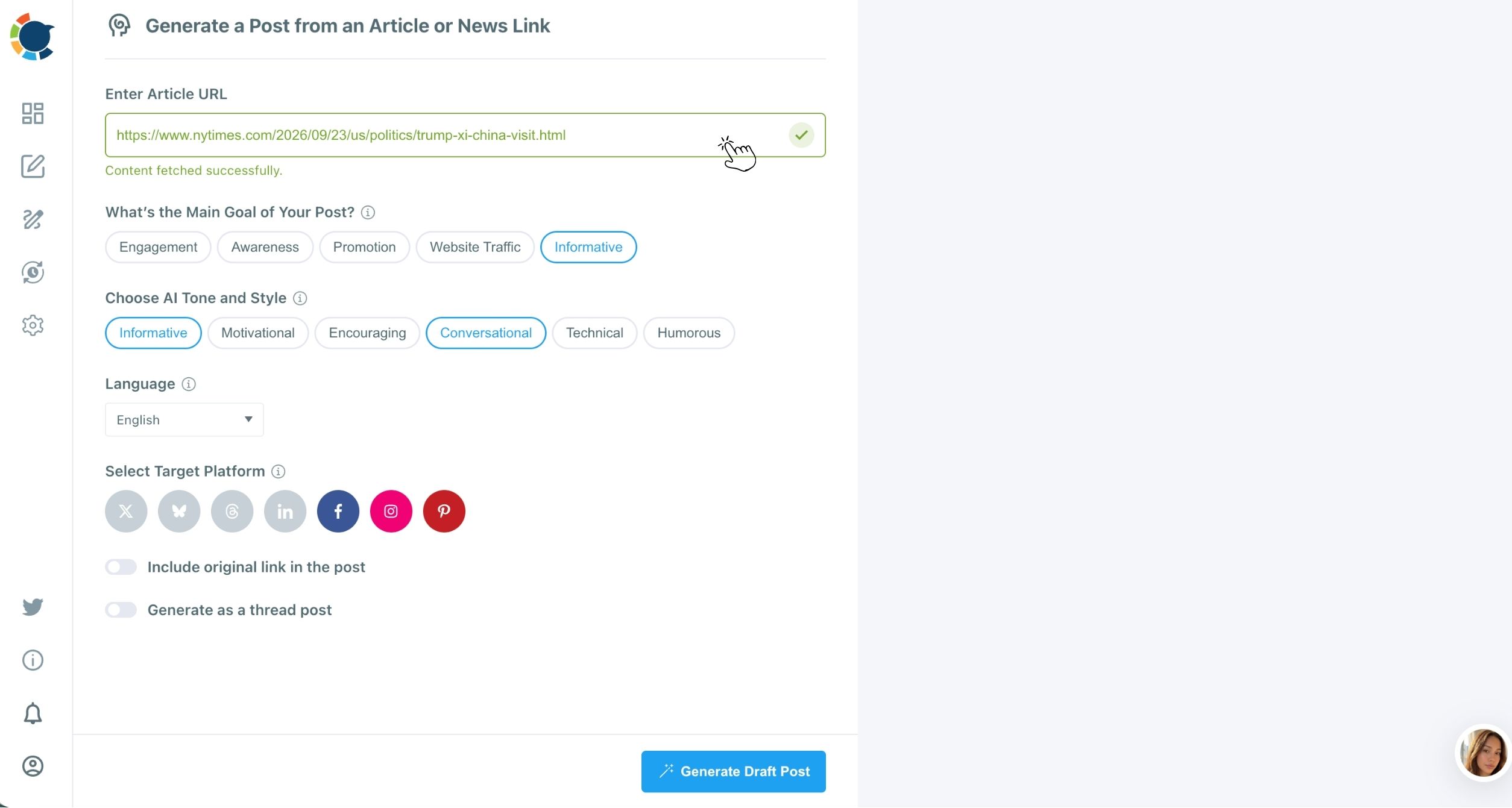
- Choose the main goal, tone, language and target platform, then click Generate Draft Post; for a note with no link, use Generate Post from Text with the same fields.
- Edit the draft in the composer with the AI button's shortcuts, such as Condense, Fix Grammar or Add Hashtags, and attach a visual from the media bar.
Check each network, then queue the week
- Select every account the post should reach in the Create New Post composer, across as many platforms as it fits.
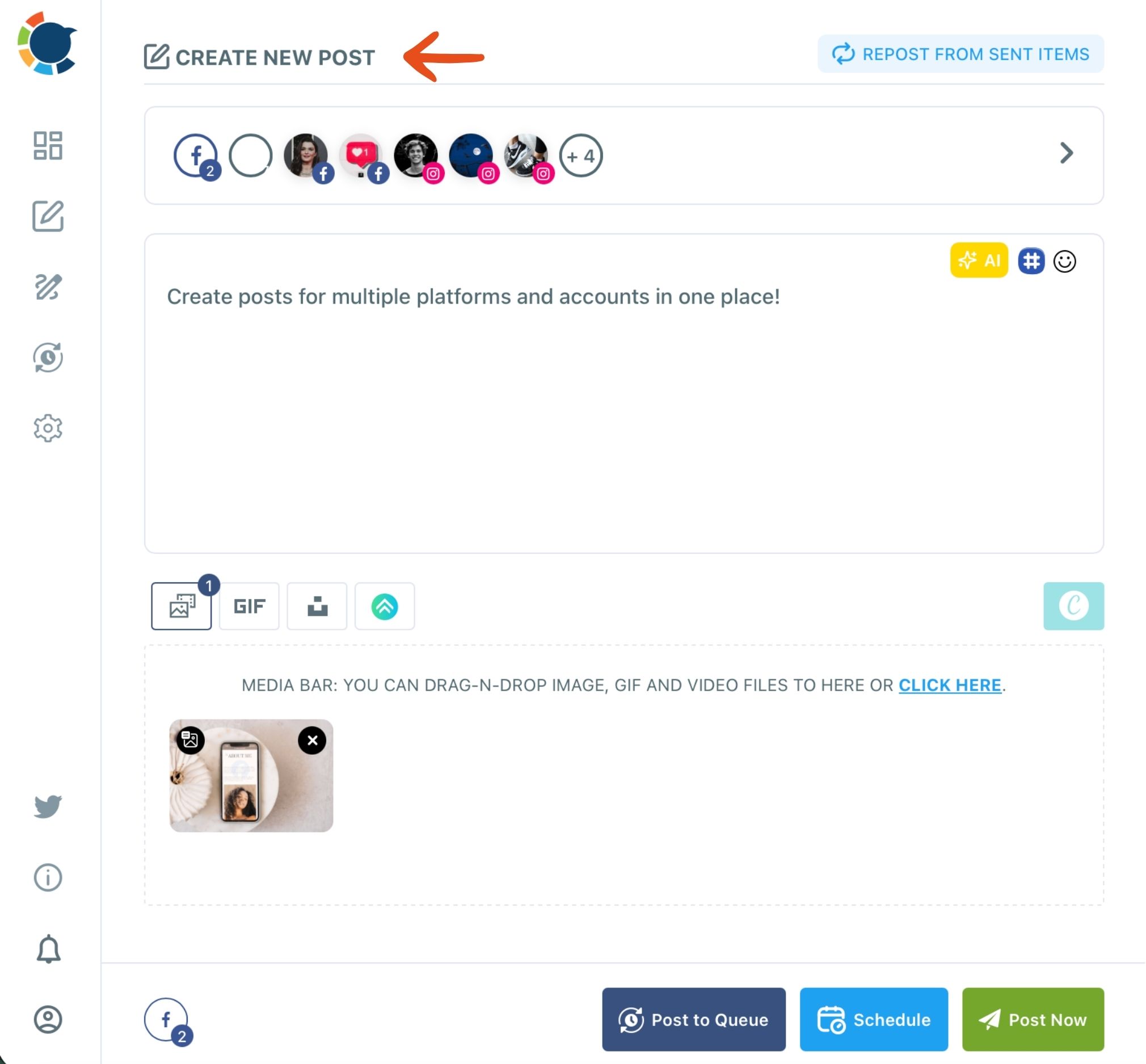
- Open the Post Preview tab for each selected network and fix any caption that runs long or any network that is missing media, using the media limitations for social platforms as your reference.
- Click Post to Queue so each post drops into the next open slot of every selected account's recurring schedule.
Gathering first means you never draft from a blank box, and drafting before queueing means every post is reviewed while you still have the whole week in view.
The AI writer does not apply a platform's character limits on its own, and generated drafts always open in the composer instead of posting by themselves.
That makes the Post Preview check in step 8 the step that keeps a fast batch safe to send.
With the routine in place, the next gain comes from getting more posts out of each source.
Getting drafts for several social platforms from a single article
One article can feed several platforms because Generate Post from URL accepts the same link again with different settings. Run it once for LinkedIn with an Informative goal, again for Instagram with a Conversational tone, and again for Pinterest with Website Traffic as the goal.
Each run produces a new, platform-shaped draft rather than a copy, which is the fastest way to create content for social media across several networks from one piece of writing.
That matters because posting identical text to several accounts on one platform counts as duplicate content, which can limit reach. A regenerated version keeps the message and changes the wording.
Two settings stretch a single source further:
- Language: generate the same article for an audience that reads Spanish, German or Japanese, even if you don't write in it yourself.
- Generate as a thread post: split a long article into a sequence of connected posts on thread-capable networks such as Bluesky and Threads.
A newsletter example
A practical example: a weekly newsletter with three short sections. Paste its link once for LinkedIn with a Website Traffic goal, keep "Include original link in the post" on, and you get a post that sends readers to the full issue.
Run it again for Facebook in a Conversational tone without the link, and again for Instagram, where you pair the draft with a carousel from the AI Carousel Generator.
That's three distinct posts from one source, each edited in the composer before it goes to the Queue. This is the most dependable way to create content for social media when the week has room for only one piece of original writing.
Formats beyond plain text work from the same source too. A quick quiz built from an article's key points invites replies, and the tips on social media quizzes show how to frame one.
Batches of social media content can grow well past a week. The case of 100 real estate posts made with AI shows how far the same gather-draft-queue rhythm can stretch when a niche needs volume.
One good source, regenerated per platform, beats three rushed posts written from scratch.
Which no-time social media route fits your week
The right setup depends on how much time and source material you actually have. Pick the branch that matches:
- If you write a blog post or newsletter most weeks, run the full routine above and regenerate each piece for two or three platforms.
- If you have no writing of your own this week, fill the gaps with articles from Discover Articles.
- If you can spare one sitting a month instead of a week, batch further ahead; the Queue releases the posts slot by slot.
- If some accounts must never go quiet, connect an RSS feed so a trusted source keeps them posting on supported networks.
- If timing is the worry, use Schedule with the suggested best times, or let the Queue automate social media posts and handle the rhythm.
A common mistake is treating the first sitting as a test and never booking the second. Social media content only pays off through repetition, so the second and third sittings matter more than the first.
Every one of these branches works for the same reason: the routine lives in one sitting a week. Pick your branch, block one slot on the calendar, and run it once this week.
→ Begin your first sitting with the AI social media content generator
What people ask about making content fast
Does the AI writing cost extra on top of the plan?
No. The AI button in every Circleboom Publish composer comes included with the membership, so a separate chatbot subscription just for captions isn't needed. If you use AI for wider work, the roundup of AI assistants for social media management compares other options.
Is it fine to share other people's articles instead of writing everything myself?
Yes, and it keeps text-first accounts on LinkedIn, Facebook, Bluesky and Threads active on days without original material. Discover Articles finds pieces matched to the interests you set and sends them to the Queue in one click.
Can I paste any article link into the generator?
Yes. Any article or news URL can go into the Enter Article URL field, not only links found through Discover Articles.