Upload on Instagram when your own followers are online, then plan the whole week by putting every post into those hours instead of the hours you happen to be free.
Guessing from a chart: one set of hours for every account and a week planned around averages. Circleboom Publish: suggests Instagram posting slots computed from your own followers' activity and fills your recurring Queue with them.
→ See the best time to upload on Instagram
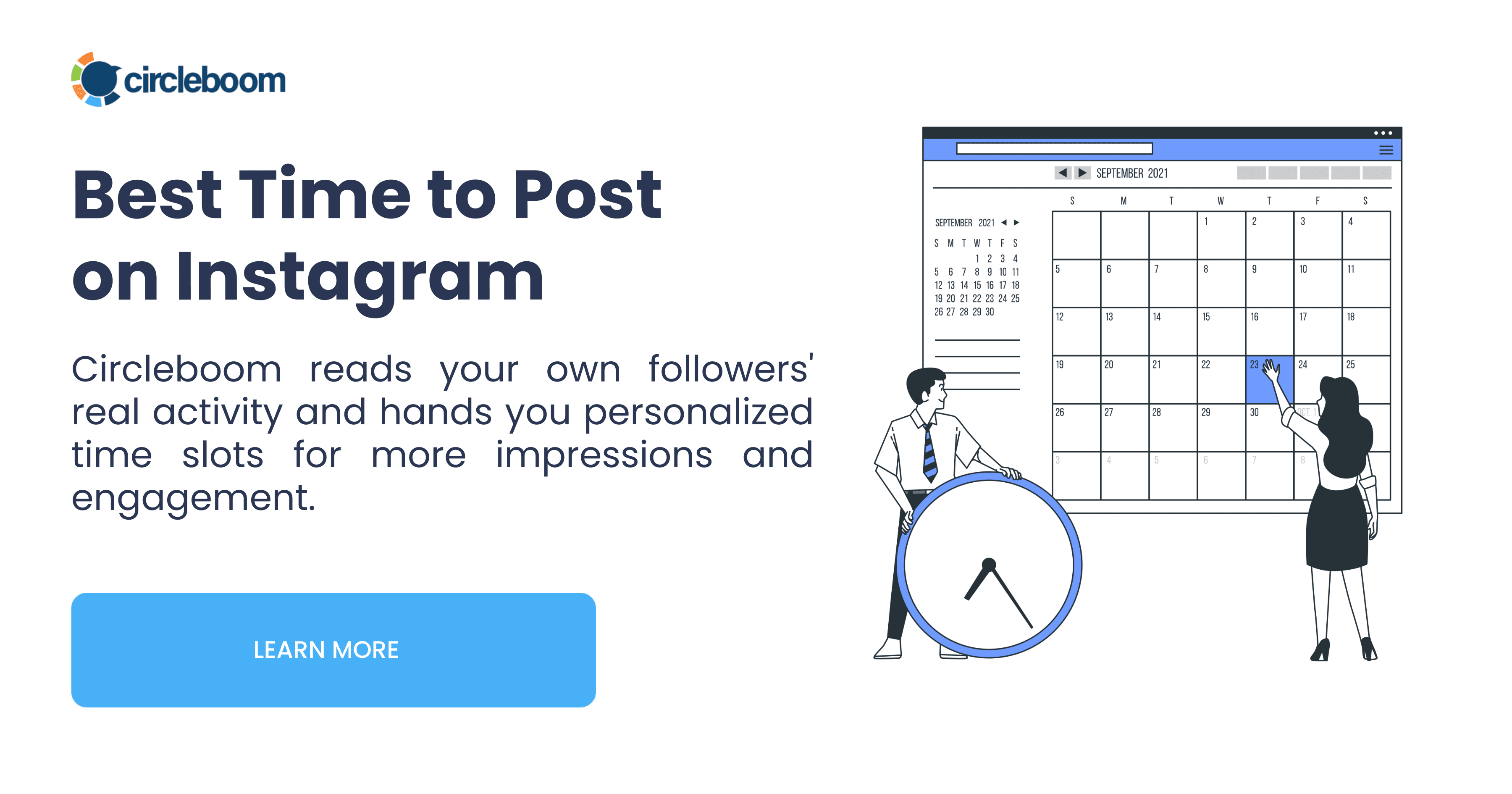
When is the best time to upload on Instagram? The four-step plan below turns those hours into a full week of posts.
The short answer to when you should upload on Instagram
The best time to upload on Instagram is the window when your account's followers are active, and that window is different for every account. A chart built from other people's followers has no way to see that window for yours.
Circleboom Publish schedules Instagram posts into windows measured from one connected account's followers, not from an industry average. It also hands those same windows to the Queue, so a week of posts can run on audience time without a decision per post. That is the idea behind upload times based on your Instagram audience: the hours come from your own followers.
Instagram's ranking rewards posts that earn reactions quickly after they go live. A post that lands while your followers are online has a better shot at that early signal; a post that lands while they sleep starts cold.
Timing leaves the post untouched and decides how many of your followers are there when it arrives.
Why one chart of hours fails most accounts
Most timing advice is a table of weekday lunch hours and early evenings. Those tables average thousands of accounts, so they describe a crowd that does not exist. Your audience might be night-shift workers, students in another country, or parents who scroll after bedtime.
Charts still have a use. They are a starting point when an account is brand new. Later, comparing your own hours with the best and worst times to post on Instagram shows how far your audience sits from the average.
The gap shows up as a mismatch between two schedules. The account owner posts when work is finished, often midday. The followers scroll when their own day allows.
Plan around the first schedule and the second one quietly misses most of your posts.
That is why the Instagram best time to post has to be read from your account rather than looked up. I treat any chart as a hypothesis to test against my own data, never as the plan itself.
A four-step framework for planning an Instagram week by audience hours
The framework has four layers, each one building on the last:
- Start from a chart only until your own data exists.
- Set up a business account so Instagram Insights and a scheduler can work with it.
- Use the per-account suggestions in the Schedule window for single posts.
- Let Add Best Times to Post fill the Queue so the week holds without hand-picked slots.
The first layer is a placeholder. The last layer is where the week starts running by itself, and it is the layer most timing guides never reach.
What audience-hour planning changes in a normal month
The content stays the same; only the hour moves. Take an illustrative account that posts 16 times a month at noon because that is when the owner gets a break, while its suggested windows sit around 7 a.m. and 8 p.m.
Moving those 16 posts into the suggested windows costs one click each in the Schedule window. No new caption, no new image, no extra editing. The same month of work simply reaches more of the followers the account already has, because more of them are online when each post lands.
That is why I call timing the cheapest lever on Instagram. You can find when to post on Instagram for your account once, and every post after that inherits the answer.
The suggestions are not frozen, either. A follower base changes as it grows, so the windows are worth a fresh look every so often rather than being written down once and trusted forever. Circleboom has not published how often the suggestions refresh, so a periodic glance at the panel is the safe habit.
Which Instagram account type do you need before any of this works?
You need a professional account, and for Circleboom Publish specifically a business account. Instagram's guide about professional accounts on Instagram explains that a professional account can be set to Business or Creator, and Insights depend on having one.
Insights are where Instagram itself shows follower trends, including the times your followers are most active. Instagram's page about Instagram Insights ties that view to a professional account with at least 100 followers.
The switch happens in the Instagram app: Settings, then Account, then Switch to Professional Account, then the business details. An existing account can be converted rather than started from scratch.
On the scheduling side, Circleboom's help answer to do you support personal Instagram accounts is direct: posting runs through business accounts, and converting is free. Circleboom Publish reads follower activity from the account you connect; it does not need you to export anything from Insights.
How to plan your Instagram uploads around your audience's hours
Planning a week by audience hours means two things: scheduling single posts into the account's suggested slots, and turning on Add Best Times to Post so the Queue fills recurring slots with the same computation. The steps below cover both, in the order you meet them inside Circleboom Publish.
Schedule single posts into your account's suggested slots
- Log in to Circleboom Publish with the account you use for your brand, so the suggestions you see belong to the audience you are planning for.
- Connect your Instagram business account under Manage Social Accounts, then open the Instagram composer from the Instagram Specific or Reels card.
- Compose the post and click Schedule to open the SCHEDULE YOUR POST window with its calendar, Set Time field and "Pick your best post time" panel.
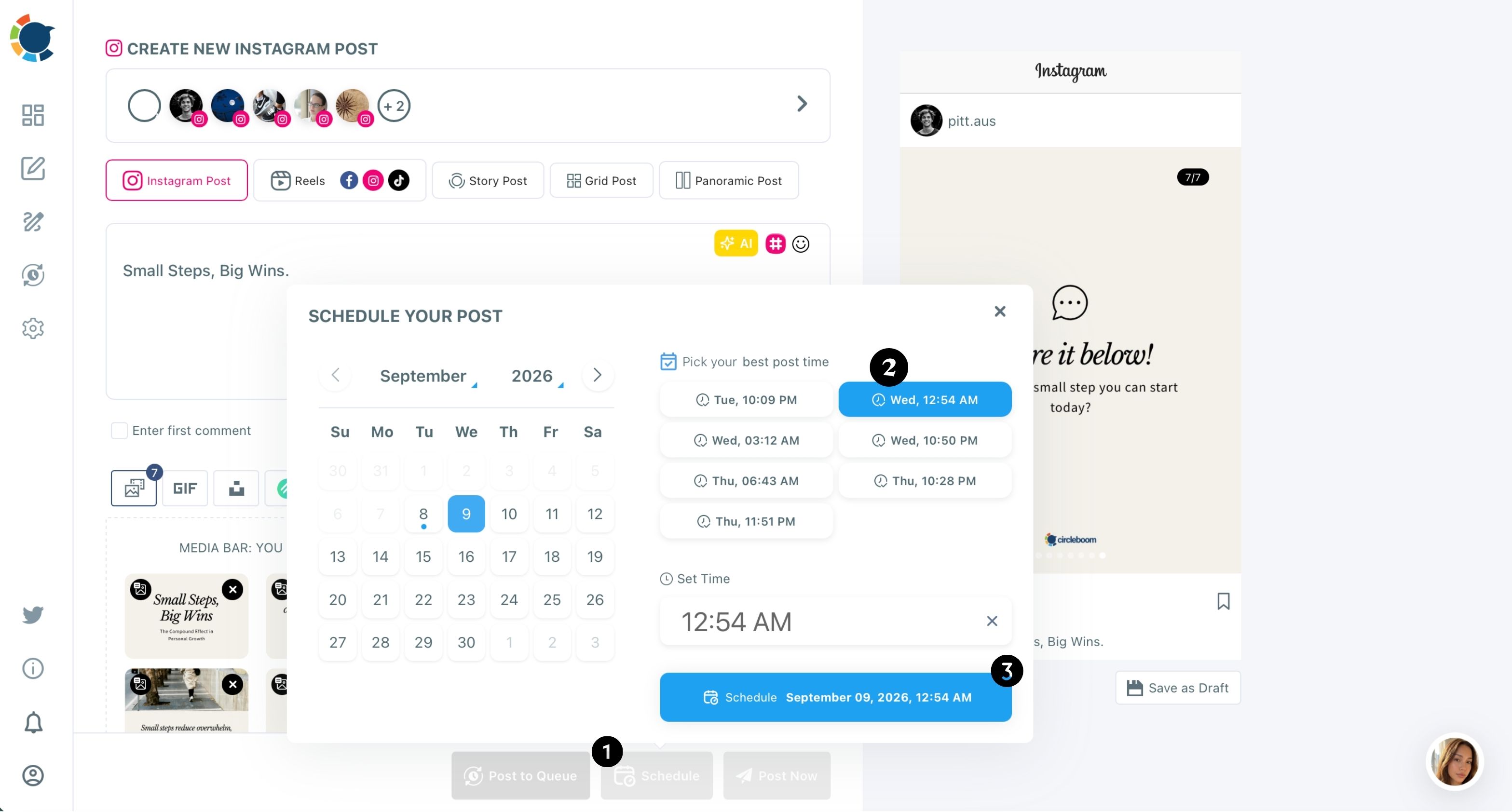
- Click one of the suggested slots to fill the date and time, then confirm with the Schedule button at the bottom of the window.
Let the queue hold the rest of the week
- Open Time and Queue Settings from the Settings menu, pick the Instagram account, and turn on Add Best Times to Post.
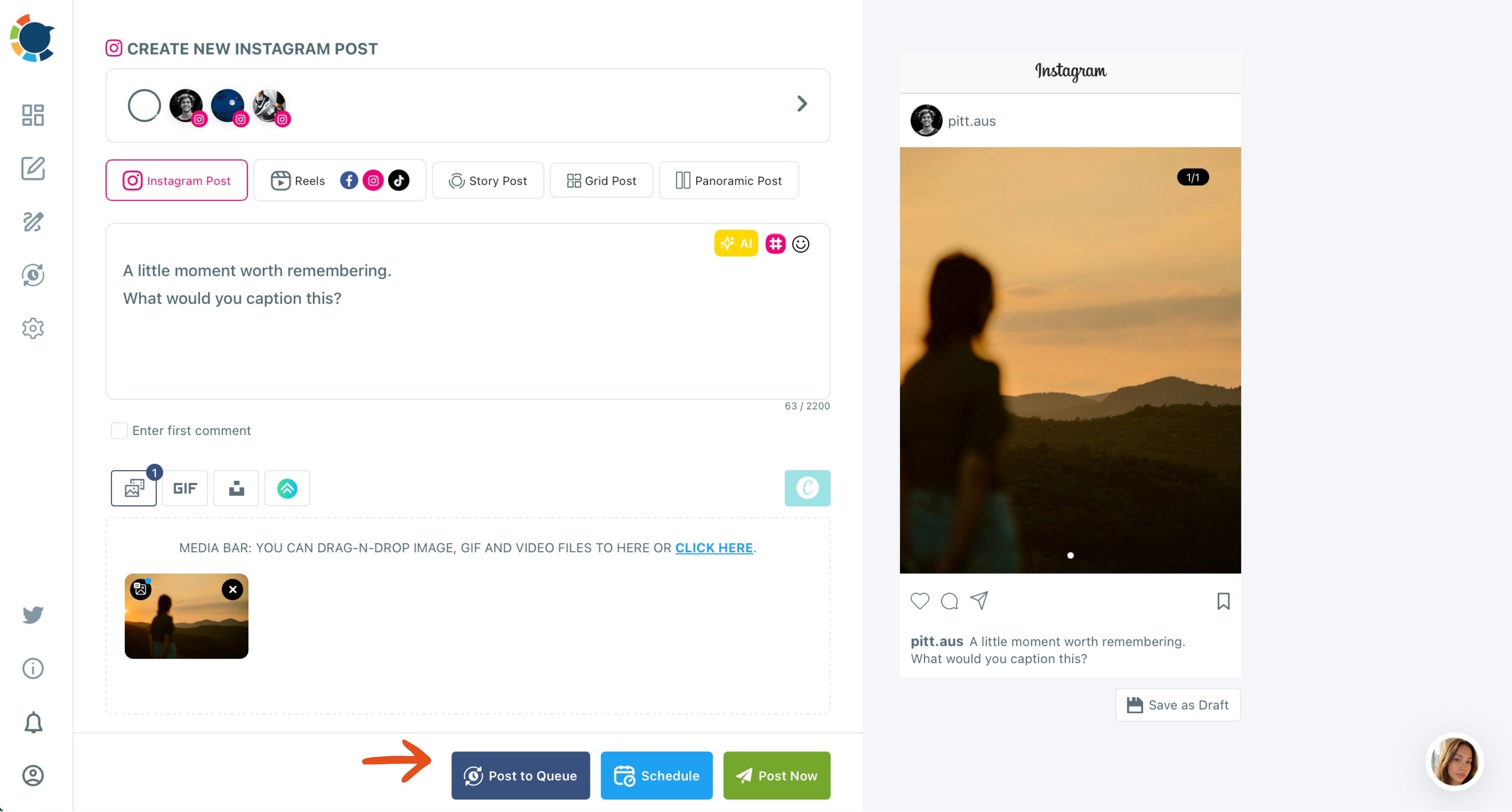
- Send each new post with Post to Queue from the composer instead of Schedule, so it takes the next open slot.
- Review the week in the Outbox List or Calendar View, and move anything that sits too close to another post.
The sequence matters: the account and its follower data come first, single posts prove the suggestions on real content, and the Queue then repeats that timing on every post without a new decision.
Skip the Queue step and the plan lasts only as long as your patience for picking slots.
In short: business account, suggested slot per post, Add Best Times to Post for the Queue, Outbox to check the spread.
How the queue keeps a whole week on audience time
Turning on Add Best Times to Post fills every future recurring Queue slot with the same follower-based computation that powers the Schedule window. You plan the week once, and no slot is chosen by hand after that.
That is the difference between knowing your hours and using them. Picking a slot post by post is the kind of habit that fades by the second busy week. The Queue removes the choice entirely: Post to Queue drops the post into the next open slot, and the slot was already set to an audience hour.
The Queue is configured per Instagram account in Time and Queue Settings, so two accounts can run two different weekly rhythms. If your audience lives in another region, the time zone set for each account in the same settings decides when those queued posts go out.
How auto posting on Instagram is set up, so the Queue keeps publishing on days you never log in.
The Queue is the engine behind the auto poster for Instagram.
For the wider routine, see how to auto post on Instagram.
Two habits keep an automated week healthy. Queue a mix of formats rather than one post type, since feed posts, Reels and Stories reach people in different parts of the app. And open the Outbox now and then, because a Queue that runs unattended for a month can drift from what the brand is saying this week.
Batch the week in one sitting, then let the slots do the work
The Queue covers recurring posts. For a launch week or a campaign with fixed dates, regular scheduling does the batching: prepare the posts one after another in the composer, give each its own suggested slot, and review the spread in the Outbox.
That is what Circleboom means by the option to bulk schedule Instagram posts. A week's or a month's content gets set up in one session instead of one post a day.
A practical split for a small brand:
- Recurring feed posts and Reels go to the Queue.
- Dated posts, such as a sale announcement, get a scheduled slot.
- Anything urgent goes out with Post Now.
The Instagram scheduler carries all three paths in one composer, so the week's plan lives in one calendar instead of three tools.
Planning mistakes that undo good Instagram timing
Good hours can still be wasted by how the week is assembled. Three mistakes come up again and again.
Breaking a Grid sequence. A Grid Post only reassembles on the profile when its tiles go out in an exact, uninterrupted order. Queue another post between two tiles and the picture breaks, so schedule a grid as one block of dated slots rather than letting the Queue mix it with other posts.
Sending one caption to every account. Selecting several Instagram accounts and posting identical text to all of them at the same hour reads as duplicate content. Give each account its own caption, even when the image and the slot are shared.
Stacking posts in neighbouring slots. A busy week can leave two posts minutes apart in one audience window while the next window sits empty. The Outbox Calendar View makes those clumps easy to spot and spread out before they go out.
Good timing comes from how the whole week is built.
Does a scheduled Instagram post get less reach than a live one?
What decides early reach is when a post lands, and a scheduled post can land at exactly the right hour. A scheduled post in a suggested slot reaches followers while they are online, and that early response is the signal Instagram's ranking weighs.
The question does scheduling Instagram posts affect engagement has its own article if you want the longer argument.
The comparison worth making is with Meta's own scheduling tools:
| Question | Meta's own scheduler | Circleboom Publish |
|---|---|---|
| When does the post go out? | At a time you pick | At a time suggested from your followers' activity |
| Where does it go? | One account | Many accounts in one action |
| What about next week? | You pick again | Add Best Times to Post fills the Queue |
Native scheduling picks a time and posts to one account. Circleboom Publish decides when a post should go out from the account's own data, and keeps doing it for every queued post.
Posting at a suggested time instead of a random one is tied to up to 300% more engagement, though it is no guarantee: it removes timing as a cause of underperformance.
To judge the result after a few weeks, compare reach and impressions for posts that went out in suggested slots against older posts in Circleboom's Instagram post analytics.
Plan once, post on audience time
A chart tells you when the average account's followers are online. Your followers are not the average. Read their hours, give every queued post one of them, and the week takes care of itself.
The best hour to upload is the one your audience already chose.
→ Find the best time to upload on Instagram for your account
What People Ask about Instagram upload times
Do Reels and Stories use the same suggested times as feed posts?
Yes. Scheduling works the same way across all five post types in the Instagram composer, so Reels and Stories use the same per-account suggestions. Reel-specific timing has its own deeper answer in the guide to the best time to post Reels on Instagram.
How many times a week should I upload on Instagram?
A healthy rhythm is three to five feed posts a week, three to five Reels a week and two to four Stories a day. Consistency matters more than volume, so set the Queue to a number of weekly slots you can fill with posts you are proud of.
Is there a limit to how many posts I can schedule in one day?
Instagram enforces a platform-level cap of roughly 25 posts per account per 24 hours. A week planned around audience hours stays far below it.