You can post on Instagram from a desktop in three ways: Instagram's own website, Meta Business Suite, or a publishing dashboard such as Circleboom Publish. The right route depends on whether you only need to upload a file, or also need to schedule it, add a first comment and send a Reel on to other platforms.
What this answer covers.
• Instagram's website posts a reel from a computer through Create, Post and Select from computer.
• Meta Business Suite on desktop creates and schedules posts for a Facebook Page and an Instagram profile.
• Circleboom Publish posts and schedules feed posts, Reels and Stories from one desktop composer, with a first comment and best-time slots.
Circleboom Publish is an Instagram publishing suite that uploads files from your computer and schedules them to Instagram for the hours your followers are active. Upload and schedule Instagram posts from your computer.
Three ways to post on Instagram from a computer, compared
Each desktop route posts to Instagram, but they cover different parts of the job. The table below is built from Instagram's and Meta's own help pages and from what the Circleboom Publish composer offers. Where a help page does not describe a feature, the cell says so rather than guessing.
The fourth column is the route covered step by step below, and the scheduler page shows how to post on Instagram from a computer in that setup.
| What you need | instagram.com in a browser | Meta Business Suite on desktop | Circleboom Publish |
|---|---|---|---|
| Formats | Reels from a computer via Create, then Post | Posts to a Facebook Page, an Instagram profile or both; up to 10 photos for Instagram | Five tabs: Instagram Post, Reels, Story Post, Grid Post, Panoramic Post |
| Scheduling | Not described on that help page; the flow ends with Share | Schedule with Active times suggestions | Schedule up to two months ahead, best times from the account's own followers, or Post to Queue |
| Music | Not described on that help page | Not described on that help page | Add Music library on Reels and Stories |
| Cross-posting | Not described on that help page | Facebook Page and Instagram in one post | One Reel to TikTok, YouTube and Facebook from the Reels tab |
| First comment | Not described on that help page | Not described on that help page | Written and scheduled with the post |
What Instagram's website does on desktop
Instagram's help page on recording a reel, computer version, covers uploading from a desktop. You click Create, then Post, then Select from computer, set the cover photo and trim, and add a caption, location, tags and alt text before pressing Share.
The same page says reels can run up to 20 minutes, while reels over 3 minutes are not recommended to new audiences. For a single upload you want live right now, this route works.
The length ceiling is far above what tends to perform. A Circleboom test of Reel lengths found that 15 to 30 seconds drew the strongest engagement, long enough to say something and short enough that viewers finish it.
What Meta Business Suite does on desktop
Meta's guide to creating and managing posts in Meta Business Suite describes the desktop flow: Create post, pick a Page, an Instagram profile or a group, and customize the text per platform. Instagram posts take up to 10 photos.
Scheduling there offers Active times suggestions, and scheduled posts can later be edited, rescheduled, moved to drafts or deleted. It suits accounts whose plan revolves around a Facebook Page and its linked Instagram profile.
Because the text can be customized per platform in one composer, the Facebook caption and the Instagram caption do not have to match.
What Circleboom Publish adds on desktop
Circleboom Publish gives Instagram a dedicated composer in which feed posts, Reels, Stories, Grid posts and Panoramic posts are written, timed and published from one browser window. Its additions sit around the file rather than in the upload itself.
Five of them change how a desktop session runs:
- Account-specific best times. The "Pick your best post time" panel suggests slots from the connected account's own followers, not a generic chart.
- Formats in one place. Grid and Panoramic posts are prepared and scheduled in the same composer as feed posts, Reels and Stories.
- A first comment. Enter first comment on a feed post, or Add first comment on a Reel, publishes your own comment with the post.
- The Queue. Post to Queue drops posts into recurring slots per account, and Add Best Times to Post can fill those slots with suggested times.
- One calendar. The Outbox shows every scheduled post in a List or Calendar View, filtered by post type, platform or account.
The Story Post tab belongs in that list too. It takes one image or video, stays Instagram-only, and leaves through the same Schedule, Post Now and Post to Queue buttons as every other format.
Other desktop tools worth comparing
Some readers weighing these routes are really choosing a planner, and the review of the best Instagram feed planner for desktop takes that question on.
If the comparison is wider than three routes, the roundup of best Instagram scheduler apps sets more tools side by side. For the route this article walks through, begin at the Instagram scheduler.
The routes differ less in how they upload than in what happens around the upload: timing, the first comment and where else the file goes.
Which desktop route fits your Instagram account?
The route follows the job. Three situations cover most readers:
You need one post live right now. Instagram's website is enough. Upload from the computer, write the caption, add alt text and share it. Nothing has to be connected first.
Your plan centers on a Facebook Page and its Instagram profile. Meta Business Suite fits, since it creates one post for both and schedules it with Active times suggestions.
You publish several formats a week, plan ahead, or post video beyond Instagram. A publishing dashboard such as Circleboom Publish fits. It keeps feed posts, Reels and Stories in one composer, times them from the account's own audience, and can send a Reel on to TikTok, YouTube and Facebook.
Take a bakery that posts a daily special as a photo, a weekly Reel of the morning bake and a few Stories. A one-off photo could go out through Instagram's website.
But the Reel also belongs on TikTok and YouTube, the Stories need to go out on days the owner is busy at the oven, and the daily photo performs better at the hour its followers are scrolling. That mix points to the third route.
Anyone handling several Instagram accounts lands in the third group as well. The account selector in the Circleboom Publish composer can tick more than one Instagram account for the same post, and Share Groups save a set of accounts for one-click selection.
What your Instagram account needs before a desktop tool can post
A third-party publishing tool can only post to an Instagram business account that is linked to a Facebook Page. Scheduling tools connect through Instagram's business integration, so the account type decides what works before any file is uploaded.
Check these four things before the first upload:
- The account is a professional business account. Personal and creator accounts cannot receive automated posts through Instagram's API, so a creator account has to switch to business.
- The business account is linked to a Facebook Page. The link is made from the Page's settings, in its Instagram menu.
- The account is connected in Circleboom Publish. Connect it under Settings, then Manage Social Accounts, with the CONNECT NEW ACCOUNT button.
- Your plan has room for it. The Manage Social Accounts screen shows usage against the plan's account allowance.
Not sure which type you have? The help page on how to see your Instagram account type shows where Instagram's own settings display it. Switching from creator to business takes a moment inside the app.
Linking the Instagram account to a Facebook Page
The link is made on the Facebook side. Open the Page from the Pages menu on Facebook, go to its Settings, choose Instagram, then click Connect Account and Continue. Instagram asks you to log in, and the business account links to the Page automatically.
If you change the Instagram account type later, review that Facebook link again. A type change is one of the reasons a previously working connection stops posting.
How to post on Instagram from desktop with Circleboom Publish
To post on Instagram from a desktop with Circleboom Publish, open the Instagram composer, choose the tab that matches your file, upload it from your computer and either publish it or schedule it into a suggested time. The caption, hashtags and first comment are written in the same window, so the post leaves complete.
The four steps below follow that order, and they are the shortest route to publish to Instagram from desktop without a phone in the loop.
- Log in to Circleboom Publish and stay on the computer where your edited photos or videos are saved.

- Open the "Instagram Specific or Reels" card to reach CREATE NEW INSTAGRAM POST, select the Instagram account, and choose the tab: Instagram Post, Reels, Story Post, Grid Post or Panoramic Post.
- Upload the file from your computer and write the caption. Feed images take JPG up to 8 MB each, video up to 300 MB; add hashtags with the Hashtag Generator and tick Enter first comment for anything extra.
- Click Schedule and press the final Schedule button after choosing a date and a slot from "Pick your best post time," or use Post Now to publish at once.
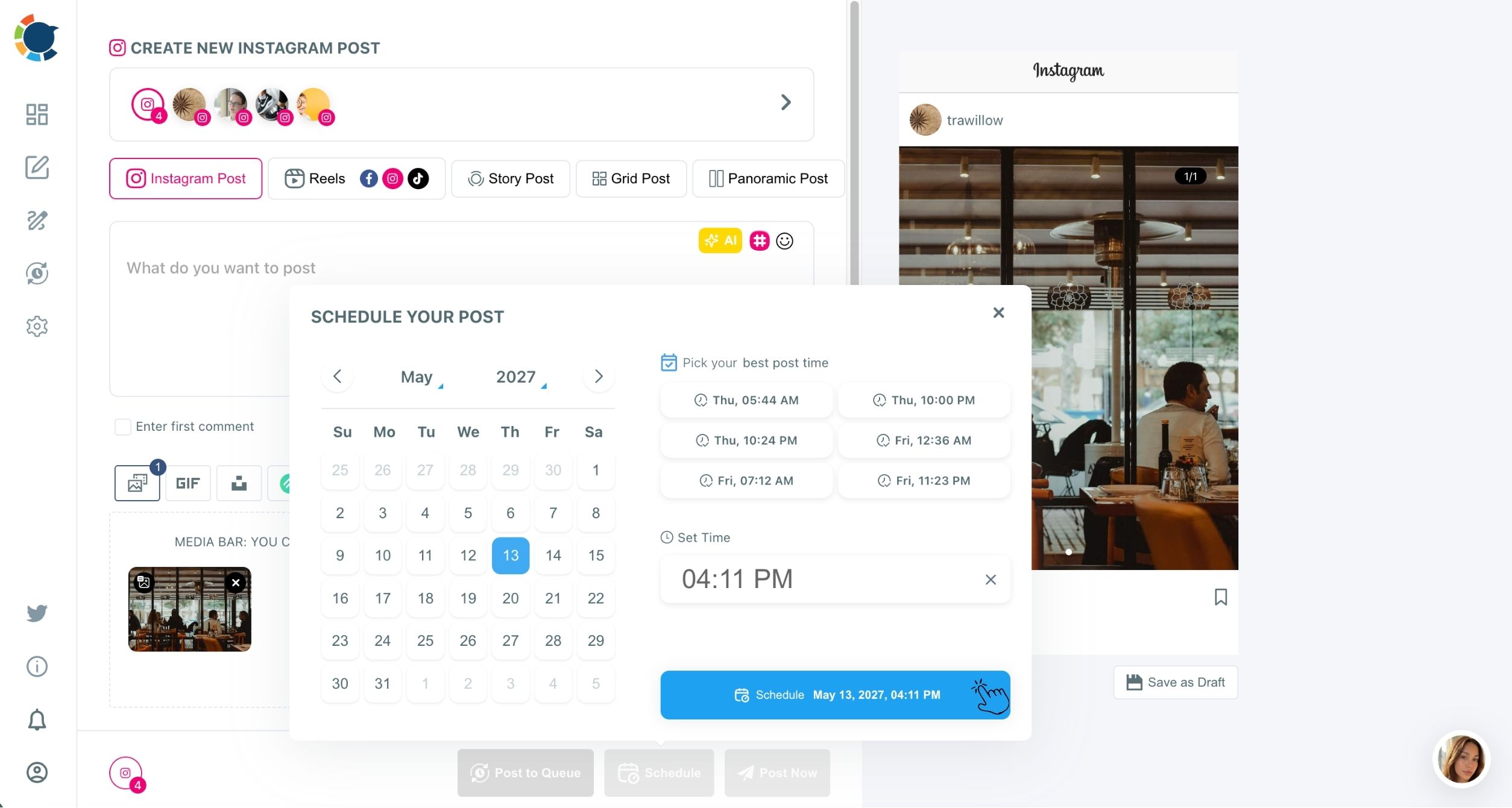
Choosing the tab before uploading keeps each file inside the limits of its format, and scheduling from the same window means the timing decision is made with the account's own audience data in view.
Where your Instagram files can come from besides the computer
The composer's media bar is not limited to files on your hard drive. It also pulls from Google Photos, Unsplash, Giphy and Canva, so a desktop session can use a picture that only exists in a phone's cloud library or a stock photo you have not downloaded.
Google Photos is the useful one for phone shooters. Once the library is connected, pictures taken on the phone are available in the composer on the computer, so the phone never has to be the posting device even when it was the camera.
From Google Photos to an Instagram post: the Circleboom walkthrough for pictures that never reached your computer.
GIFs come in through the Giphy button in the same bar, and the guide on how to post a GIF on Instagram covers the format side.
Canva and Unsplash for visuals you never shot
Canva is the option for anyone without a designer. Its button sits in the composer, so a promo graphic or a quote card can be designed and scheduled without opening another tab.
Unsplash covers the other common gap, a background or mood photo you never shot yourself.
For content with several beats, such as a list or a before-and-after, try the AI Carousel Generator. It sits in the same media bar and turns a short instruction into a set of designed slides that attach to an Instagram Post as a carousel.
If a post does not go out, it appears under Failed Items in the Outbox with the specific error reason, so the cause is visible from the same desktop session.
Your desktop Instagram checklist
Posting on Instagram from a computer works best when the account, the file and the timing are settled before the upload. The first session takes the longest, because the connection and the habits are new; after that, each post is short work in one window. Use this list for the first session:
- Confirm the account is a business account linked to a Facebook Page.
- Export photos as JPG under 8 MB and videos under 300 MB before uploading.
- Pick the tab first, then upload, then write the caption and first comment.
- Schedule into a suggested best time instead of posting the moment you finish.
- Fill recurring slots with the Instagram auto poster Queue once a weekly rhythm is set.
→ post on Instagram from your desktop
What to Know about Instagram's desktop upload
Should I schedule Instagram posts from my desktop instead of posting each one right away?
Yes, for anything finished ahead of time: posting the moment content is ready follows your schedule, not your followers'. Schedule into the best time to post on Instagram for your account. For a steady rhythm, the Queue described in the guide to auto-schedule Instagram posts keeps the feed active on busy days.
Can a Reel uploaded from my desktop also go to TikTok, YouTube and Facebook?
Yes. The Reels tab has Add TikTok Account, Add YouTube Account and Add Facebook Account dropdowns, and a Reel sent to all four must be 60 seconds or less and under 300 MB. The video cross-posting page covers that send in full.