
Quick Answer: To download tweets from a public X account in bulk:Log in to Circleboom TwitterOpen the Export Tweets tool under the Essential Toolbox menuEnter the target username and select date rangeChoose content type (original tweets, replies, retweets, all)Apply any additional filters (keyword, language, engagement threshold)Run the export and download the CSV when complete
X provides limited native tools for downloading tweet history beyond your own personal archive. For any analysis project, AI training dataset, content audit, or research workflow that needs another account's tweet data, the standard path is Circleboom's Export Tweets feature, which runs through the official X Enterprise API.
This guide walks through the export end to end.
What the Tool Can and Cannot Export
The Export Tweets tool can pull:
- All publicly visible tweets from any public account
- Original tweets, replies, retweets, quoted tweets, or combinations
- Tweets within specific date ranges
- Tweets containing or excluding specific keywords
- Tweets above or below specific engagement thresholds
- Media URLs and engagement metrics per tweet
What it cannot pull:
- Tweets from protected (private) accounts you don't follow
- Deleted tweets (gone from the platform entirely)
- Direct messages
- Drafts or unpublished content
- Media files (only URLs; download files separately if needed)
Step 1 — Authorize Circleboom with Your X Account
Open Circleboom Twitter and complete the OAuth handshake. Token-based authorization, one-time setup. The authorization is for your account; the data you export is from the target account whose username you specify.
Step 2 — Open the Export Tweets Tool
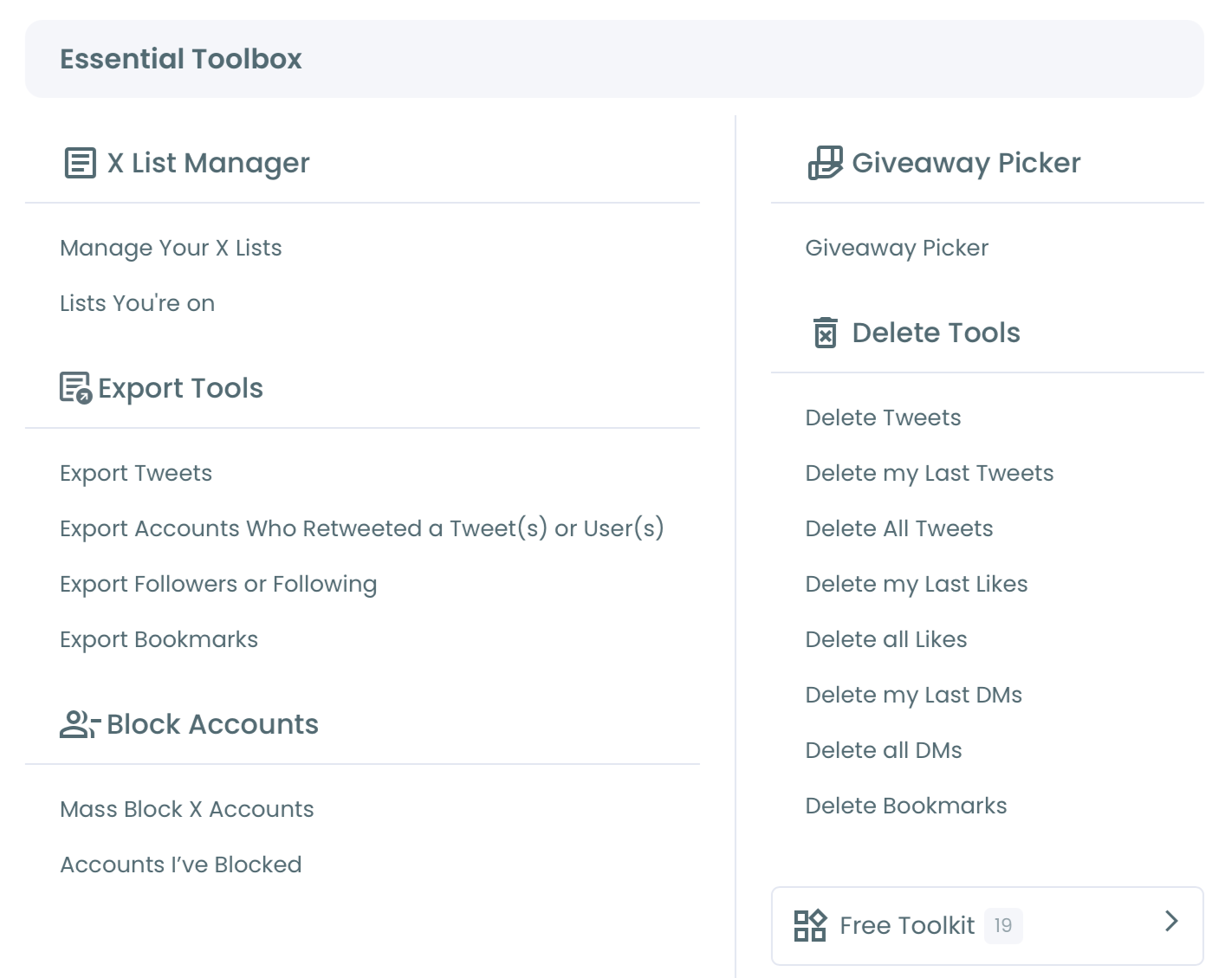
Navigate to the Essential Toolbox menu and select Export Tweets. The tool sits alongside the other export features (Export Followers, Export Bookmarks, Export Retweeters).
Step 3 — Enter the Target Username
Type the X username of the account whose tweets you want to download. Circleboom verifies the account exists and is public.
For protected accounts you follow, the export only works if your authorized account has follow access.
Step 4 — Set the Date Range
The date range filter narrows the export window. Common patterns:
- Recent activity: last 30 to 90 days for current voice analysis
- Time-bounded research: specific event windows (e.g., a campaign period)
- Historical analysis: longest available range for trend studies
- Pre-vs-post study: two narrower windows for comparison
The full available range varies by account and platform-side data retention. Older tweets are typically accessible but the export may take longer for very deep historical ranges.
Step 5 — Choose Content Types
Select which content types to include:
- Original tweets only — the account's own posts, no replies or retweets
- Replies — the account's replies to other tweets
- Retweets — content the account retweeted
- Quoted tweets — quote-retweets with the account's commentary
- All content — combined dataset
For voice analysis or stylometric work, original tweets only is the cleanest training signal. For audience research, all content gives a fuller picture of activity patterns.
Step 6 — Apply Additional Filters (Optional)
Three optional filters that narrow the dataset:
- Keyword include or exclude — pull only tweets containing or not containing specific terms
- Language filter — limit to specific languages
- Engagement threshold — pull only tweets above a like or retweet floor
The filters are useful for narrowing very large historical exports to a specific topical subset.
Step 7 — Run the Export
Click Export. Circleboom verifies the parameters and queues the export through the official X API.

The dashboard shows progress as the export runs. Typical timing:
- Under 1,000 tweets — under 2 minutes
- 1,000 to 10,000 tweets — 5 to 15 minutes
- 10,000 to 50,000 tweets — 20 to 60 minutes
- Over 50,000 tweets — multi-hour, runs in background
The export does not require you to keep Circleboom open. You can close the browser and return later; the run continues server-side.
Step 8 — Download the CSV
When complete, Circleboom surfaces a download link. The output is a CSV with one row per tweet, containing:
- Tweet text
- Posted timestamp (UTC and local)
- Tweet URL
- Like count, retweet count, reply count, quote count
- Media URLs (if present)
- Tweet type (original, reply, retweet, quoted)
- Reply-to tweet ID (for replies)
The CSV opens directly in Excel, Google Sheets, or any spreadsheet tool. For programmatic use, the CSV is parseable by any standard library.
What to Do with the Export
Common workflows for downloaded tweet data:
- Voice or stylometric analysis — train a model on the account's voice patterns
- Content audit — review all tweets in a date range for compliance, brand consistency, or research
- Engagement analysis — identify which tweet topics produced the highest engagement
- Historical archive — back up your own or another account's tweet history
- Research dataset — feed into academic or commercial research projects
- Trend analysis — identify topical or stylistic shifts over time
Watch the download all tweets demo on YouTube for a walkthrough of the export workflow.
What About Your Own Tweet Archive?
For exporting your own tweet history specifically, X provides a personal archive download from your account settings. The X-side archive is more comprehensive (includes drafts, deleted tweets that are still in your archive, full media files) but takes 24 to 48 hours to generate.
For most analysis purposes, Circleboom's Export Tweets is faster and more flexible. For full archival purposes, use the X personal archive.
Platform Rules and Ethical Considerations
Public tweets are public; downloading them through the official API is within X's developer terms for analysis and research purposes.
Where the line moves: republishing the downloaded content as your own, using it to misrepresent the source author, or feeding it into bot systems that present generated content as the source author's own posts. These cross into platform rule violations and broader ethical issues.
The technical capability of bulk downloading doesn't grant license for any use; the standards for use depend on the project.
Related Resources
For the export context: the export tweets to Excel or CSV guide, the download all tweets from a user piece, the export tweets X posts walkthrough, and the download tweets step-by-step guide.
For the related export hubs: the Export Twitter Accounts page for follower/following exports, the Export Twitter Analytics page for analytics data, and the broader Twitter management toolkit.
The X help center documentation on managing your content covers the platform-side rules.
FAQ
Can I export tweets from any account?
Public accounts: yes. Protected accounts: only if you follow them. Suspended or deleted accounts: no, the data is gone from the platform.
How recent are the exported tweets?
The export includes tweets up to within minutes of when it runs. Real-time content is captured if the account posts during the export.
Can I schedule recurring exports?
Yes, Circleboom supports scheduled recurring exports for ongoing data collection.
What about retweet authors and engagement details?
The export includes engagement counts but not the specific users who liked, replied, or retweeted. For that level of detail, use the Export Retweeters tool separately.
Is there a cost per export?
Exports are part of Circleboom Twitter's standard plans; volume limits depend on plan tier.
How do I handle very large exports?
For exports over 50,000 tweets, expect multi-hour runs. The export continues server-side; you don't need to keep the browser open.
Conclusion
Downloading tweets from public X accounts is a routine workflow through Circleboom's Export Tweets tool, with date range, content type, and filter options that narrow the dataset to exactly what your project needs. The export runs through the official X API and produces a clean CSV ready for any downstream analysis.