
Most advice treats a vacation queue as a tool choice: pick a scheduler, pick some times, go. The tool is the short part. What decides whether your account is in good shape when you return is what you queued, what you checked before leaving, and what you expected to go wrong.
By hand: one pass through X's composer for every post, repeated for each day you are gone. Circleboom: one CSV upload, and Circleboom schedules up to 1,000 posts on X through official X Enterprise APIs, each at its own date and time.
→ schedule tweets
Below: the route for each kind of post, the five steps, and the failures worth planning for.
What it takes to schedule tweets for a vacation on X
To schedule tweets for a vacation, you need three things in hand before you leave: the posts written, a date and time on each one, and a queue you have looked at once. Everything else is detail.
The usual mistake is to solve only the middle item. People pick times, load posts, and leave without asking which posts belong in an unattended queue or what happens when one of them does not publish.
A 14-day absence changes the math as well. At three posts a day that is 42 posts, which is well past the point where scheduling one at a time stays accurate. It is more practical to schedule tweets ahead of a trip from a single spreadsheet than to repeat the same composer steps 42 times.
One spreadsheet is the plan for the whole absence
Circleboom's Bulk Schedule imports a CSV file and schedules each valid row as a post on X at the time written in that row. The file is the plan. The upload turns the plan into a calendar.
There is a reason to schedule tweets for the gap instead of going dark. Steady posting keeps an account visible, and a two-week hole is the opposite of steady. One upload of 30 posts fills a month at one post a day, so a 14-day gap is well inside what a single file covers.
Short on material for 42 rows? There is a separate read on how to generate your next tweet automatically.
What one CSV upload covers on Twitter, and the rules the file follows
Circleboom queues a full absence by reading one CSV file, validating every row, and scheduling the valid rows in a single confirmed action. Bulk Schedule sits inside Circleboom's Twitter Scheduler, next to the composer used for individual posts.
The file follows fixed rules:
- Four exact headers: text, image_url, labels and posting_time.
- At least one of text or image_url in every row.
- A posting_time on every row of a timed import, written as YYYY-MM-DD HH:mm.
- Each time at least 15 minutes in the future at upload.
- No more than 1,000 rows per file.
One file can hold far more than any vacation needs, so the limit you will meet first is your own material, not the tool.
What happens between the upload and the schedule
Nothing is scheduled the moment you upload. Circleboom first shows a validation summary with the number of valid and invalid posts, above a preview table of every row. You can filter that table by status or search it by keyword, which matters once a file runs to several pages.
From the preview you choose one of two actions. Schedule Posts sends the valid rows to the publishing queue. Add to Collection stores them for later, which is the right home for any post you are not ready to leave unattended.
Two smaller rules are easy to miss. A label in the labels column is accepted only if it already exists in the account; an unknown one is ignored with a warning. And the CSV file itself is not kept after the import, so hold on to your spreadsheet.
Who is publishing for you while the account is unattended
For two weeks, a tool acts on your account while you are not looking, so it is fair to ask who that tool is. Circleboom is a verified Enterprise partner of X, named on a list X maintains. The posts go out under the authorization you gave when you connected the account, which is also why that connection has to stay intact while you are away.
When the content is already written, this is the fastest way to schedule tweets: one upload, one review, one confirmation.
Product video: a bulk upload that schedules a batch of tweets and cross-posts it to other networks.
https://www.youtube.com/watch?v=4nLCTEuKAb8
Native X scheduler, one CSV upload or the planner composer: which fits 14 days away?
For 14 days away, a single CSV upload fits the bulk of the posts, the planner composer fits the few threads and polls, and X's own scheduler fits only a handful of single posts. The three routes are not rivals. Each one has a different limit.
| Route | How posts get in | What it handles | Its limit for a 14-day absence |
|---|---|---|---|
| X's own scheduler | One post per pass through the composer | Single posts | 42 posts means 42 separate passes, and accuracy drops with repetition |
| One CSV upload in Circleboom | A spreadsheet, uploaded once | Up to 1,000 text or image posts, each with its own time | A row is one post, so no threads and no polls |
| Circleboom's planner composer | One item written and scheduled at a time | Threads of up to 25 tweets, and polls | One item per session, so it suits the special posts, not the whole run |
X describes its built-in option on its Scheduled Posts help page. Its guide on how to use X Pro covers that product. Both are designed around composing a post and then giving that one post a time.
How to choose a route by the shape of your content
Match the route to what you plan to publish:
- A few single posts and nothing else: the native scheduler is enough.
- A full run of single posts: the CSV upload.
- A thread or a poll somewhere in the run: the planner composer for that item.
- A mix of all three: the CSV for the run, the composer for the exceptions.
Most 14-day plans end up in the last group. The run of daily posts goes in the file, and one or two set pieces are added by hand.
Everything lands in the same queue, so the routes combine cleanly. Circleboom's Outbox lists imported posts, threads, polls and cross-posted items together in publish order, which lets you see the whole absence in one view instead of three.
If cost is part of the decision, compare the options against a free Twitter scheduler before you commit.
Can a thread or a poll be queued for X while you are away?
Yes. Threads and polls can both be scheduled ahead in Circleboom's X Post Planner composer, but not through the CSV, because one row always equals one post.
Threads: up to 25 tweets, queued as one entry
A thread scheduled through Circleboom can hold up to 25 tweets. Each tweet in it follows the same character and media limits as a standalone post.
In the queue, the thread appears as one grouped entry instead of 25 loose posts. Opening it brings the whole thread back into the composer, so a late correction to tweet seven does not disturb the rest.
The Schedule Twitter Thread page shows the option. For a vacation, one thread in the middle of the run is a good way to break a long row of single posts.
Polls: four options and a clock that runs without you
A scheduled poll takes up to four options of 25 characters each, with a duration between 5 minutes and 7 days. A poll cannot carry an image, GIF or video in the same post.
The duration matters more than usual when you are away. A poll opens at its scheduled time, runs for the length you set and closes on its own. Nobody is there to follow up while it is live, so pick a question whose result stands without a reply from you.
One more product detail: a post submitted with both a poll and media fails at publish time. Check that before you leave, not after. There is a fuller answer to whether you can schedule a Twitter poll if polls are a regular part of your content.
Circleboom's Schedule Twitter Polls page is the entry point for the option itself.
How to schedule tweets on Twitter for the days you are away
To schedule the posts for an absence, prepare a CSV with one row per post, upload it to Circleboom's Bulk Schedule, clear the rows that fail validation and confirm the batch. The file carries the content and the times, and the import only schedules rows that pass its checks. The five steps below run that flow in two phases.
Open the importer and load your file
- Open Circleboom Twitter and connect the X account that will post while you are gone.
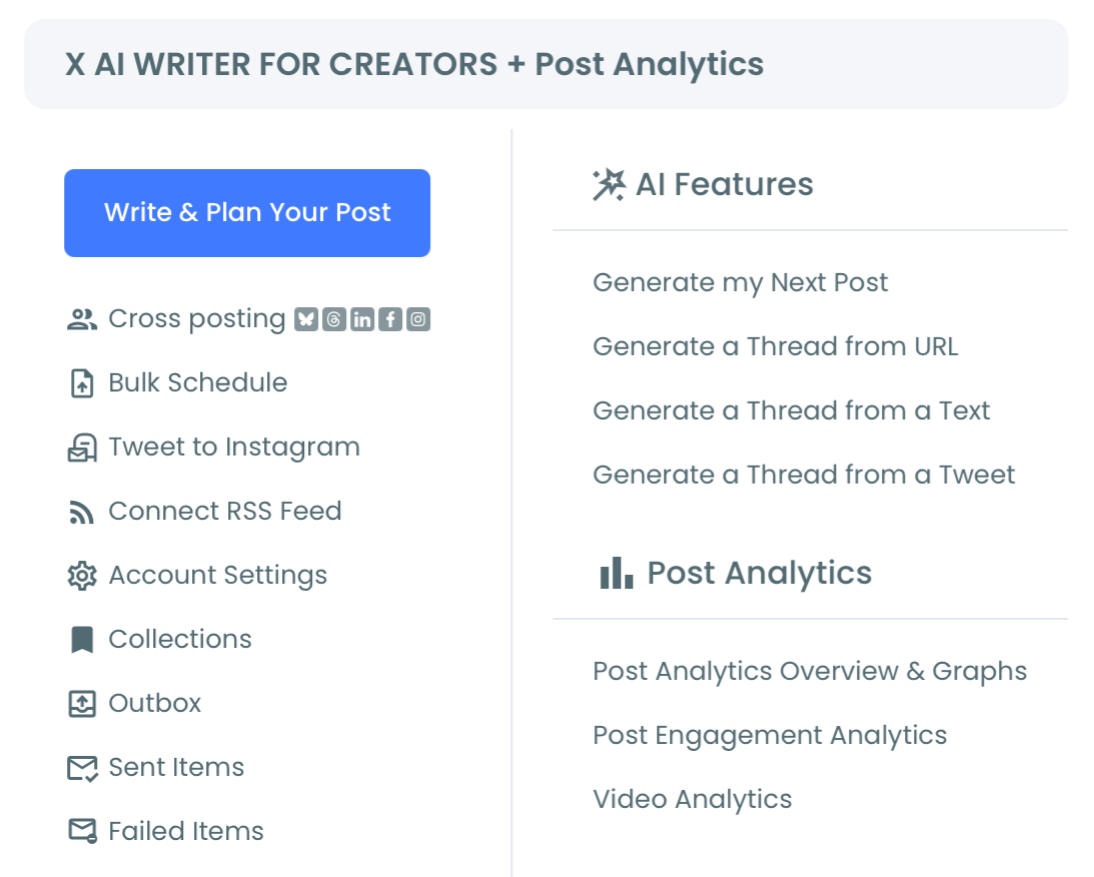
- Go to the X Post Planner menu and choose Bulk Schedule.
- Upload your CSV in the import window, either by dropping the file or selecting it, then click Next. The window also offers a Sample CSV Template if the file is not built yet.
Validate the rows, then schedule them
- Review the validation summary. It shows how many posts are valid and how many are invalid. Filter to the invalid ones, click Back, correct the spreadsheet and upload it again.
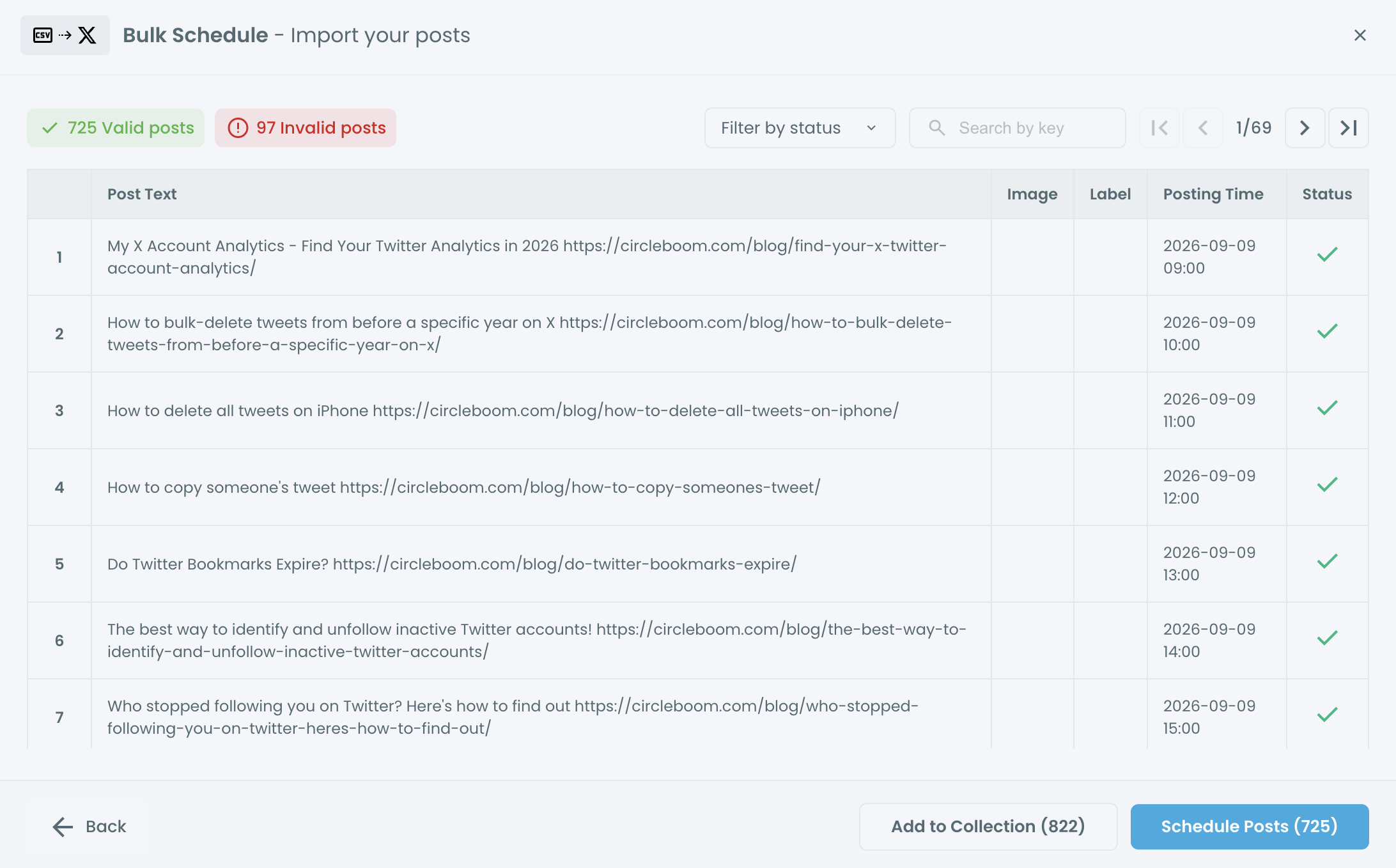
- Click Schedule Posts to queue every valid row. The count on the button tells you how many posts are being scheduled.
Validation sits between the upload and the schedule for a reason: a spreadsheet mistake repeats across many rows, and the summary shows the damage as a number before a single post is queued. Fixing the file and uploading again is cheaper than repairing a calendar.
In one line: open the importer, load the file, clear the invalid rows, schedule the valid ones.
What to expect if a scheduled tweet fails on X while you are away
A scheduled post that fails does not disappear: it moves to Failed Items with its content, its intended publish time and the error reason. That list is the first thing to open when you return.
Passing validation and publishing are two separate events. A row can be valid at upload and still fail on the day.
Validation checks the file. Publishing depends on conditions at the scheduled moment, and some of those can change after you have left.
| What went wrong | Why it happens | What fixes it |
|---|---|---|
| Authorization error | The X connection expired after a password change, a two-factor change or a revoked app permission | Reconnect the account, then retry |
| Media error | The image link needed a login, redirected or was no longer reachable at publish time | Replace the media, then retry |
| Duplicate content | The text matched a recently published post | Edit the text so it is distinct |
| Rate limit | Too many publishing actions fell in one short window | Wait, then spread the times out |
Read the pattern before you retry
The spread of failures tells you the cause. One failed post with a media error is one bad link. Several posts failing around the same time with the same error usually means the connection itself was lost.
The failure I plan around is the authorization one, because it takes every later post with it. A retry will fail again until the account is reconnected, so the order is always cause first, retry second.
Lower the odds before you leave
Most of these failures can be prevented from home. Three habits cover the common causes:
- Open every image link in a private browser window to confirm it loads without a login.
- Leave your X password, two-factor setup and connected apps untouched until you are back.
- Space the posting times instead of stacking many posts in the same few minutes.
None of this changes what the file looks like. It changes whether the conditions at publish time match the conditions at upload.
Recover the posts that did not go out
Failed Items offers three ways to bring a post back:
- Add to Queue, when the problem was temporary.
- Schedule Again, to pick a new time after a fix.
- Reshare, for a quick second attempt.
Cross-posted copies fail independently. A failed LinkedIn copy does not mean the X post failed too, so check each platform's entry before assuming the whole day was lost.
Your checklist before you leave: queue, check, expect
A vacation queue holds up when the three parts of this article are done in order. Work through them the day before you go:
- Queue the daily run with one CSV upload, and add any thread or poll in the composer.
- Check that every image link in the file opens without a login.
- Check that the X connection and any cross-posting destinations are still authorized.
- Leave your password and two-factor settings unchanged until you are back.
- Expect to open Failed Items first on your return, and fix causes before retrying.
The whole list fits into your last evening at home. Once it is done, the batch of scheduled tweets is something you can stop thinking about for 14 days.
Run the checks while you can still act on them. People who schedule tweets and skip the checks tend to learn about a broken image link or a lost connection from an empty timeline. People who check first learn about it at their desk, with time to fix it.
→ Schedule your tweets before you leave
Questions about tweets that post while you are away
Do I adjust the posting times if I will be hours ahead of home?
No. Scheduled times follow the time zone set for the connected account in Circleboom's Account Settings, not your location. Write every posting_time in that zone, wherever you will be. Changing the setting later does not move posts that are already scheduled.
Where do I review the whole queue before I leave?
In the Outbox. Every scheduled post stays there until it publishes, and it can be edited, rescheduled, moved to Collections or deleted. Changing a post after it has gone live is a different task, covered under how to edit tweets.
Can the same upload post to LinkedIn, Threads or Bluesky as well?
Yes, when cross-posting is configured for the batch and each destination is connected and authorized before you confirm. A destination whose connection expires later fails on its own, even when the X post publishes.
Should every tweet I had planned go into the vacation queue?
No, only the evergreen ones: tips, questions and opinions that do not depend on a date or a news event. I hold back anything tied to a live moment and leave a few slots open, because a queue cannot tell when the context has changed.