Popular launch advice says to pick one platform and grow slowly. A new business does better with twelve planned posts, spread from weeks before opening to the end of the first month, and sent to every platform its customers use at once.
How to introduce your new business on social media: publish posts in three stages: before opening (teasers, founder story, behind the scenes), opening day (announcement, offer, directions) and the first month (thanks and useful posts). Circleboom Publish drafts each launch post with AI and schedules it to Instagram, Facebook, LinkedIn, Pinterest and Google Business Profile accounts in one send.
→ Generate new business introduction posts for social media
The twelve examples, the order they go out and the setup behind them are below.
Why a single announcement post is not enough for a new business
A single "we're open" post reaches the people already following, and a new business has almost nobody following. The announcement needs posts before it to build an audience and posts after it to keep that audience.
The usual mistake is treating launch as a day. Accounts are created the week before, one announcement goes out, and the owner gets busy. By week two the profile looks abandoned, which is the opposite of what a new business needs.
Circleboom Publish is a social media scheduler for ten platforms, with an AI writer inside its composer and one send that reaches any mix of accounts. Circleboom Publish also turns a rough note into a finished draft through its Generate Post from Text tool, which suits owners who know what they want to say but not how.
You can draft new business launch posts with AI once the plan below is in place.
A launch plan, in practice, has three parts:
- Twelve posts, each with one job.
- A timeline, so each post lands at the stage where its job makes sense.
- One send per post, so every platform gets it at the same moment.
Which launch post goes out when, from teaser to thank-you?
The twelve examples below run from about two weeks before opening to the end of the first month. Each row names the post, its purpose, the platforms it suits best and a one-line sample you can adapt.
| Stage | Post | Purpose | Suits | Sample line |
|---|---|---|---|---|
| Before opening | 1. Teaser | Create curiosity | Instagram, Facebook | "Something new is coming to Elm Street. Two weeks." |
| Before opening | 2. Founder story | Put a face to the name | Facebook, LinkedIn | "I spent ten years fixing bikes for other shops. This one is mine." |
| Before opening | 3. Behind the scenes | Show the space taking shape | Instagram, Facebook | "Shelves up, paint drying, coffee machine arriving Thursday." |
| Before opening | 4. Meet the team | Introduce who customers will meet | Instagram, LinkedIn | "Meet Ana, who will remember your order by week two." |
| Before opening | 5. First products | Show what is on sale | Instagram, Pinterest | "Our first six blends, roasted in small batches." |
| Before opening | 6. Countdown | Fix the date in memory | Every platform | "Three days. Doors open Saturday at 9." |
| Opening day | 7. Announcement | Say it is open, with date and time | Every platform, at one minute | "We're open. Come say hello." |
| Opening day | 8. Opening offer | Give a reason to visit this week | Facebook, Google Business Profile | "First coffee free all week with this post." |
| Opening day | 9. Opening event | Invite people to a dated event | Google Business Profile, Facebook | "Grand opening party, Saturday 4 to 7 pm." |
| Opening day | 10. How to find us | Remove the last obstacle to visiting | Google Business Profile, Instagram | "Corner of Elm and 3rd, blue door, parking behind." |
| First month | 11. Thank you | Close the loop with the first visitors | Instagram, Facebook | "Two hundred of you came in week one. Thank you." |
| First month | 12. First useful post | Start the habit that outlives launch | Every platform | "Three ways to keep beans fresh at home." |
The samples are illustrations for a made-up shop; replace the details with your own.
Before opening: posts 1 to 6
Pre-opening posts build the audience the announcement will need. The teaser and countdown fix the date; the founder story, team and behind-the-scenes posts give people a reason to care before they have bought anything.
The founder story works best as the first long post. For a model of the very first post on one network, see this guide to a first business post on Facebook.
Opening day: posts 7 to 10
Opening-day posts do practical work. Post 7 is the one that must appear everywhere at the same minute, which the scheduling section below covers.
On Google Business Profile, post 8 fits an Offer post and post 9 an Event post, which shows its date range in Google Search and Maps. Post 10 removes doubt about where to go, which matters most for customers arriving from a map.
The opening-day posts are also where most owners run short of time, so they are the ones to schedule first. Loading posts 7 to 10 a week early means the morning of the opening goes to customers, not to a phone. That is the practical core of how to introduce your new business on social media without losing the opening day to it.
First month: posts 11 and 12
First-month posts keep the new accounts from going quiet. Post 12 is the bridge to normal life: a useful post on your topic that you can repeat weekly.
Set up a Queue for each account in Time and Queue Settings, and every new useful post drops into the next open slot without picking a time. When you run out of ideas, shared articles on your topic and RSS feeds from a trusted source can fill the gaps between your own posts.
Online shops follow the same timeline with different subjects: product photos instead of a storefront, shipping details instead of directions. These social media tips for ecommerce adapt the sequence to a store with no front door.
A launch is twelve small jobs, not one big post.
Treat these as examples to introduce your new business on social media, then rewrite every sample line in your own words.
How do you get the same handle on every platform for a new business?
Check your business name across every platform at once before creating any account, then claim the same handle everywhere. Matching handles let a customer who finds you on one platform find you on the next without guessing.
The Circleboom Username Generator takes one base word, such as the shop's name. It returns styled variations for 14 platforms, each labelled "Likely Available." That label is a strong first pass, not a live check, so confirm the handle on the platform itself before signing up.
Matching handles also make every launch post easier to write. The same name can go in every caption, on every printed card by the till and on the shop window, with no footnote explaining which platform uses which spelling.
The order that avoids rework is simple:
- Run the name through the generator and pick a variation that is free on every platform you need.
- Create the business accounts with that handle, one platform at a time.
- Finish each profile, including a bio that says what the business is and where.
That last step decides whether a visitor follows. A striking Instagram bio says what you sell, where, and why to follow. The same logo and colours on every profile keep the brand consistent from the first post.
How to introduce your new business on social media with Circleboom Publish
To introduce your new business on social media with Circleboom Publish, connect the new business accounts and turn each launch idea into a draft with Generate Post from Text. Then send each finished post to every account with one scheduled date and time. The six steps below run in three phases, from login to a scheduled launch.
Connect the new business accounts
- Log in to Circleboom with the account that will own the business's social profiles.

- Open Manage Social Accounts from the gear icon and click CONNECT NEW ACCOUNT for each new business profile.
Draft the launch posts from notes
- Open Generate Post from Text in the AI Features menu and paste the note for one example, such as the founder story.
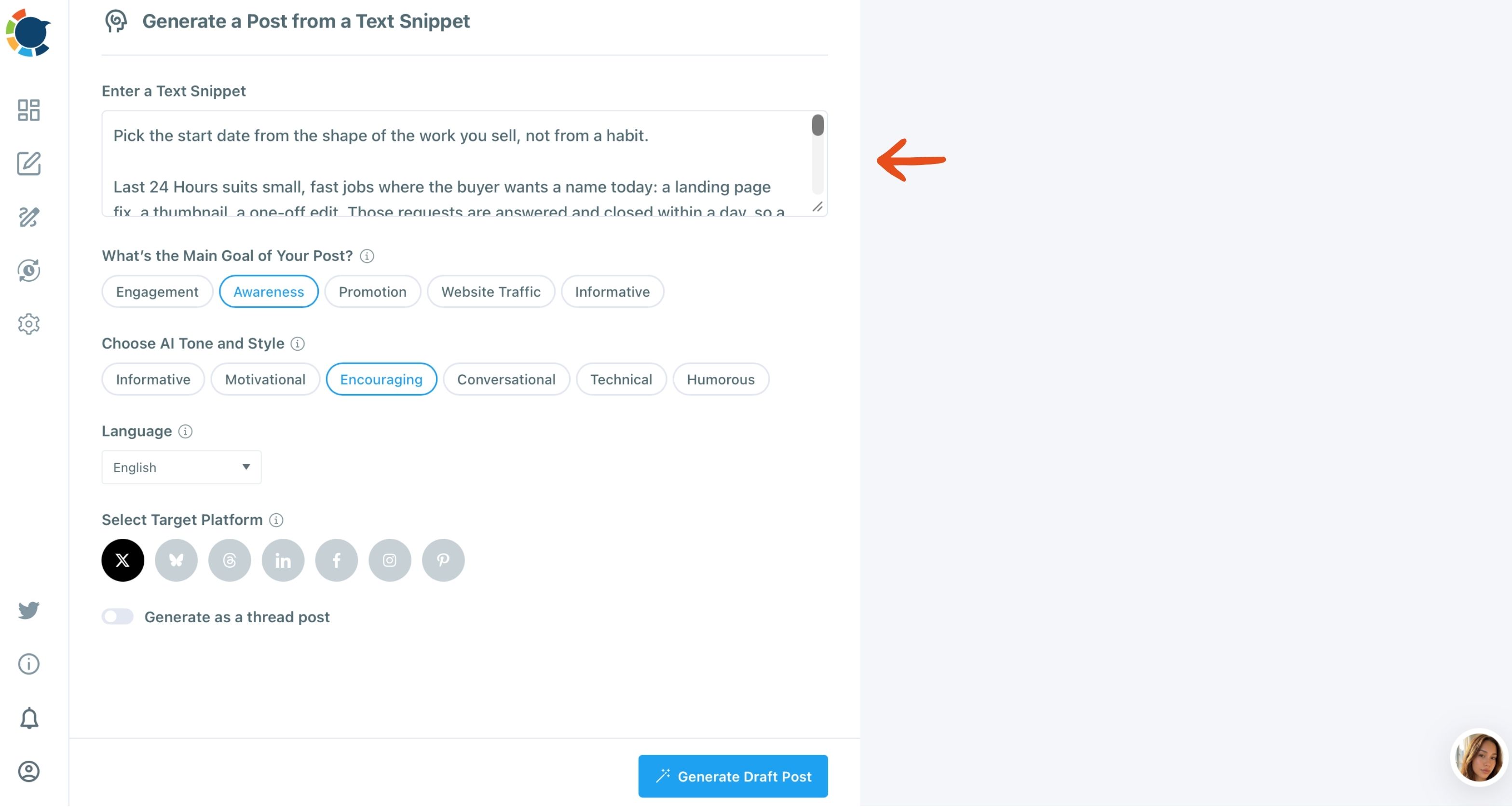
- Pick the goal, tone, language and target platform, then click Generate Draft Post. Awareness suits pre-opening posts; Promotion suits the opening offer.
Send every post to every account
- Open Create New Post on All Platforms and select every launch account, then paste the finished text and add an image.
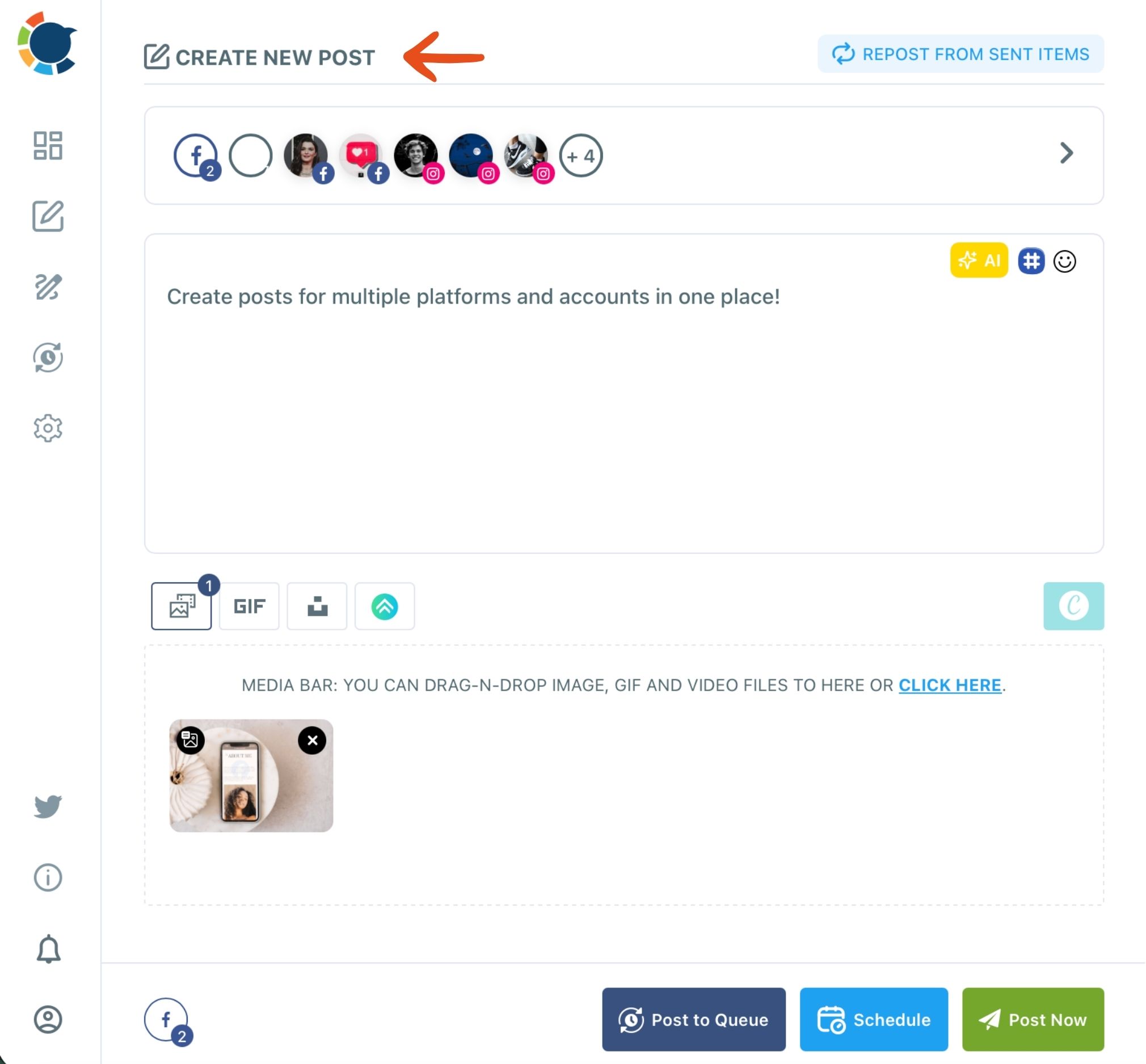
- Check the Post Preview tabs, then click Schedule and pick a date and a suggested time from "Pick your best post time."
Drafting before sending keeps the twelve posts consistent, and sending each post once to every account keeps the platforms in step. Skip either half and one platform ends up a week behind the others.
One limit to watch: the AI writer does not check each platform's character limit on its own. A 1,500-character founder story fits Google Business Profile and Instagram but not Pinterest (500) or Threads (500), so ask for a shorter version when those accounts are in the send.
Hands-on demo: an AI writer turning a short brief into a ready Facebook post, the same way a launch note becomes post 2 or 11.
How do you post the opening announcement to Instagram, Facebook and Google at once?
Add every launch account to one post and schedule it once. That single post is published to all the selected accounts together, so the announcement appears on Instagram, Facebook, LinkedIn and Google Business Profile at the same minute.
The tool for picking those accounts is the Select Accounts panel. It works as a multiple social media account manager, showing every account in one grid, filtered by platform or found by search.
Two settings help on launch day:
- A Share Group for the launch accounts, created under Settings, so post 7 and every later all-platform post select the full set in one click.
- One scheduled time from the Schedule modal, so nobody hears the news on one platform first.
If a detail changes after scheduling, such as the opening time, the post stays editable in the Outbox, where the List View gives each scheduled post Edit and Delete actions. That safety net is worth knowing before you introduce a new business on social media with posts loaded weeks ahead.
Each publish button shows small per-platform badges with the number of accounts that will receive the post. A quick look at those badges before clicking Schedule confirms that no launch account was left out.
Should a new business post from each app or use one scheduler?
Use one scheduler once you run two or more platforms. Native schedulers each post to one account on one platform, so a twelve-post launch on five platforms means sixty separate posting sessions natively and twelve sends from one composer.
| Question | Each app's own scheduler | One scheduler (Circleboom Publish) |
|---|---|---|
| Accounts per send | One account, one platform | Any mix of accounts across ten platforms |
| Posting times | Times you pick yourself | Suggestions computed from each account's own followers |
| Calendar | One per app | One Outbox calendar for every account |
| Launch post 7 | Five sessions, five slightly different times | One send, one shared time |
| Drafting | Typed in each app | AI writer and Generate Post from Text in one place |
The organic side of a launch rests on the same habit. The organic case is laid out in this look at how social media can help you mind your own small business. A single scheduler is what makes that consistency affordable in time.
You can also browse the social media post generator for each platform's own AI writer.
Which launch plan fits your new business?
The right plan depends on how close opening day is and how many platforms you run:
- If you open in more than two weeks, start with posts 1 to 6 now and schedule them across the gap.
- If you open this week, skip to posts 6 to 10 and schedule the announcement for one shared minute.
- If you are already open, start at post 11 and build the weekly useful post into a Queue.
- If you run one platform only, use that platform's own composer; for two or more, send every post from one composer.
Whichever branch fits, the plan for introducing a new business on social media works the same way: draft once, send once, keep posting.
→ Write your new business launch posts with AI
New business announcement FAQ
Which business accounts should a new business set up before its first post?
Set up a business account on every platform your customers use: a Facebook Page, an Instagram professional account, and a Google Business Profile at minimum. Meta's guide to creating a Facebook Page for your business covers the Facebook step, and Circleboom Publish connects all of them under one login.
Can a new business show up on Google before opening day?
Yes. Google lets you add a future opening date up to a year ahead. Once the business is verified, the profile shows on Google 90 days before that date, according to Google's help article Add a business opening date.