

You filter likes on Twitter by loading your recent liked posts into a tool that can sort them by field, because X itself removes likes one post at a time. Circleboom's Delete My Last Likes does that for your latest 3,200 likes, with twelve filter fields and a bulk unlike at the end.
Circleboom loads up to 3,200 of your most recent likes on Twitter, narrows them with twelve filter fields, and unlikes the matching posts in bulk through official X Enterprise APIs. No archive upload is needed for that window, and every like outside your filter stays as it is.
→ Filter likes on Twitter
Below: what each field isolates, the four-step run, and how to stop one.
The twelve filter fields for Twitter likes, grouped by what they isolate
The Filter Options drawer in Delete My Last Likes has twelve fields, and each one isolates likes along one of four axes:
- Time (1 field): Date.
- Source (1 field): Keyword / Username or Hashtag, used with a username.
- Content (5 fields): Post Type, Media, Language, Exclude Some Tweets, and Keyword / Username or Hashtag used with a word or tag.
- Engagement (6 fields): Retweet, Like, Reply, Quote, Bookmark and Impression Count, each as a Min/Max range.
The shared field is deliberate in this grouping. Keyword / Username or Hashtag searches post text, @mentions and #hashtags, so the same box answers "who posted it" and "what it says" depending on what you type.
Every narrow cleanup is one or two fields from the time or source axis, refined by one from content or engagement.
How the four axes combine
Fields on different axes narrow the list together, so each added field can only shrink it:
- Time plus source: one account's posts you liked during one week.
- Time plus content: posts with media you liked during one month.
- Source plus engagement: one account's posts above an impression floor.
- Content plus engagement: posts in one language with few likes.
Two fields from the same axis rarely help, because they describe the slice twice instead of from two sides. This is the reason the grouping matters: it tells you which second field will cut the list and which will barely move it.
When the combination is right, the list is short enough to filter likes on Twitter row by row with your own eyes before anything is removed.
These fields work on your latest 3,200 likes. Likes older than that window need the archive route described in the guide to delete all favorites on Twitter.
Time: the date filter on X likes
The Date filter keeps liked posts that fall between an Earliest date and a Latest date. It is the field that answers "that week" or "that month" questions.
Each row in the table also carries a Created At date, which is the quickest way to confirm the window caught what you expected. If a stretch looks too wide, tighten the Latest date first, because the most recent likes are usually the ones that prompted the cleanup.
When you only roughly remember when a burst happened, start wider than you need. A month-long range that you read and then trim is safer than a guessed week that misses the first two days of the problem.
The same time logic applies to your own posts, and the tool to delete your tweets by date uses a date window on tweets instead of likes.
Source: filtering Twitter likes by account
Type a username into Keyword / Username or Hashtag to keep likes tied to that account. It is the fastest way to remove every like on one user's posts in a single run instead of finding each one by hand.
One caution comes with it. Because the field also reads post text and @mentions, the filtered list can include posts from other people that only tag the account.
Each row has an external link icon that opens the post on X, so a doubtful row takes seconds to check.
Content: post type, media, language and exclusions
Content fields describe what the liked post is, regardless of who posted it or when:
- Post Type keeps one kind of post in the list.
- Media separates posts with media from posts without.
- Language keeps posts written in one language.
- Exclude Some Tweets holds chosen categories out of the selection, starting from "None excluded posts."
- Keyword / Username or Hashtag, used with a word or #hashtag, keeps posts about one topic.
Post Type and Language are the quiet ones. Post Type helps when the likes you regret are all one kind of post. Language helps when a stretch of liked posts sits in a language your account does not otherwise engage with, so it stands apart from everything else in the list.
Media splits a list in two: posts that carry an image or clip, and posts that are text only. Paired with a username, it keeps only that account's images and clips and leaves its text posts alone.
Your own media posts have a matching cleanup in delete all Twitter media.
Engagement: count ranges for liked posts on Twitter
Engagement fields filter by how a liked post performed, using a Min and a Max value for each count:
- Retweet Count and Like Count.
- Reply Count and Quote Count.
- Bookmark Count and Impression Count.
A Min value on Reply Count keeps posts that drew long reply threads, which is where heated or controversial posts usually sit. A Max value does the reverse and keeps quiet posts with little discussion.
Engagement fields rarely define a slice alone. They refine one that Date or a username already drew.
Bookmark Count is the least obvious of the six. A liked post that many people bookmarked is often a thread, a guide or a resource, the kind of post you may have liked as a reading-list entry. Setting a Max on Bookmark Count keeps those reference posts out of a broad cleanup, so the run removes casual likes and spares the useful ones.
Why filtering matters before you unlike anything on X
On X, likes are removed one post at a time, and there is no step for selecting a filtered set and unliking it together.
X has added more ways to find your likes. TechCrunch reports that its new History tab collects bookmarks, likes, videos and articles in one private place. The tab is rolling out on iOS first (X's History tab launch).
A place to browse likes still leaves each unlike as a separate tap.
A practical rule I follow: if likes double as your bookmarks, begin with a small, tightly filtered batch and check your liked posts on X afterward. Widen the filter only once the first pass removed what you expected and nothing else.
Likes also act as engagement signals that can shape the For You feed and recommendations. A burst of off-topic likes keeps nudging the feed toward that topic, and a filter lets you take out the burst without erasing the history you want to keep. That is the job when you narrow down your liked tweets: remove a slice, keep the rest.
Circleboom does this as a developer on X's Enterprise customer directory. The unliking runs through X's own channels and is paced by X's rate limits, with no workaround touching your account.
How to filter likes on Twitter and unlike the filtered set
Filtering likes on Twitter takes four steps in Circleboom: log in, open Delete My Last Likes, apply the filters that describe your slice, and confirm the unlike. The tool loads up to your latest 3,200 likes and pre-selects all of them, so the filter step is what limits the run to the slice you want.
- Log in to Circleboom with the X account you want to clean, so the likes table belongs to that account.

- Go to Essential Toolbox, open Delete Tools and choose Delete my Last Likes.

- Open Filter Options, fill in the time, source, content or engagement fields that describe your slice, and apply them.
- Click Delete Selected, read the count in the confirmation pop-up, and confirm to start the unlike run.
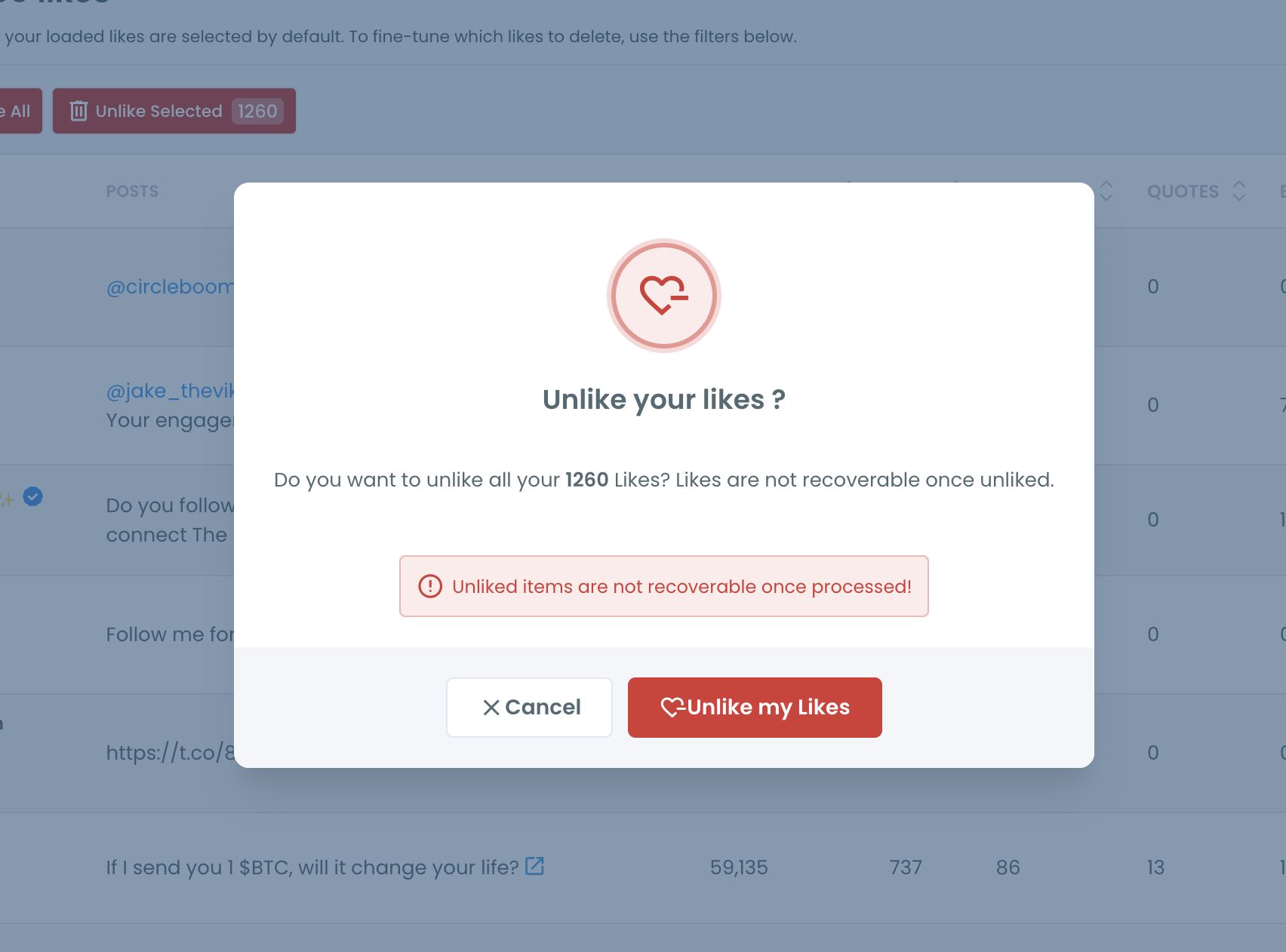
The pop-up is the last checkpoint, and it is there because unliking is permanent. Filter first, and the figure in that pop-up counts your filtered slice alone.
Load, filter, confirm, then let the run finish.
The same cleanup from a phone: unliking Twitter likes on an iPhone, start to finish.
Can you unlike only the filtered likes at once?
Yes. After the filter is applied, Delete Selected removes the selected likes in one run, and Delete All removes all loaded likes at once. Because every loaded like starts out selected, the filter is what decides what "selected" means.
Two habits keep the run exact:
- Deselect the keepers before you confirm.
- Check doubtful rows on X first; each row's external link icon opens the post.
The same select-then-confirm pattern runs across Circleboom's cleanup tools, which the announcement of My Tweets to unlike and delete tweets introduced.
Large runs are paced automatically within X's rate limits, and the browser should stay open until the run completes. That is also the moment to unlike a filtered slice of your Twitter likes with confidence: the count in the pop-up should match the rows you just read.
What the unlike changes on X, and what it leaves alone
Each processed like is removed at the X platform level. The original post is not affected; only your engagement signal on it disappears, and the post's like count goes down by one.
Everything the filter did not select stays exactly as it was. A date-scoped run removes only likes from that window, and a username run removes only likes tied to that account. If you want a record of the slice before removing it, the table's Export button saves the list as a CSV, and it uses tokens.
Can you stop an unlike run you started by mistake?
Yes, by revoking Circleboom's access to your X account. Without that permission the active queue cannot unlike anything further. The steps to revoke Circleboom's access to a social account run through X's Apps and devices settings.
Likes processed before the stop stay unliked. Circleboom has no undo for a removed like, so the only way back is to find the post on X and like it again yourself.
Revoking access makes sense when the confirmation went through with the wrong filter, for example a date range typed a year off. Reconnect your X account afterward when you want to run the corrected filter.
I treat this as a safety net, not a plan. The confirmation count is the better place to catch a wrong filter, because it comes before anything is processed.
Which filter path fits your Twitter likes
Pick the path that matches your situation:
- If the problem is one week or one month, set the Date range and add a content field when the window alone is too wide.
- If the problem is one account, enter its username and check rows that only tag it.
- If the problem is a topic, enter the word or #hashtag and scan for posts using it in another sense.
- If the likes are older than your latest 3,200, switch to the archive-based Delete all Likes.
- If the cleanup is your own posts rather than likes, the walkthrough on how to delete old tweets by year uses the same filters on tweets.
→ Sort your Twitter likes by date, account, media or keyword
Leftover questions on narrowing your likes
Can I filter my likes to one specific month?
Yes. Set the Date filter's Earliest field to the first day of the month and its Latest field to the last day, then apply it, and Circleboom keeps only the likes from that month, within your latest 3,200. The same date window on your own posts is explained in the guide to delete tweets by date.
Can I filter and remove likes from my iPhone?
The iPhone video above shows Circleboom unliking Twitter likes on a phone, so the bulk route is not limited to a desktop. In X's own app you can still only unlike one post at a time.






%3A%20a%20step-by-step%20guide)