
Quick Answer vs Default: Most bulk scheduling guides describe the mechanics (upload a CSV, queue posts, walk away). The harder question is what to put in the CSV across months of daily content without burning out or producing forgettable filler. The pattern that works: 5 to 7 rotating content shapes, 60-day batches, 1 to 2 tweets per day, image pairing on 30 to 50 percent of posts.7 content shapes give variety without scattered branding60-day batches balance batch fatigue against schedule depth30 to 50 percent image pairing matches the algorithmic sweet spot
Building a multi-month content calendar for daily X posting is a different problem from learning the bulk upload mechanics. The mechanics are a 20-minute learning curve; the content strategy is the actual work.
This guide is for accounts ready to plan 60 days of daily posts in a single sitting using Circleboom's Bulk Schedule Tweets tool. The bulk upload mechanics are covered briefly; the focus is the calendar planning that fills the CSV in a way that holds up across the full schedule window.
The bulk upload runs through the official X Enterprise API, so the scheduled posts are sanctioned and respect platform rate limits.
Why 60 Days
The batch length that works best is 60 days. Reasoning:
- Shorter than 30 days: too many refresh cycles, willpower cost stays high
- 30 to 60 days: the sweet spot for batch fatigue vs schedule depth
- Longer than 90 days: content quality drops noticeably past tweet 60 in any single session
For sustained 1,000-day commitments, planning 60 days at a time and refreshing every 45 days (overlap of 15 days for revision flexibility) is the pattern that holds up.
The 7 Content Shapes Pattern
Variety prevents the feed from feeling monotonous. Single-shape feeds (only opinions, only lists, only questions) underperform multi-shape feeds because the algorithm reads variety as engagement-driving.
Seven content shapes worth rotating through:
- Opinion — a point of view stated directly
- Observation — a pattern noticed in your topic area
- List — 3 to 5 items with brief expansion
- Question — a question to your audience designed to spark replies
- Quote — an aphoristic line that stands alone
- Insight — a non-obvious finding or framework
- Story — a short narrative with a takeaway
Across 60 tweets, aim for roughly 9 tweets per shape (60 / 7 ≈ 8.5). The mix prevents repetition and gives the algorithm varied content types to distribute.
The Image-Pairing Decision
Roughly 30 to 50 percent of scheduled tweets benefit from paired images. Higher percentages don't improve performance and add image-creation time; lower percentages leave engagement on the table.
Image-worthy content shapes:
- Opinion — works with a quote-style graphic featuring the opinion text
- Insight — works with a chart or visualization
- Quote — natural fit for designed quote graphics
- Story — works with a contextual photo
Less image-worthy shapes:
- Question — usually better as plain text (questions read as conversational)
- Observation — often better text-only unless the observation needs visual context
- List — sometimes better as a thread without image, sometimes works with a numbered graphic
The image-pairing decision is per-tweet, not per-shape. Some opinions land harder as text; some questions need a chart for context.
Step 1 — Block 3 Hours and Plan Themes First
Before opening the CSV, decide what the next 60 days will cover at a thematic level. This is 15 minutes of planning that saves 2 hours of decision fatigue during the writing block.
Three rough planning patterns:
- Single theme — all 60 tweets cover one topic with rotating angles (works for narrow-topic accounts)
- 5 theme rotation — 12 tweets per theme, rotating through the 5 themes daily (works for multi-topic accounts)
- Sprint then drift — first 30 tweets on one topic (a focused sprint), remaining 30 on rotating themes
Pick one pattern before any writing.
Step 2 — Write the 60 Tweets
Open the CSV template (download from Circleboom). Fill row by row, one tweet per row, following your content shape rotation.
The 90-minute writing block is the highest-leverage hour of your week. Focus tactics that help:
- Write all 60 first drafts before revising any
- Allow yourself bad first drafts (they fix in revision)
- Don't research mid-sentence (note ?? and look up later)
- Skip tweets that aren't flowing (return to them in the next pass)
After the first pass, do a 30-minute revision pass focused on tightening, cutting filler, and verifying any factual claims.
Step 3 — Identify Image Candidates
Read through the 60 tweets and mark the ones that would benefit from images. Aim for 20 to 30 marks (30 to 50 percent of 60).
For each marked tweet:
- Decide image type (quote graphic, chart, photo, screenshot)
- Source or create the image
- Save with a clear filename
- Note the filename in the CSV's image column
The image creation phase is the longest part of the batch process; allow 60 minutes for sourcing or creating 20 images.
Step 4 — Set Scheduled Times
Increment dates in the CSV's schedule column. For daily posting at one tweet per day, that's 60 consecutive days. For two tweets per day, two rows per date with different times.
Posting times worth considering:
- 9 AM local — morning peak for business audiences
- 1 PM local — lunchtime engagement
- 5 PM local — afternoon decompression
- 8 PM local — evening engagement peak
Circleboom's analytics show your audience's specific peak times; align scheduled times to those windows.
The dashboard shows the queued batch with each tweet's scheduled time clearly visible for verification.
Step 5 — Upload and Review
In the Bulk Schedule Tweets tool, upload the CSV.
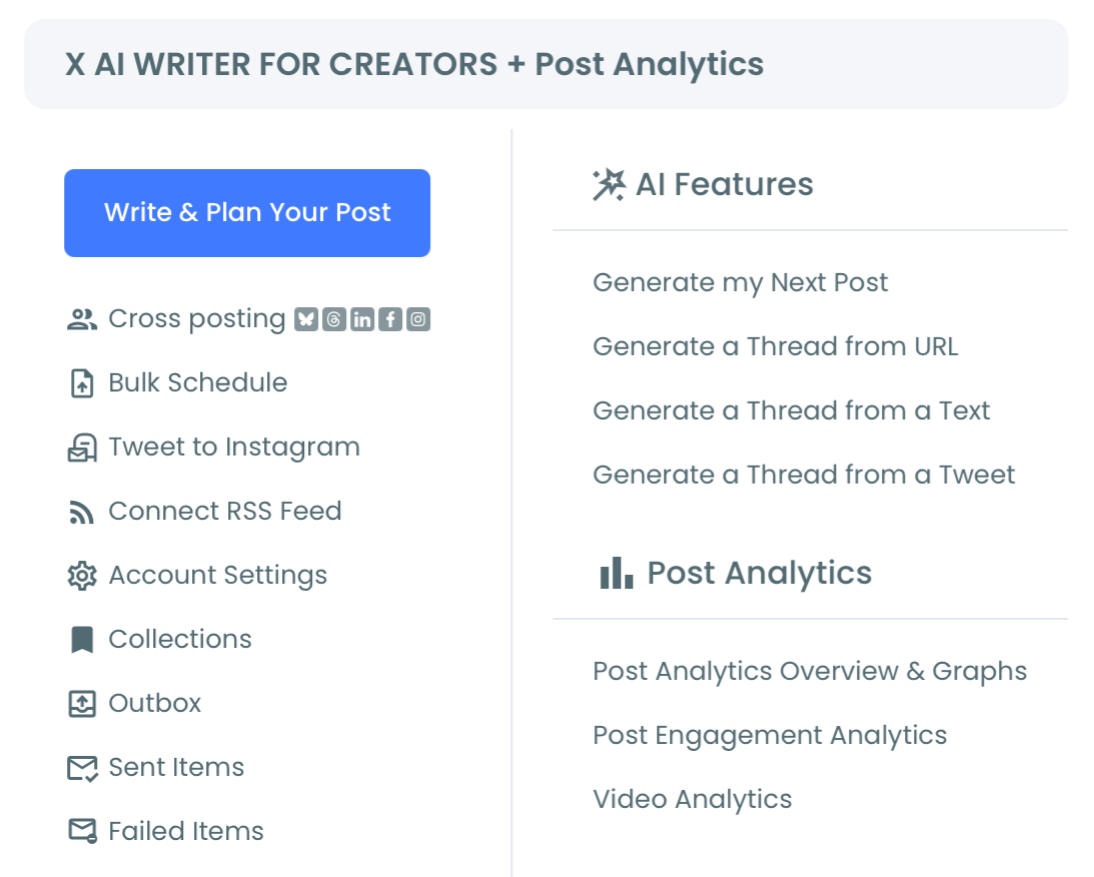
The tool sits inside the X Post Planner menu. After upload, Circleboom parses the CSV and shows a preview of the parsed tweets with their dates and images.
Review the preview carefully. Common issues to catch:
- Special characters or emoji that mis-parsed
- Scheduled times out of order
- Missing image references
- Tweets exceeding the 280-character limit
- Duplicate content (accidental repeats)
Step 6 — Confirm and Walk Away
Click confirm. Circleboom queues the full batch through the official X API. The dashboard updates over the following 60 days as each tweet posts.
Watch the bulk schedule tweets on X demo on YouTube to see the full workflow in real time.
What to Adjust Mid-Batch
Once the batch is running, weekly reviews catch issues before they post. Block 15 minutes every Friday:
- Read the upcoming week's queue
- Delete or edit anything that has become stale
- Note any tweets performing surprisingly well (for the next batch)
- Add reactive content for the coming week alongside the scheduled cadence
What the Data Looks Like After 60 Days
After the first batch posts, you'll have data on:
- Engagement rate per content shape
- Engagement rate per posting time
- Image-pairing lift (vs text-only baseline)
- Top 5 individual tweets
The data informs batch 2. By batch 3, your content shape mix and timing are calibrated for your specific audience.
Related Resources
For the batch mechanics: the bulk schedule tweets with images guide covers image pairing, the AI-powered tweet scheduler piece covers AI assistance for batch writing, and the free Twitter scheduler walkthrough covers basic scheduling.
For cross-posting top performers: the Twitter to Instagram cross-post tool for amplifying scheduled tweets that perform well, and the broader Twitter management toolkit.
For the native scheduling comparison: the Twitter web app scheduling guide covers what X's native scheduler does and does not support.
The X help center documentation on managing your content is the platform-side reference.
FAQ
How many content shapes do I need?
5 to 7 shapes work well. Fewer than 5 makes the feed monotonous; more than 7 fragments your brand voice.
Can I batch more than 60 days at once?
Technically yes (Circleboom supports several hundred tweets per CSV). Practically, tweet quality drops past 60 in a single sitting, so multiple shorter sessions outperform one long one.
Do I have to refresh exactly every 60 days?
No, but the refresh cycle should overlap with the previous batch end so you don't run out of scheduled content. A 45-day refresh on 60-day batches gives a 15-day overlap buffer.
What if my topic has news cycles I need to react to?
Bulk scheduling covers the baseline cadence; reactive content posts alongside through normal X tools on the day. The bulk schedule handles 80 percent of posting; reactive content handles the other 20 percent.
Should I include hashtags in scheduled tweets?
Use hashtags sparingly. 1 to 2 per tweet max. X's algorithm reads heavy hashtag use as low-quality content.
Can I run this with a team?
Yes, multiple people can fill the CSV collaboratively. The upload itself is a single-user action.
Bottom Line
A multi-month content calendar is a content-strategy problem more than a tools problem. Circleboom's Bulk Schedule Tweets tool handles the upload mechanics cleanly through the official API; the 7-shape rotation, 60-day batches, and 30 to 50 percent image pairing are the patterns that make the calendar hold up across the schedule window.