
Trying to share a tweet on Instagram sounds simple… but it rarely looks right.
Recreating tweets manually or searching for the “perfect” Canva template is just a waste of time. You’re forcing a design tool to imitate something it wasn’t built for.
There’s a much easier way.
There are three ways you can do this without any design work:
1️⃣ Turn real tweets into images with Circleboom Screenshot Generator,
2️⃣ Automatically share your own tweets on Instagram as posts, Stories, or Reels,
3️⃣ Create custom tweet-style visuals with the Fake Tweet Generator,
Let’s take a look at each of them.
Why Canva Templates Are Not the Best Option for Twitter Portrait Posts
At first, Canva feels like the obvious solution. But once you actually try to use it for tweet-style posts, a few problems show up quickly:
- You spend too much time searching for the right template
- Designs don’t match Twitter’s real UI
- Fonts, spacing, and layout feel slightly off
- Every post requires manual adjustments
- It’s not scalable if you do this regularly
Even if you find a decent template, it never truly looks like an authentic tweet.
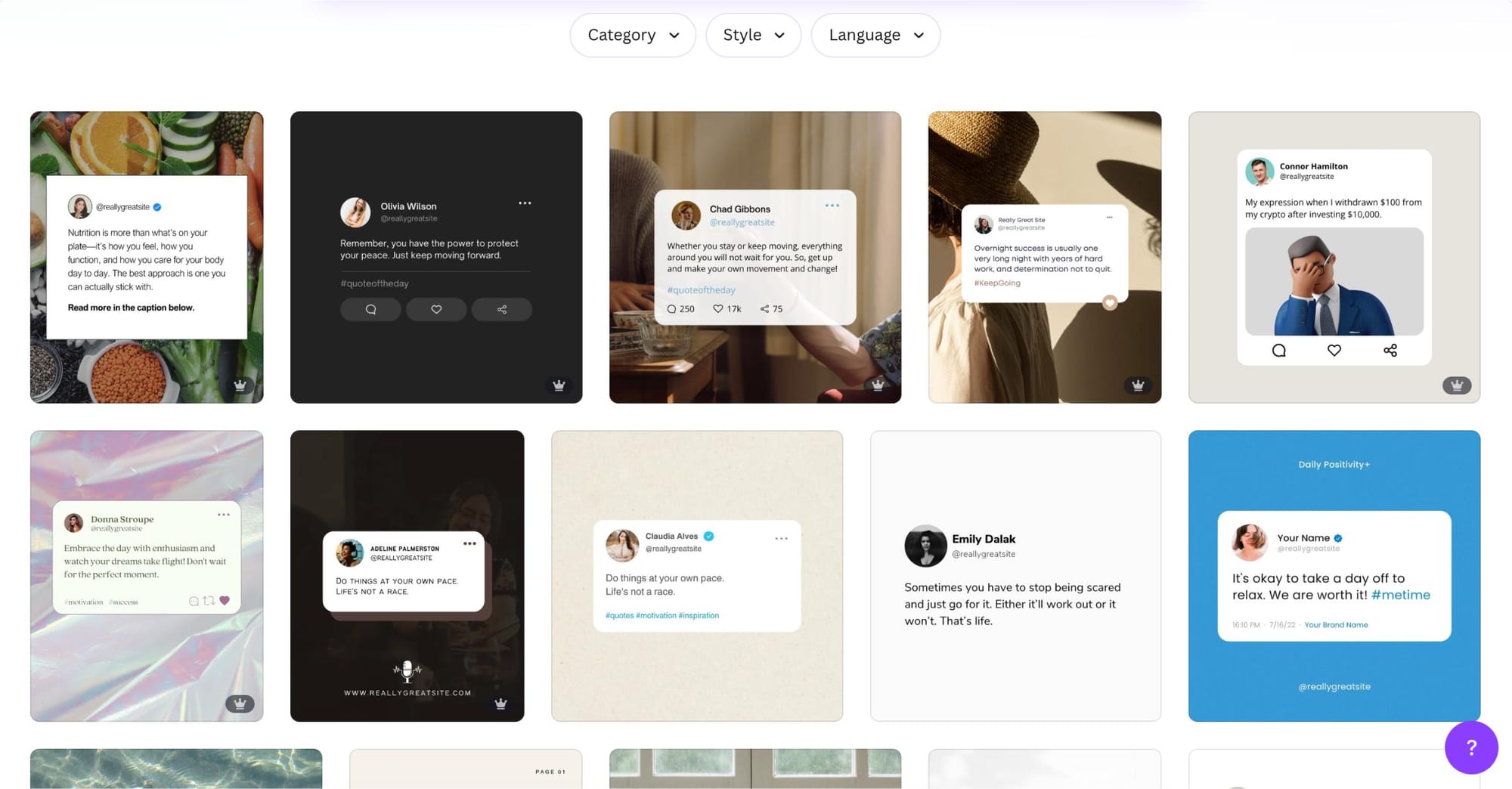
And that matters, especially if you want your content to feel native and trustworthy.
A Better Way: Circleboom Screenshot Generator (No Canva Needed)
Instead of recreating tweets manually, you can just generate them.
Circleboom Screenshot Generator takes any tweet and instantly converts it into a clean, Instagram-ready image. No designing, no adjusting, no searching for templates.


Circleboom is an official X Enterprise Developer, which means it works directly with X’s official APIs. This ensures accuracy, reliability, and a much more authentic result compared to manually designed templates.
What makes it better:
- Automatically turns tweets into portrait images
- Keeps the original Twitter (X) layout and structure
- Offers different styles and color options
- Optimized for Instagram sharing
- Saves a huge amount of time
You’re not designing anymore, you’re just converting.
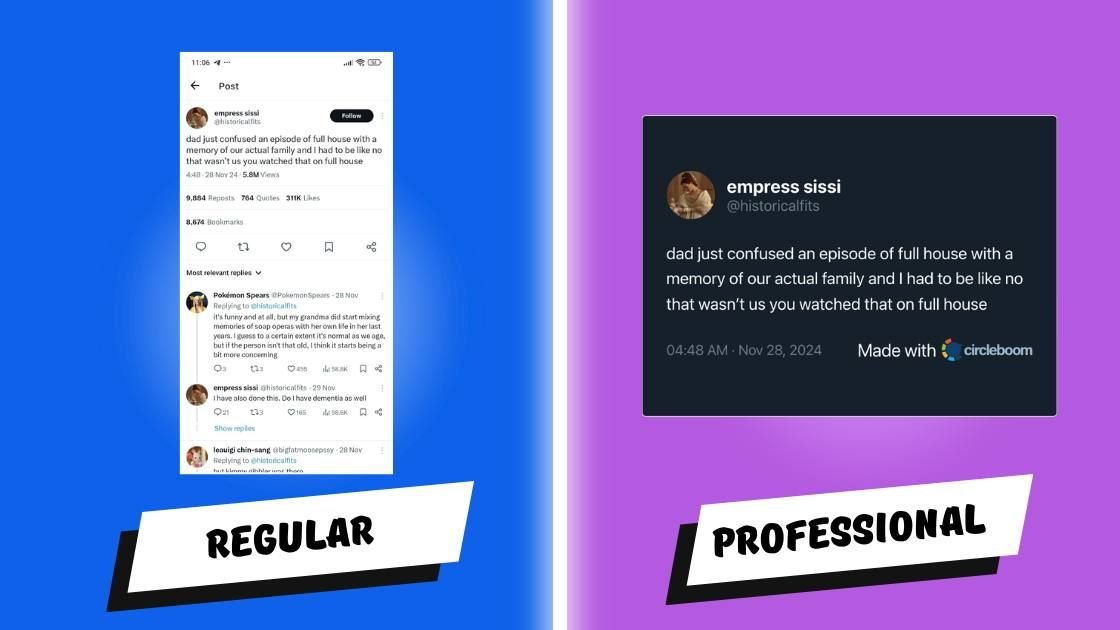
How to Turn Tweets into Instagram Portrait Images
The process is simple and takes less than a minute.
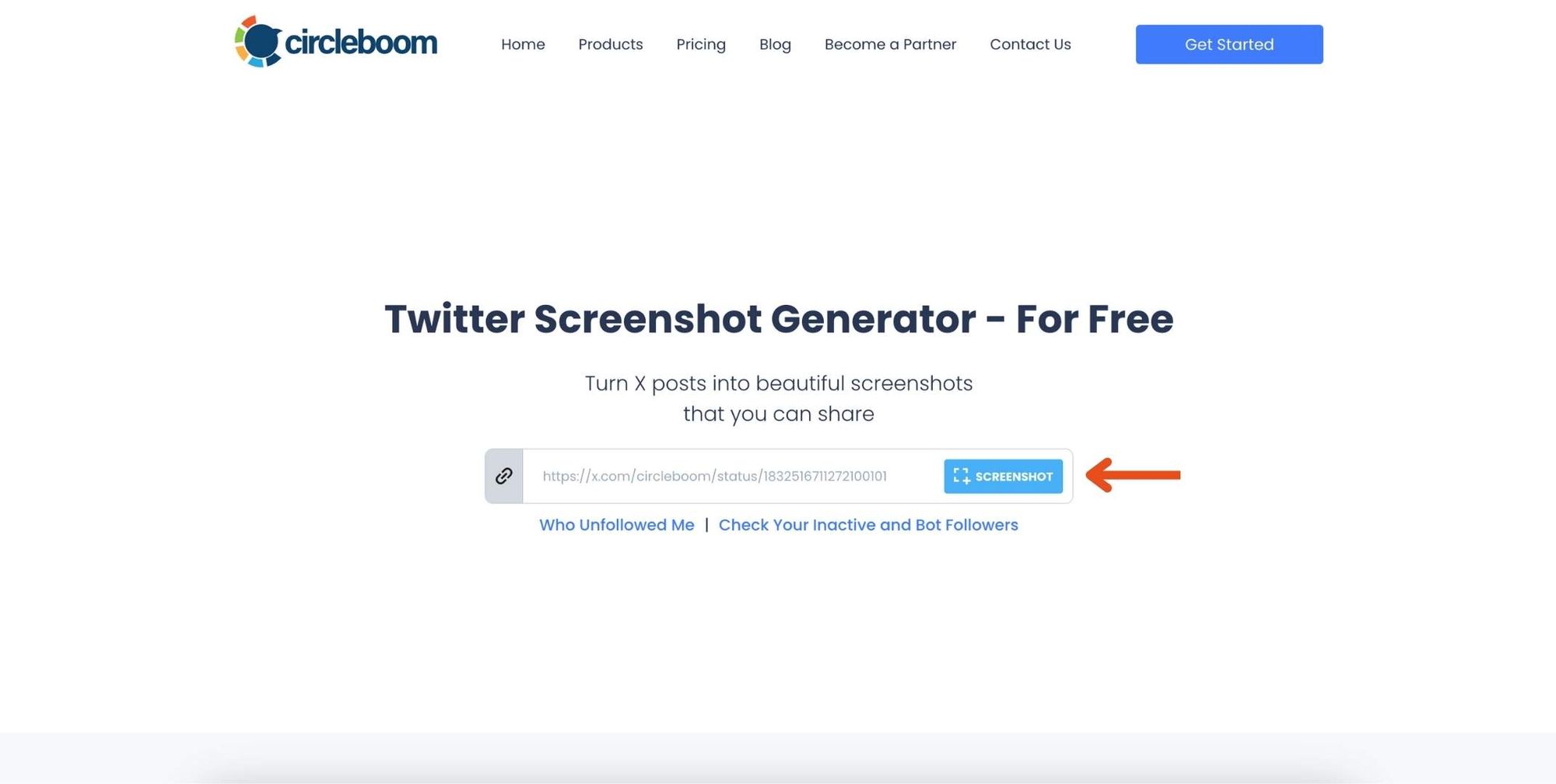
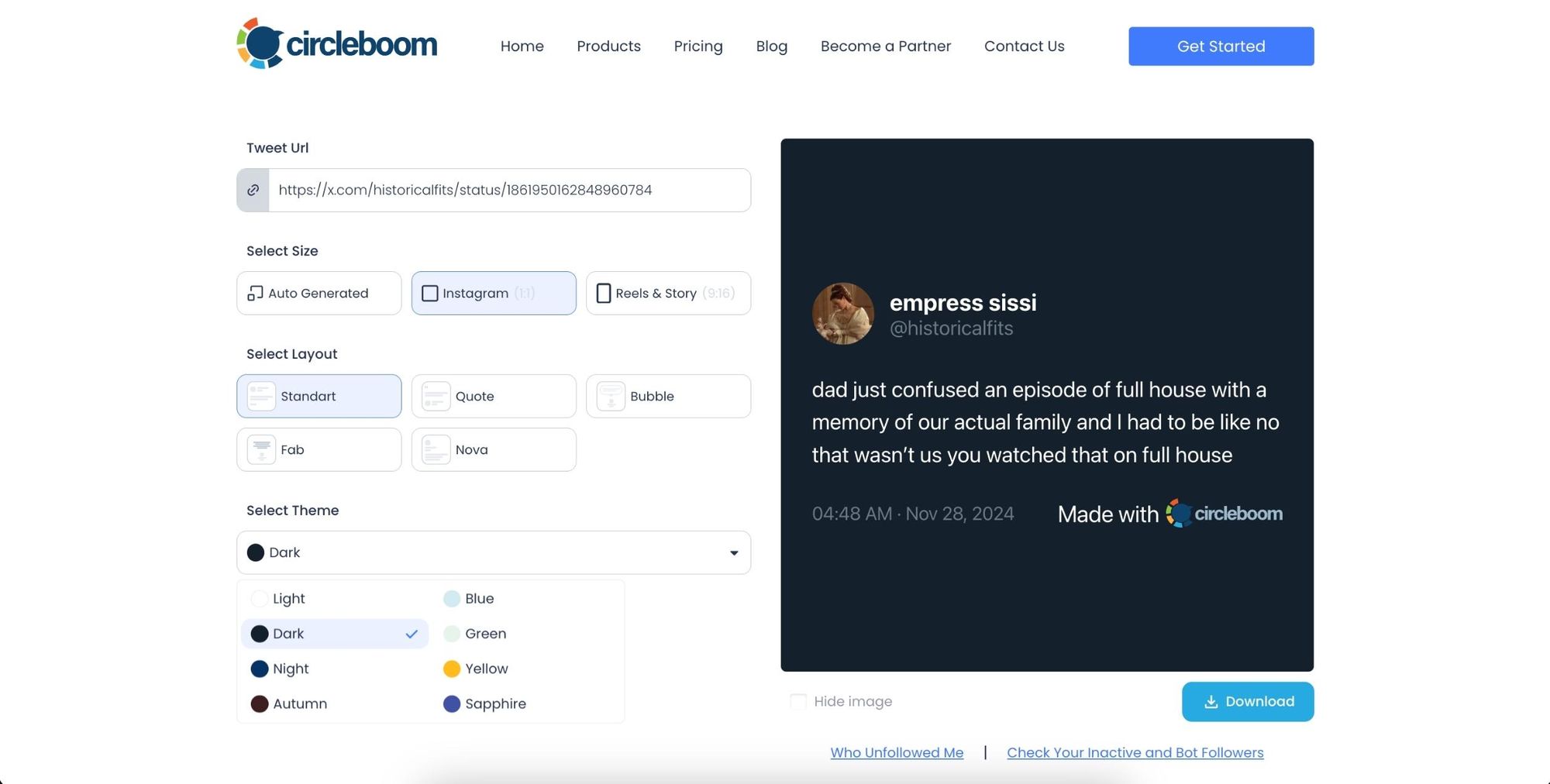
Step #1: Go to ➡️ Circleboom Twitter Screenshot Generator
First, navigate to the Circleboom Twitter Screenshot Generator. Paste the URL of the tweet you want to capture in the provided field. Then, click the 'Screenshot' button.
Step #2: Customize Your Screenshot
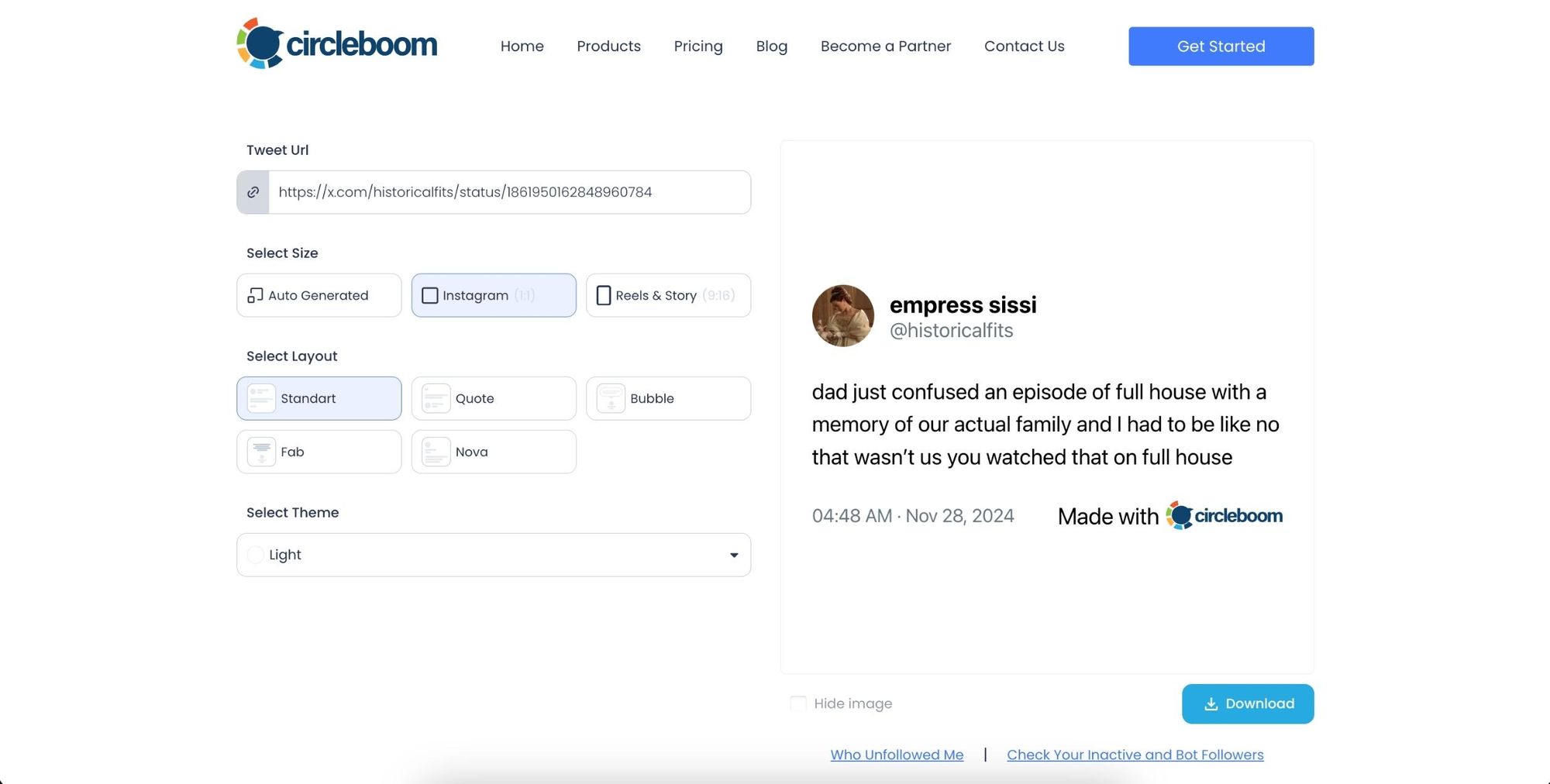
Circleboom will generate the screenshot for you instantly. If you’d like, you can change the size, layout, and theme to fit your preferences.
Step #3: Download the Screenshot
Once you’ve adjusted the design to your liking, simply click the 'Download' button. Circleboom will provide you with a high-quality screenshot of the tweet, ready to use.
Here is the result:
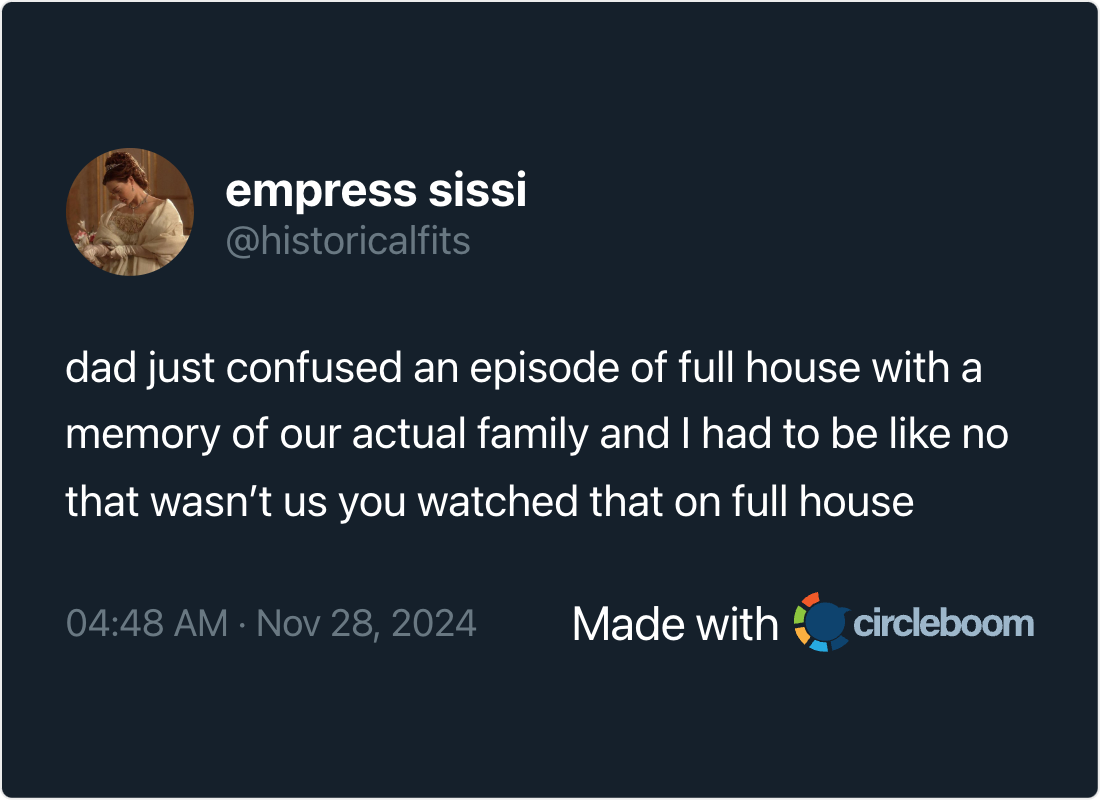
The next step is to share the screenshot on Instagram.
How to Share Your Own Tweets on Instagram Automatically
If you want to share your own tweets on Instagram, you do not need to turn them into images manually every time.
I use Circleboom Twitter for this.

➡️ It lets you connect your X account and Instagram account, then automatically turns your tweets into visuals ready for Instagram.
 infocircleboom.com
Instead of downloading a tweet, editing it, and uploading it again, you can automate the whole process in one place.
This is especially useful if you regularly post on X and want the same content to appear on Instagram as well.
Circleboom Twitter can automatically convert your tweets into Instagram-friendly images and share them as different post types.
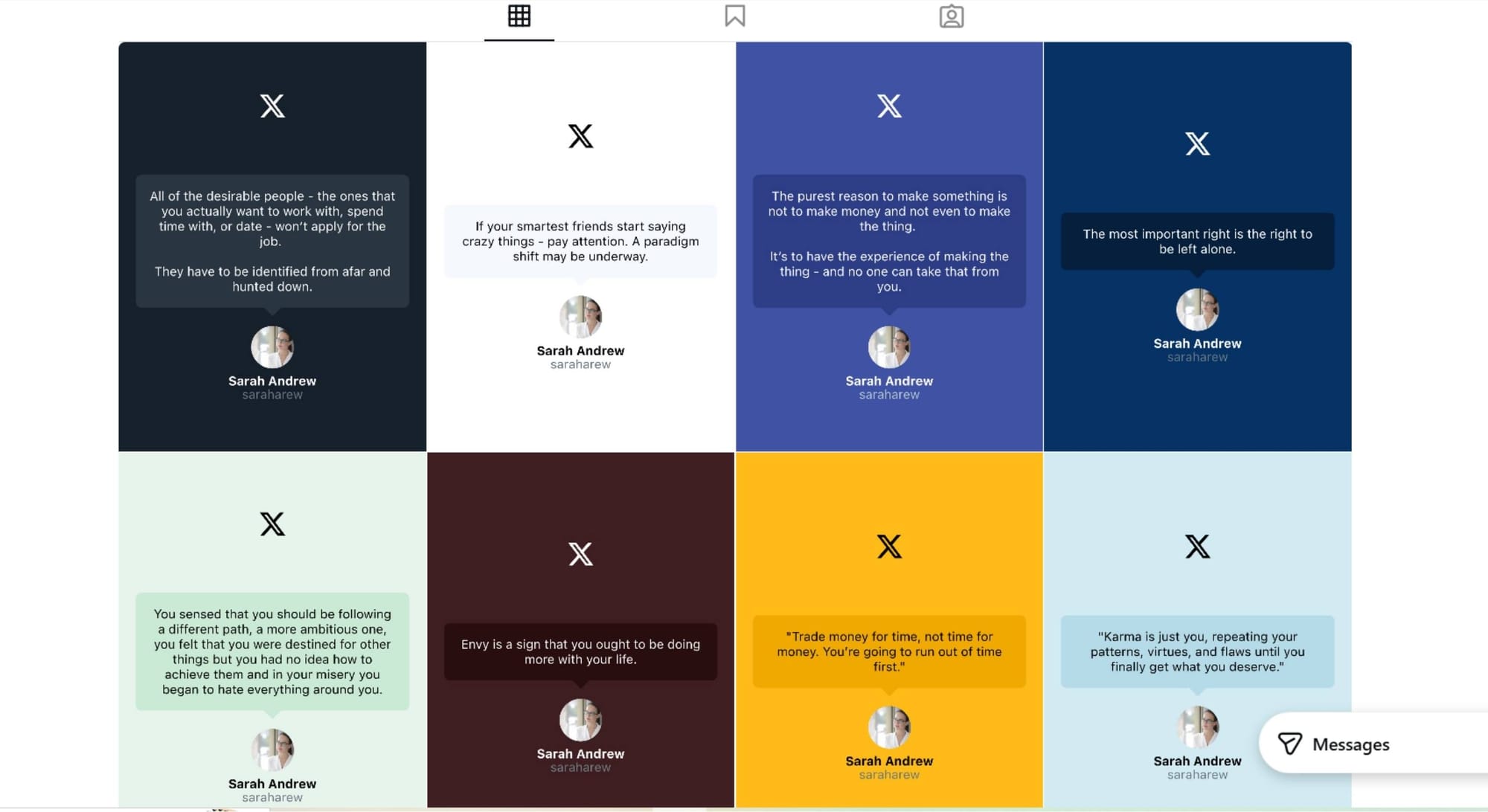
Depending on how you want to repurpose your content, you can share your tweet as an Instagram post, Story, or Reel. That makes it much easier to keep both accounts active without doing the same work twice.
How to Post Your Tweets on Instagram with Circleboom Twitter
Let me show an example of how you can share your tweets as Instagram Stories:
Step #1: First, log in to your Circleboom Twitter account.
If you don't have an account yet, you can create one in seconds!

Step #2: On the Circleboom Twitter dashboard, navigate to the left menu.
First, find the “Post Management & Analytics” and then click on “Write and Plan Your Post”.

Step #3: Write your tweet. Circleboom’s AI options can generate tweets for you automatically.
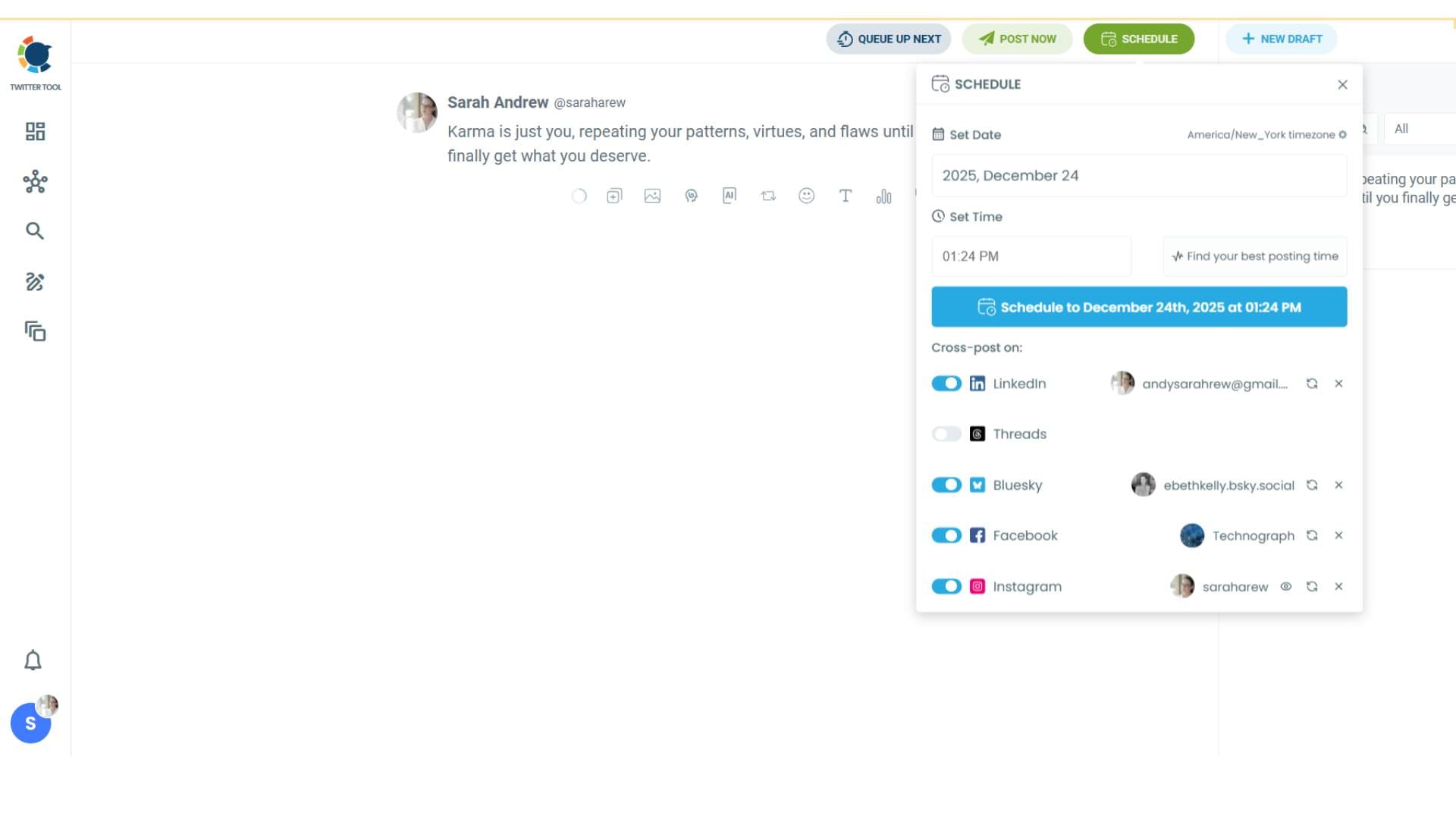
When it is ready, you can “Post” or “Schedule” your tweet. To see your cross-posting options, you should click on one of them.
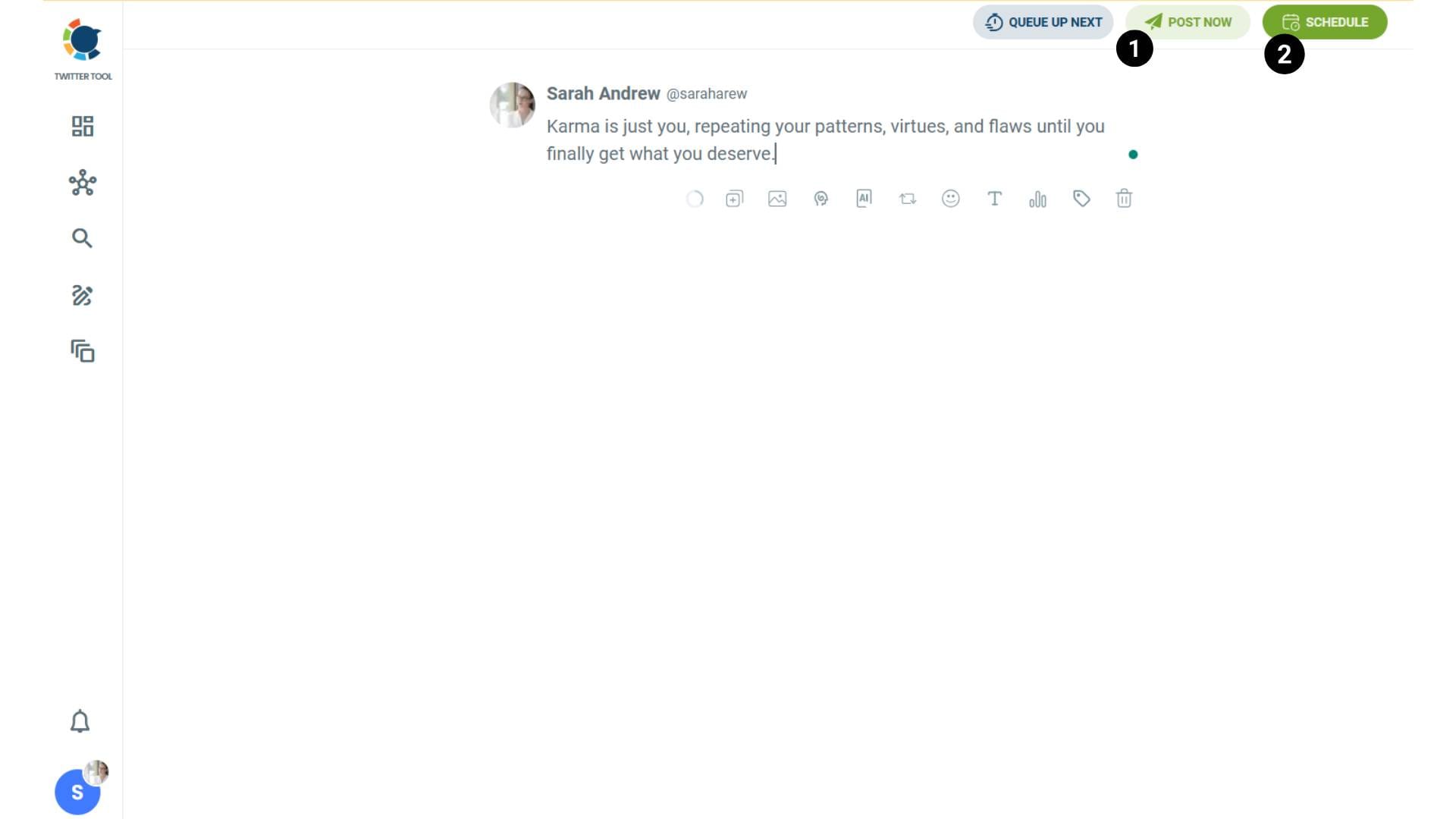
Step #4: You will see your connected platforms. You can cross-post your tweets to these accounts automatically.
You can share tweets on LinkedIn, Facebook, Threads, Bluesky, and finally, Instagram!
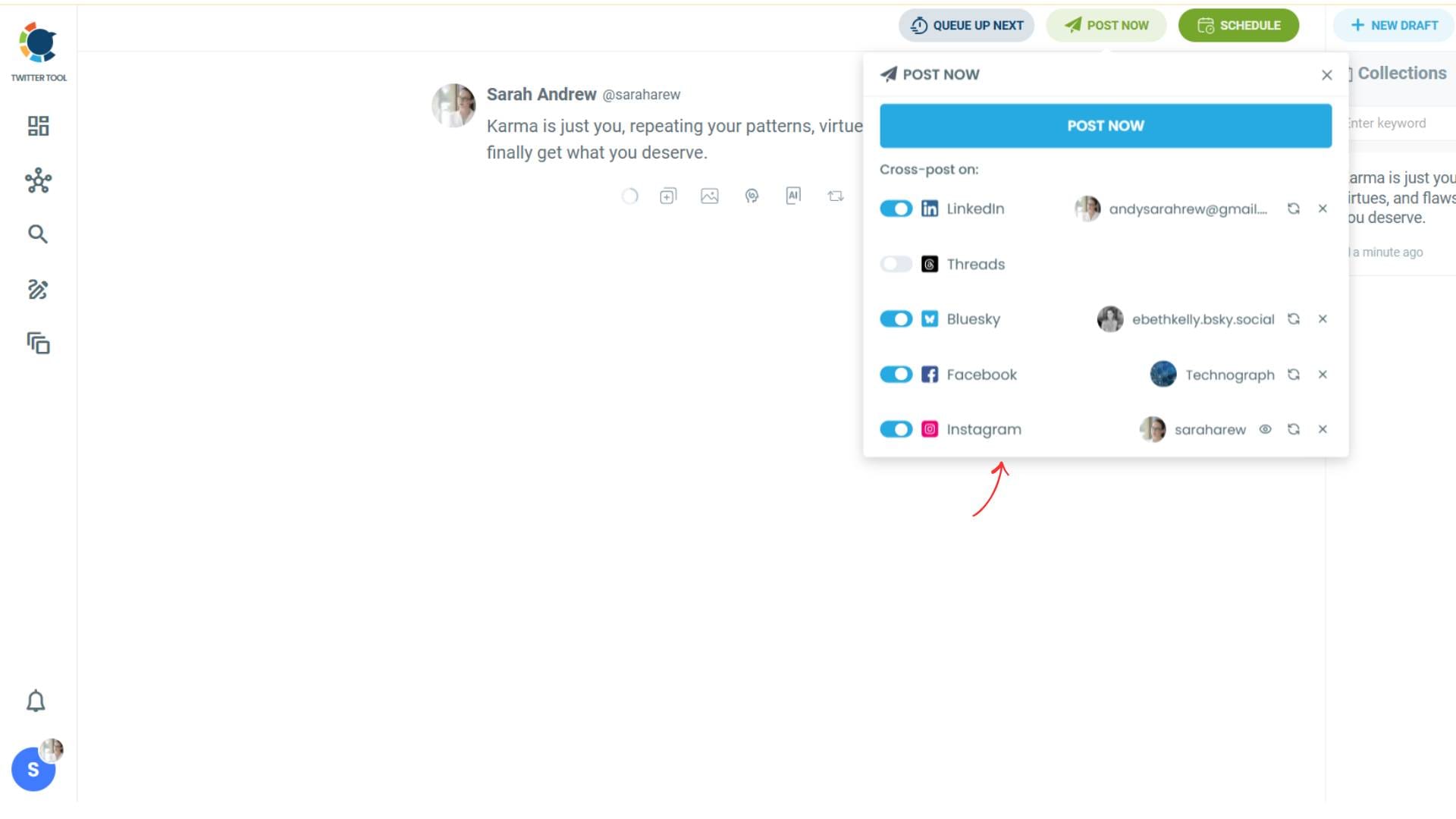
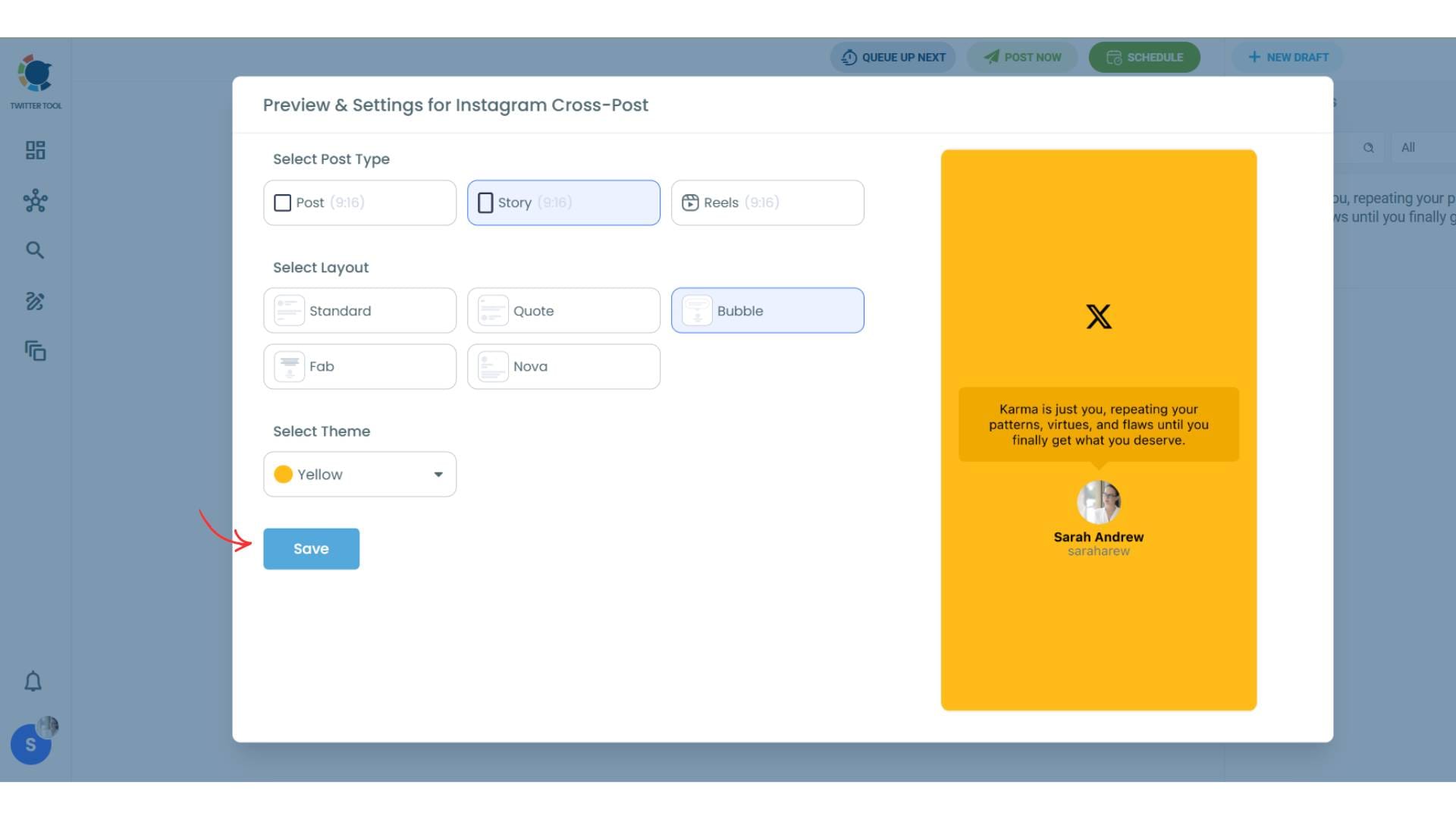
To decide if it is going to be a standard Instagram post or Story or Reels, and decide layouts and colours, click on “Preview”.
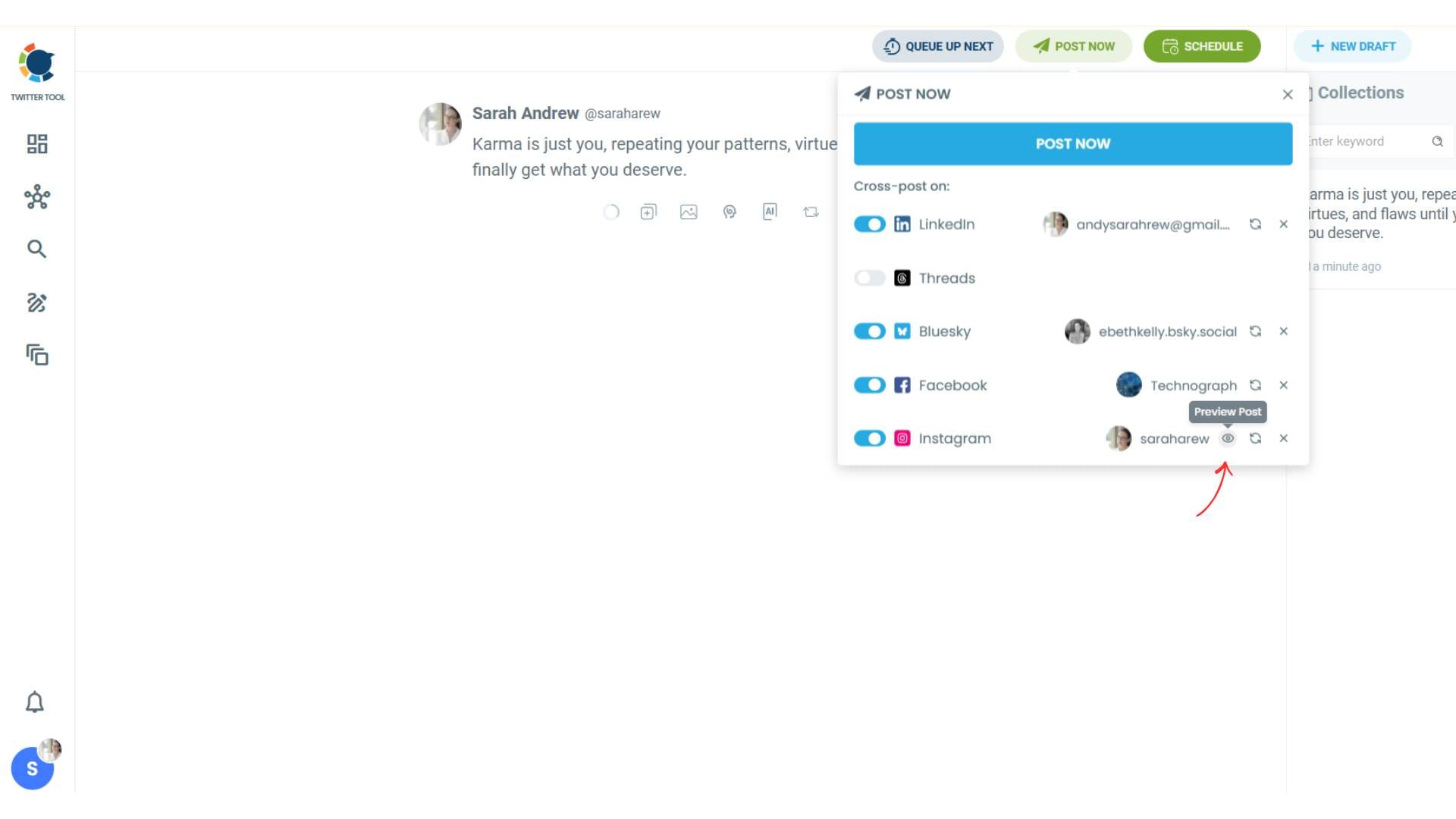
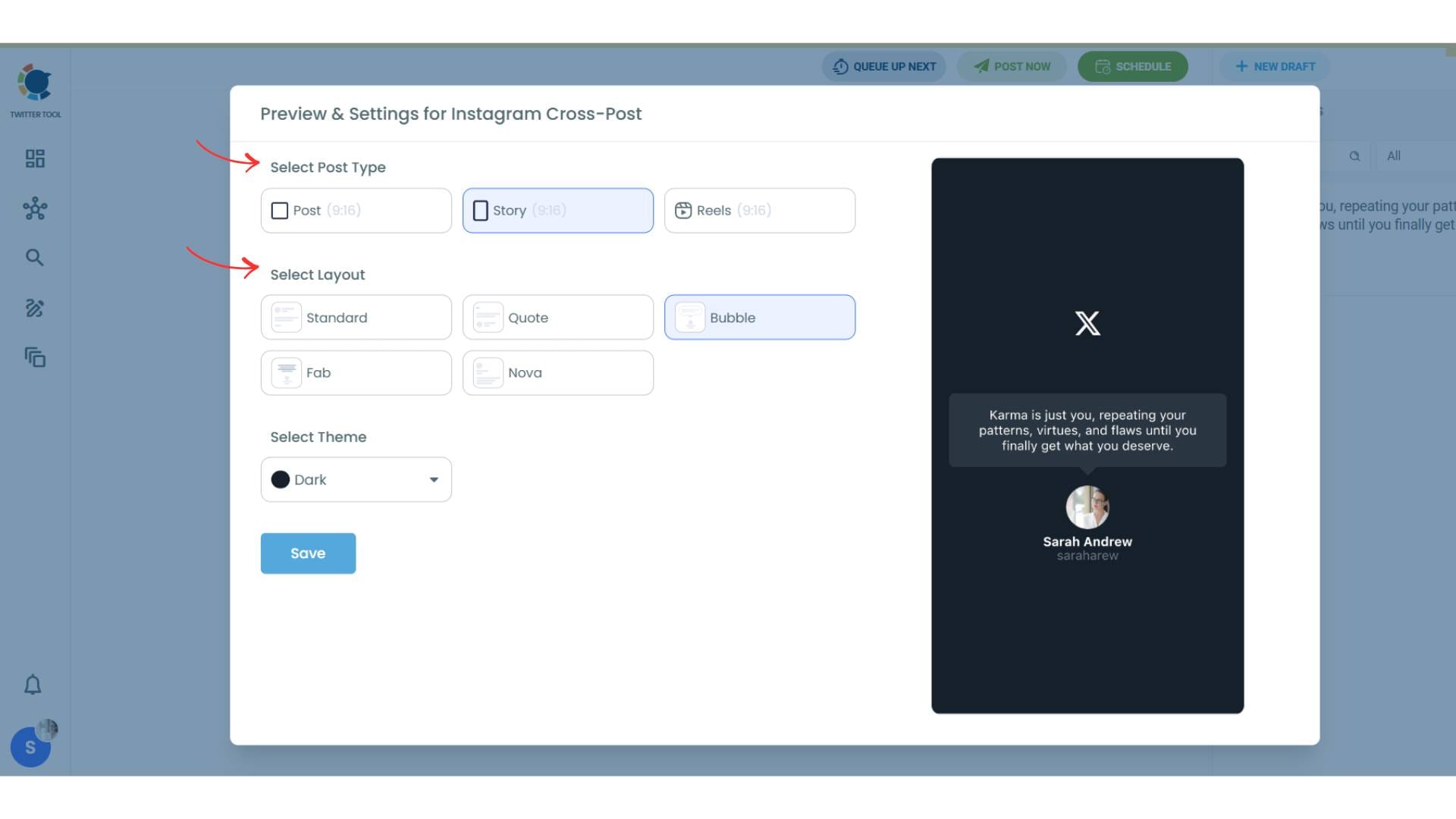
Step #5: Here you can select Instagram post type: “Post”, “Story”, and “Reels”.
You can also select the post layout.
You can also select different themes. Share your tweet on Instagram with different colors.
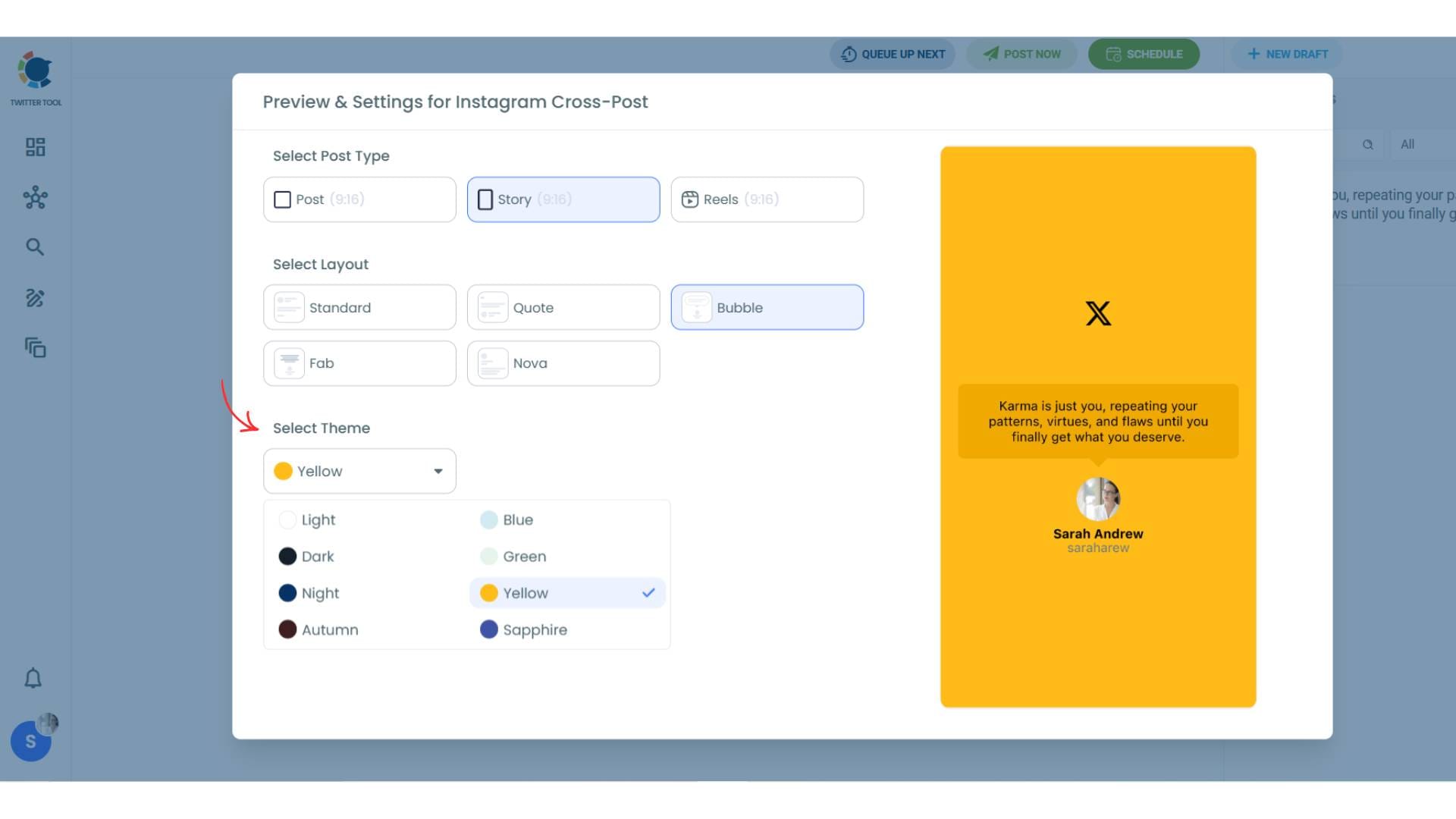
Lastly, you should click on “Save” and your Instagram cross-post is ready.
Step #6: When all is set, you can share your cross post immediately or schedule it for a later time.
You can select the day and hour and click to share your tweet!
You can get more impressions and engagement for your tweets on Instagram. Don't limit yourself to Twitter (X).
Share your tweets on Instagram to reach a wider audience.
Need Custom or Imaginary Tweets? Circleboom Has Another Option
Sometimes you don’t want to use an existing tweet.
Maybe you’re creating content, telling a story, or building a concept post. In that case, you need a way to generate a tweet that doesn’t exist yet, but still looks real.
Circleboom has another option for this as well: its Fake Tweet Generator.
 infocircleboom.com
This tool lets you create fully customizable tweet images while keeping the exact same style as X. Instead of designing from scratch or using templates, you can generate realistic tweet visuals directly.
You can control:
- Username and handle
- Tweet content
- Profile image
- Engagement numbers (likes, reposts, views)
And everything still looks native and consistent with real tweets.
How to Create a Tweet Image with Fake Tweet Generator
Creating your own tweet image is just as easy.
Step #1: Go to Circleboom Fake Tweet Generator
Head over to the Circleboom Fake Tweet Generator. You’ll be greeted by a simple and intuitive interface where you can start customizing your fake tweet.
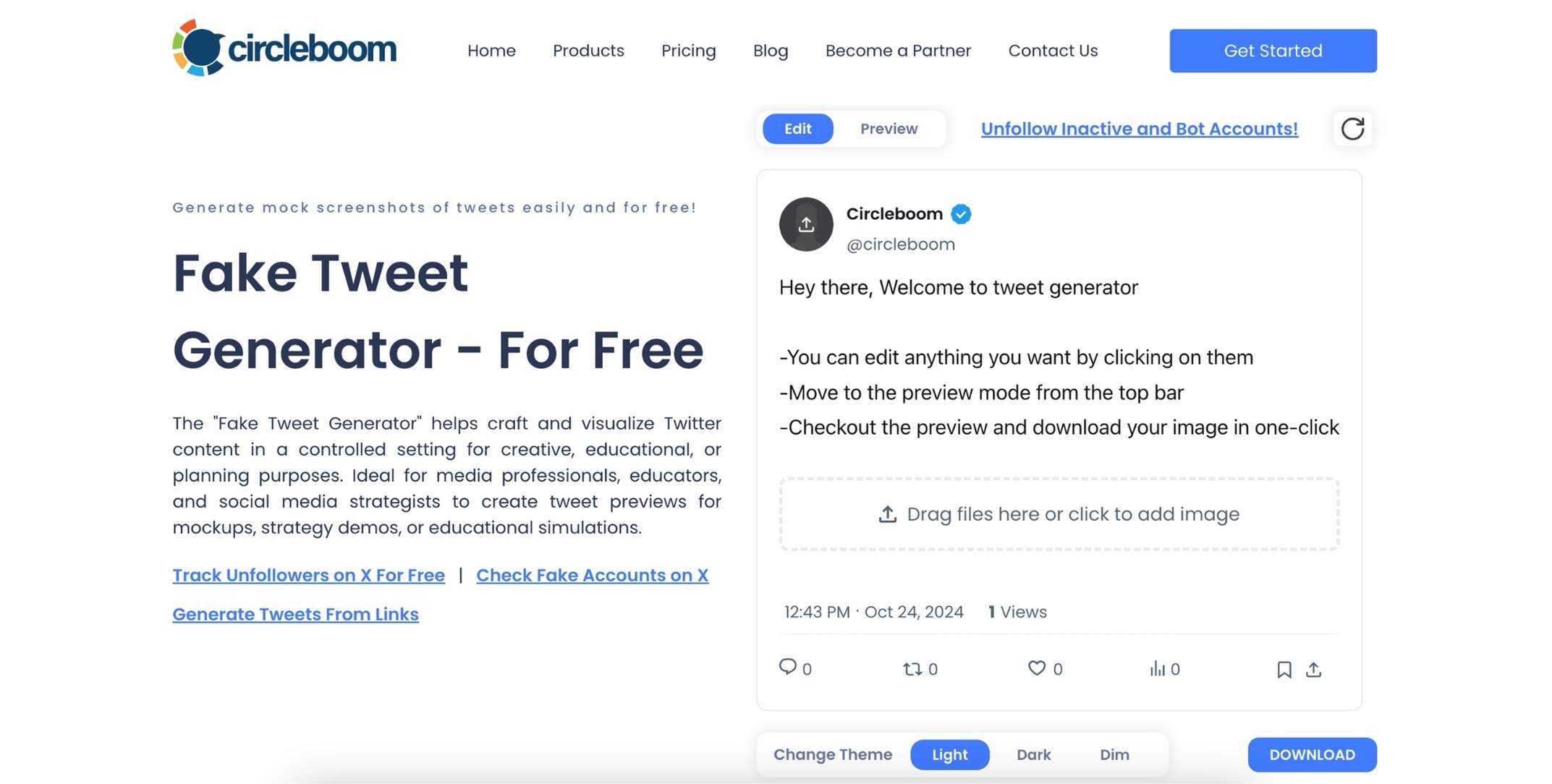
Step #2: Enter Your Tweet Text
Type the text of your fake tweet. You can add emojis, hashtags, or even @ mentions to make it more realistic. Think about the message you want to send and make it as creative or funny as you like.
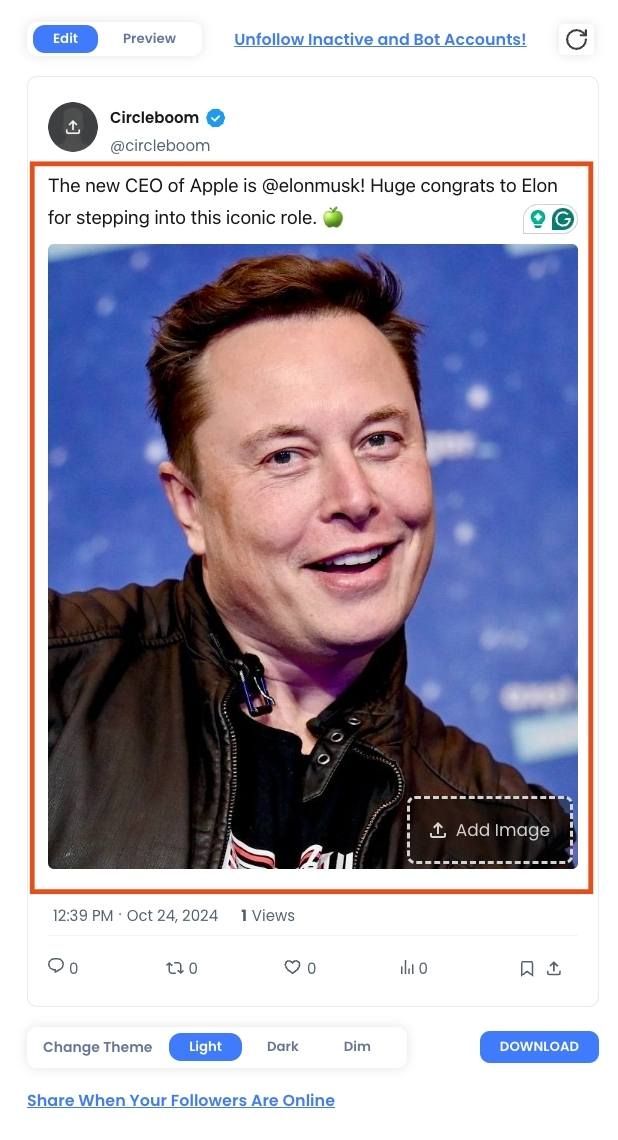
Step #3:: Customize the Profile Details
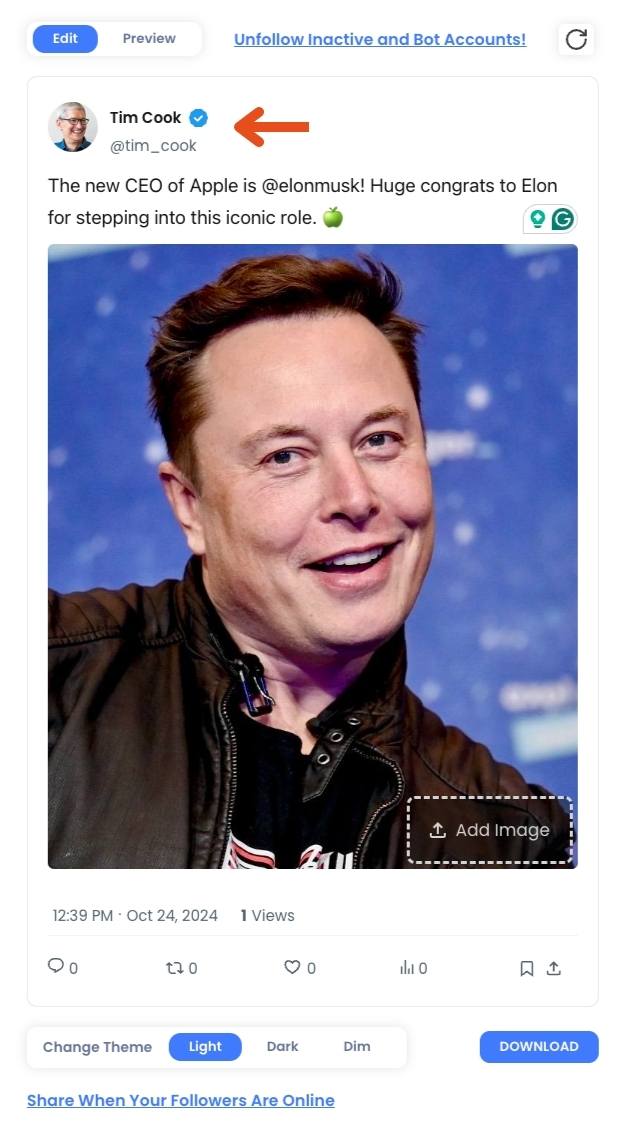
Now, you can customize the profile picture, username, and Twitter handle of your fake tweet. If you're creating a tweet for a well-known figure or brand, you can upload their profile image and add their official Twitter handle to make it look authentic.
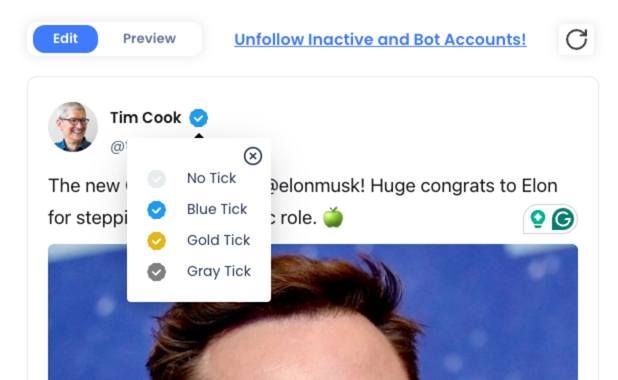
Step #4: : Choose Your Verification Badge
Circleboom lets you choose between a blue, gold, or grey verification checkmark. This feature allows you to mimic tweets from verified accounts, businesses, or government entities.
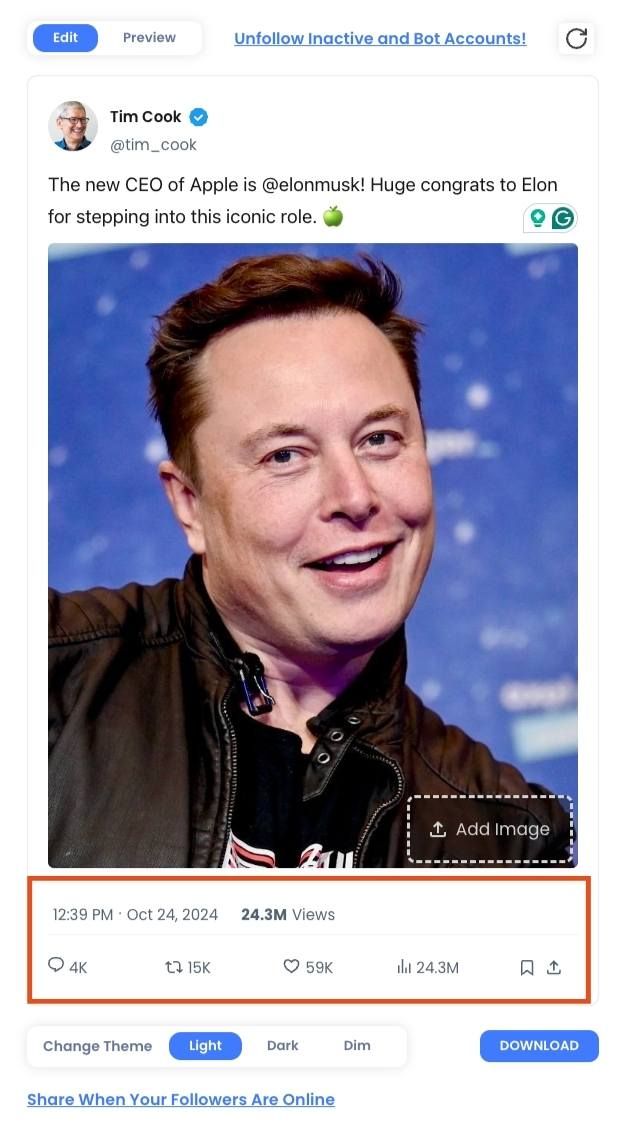
Step #5: Add Engagement Stats
Want your fake tweet to look viral? You can easily add likes, retweets, and views to the tweet. Just type in the numbers you want, and they’ll appear on the image, making your tweet look like it’s been seen by thousands of people.
Step #6: Preview Your Fake Tweet
Once you’ve filled out all the details, click on the preview button to see how your fake tweet looks. This step allows you to review and make any last-minute changes before finalizing the tweet.
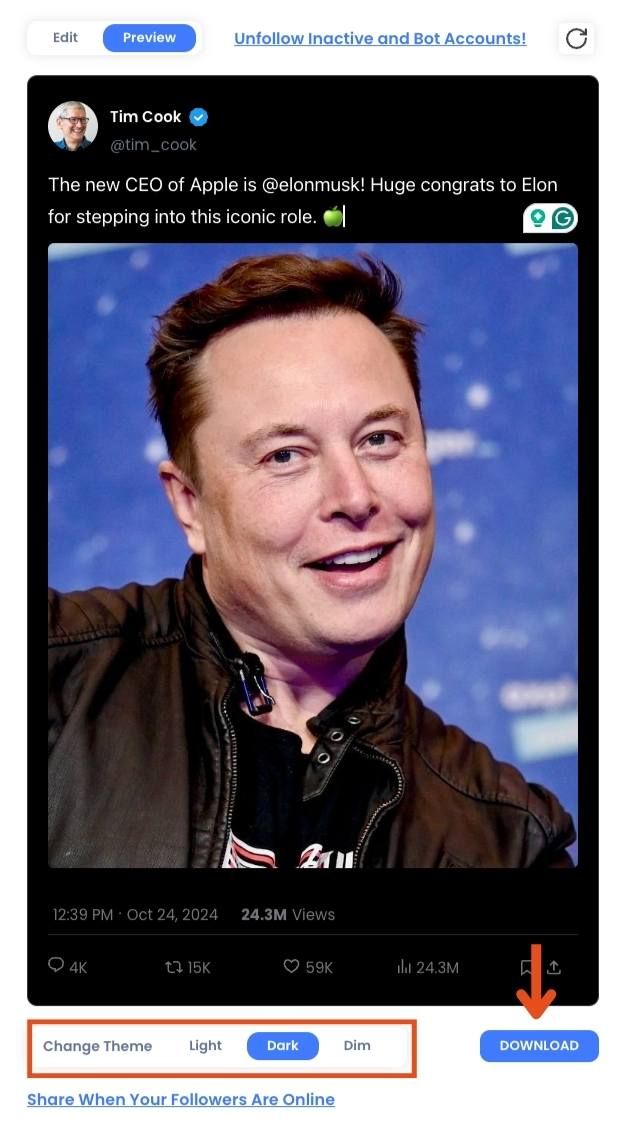
When you’re happy with your creation, simply download the image to your device or share it directly on social media. The download is quick, and you’ll have your customized fake tweet ready to go in seconds!
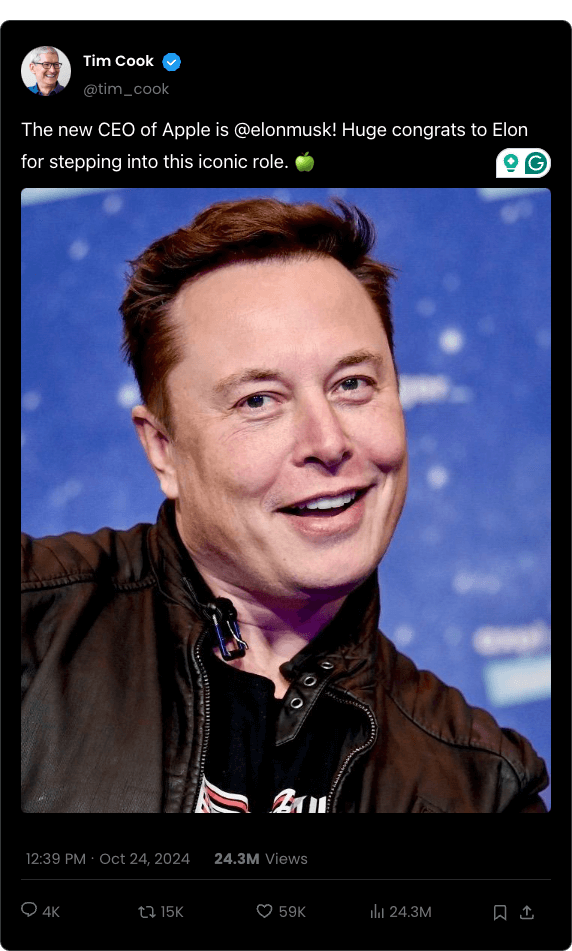
Here is the result:
If you need help, you can watch our video guide on how to create fake tweets! ⬇️
Conclusion
If you’re looking for the best Canva template for Twitter posts on Instagram, the honest answer is:
You don’t need one.
Trying to recreate tweets manually takes time, breaks consistency, and rarely looks right. Instead, using tools that are built specifically for this job makes the process faster and the result much more authentic.
With Circleboom Screenshot Generator, you can instantly turn real tweets into Instagram-ready images. And if you need custom visuals, Circleboom’s Fake Tweet Generator gives you another way to create tweet-style content without any design effort.
And if you want to go one step further, you don’t even need to manually upload those images to Instagram. With Circleboom Twitter, you can connect your X and Instagram accounts, automatically turn your tweets into visuals, and share them directly as posts, Stories, or Reels.
No templates. No design work. Just clean, ready-to-share content.