
Scheduling tweets with images looks easy on the surface, but once you start doing it consistently, you realize how fragile the process can be.
I don’t schedule image tweets occasionally. I schedule them regularly.
And when images are part of your content strategy, timing and reliability matter much more than with text-only tweets.
Image tweets are usually tied to something specific: a campaign, a product update, a visual idea, or a piece of content that needs to appear at the right moment. If that tweet fails to publish or goes out at the wrong time, the effort behind the image becomes wasted.
That’s exactly why choosing the right scheduling method matters.
 Arif Akdogan
Why X’s Built-in Scheduler Is Not Reliable Enough
X does provide a basic scheduling option, but it’s clearly designed for light, occasional use, not for structured image-based posting.
The main issue is not just missing features, but the lack of control and visibility.
❌ You can schedule a tweet, but you can’t properly plan a posting flow
❌ There’s no centralized view to manage multiple image posts together
❌ Image handling is very basic and slow when posting frequently
❌ If a scheduled post fails, you usually realize it after the time has passed
❌ There’s no guidance on when your followers are actually active
For text-only tweets, this might be acceptable. For image tweets, it’s risky.
Images usually require preparation. You design them, select them carefully, or match them with a message. When scheduling fails, you don’t just lose a tweet, you lose the context and timing you planned around that visual.
That’s why I don’t rely on X’s built-in scheduler for image tweets.
What I Use Instead: Circleboom Twitter
For scheduling tweets with images, I use Circleboom Twitter because it’s built for managing an account, not just publishing a post.

Circleboom Twitter is an official X Enterprise developer, which means it works directly within X’s allowed systems and limits. That alone makes a difference when it comes to reliability.
But more importantly, it’s not just a scheduler.
It combines;
- follower and following management,
- analytics,
- and post creation
in a single dashboard. This matters because scheduling images is not an isolated action. It’s connected to audience behavior, timing, and engagement.
Instead of jumping between tools, everything related to posting lives in one place.
Creating Image Tweets the Right Way With Circleboom Twitter
When I schedule image tweets, I want to control both the content and how it’s delivered.
Circleboom Twitter turns post creation into a structured process rather than a quick upload.
Inside the X Post Planner, I can:
✅ Write tweets manually or generate them using the built-in AI Tweet Generator
✅ Upload images directly from my device without compression issues
✅ Pull visuals from Canva when I need designed graphics or branded content
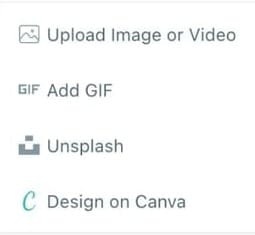
✅ Use Unsplash for clean, high-quality stock visuals that actually look professional
✅ Add Giphy GIFs when motion performs better than static images
✅ Change text fonts to make posts visually different in crowded timelines
✅ Set auto-retweet rules so posts get a second or third life
✅ Schedule tweets based on when followers are online, not guesswork
This approach turns image posting into image curation.
 infocircleboom.com
Instead of thinking “what should I post right now,” I plan visuals in advance, match them with text, and schedule them to go live when they have the highest chance of being seen.
And instead of posting manually every day, I schedule my tweets and let them publish automatically.
How to Schedule Tweets With Images Using Circleboom Twitter
Step 1: Go to Circleboom Twitter’s X Post Planner
Open Circleboom Twitter and click X Post Planner + AI Writer.
Then select Write & Plan Your Post to start creating your tweet.

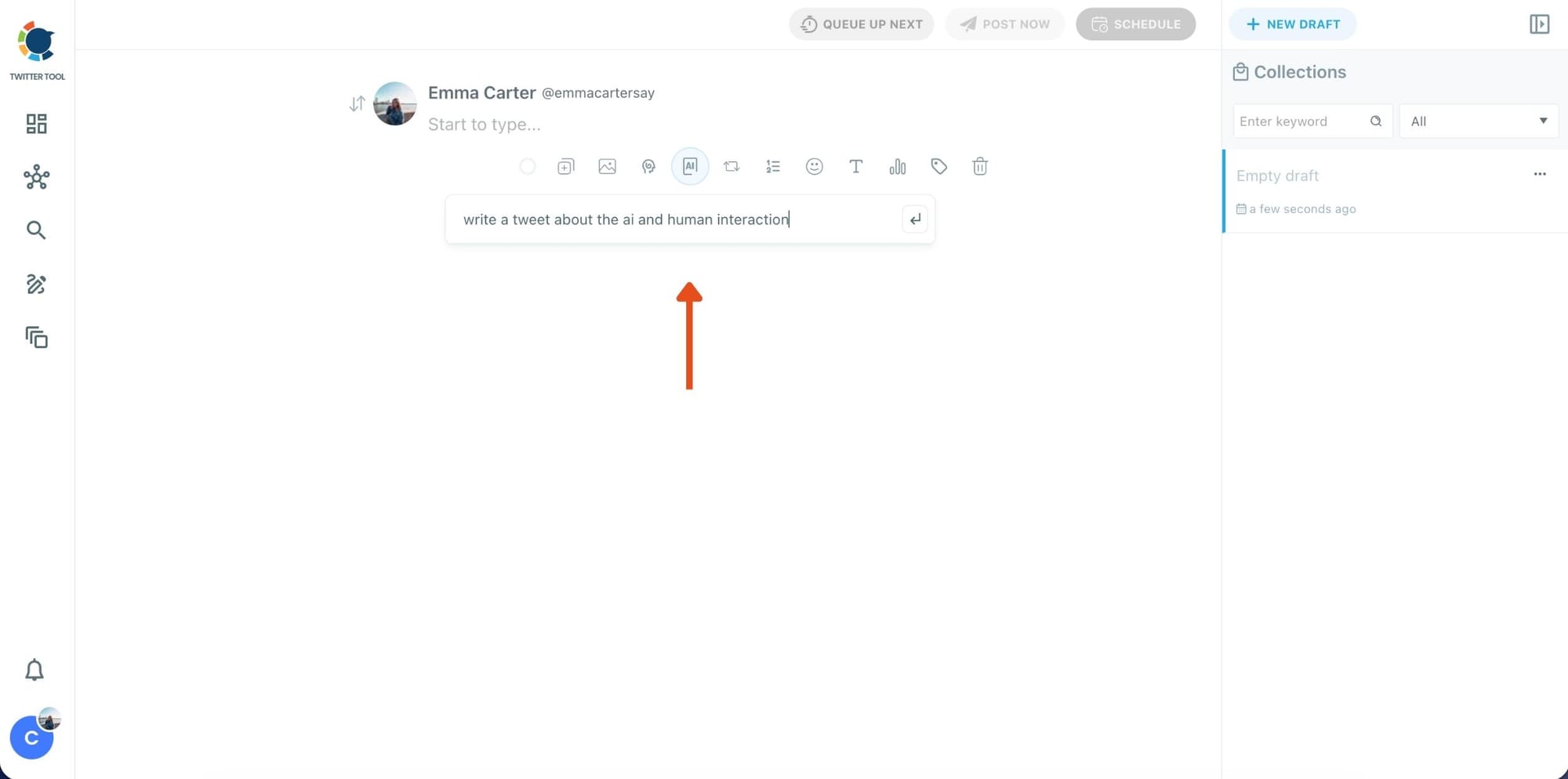
Step 2: Write your tweet (or generate one with AI)
You can type your tweet manually in the editor.
Or, if you want to move faster, click the AI option and let Circleboom generate a tweet idea for you based on your topic.
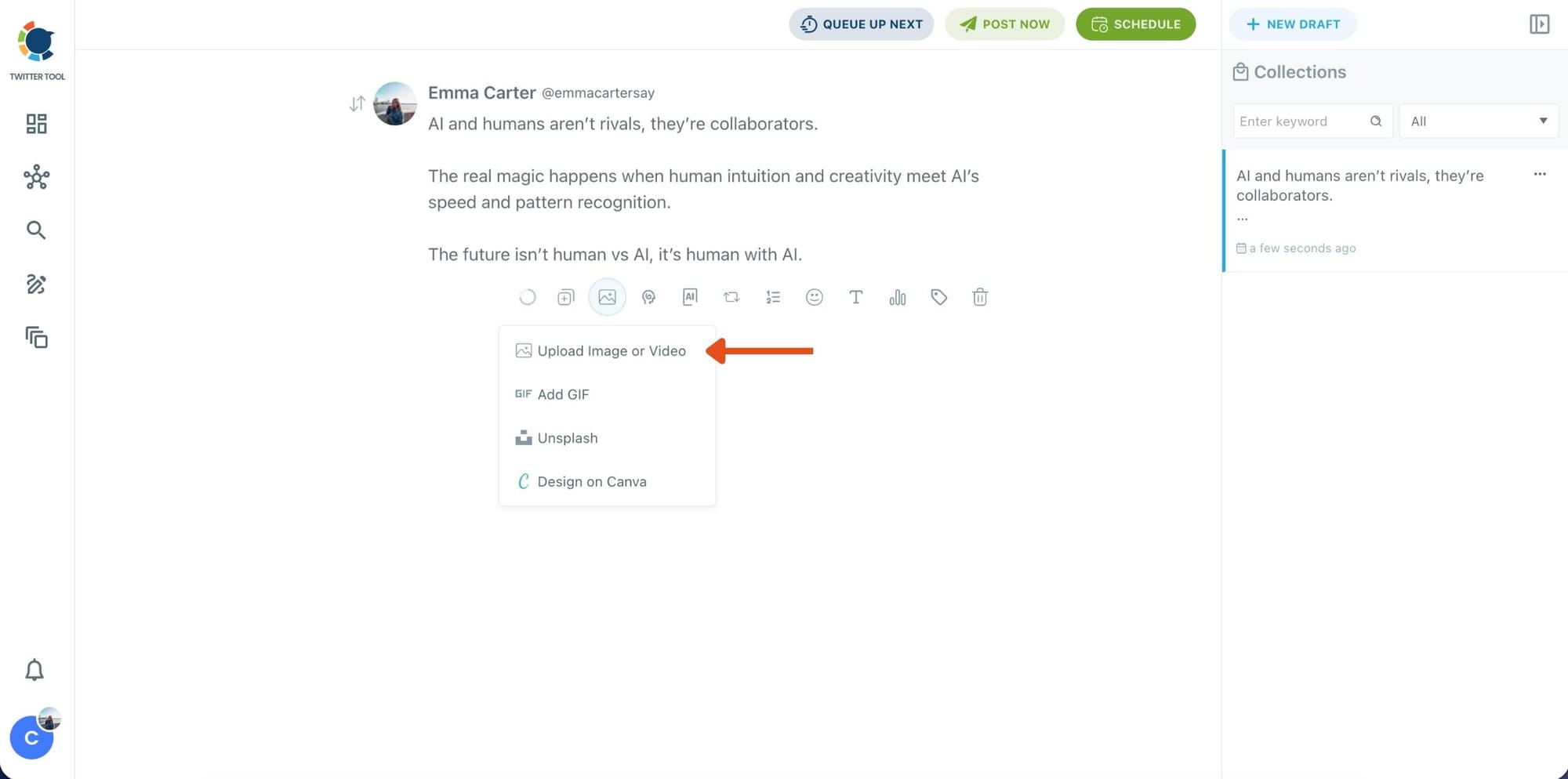
Step 3: Add an image to make the post more engaging
Once your text is ready, attach a visual to your tweet.
You can:
- Upload an image/video from your device
- Pick one from Unsplash
- Or design one instantly using Canva
Step 4: Style your tweet using Circleboom’s Font Generator
Now it’s time to make your tweet stand out visually.
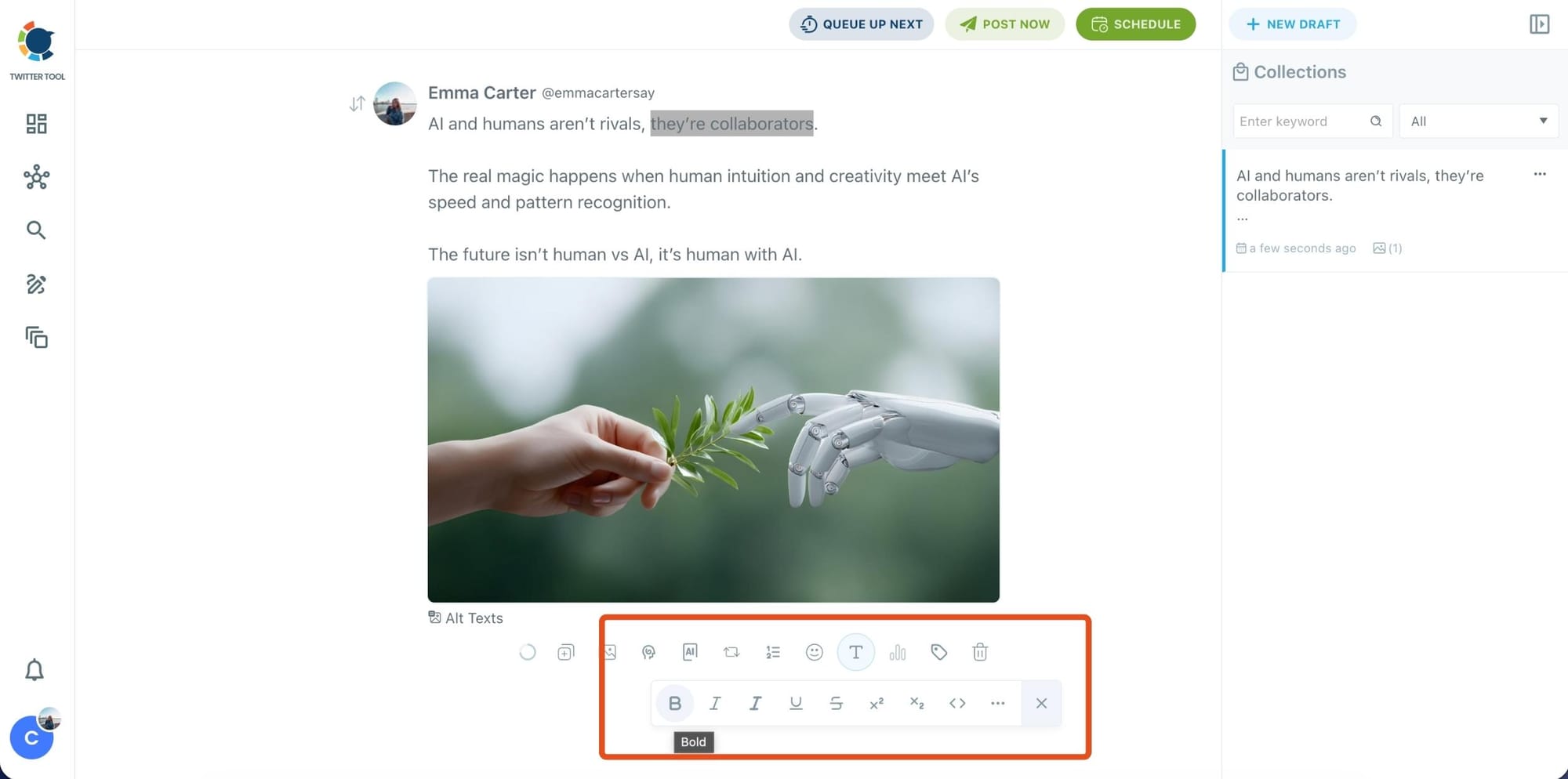
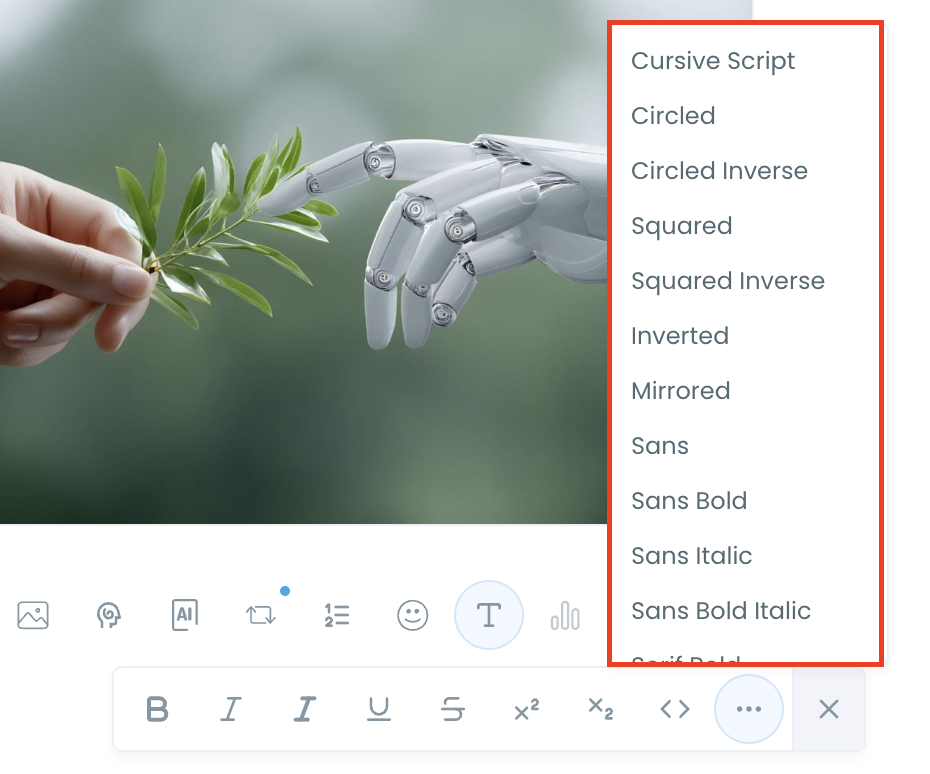
Select the part of your text you want to change, then open the Font Generator toolbar and apply styles like:
- Bold / Italic / Underline
- Different font variations
- Extra formatting options for a more “designed” look
This is perfect when you want key parts of your tweet to grab attention immediately.
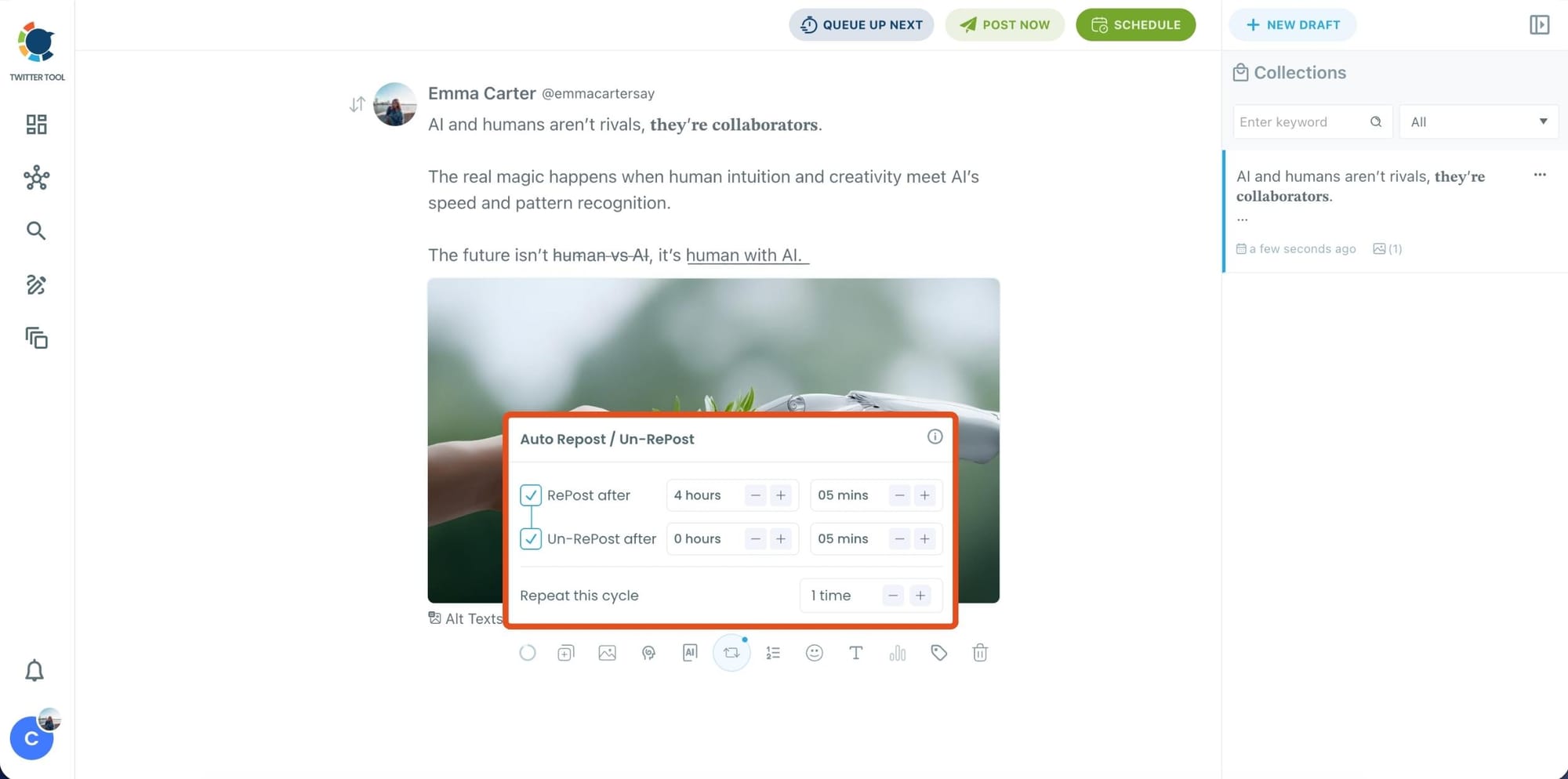
Step 5: Set Auto Retweets to boost visibility
After styling your post, you can increase reach by enabling Auto Repost / Un-RePost settings.
This lets you automatically:
- Repost your tweet after a selected time
- Remove the repost later
- Repeat the cycle if you want more than one repost
It’s a smart way to bring your tweet back into the feed without manually reposting it.
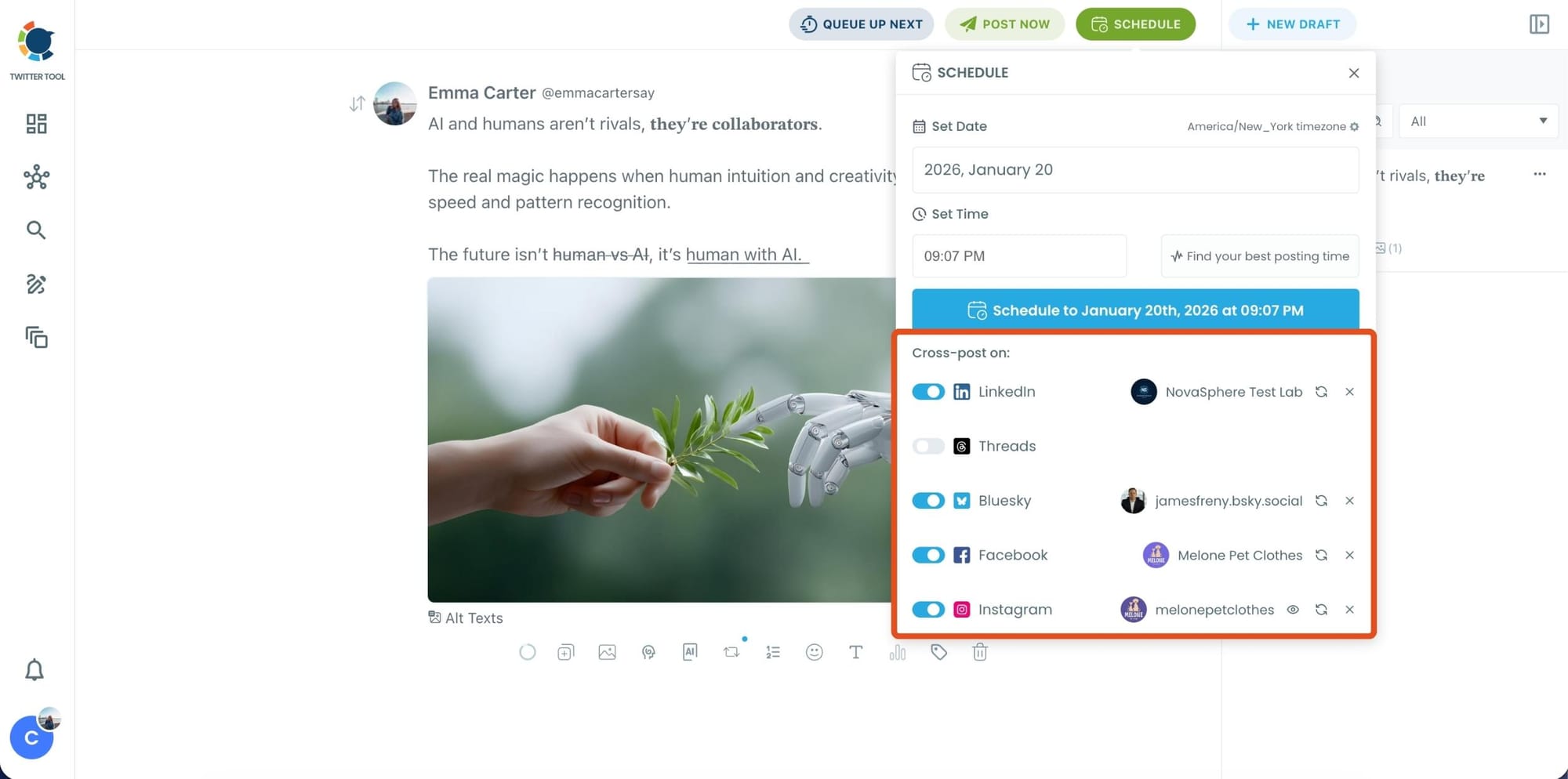
Bonus Tip: Cross-post your tweet to other platforms automatically
Before you publish, you can also enable Cross-Post to share the same tweet across multiple platforms in one go.
Circleboom lets you post your content to Instagram, Facebook, LinkedIn, Bluesky, and Threads automatically, so you don’t have to rewrite, re-upload, or repeat the same work on each platform.
Step 6: Schedule it for the best time to post
Finally, click Schedule and set your date and time.
You can also click Find your best posting time to see Circleboom’s suggested time slots based on follower activity.
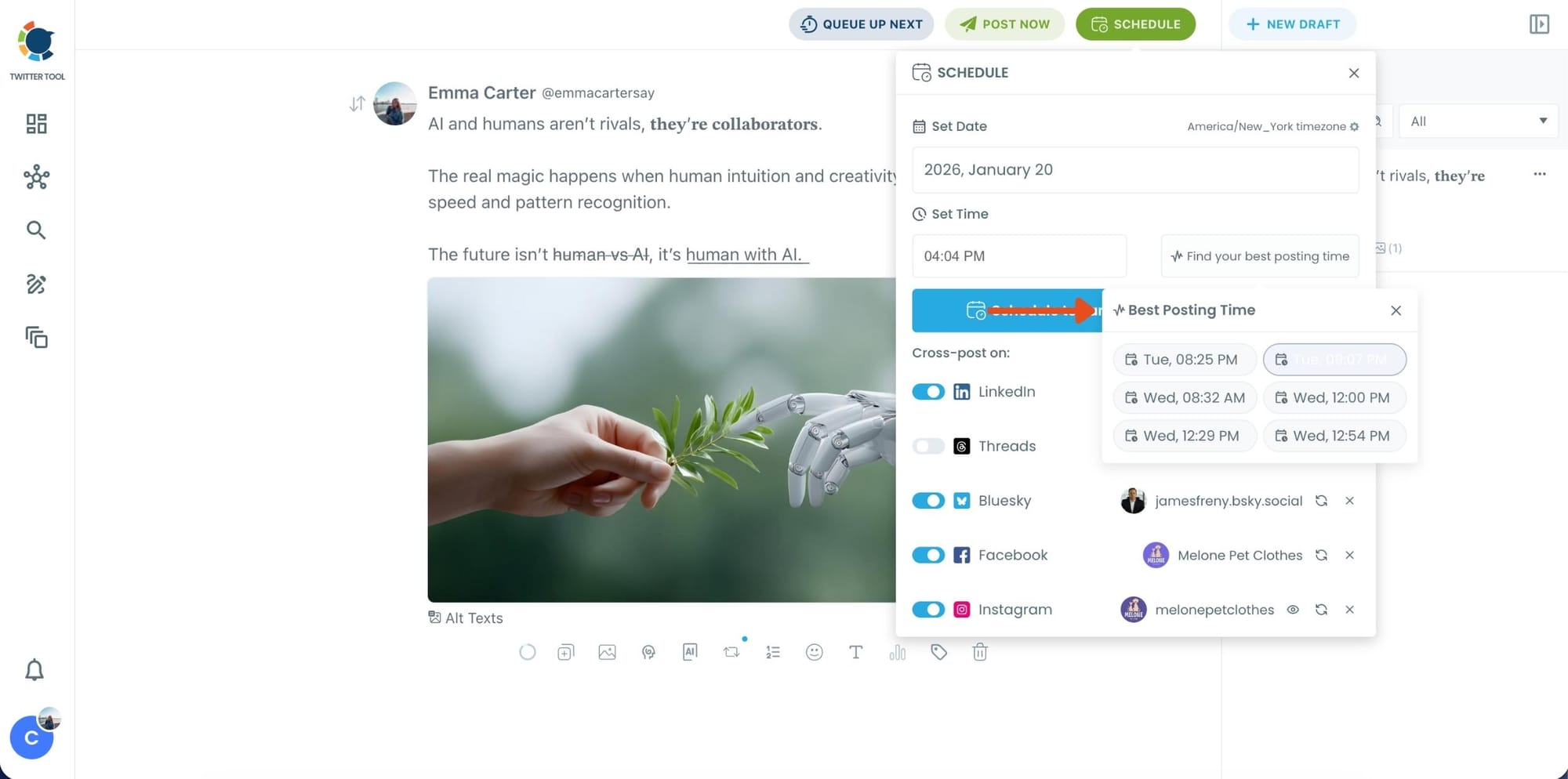
Once you pick the best option, schedule it and you’re done. Your tweet will go out at the time it has the highest chance to perform well.
Scheduling Multiple Image Tweets at Once With Bulk Scheduling
Scheduling a single image tweet is manageable. Doing it repeatedly is not.
If you post regularly, manual scheduling quickly becomes repetitive and error-prone. This is where bulk scheduling changes the workflow completely.
Circleboom Twitter allows you to schedule multiple tweets with images at once using a CSV file. This is not just about speed, it’s about consistency.
 Arif Akdogan
Bulk scheduling is especially useful when you:
- Prepare content in batches
- Run time-based campaigns
- Post daily or multiple times a day
- Manage long-term content plans
Instead of uploading images one by one, you prepare everything once and let the system handle the rest.
How Bulk Scheduling Image Tweets Works
The bulk system is simple but powerful.
You create a CSV file that includes:
- Tweet texts
- Scheduled dates and times
- Image URLs that are public and valid
When those image URLs are accessible and end with formats like .jpg or .png, Circleboom automatically attaches the images to the correct tweets.
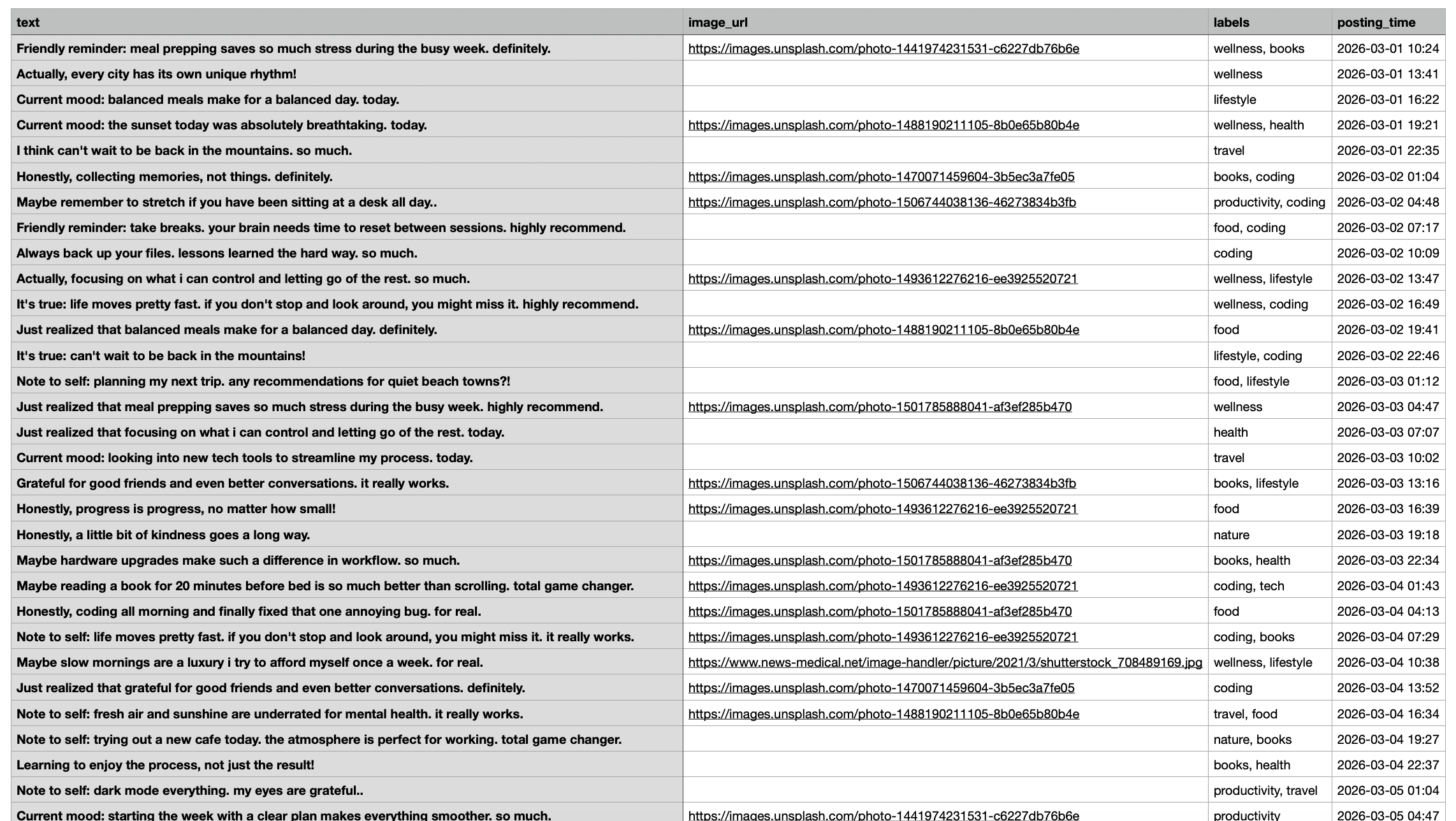
This means you don’t need to manually upload or re-check each image inside the tool. Once the file is uploaded, everything is mapped correctly.
How to Bulk Schedule Tweets With Images Using Circleboom Twitter
Step #1: After logging in to Circleboom Twitter, go to the X Post Planner.
This is the main screen where tweets are created, edited, and scheduled. Bulk scheduling also starts from here.

Step #2: At the top of the post planner, click Bulk Upload.
This opens the bulk scheduling interface and allows you to import multiple tweets at once instead of creating them one by one.
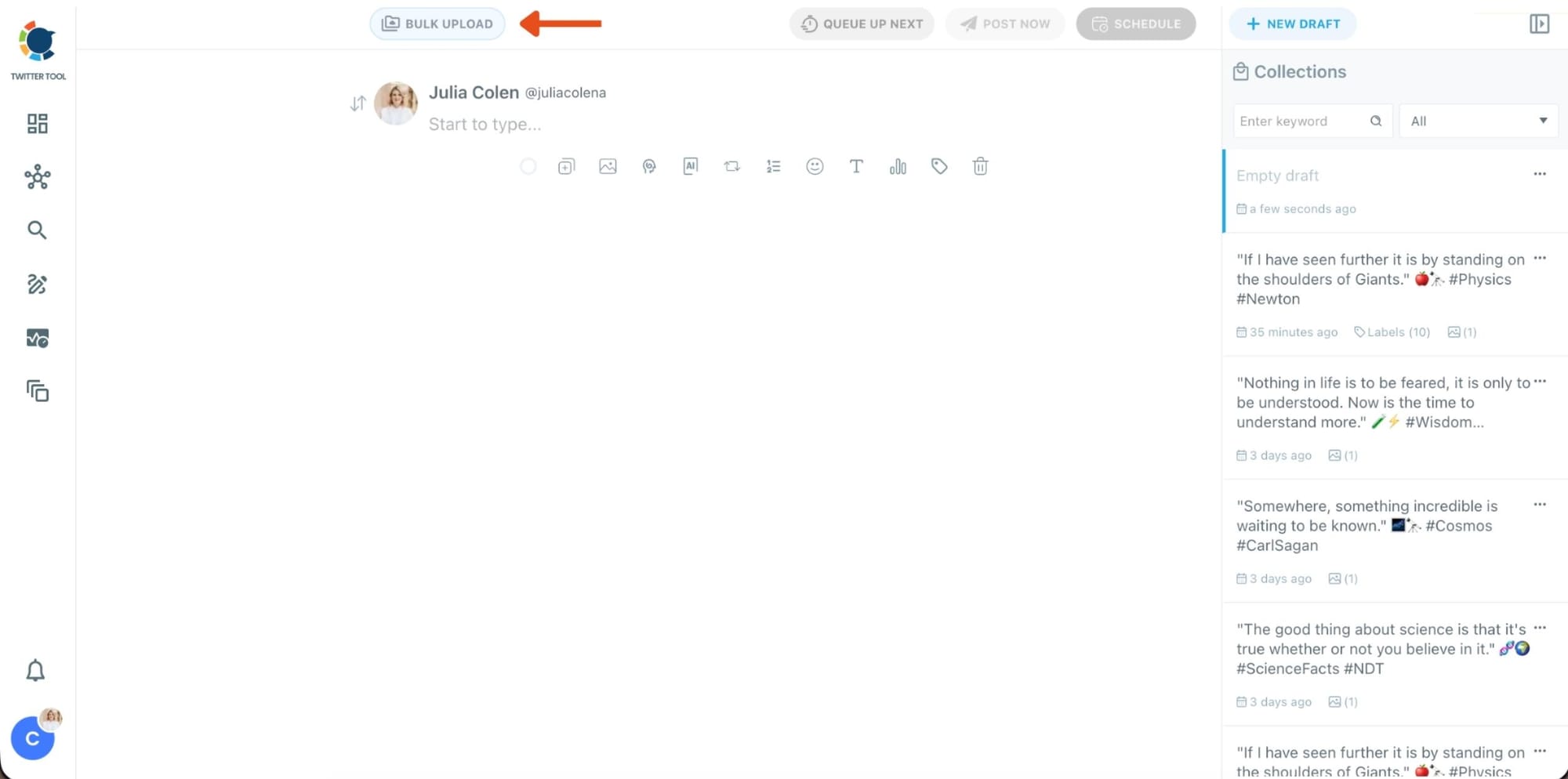
Step #3: Upload your CSV file
Upload your CSV file by dragging it into the upload area or selecting it from your computer.
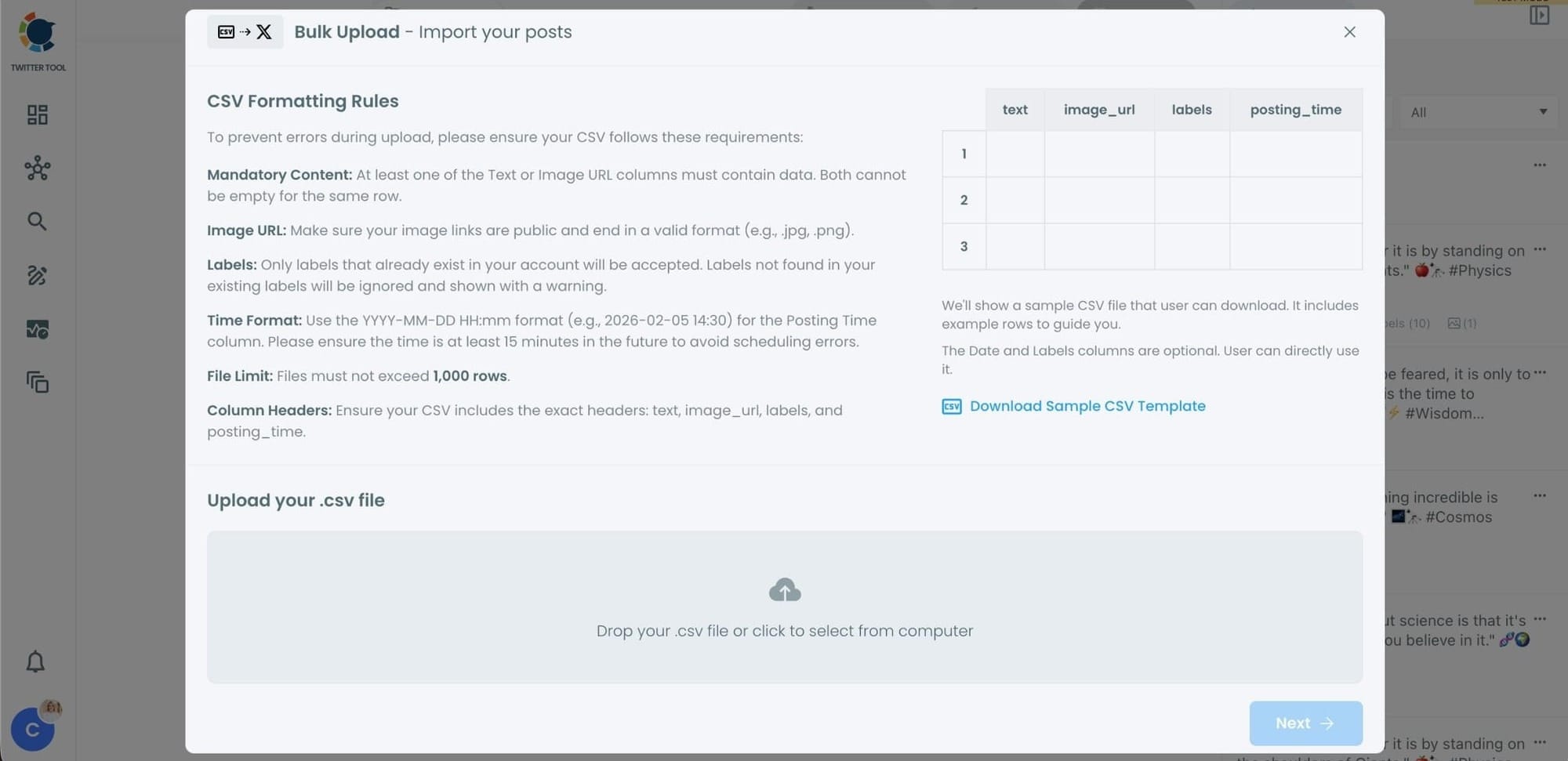
Before uploading, make sure your CSV file follows the required format.
Your file should include the correct column headers, and each row should represent a single tweet.
You can include tweet text, image URLs, labels, and posting times.
Preparing the file in the correct format prevents errors during scheduling.
Step #4: Review your imported tweets
After uploading the CSV file, Circleboom shows all your tweets in a preview list.
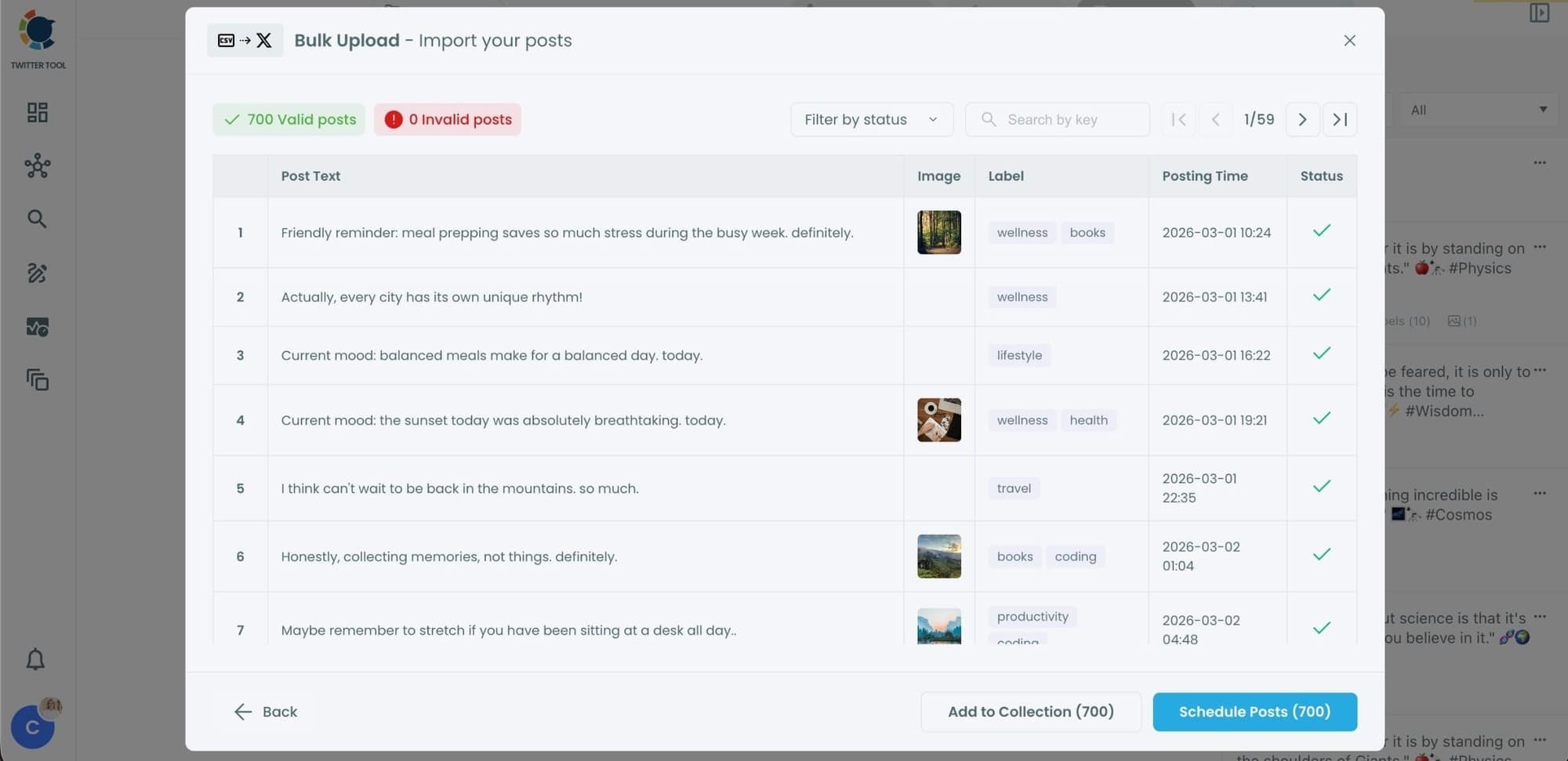
At this stage:
- Valid tweets are marked clearly
- Invalid tweets are shown with the reason for the error
- You can also add tweets to Collections if you want to organize or reuse them later
This step helps you catch and fix problems before anything is scheduled.
Step #5: Schedule all tweets at once
Once everything looks correct, click Schedule Posts.
Circleboom automatically schedules all valid tweets based on the posting times in your CSV file.
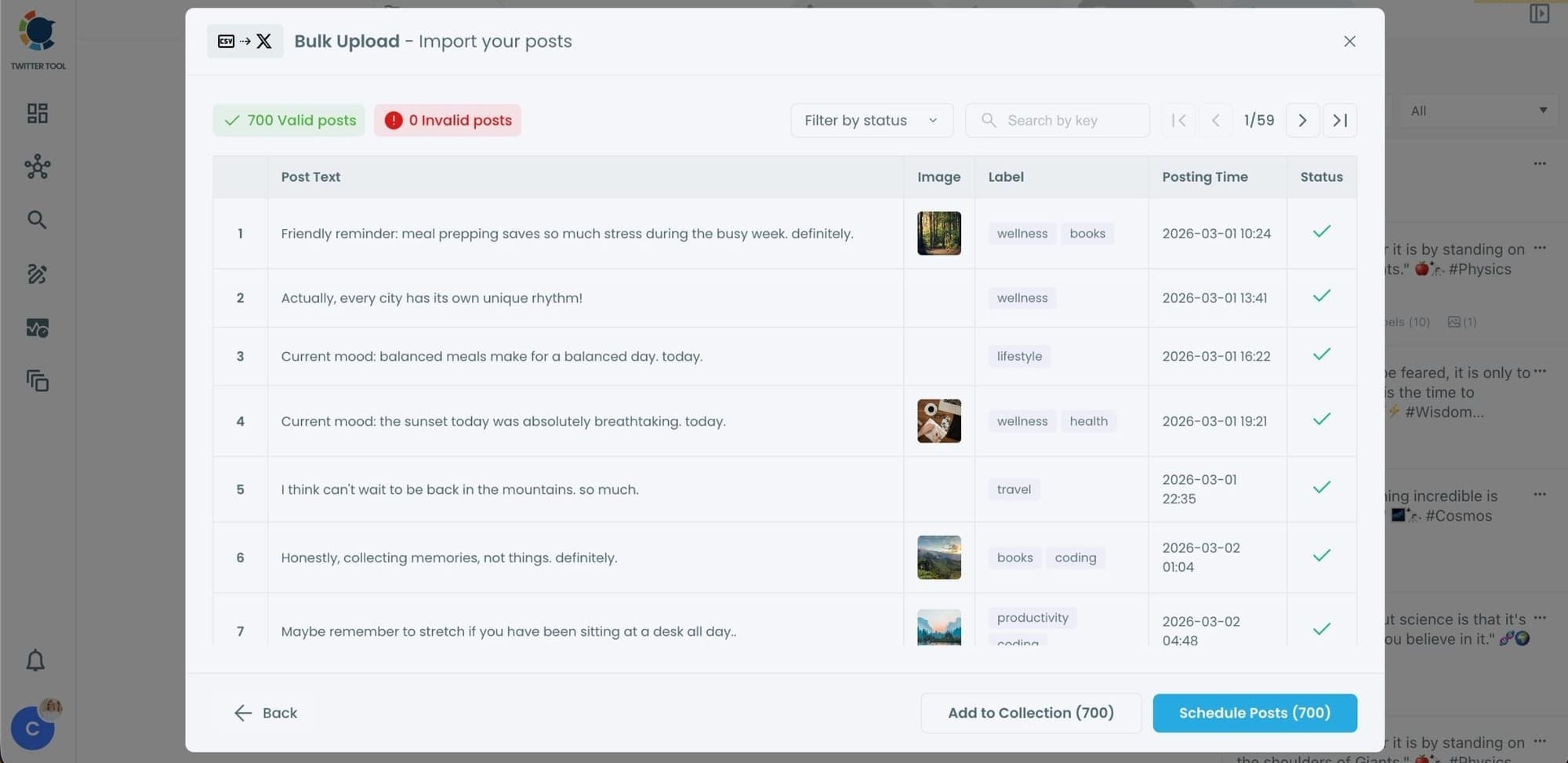
Even hundreds of tweets can be scheduled in seconds, without manual work.
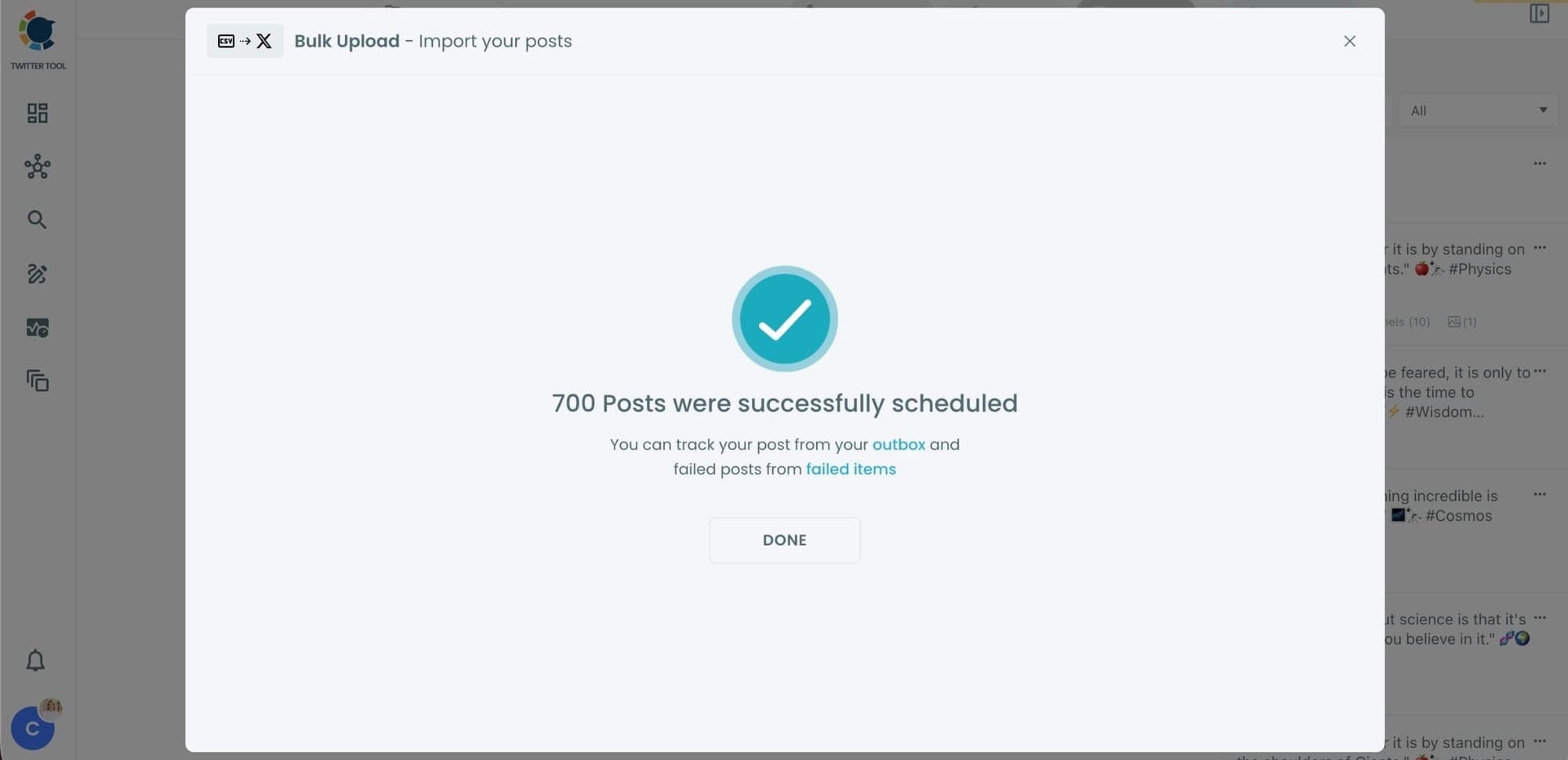
Step #6: Manage scheduled tweets from the Outbox
After scheduling, all your tweets appear in the Outbox and calendar view.
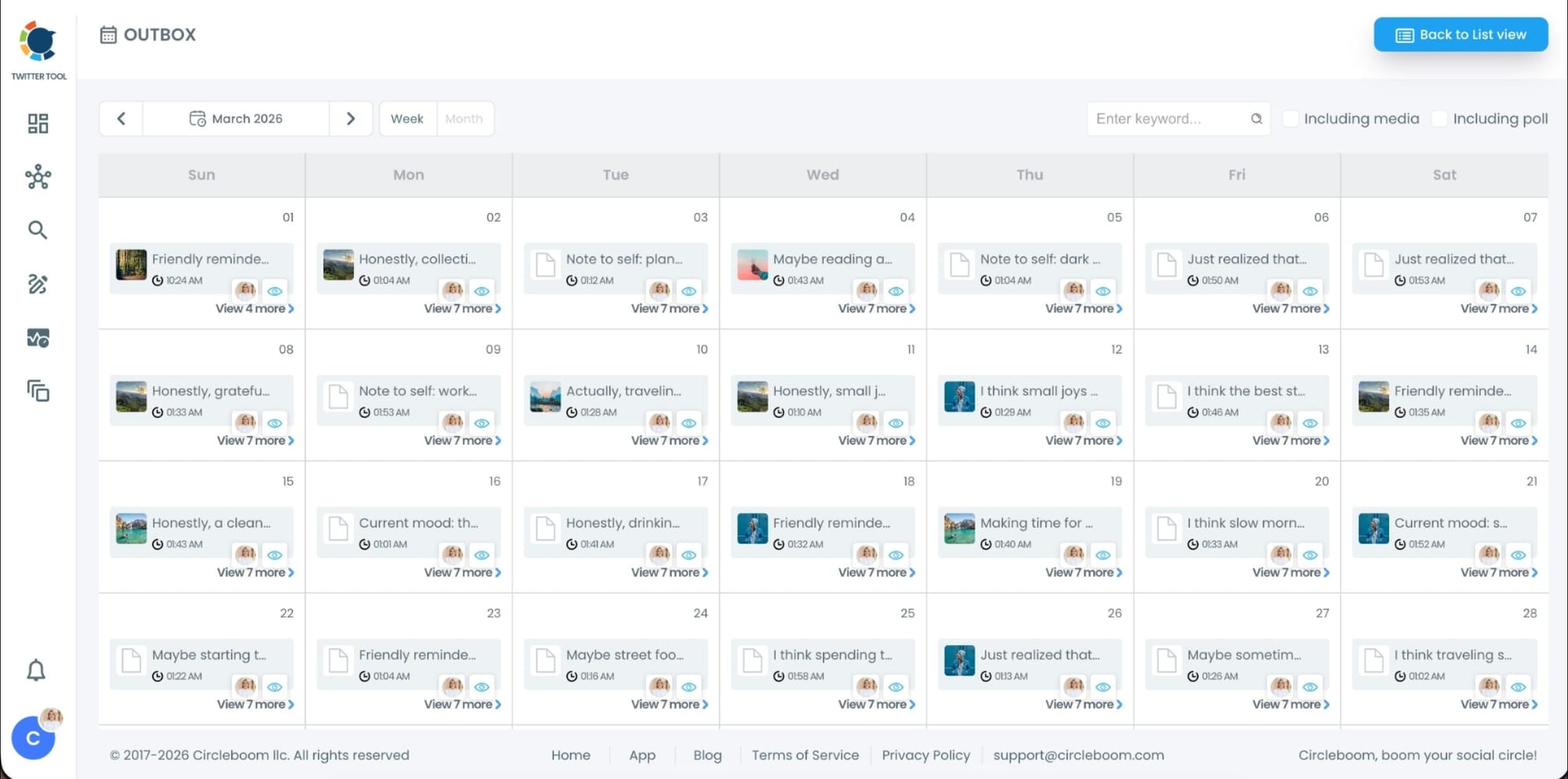
From here, you can:
- See all scheduled tweets by date and time
- Make changes if needed
- Edit or remove scheduled posts
- Keep track of your content easily
This gives you full control even after bulk scheduling is completed.
Common Image Scheduling Mistakes (and How This Avoids Them)
Most image scheduling problems come from small but critical details.
Common mistakes include:
➡️ Using image links that are not public
➡️ Adding image URLs that don’t end with valid formats
➡️ Scheduling posts when followers are inactive
➡️ Writing captions that don’t align with the image
➡️ Forgetting to resurface posts after the first publish
Using Circleboom Twitter reduces these risks by making validation, previews, and timing part of the process.
You’re not guessing whether something will work. You can see it before it goes live.
Final Thoughts
If images are an important part of your Twitter strategy, scheduling should feel stable and predictable.
The built-in X scheduler may work for occasional posts, but it’s not designed for image-heavy, consistent publishing.
The best way to schedule tweets with images is using a workflow that gives you:
- Control over visuals
- Reliable scheduling
- Bulk publishing options
- Timing based on real follower activity
That’s why I use Circleboom Twitter to schedule my image tweets, both individually and in bulk.
When visuals matter, reliability matters even more.