

How do you grow a visual brand on X when you shoot in batches and edit in bursts? For most photographers on Twitter, the answer is a publishing problem before it is a creative one.
A finished set has to become weeks of posts that look related and arrive on time. This guide covers the route from an edited folder to a scheduled month, including the one requirement that can stop a first upload.
By hand: one export, one caption and one upload a day, for as long as you remember to do it. Circleboom: schedules a month of photo posts on X from one spreadsheet of captions, image links and posting times, through official X Enterprise APIs.
→ Build the feed that photographers on Twitter get recognized for
Before anything else, check where your image files live.
What growing a visual brand on Twitter takes
A visual brand on Twitter grows from three things working together: a look that repeats, a rhythm that holds, and a way to learn which pictures earn a response.
Most advice on Twitter for photographers stops at "post regularly and engage." That is true and not much help to someone with 300 edited frames on a drive and a full shooting calendar.
The look is the easier part. Inside Circleboom's X Post Planner, Image Tools lets you attach a photo from your device or from Google Photos, and it opens Canva in the same window for the few posts that need a title card or a quote frame.
One reusable template for those framed posts is what makes a series identifiable.
The rhythm is where photographers on X lose ground. Shooting days, editing days and travel leave long gaps, and an account that goes quiet for three weeks has to earn attention again.
X rewards accounts that post on a regular pattern, and the first minutes after a post goes live decide how far it travels. Both favor planned posting over posting when you happen to be free.
That changes what Twitter for photographers is about in practice. The work is less about any single image and more about a calendar that fills itself from your archive.
A recognizable feed is a batch decision, made once, then published in small daily pieces.
How Circleboom turns an edited set into a month on X
Circleboom's Bulk Schedule imports a spreadsheet of photo posts and schedules each one on X at the time written in its row. You prepare the content once, review it once, and the queue publishes without you.
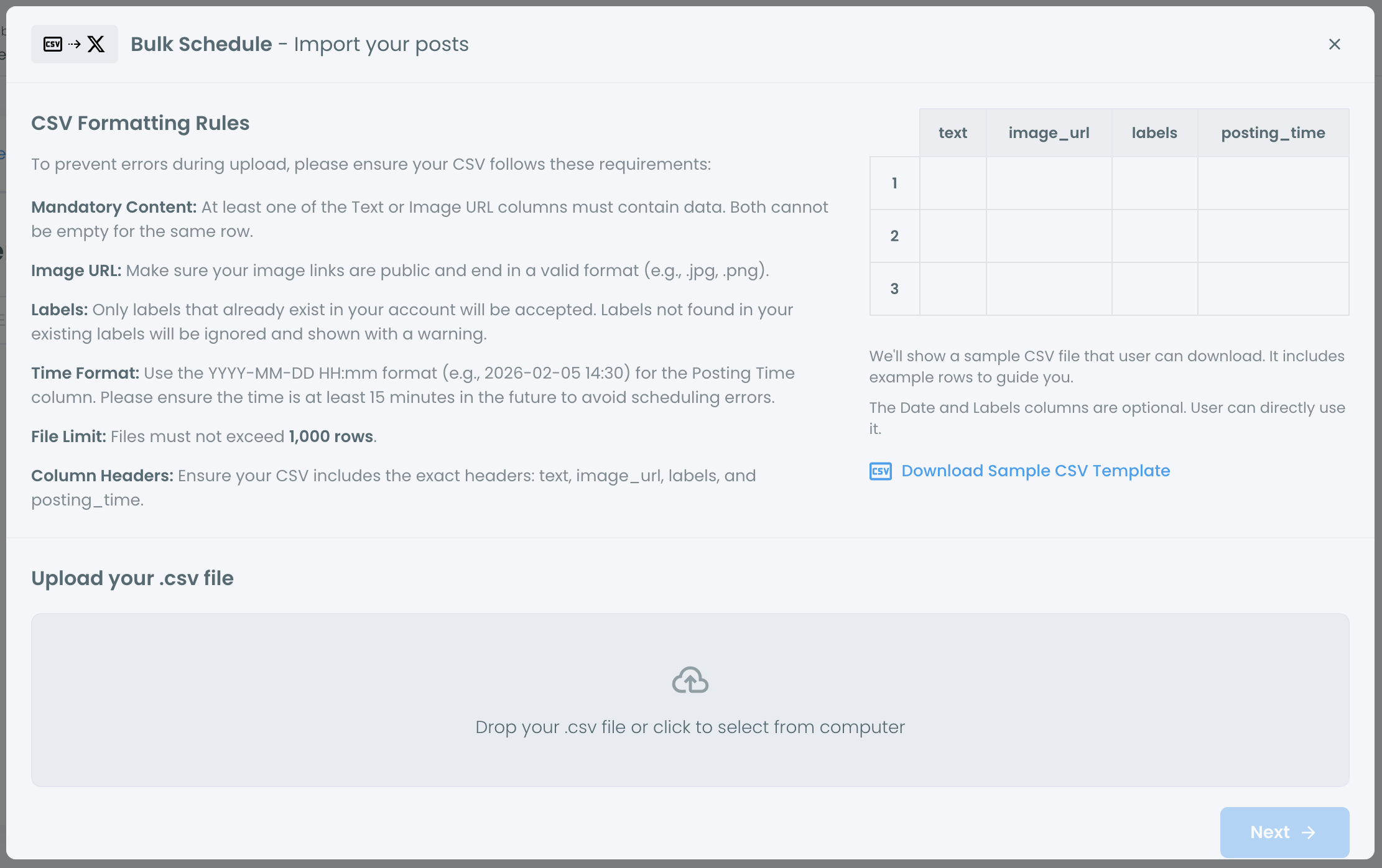
The scale is generous. One file holds up to 1,000 rows, and each row is one post with its own text, image and time.
For most photographers on Twitter, the useful unit is smaller. Thirty rows fill a month at one post a day. Twenty rows across the same month leave open days for a timely frame from this week's shoot, and that breathing room matters more than volume.
Two jobs that stop getting tangled
Bulk scheduling pulls apart two jobs that usually share one sitting:
- Choosing and captioning, which needs your eye.
- Timing and publishing, which only needs to be correct.
Why the scheduler is safe for a client-facing account
Safety is part of the decision too. Circleboom is an official X Enterprise Developer company, so the queue publishes through a channel the platform recognizes. No browser trick sits between your portfolio account and the platform.
You can read more about the upload itself on the bulk tweet scheduling page.
Some posts need individual attention, such as a framed series opener. For those you still design tweets as a photographer one at a time in the editor.
Sending the same batch to Instagram later is a separate step. Circleboom has a post on how to turn tweets into Instagram posts and Reels.
Now you know what the upload does. The next question is the one that decides whether your images arrive with the posts.
What does the spreadsheet need from your image files?
The spreadsheet needs a web address for each image, not the image file itself. The column is called image_url, and the link in it must be public, direct, and end in an image format such as .jpg or .png.
This is the detail that surprises photographers on X, because most tools they use ask for a file. A CSV is plain text. It cannot carry a 4 MB export, so it carries a pointer to one.
Three conditions apply to that pointer:
- Anyone can open it without signing in.
- It leads straight to the image, with no redirect and no viewer page around it.
- The file behind it is a JPG or PNG of up to 5 MB.
The size ceiling is X's rule as much as Circleboom's. X's developer documentation on media lists the same 5 MB limit for an image.
Which links attach and which fail
Here is how common storage setups behave.
| Where the link points | What happens |
|---|---|
| A direct file address ending in .jpg or .png, open to anyone | The image attaches to the post |
| A share page that shows the photo inside a gallery or viewer | Not a direct image link, so it does not qualify |
| A link that asks for a login | Fails at publishing time |
| A link that redirects somewhere else first | Fails at publishing time |
A link that needs a login passes nothing when the post goes out. The text can still be valid, which is why the problem is easy to miss until a post appears without its picture.
A quick test catches it early. Paste the link into a private browser window. If you see only the photo, with the address ending in the file extension, the link is direct and public.
Why a private library works in the editor but not in the file
This is also the difference from the single-post editor. Image Tools can pull a picture straight from your Google Photos library into one draft. The bulk file cannot reach into a private library, so each photo needs its own public address first.
Some posts are easier with the file attached by hand. The steps to schedule a tweet with a photo, video or GIF cover that route.
With public links ready, the upload itself is short.
How to schedule a month of photo posts on Twitter
From spreadsheet to queue: a recorded bulk upload of tweets that carry images.
The flow below is one that photographers on Twitter can repeat every month, in three phases.
Sign in and open the bulk importer
- Log in to Circleboom Twitter and confirm the active account is the one your photo work is published from.

- Go to the X Post Planner menu, where writing, scheduling and Post Analytics sit together.
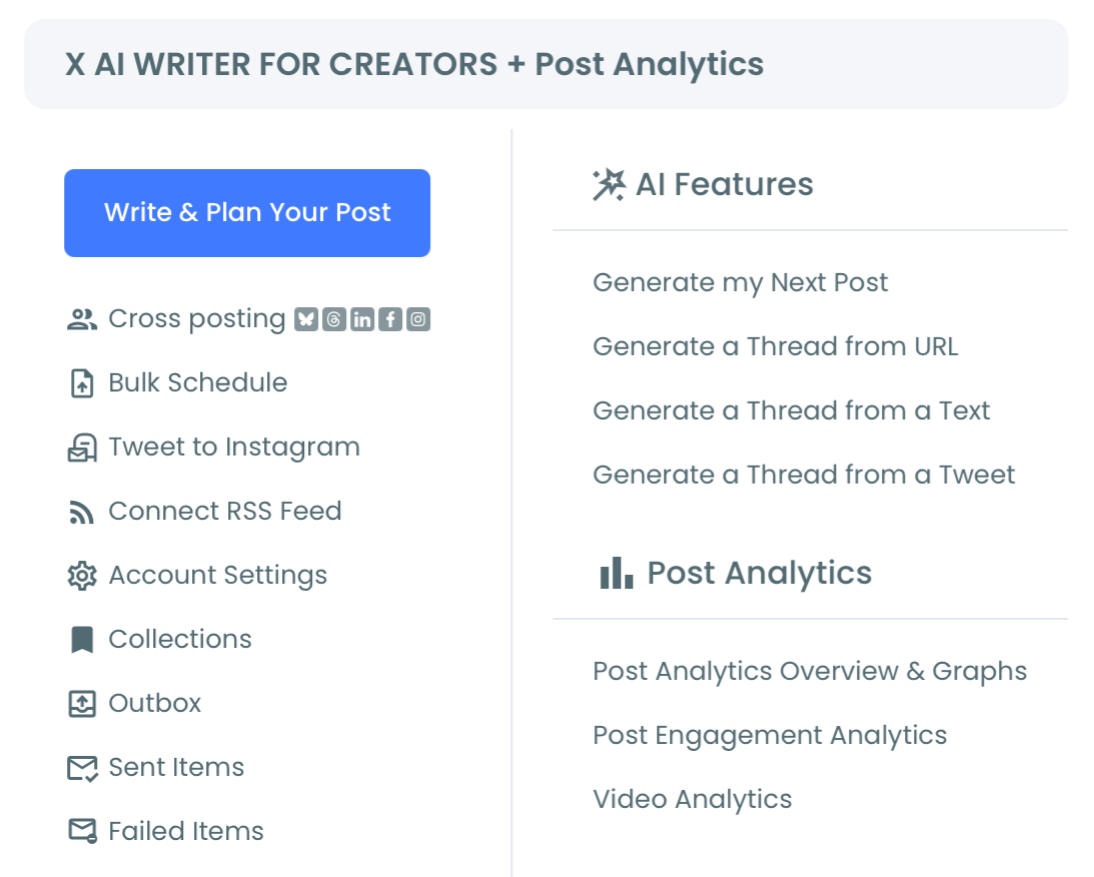
- Open Bulk Schedule to see the "Import your posts" window, read the CSV Formatting Rules, and click Download Sample CSV Template.
Fill one row per photo post
- Keep the four column headers exactly as the template has them: text, image_url, labels and posting_time.
- Enter one post per row. Put the caption under text and the direct image link under image_url. Each row needs at least one of the two.
- Write each posting time as YYYY-MM-DD HH:mm, for example 2026-11-03 18:30, and keep every time at least 15 minutes in the future.
- Add labels only if they already exist in your account. An unknown label is ignored and shown with a warning.
Validate, schedule and re-check the queue
- Upload the file by dropping the .csv into the upload area, then click Next.
- Review the validation result. Circleboom counts valid and invalid posts and lists every row with its text, image thumbnail, label, posting time and status. Filter by status to see only the invalid rows, and click Back to correct the file.
- Click Schedule Posts to send the valid rows to the queue, or Add to Collection to keep the batch for later. Then open Outbox, where each imported post can still be edited before its time.
The sequence puts validation between your spreadsheet and your followers. One typo in a time or a link would otherwise repeat across the month, and the preview is where it gets caught while it is still a row in a table.
The whole flow in four lines:
- Host each photo at a public, direct link.
- Fill text, image_url and posting_time for every row.
- Upload, then fix whatever validation flags.
- Schedule, and review the queue in Outbox.
Keep your own copy of the file and check each pairing
Two notes from practice. Circleboom does not keep the CSV after import, so store your own copy for records and for the next month.
A valid row is also not the same as an approved post: validation checks format, while you still check that the right caption sits beside the right frame.
Hashtags, if you use them, go inside the text cell with the caption. A couple of specific ones is enough.
The same habit works beyond X. If part of your audience has moved, the method to post and schedule images on Bluesky follows a similar plan-then-queue logic.
How to add alt text to scheduled photos on X
Alt text on X is added per image as a description, and it belongs on every photo you want people using screen readers to understand. For photographers on Twitter, it is also a quiet way to put the subject of a picture into words.
The bulk file has four columns, and none of them carries an image description. That is a real limit to plan around.
Two approaches cover it:
- For the batch, let the caption carry the facts a viewer cannot see: place, subject, occasion.
- For portfolio pieces where a full description matters, post those individually and write the description by following X's own steps to add image descriptions.
A good description says what is in the frame, plainly. "A cyclist crossing wet tram tracks under a red umbrella" does more than "street photo."
Keep it factual. Mood words such as "stunning" tell a listener nothing about the picture.
For the mechanics on the platform itself, Circleboom's walkthrough on how to add alt text on Twitter goes field by field.
Which photos should you make more of on Twitter?
Make more of the photos that earned replies and bookmarks, not only the ones with the most likes. Circleboom's Post Engagement Analytics ranks every post you have published by the metric you choose.
The table lists each tweet as a row and each metric as a column. Click a column to sort from highest to lowest.
Each metric answers a different question for a photographer:
- Likes show which frames please at a glance.
- Replies show which ones start conversations.
- Bookmarks show which ones people want to return to.
- Engagement rate shows which ones connected relative to how many saw them.
Use the filters to keep the comparison fair. Set the date range to the scheduled month, and set media type so only image posts remain.
Read the top ten as a set
Then read the top ten as a set. Look for what repeats: a subject, a color treatment, a crop, a posting time.
X does not offer this kind of full-history ranking in its own analytics, which is why the pattern is hard to see there.
Compare each post with your own average, not with a benchmark from someone else's account. A frame at twice your usual engagement rate is a signal, whatever the absolute number is.
A single outlier is not a direction. Wait until two or three similar frames land in the top group before you plan a shoot around them.
The Twitter engagement analytics page shows where the table lives.
Once you know what works, the next step is the people who should see it. You can run a Twitter bio and profile search for photo editors and peers by the words they use to describe themselves.
Summary: a visual brand on X is a schedule you keep
Twitter for photographers works when you treat it as publishing: growing on X means repeating a look on a rhythm and then reading the results. The scheduling is the part most accounts skip, and it is the part a spreadsheet solves.
To recap the method: host each photo at a public direct link and load a month of rows into Bulk Schedule. Fix what validation flags, then sort the month by replies and bookmarks when it ends.
The photographers on Twitter whose work you can name at a glance are rarely posting more than you could. They decided what their feed looks like and let the calendar do the remembering.
Circleboom keeps that calendar inside one planner, next to the image tools and the analytics that tell you what to shoot next.
→ See how photographers on X design the posts that fill a month
Photo posting FAQ for X
Is a single image, a four-photo tweet or a thread better for a set?
It depends on how many words the set needs. Use one image when the frame speaks alone, and up to four in one tweet for a sequence or a before-and-after pair. Choose a thread of up to 25 tweets in X Post Planner when the pictures need sentences between them, a choice many photographers on Twitter make too early.
What should a caption say when the photo already shows everything?
It should say what the photo cannot: where it was taken, why you made it, or a question for the viewer. Keep it short so the image and the caption do different jobs. The AI Tweet Generator in X Post Planner can draft options for you to rewrite.
Can I change a photo post after the bulk upload?
Yes. Every imported post appears in Outbox and can be edited individually before its scheduled time. To change many posts at once, correct the spreadsheet and import it again, since the same template can be reused.

