Your follower count on X drops, and the platform gives you no list of who left or when. An app to see who unfollowed you on Twitter fills that gap, with two catches worth knowing before you connect one. It can only report unfollows that happen after it starts recording, and a free check can blend people who left with people who never followed you back.
This guide covers what the app tracks, how to read its list, and where those limits sit, using Circleboom's Who Unfollowed Me.
What this guide walks you through.
- Where Circleboom's unfollower list lives and how to set its time window.
- How to filter the list so you act on groups, not on single names.
- How to switch on a weekly email summary instead of checking by hand.
Circleboom checks today's follower list against its earlier snapshots to find the accounts that unfollowed you on Twitter, and the company holds a place in X's Enterprise customer directory. Start here → app to see who unfollowed you on Twitter.
Why X leaves you guessing about unfollowers
X sends no notice when someone unfollows you, and it has no screen that lists the accounts that left. The follower count changes. Everything behind the change stays hidden.
X's own following FAQs cover how following and followers work on the platform, but an unfollow history is not part of what X provides to account owners.
A drop of any size can be ordinary churn, a platform cleanup of fake accounts, or a real group of readers leaving after a topic shift or a burst of posting. Each one needs its own response, and a bare number gives you no way to pick.
The gap bites hardest when a client or manager reads the numbers. "Followers down" raises the question of who left and whether it matters, and a raw count cannot answer it.
The only manual route is keeping your own follower record and comparing it later. Almost nobody does that before a drop, which is why the question comes up after the fact.
A tracker does the record-keeping for you. That is the job you hand to Circleboom when you check who unfollowed you on Twitter there.
The hub post on how to see who unfollowed you on Twitter covers the wider set of methods.
What an app to see who unfollowed you on Twitter can track
Circleboom's Who Unfollowed Me takes snapshots of your follower list from official X API data, then sets each snapshot against the one before it. Any account present in an earlier snapshot and missing from a newer one becomes a row in your unfollower list.
Each row carries enough context to judge whether the loss matters:
- Name, with the @username and profile location.
- Tweets and Joined, which show how active and how old the account is.
- Following, Followers and Follow Ratio, which show what kind of account it is.
- Active & Inactive, which classifies the account from high to low engagement.
The value is in the pattern, not the single name. One unfollow is noise. A cluster of accounts with the same traits, leaving in the same few days, points to a cause you can act on.
What the tracking cannot see
The tracking only knows what it has stored. Its list covers unfollows caught between its own snapshots, not a record of anything that happened before you connected, so the earlier you start, the longer your record.
Circleboom's unfollower app for Twitter turns that record into a list you can filter, act on and export. If you want a shorter version of the routine, the post on how to track your Twitter unfollowers condenses it.
When a large drop hits all at once, suspect a cleanup before you suspect your content. Sorting out unfollowers, fake, spam and inactive followers is the quickest way to tell a platform purge from a real audience reaction.
Is there a free way to see who unfollowed you on Twitter?
Yes, with limits. Circleboom's free Who Unfollowed Me check connects your X account and returns one combined list: accounts that unfollowed you and accounts you follow that have never followed you back.
The result page says so in plain words: "We found N accounts who have either unfollowed you or aren't following you back." It shows 10 of them for free. The full list and the email alerts need an upgrade.
The combined list is useful, but it answers a broader question than "who left." Some rows are recent unfollowers. Others never followed you at all.
| Free check | Who Unfollowed Me in the dashboard | |
|---|---|---|
| What it lists | Unfollowers and non-followers, combined | Accounts that unfollowed you |
| Rows shown | 10 | The full list for the chosen window |
| Time window | One combined result | Last 1 day up to Last year |
| Actions | View profile, Unfollow | Unfollow, Follow, Whitelist, Blacklist, Add to List, Export |
| Email alerts | Need an upgrade | Set up Unfollowers Alert |
Reading the free list without mixing up the two groups
The free result table gives you Name, Tweets, Joined, Friends and Followers for each account, plus an eye icon to inspect the profile and an Unfollow button. Those columns are enough to split the list by hand.
An account with a large follower count can be a public figure or a publication you follow for its posts. It may never have followed you, and you may want to keep following it anyway.
The filters above the table narrow the rest:
- Eggheads, which catches accounts that never added a profile photo.
- Protected, Fake/Spam, Inactive and Overactive, which sort accounts by quality.
- Join Date and Language, which show when and where an account comes from.
- Followers, Friends and Posts, which set count ranges.
Run the quality filters first. What they remove is rarely worth a decision.
If your real question is the second group, the accounts that never followed you back, Circleboom's not following back view answers it on its own.
How to see who unfollowed you on Twitter with Circleboom
The full flow runs in three phases: open the list, narrow it, then act on it and automate the next check.
Open the unfollower list in your dashboard
- Open Circleboom Twitter and link the X account whose unfollowers you want to see.
- Open the Followers & Following menu in the dashboard.
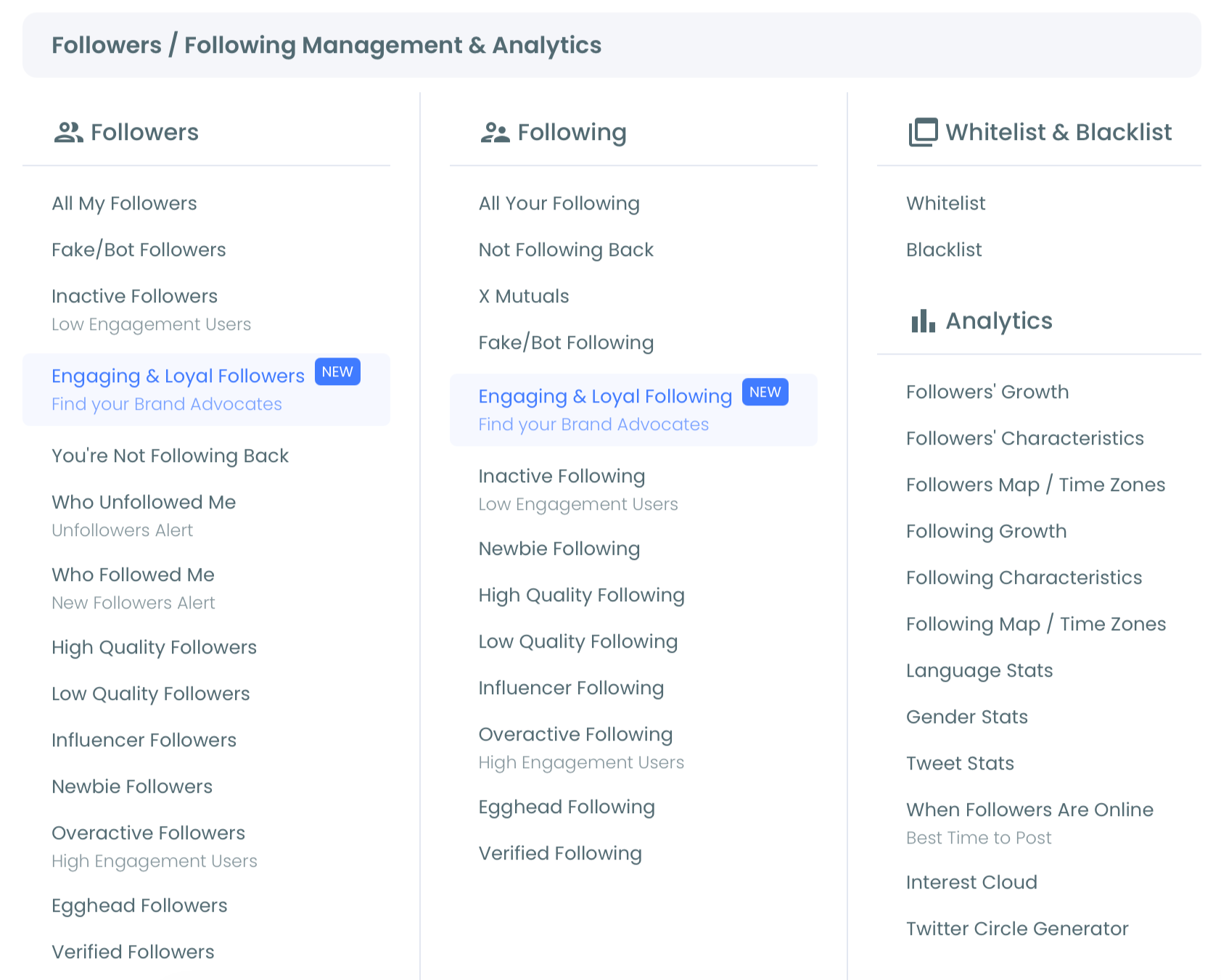
- Select Who Unfollowed Me. The list opens under the heading "Displaying your N accounts who Unfollowed you."
Narrow the list to the group that matters
- Choose a time period in the dropdown above the list. Last 1 day is the default, and the options run through Last Week, Last 4 weeks and Last 3 months up to Last year.
- Open Filter Options and combine what you need: follower quality (Eggheads, Protected, Fake/Spam, Inactive, Overactive), verification, engagement, join date, follow ratio, follower or following counts, language or location.
- Look over the Active Filters bar, and remove any tag you did not mean to apply.
- Sort and review the rows. Click a column header to sort, and use Open Profile on any account you are unsure about.
Act on the list and automate the next check
- Select accounts and pick an action: Unfollow, Follow, Add to List (a Twitter List, your Whitelist or Blacklist, or the Mass Block List, which runs through the Circleboom Chrome extension), or Export as CSV.
- Click Set up Unfollowers Alert at the top right, choose Weekly, enter your email address, and activate the alert.
Setting the window and filters before you select anything means every bulk action lands on a group you have already looked at. The alert then turns a one-off check into a routine you no longer have to remember.
Unfollow tracker on screen: the Who Unfollowed Me list this guide describes, from the time dropdown to the account rows.
https://www.youtube.com/watch?v=2MhU32QunxQ
Why is someone missing from the list, or listed by mistake?
Two data realities explain both cases: the list updates once a day, and X's API data is occasionally inconsistent.
An unfollow that happened a few hours ago will not appear until after the next daily sync, so a missing recent name is usually a timing issue, not an error.
The reverse case is rarer. A small number of accounts can show up as unfollowers when they have not unfollowed, because of discrepancies in the data X returns. Circleboom warns about this on the page itself, and the next day's data pull usually corrects it.
Review before you act in bulk. Open the profile of any account that surprises you, and if the list looks off, wait a day and check again before unfollowing anyone.
The same caution applies to large lists. The bigger the selection, the more a single wrong row costs you, which is why the Whitelist action exists: anything on your whitelist stays out of every bulk operation, whatever filters you apply later.
What a daily sync means right after a post
Timing matters most right after a post that might have cost you followers. Checked the morning after, the list may not hold the full reaction yet.
Give a post that stirred things up a full day before you read the fallout. Then set the window to Last 2 days or Last 3 days, so the list covers the post and the day after it in one view.
Can you get a Twitter unfollow alert instead of checking?
Yes. The Set up Unfollowers Alert button sends you an email summary of new unfollowers, so you stay informed without logging in.
Setup is the three choices from step 9: a Weekly frequency for a steady check-in, the inbox that should receive it, and activation. On the free check, alerts are part of the upgrade.
Circleboom's Twitter unfollowers alert page covers the alert on its own.
The alert and the dashboard do different jobs. The weekly email tells you that something moved. The dashboard, with its time windows and filters, tells you what kind of accounts moved and what to do about it.
Use the email as the trigger and the dashboard as the diagnosis. A quiet week needs no login at all. A week with a cluster of unfollows is the one worth opening the list for.
When the alert earns its keep
The alert matters most in the weeks around a change you chose to make. The moments worth watching:
- After a controversial or off-brand post.
- During a rebrand or a topic shift.
- Around a launch or the end of a campaign.
- After a jump or a pause in how often you post.
In each case, the weekly summary shows whether the change cost you followers, and the dashboard shows which kind. A short unfollower list through a rebrand tells you the audience came along.
A separate post on the Twitter unfollow alert covers the alert in more depth.
Your checklist for tracking Twitter unfollowers
Once the alert is running, the routine gets short. Keep these five habits and the list stays useful instead of stressful:
- Start every check with the time window, not with a name you remember.
- Filter out Eggheads, Fake/Spam and Inactive accounts before you judge a drop.
- Match unfollow dates against your posts and campaigns from the same days.
- Whitelist the accounts you never want touched before any bulk step.
- Let the weekly email decide when a full review is worth your time.
Every action you take from the list runs through Circleboom's approved access to X, at a pace that keeps your account inside the platform's rules.
The tracker you connect today is the record you will reach for after the next drop.
→ Track who unfollowed you on Twitter
Twitter unfollower app FAQ
Should I unfollow everyone who unfollowed me on Twitter?
No. Unfollowing back is optional, so keep following accounts you value as sources.
Bulk unfollows move in batches of 50 per 15 minutes, stop at about 800 in a day, and pick up again the following day without you doing anything. For larger cleanups, see the Twitter unfollow tool.
Can I see who unfollowed me on Twitter from my iPhone?
Yes, mostly through the weekly email summary. Circleboom's unfollower tracking is a web tool, and on a phone the summary does most of the work: new unfollowers arrive with the rest of your mail. The phone route is covered step by step in who unfollowed you, from an iPhone.
Can I export my Twitter unfollowers to a spreadsheet?
Yes. Select the accounts and use Export to download them as a CSV file. Export uses tokens, and you can see how many remain beside the Export button.