
Bookmarks on X start with a simple idea: save something for later.
But over time, that “later” turns into hundreds of saved posts. Threads, ideas, videos, links… all mixed together in one place. And when you try to find something again, it’s not as easy as it should be.
There’s another side to bookmarks most people don’t think about: they also shape what you see. The posts you save signal your interests to the algorithm.
And here’s the bigger problem:
X doesn’t offer a built-in way to export your bookmarks. If the original author deletes a tweet, it’s gone from your bookmarks too.
So, is there a way to export bookmarks on X?
Yes, With Circleboom Twitter, you can export all your bookmarks on X in just a few clicks.
Export X Bookmarks with Circleboom Twitter
Circleboom is an official X Enterprise Developer, which means it works directly with X’s official APIs.
This ensures your data is accurate, reliable, and safely processed.

But exporting is just one part of it.
Circleboom Twitter gives you full control over managing your bookmarks. You can:
✅ Filter bookmarks based on keywords or content
✅ Sort them to find specific posts faster
✅ Delete bookmarks to clean up your list
✅ Export all your saved bookmarks in an organized format
The key advantage?
When you export your bookmarks, you’re no longer dependent on X. Even if the original tweet gets deleted, you still keep the content saved on your device.
How to Export Bookmarks on X (Step-by-Step)
Exporting your bookmarks with Circleboom Twitter is simple and only takes a few minutes.
Step #1: Log In to Circleboom Twitter
Go to the Circleboom Twitter website and log in with your credentials. If you’re a new user, sign up, it’s quick and easy!

Step #2: Go to your Bookmarks
In the left-side menu, click on “Essential Tools” and then select “Export Bookmarks” from the dropdown.

Step #3: View and Manage Your Bookmarks
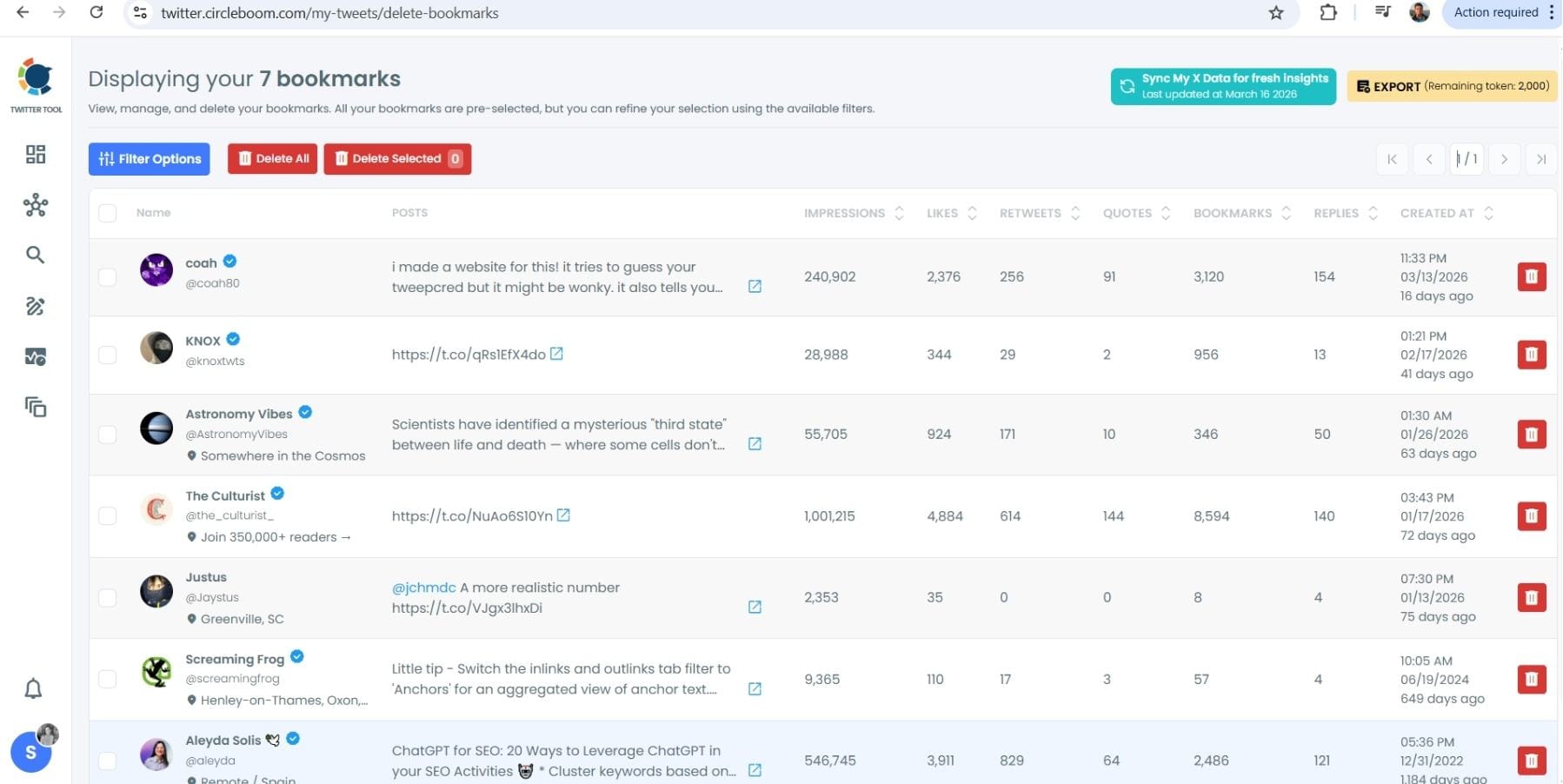
After opening the "Delete Bookmarks" section, you'll see all your saved tweets.
The page will display essential details such as likes, retweets, replies, and impressions for each bookmarked tweet.
This allows you to filter, organize, and select bookmarks for export.
Step #4: Use Filters to Find Specific Bookmarks
Click on “Filter Options” on the right side of the screen.
You can refine your bookmarks based on engagement (likes, retweets, impressions), date, language, and tweet type (posts, replies, or reposts).

Step #5: Select and Export Your Bookmarks
Check the box next to each tweet you want to export, or click "Select All" to export all bookmarks.
Click on the “Export” button at the top right. You are one step away from downloading all your Twitter bookmarks.
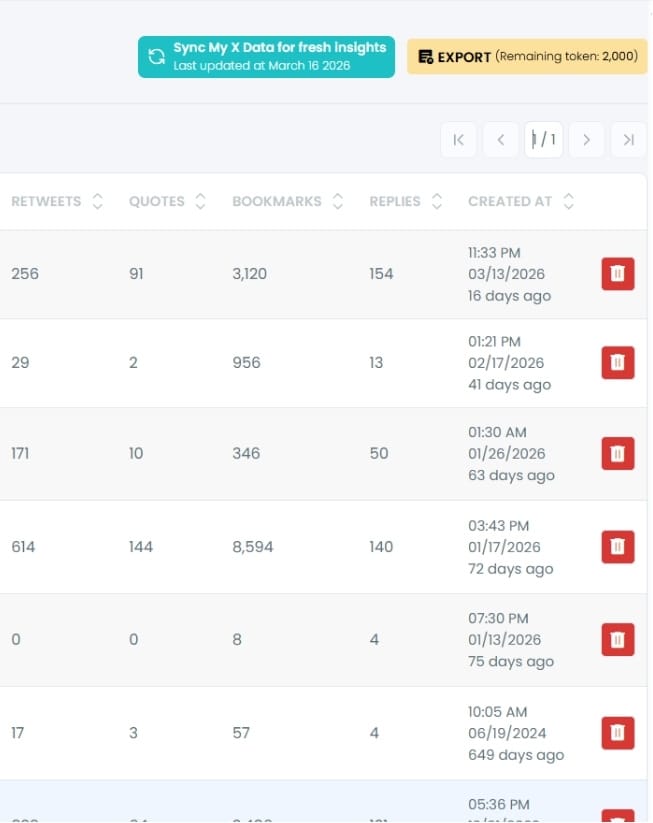
A confirmation message will pop up showing the number of bookmarks you’re about to export.
Click “Export X Bookmarks”, and your bookmarks will be downloaded as a file.

Step #6: Access and Use Your Exported Bookmarks
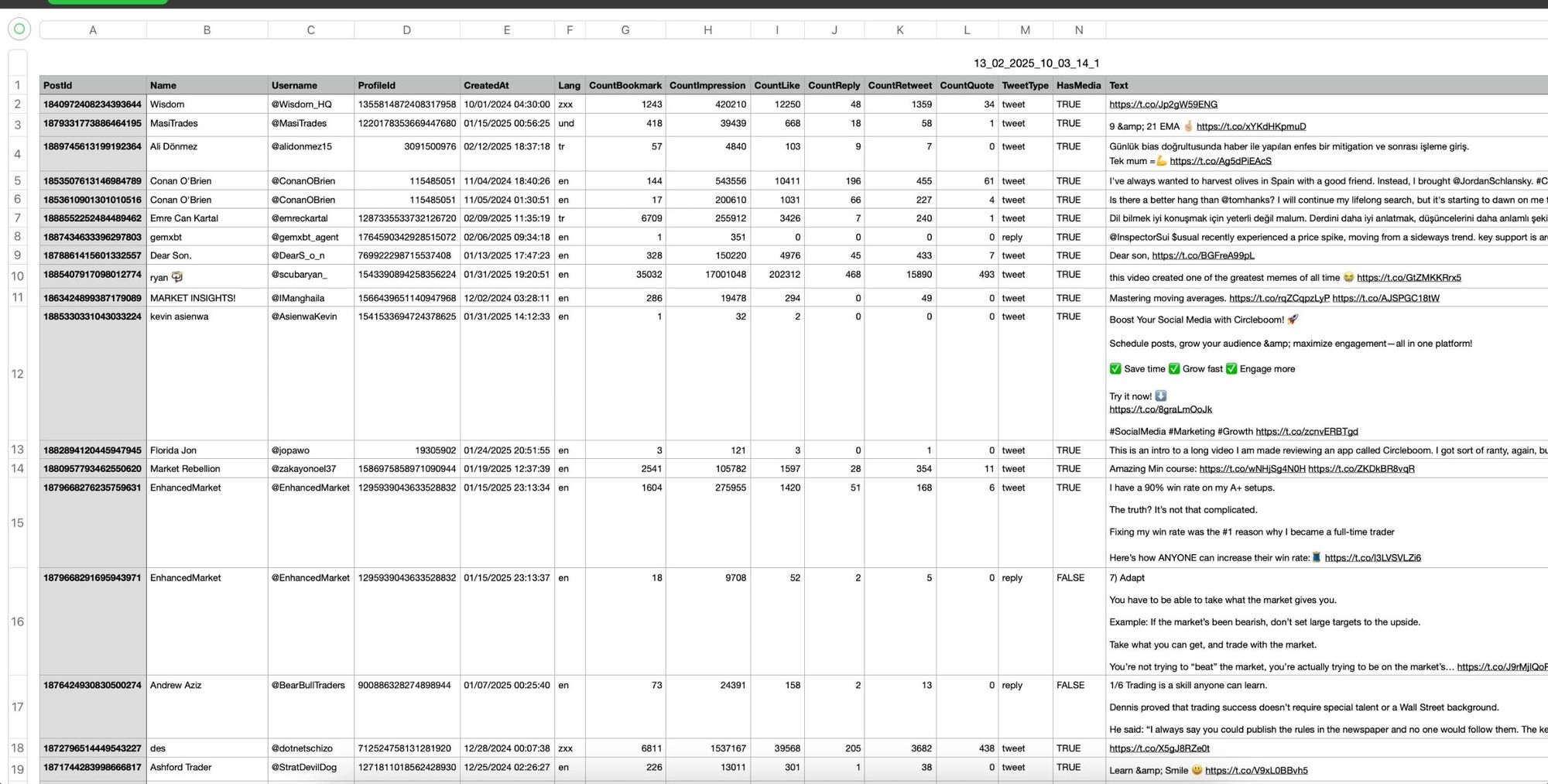
Once the bookmarks are exported, they will be saved in a spreadsheet format (CSV or Excel file).
The file contains detailed tweet information
This organized format makes it easy to search, sort, and reference your saved tweets whenever needed.
By exporting your X bookmarks, you ensure that important tweets remain accessible even if they get deleted or lost.
Why Exporting (and Managing) Bookmarks on X Matters
Bookmarks are not just a passive list. They actively affect your experience on X in ways most users don’t realize.
Here’s why managing, and exporting, them actually matters:
1. Bookmarks Shape Your Algorithm
Every action you take on X sends a signal.
Likes, replies, reposts… and yes, bookmarks.
When you bookmark a tweet, you’re telling the algorithm:
“This is valuable. Show me more like this.”
Over time, these signals stack up.
If you keep bookmarking similar types of content, for example:
- Crypto threads
- Growth tactics
- Viral tweets
- AI tools
Your feed starts shifting in that direction. The “For You” page becomes more concentrated around those topics.
This can be powerful if you’re intentional.
But if you’re not, it can easily go the other way:
- Your feed becomes repetitive
- You keep seeing the same type of content
- Discovery of new topics gets limited
That’s why managing bookmarks matters.
By cleaning, filtering, or deleting certain bookmarks, you can actively reshape your feed and improve the quality of what you see.
2. Bookmarks Get Out of Control Quickly
At first, bookmarking feels harmless.
You save a few useful threads, a couple of ideas, maybe some videos. But after a few weeks, you realize you’ve saved hundreds of tweets.
And then the problems start:
- You can’t find what you saved
- Everything is mixed together
- Older bookmarks are almost impossible to reach
- Scrolling becomes frustrating
Bookmarks turn into a “dump folder” instead of a useful resource.
Without filtering or sorting, they lose their value completely.
That’s why being able to organize them matters just as much as saving them. Once you start filtering and sorting your bookmarks, they become usable again, not just a list you keep adding to.
If you are a creator on X and want to know about the latest developments regarding the algorithm changes, engagement strategies, payout boosts, etc., you can join Circleboom's X Creator Growth Lab Community and enjoy a free space to learn from and contribute to!

3. Deleted Tweets Disappear Forever
This is the most critical issue, and most people realize it too late.
Bookmarks on X are not permanent.
If the original author:
- Deletes the tweet
- Deletes their account
- Gets suspended
That tweet disappears from your bookmarks instantly.
No warning. No backup. No way to recover it.
This is especially painful if you saved:
- Educational threads
- Important insights
- Content ideas
- Links you planned to revisit
Exporting solves this problem completely.
When you export your bookmarks, you’re no longer relying on X to keep that content alive. You create your own copy, stored safely on your device.
 Altug Altug
More Than Exporting: Take Control of Your Bookmarks
Once you start using Circleboom Twitter, exporting is just one part of the picture.
What really changes is how you interact with your bookmarks.
Instead of passively saving everything and forgetting about it, you start managing them intentionally.
You can:
➡️ Filter bookmarks by keywords to instantly find what you need
➡️ Search and sort them to surface important or older saved posts
➡️ Delete unnecessary bookmarks that no longer serve you
This becomes especially important when you think about your algorithm.
If your bookmarks are filled with: Outdated topics, low-quality content or random posts you don’t care about anymore, your feed will reflect that.
By cleaning your bookmarks, you’re not just organizing a list, you’re improving your entire X experience.
What Happens After You Export Your Bookmarks?
Exporting your bookmarks changes how you use them completely.
Instead of being locked inside X, your saved content becomes something you fully own and control.
1. You Create a Permanent Backup
Once exported, your bookmarks are no longer dependent on X.
Even if:
- A tweet gets deleted
- An account disappears
- The platform changes
You still have the content saved.
This turns bookmarks from something temporary into something reliable.
2. You Can Access Them Anytime
Inside X, bookmarks are tied to the app.
Outside of X, they become accessible whenever you want:
- On your computer
- In your own files
- Without endless scrolling
You don’t have to search for them anymore; they’re already organized and available.
3. You Can Organize Them Your Way
After exporting, you’re no longer limited by X’s structure.
You can:
- Group bookmarks by topic
- Build your own content library
- Use them for research, inspiration, or planning
This is especially useful if you regularly save ideas or valuable threads.
Your bookmarks turn into a structured resource instead of a random list.
4. You Stop Losing Valuable Content
This is the biggest long-term benefit.
No more:
- “I bookmarked that but now it’s gone”
- “I can’t find that tweet anymore”
- “I wish I saved this somewhere else”
Exporting gives you full control.
What you save actually stays saved.
Conclusion
So, is there a way to export bookmarks on X?
Yes, and Circleboom Twitter makes it simple.
As an official X Enterprise Developer, Circleboom provides a reliable way to export, filter, sort, and delete your bookmarks, all in one place.
 infocircleboom.com
More importantly, it helps you take control of your content.
You can protect your saved posts from being deleted, organize them properly, and even improve the quality of what you see on your feed.
Because bookmarks aren’t just what you save.
They also shape what you see next.