
Following a hashtag usually ends up being manual work: open the tag on X, scroll, open a few profiles, forget where you stopped, and come back tomorrow to scroll the same posts again.
The scrolling is not the problem. The problem is that nothing you do during it gets saved.
What this walkthrough gives you.A repeatable way to collect live posts carrying a hashtag from a start date you choose.A deduplicated list of the accounts behind those posts, with follower and activity data attached.The filter settings that keep a busy tag readable instead of flooded.
All of it runs on Circleboom's live tweet search, which collects public posts on X through official API access.
→ track hashtag on Twitter
Why a hashtag scroll never becomes a list
X gives you the tag. It does not give you the people.
The tag view on X is a stream of posts sorted by its own logic, and it resets every time you open it. There is no checkbox, no saved state, no export.
Every account you found yesterday has to be found again today, and the only record of your work is whatever you copied into a note.
X's own advanced search reference shows how far the native operators go. You can narrow by words, accounts, dates, and engagement, which is genuinely useful for finding posts.
It still hands back posts, and the profile behind each one is a separate click.
That distinction is the whole job.
A hashtag is interesting because of who used it, and every minute spent converting posts into names by hand is a minute the conversation keeps moving without you.
Circleboom's live tweet search collects matching public posts on X from a start date you set and extracts the author of every match into a separate, deduplicated account view.
One search, two outputs, no copying.
That is the difference between reading a tag and owning a record of it. You can collect live posts carrying a hashtag from the minute a conversation starts. The account list stays useful long after the tag stops trending.
How to track hashtag on Twitter step by step
See it run end to end: this walkthrough covers a live keyword and hashtag search on X from setup through the account list.
https://www.youtube.com/watch?v=dZ4djvmOqTo
The process, in order. Seven steps across three phases: connect and open the search, define what you are collecting, then read and act on what comes back.
Connect your account and open live search
- Log in to Circleboom Twitter and authorize the X account you want the search to run under.
- Open the Advanced X Search menu, which holds both the historical and the live tweet search tools.
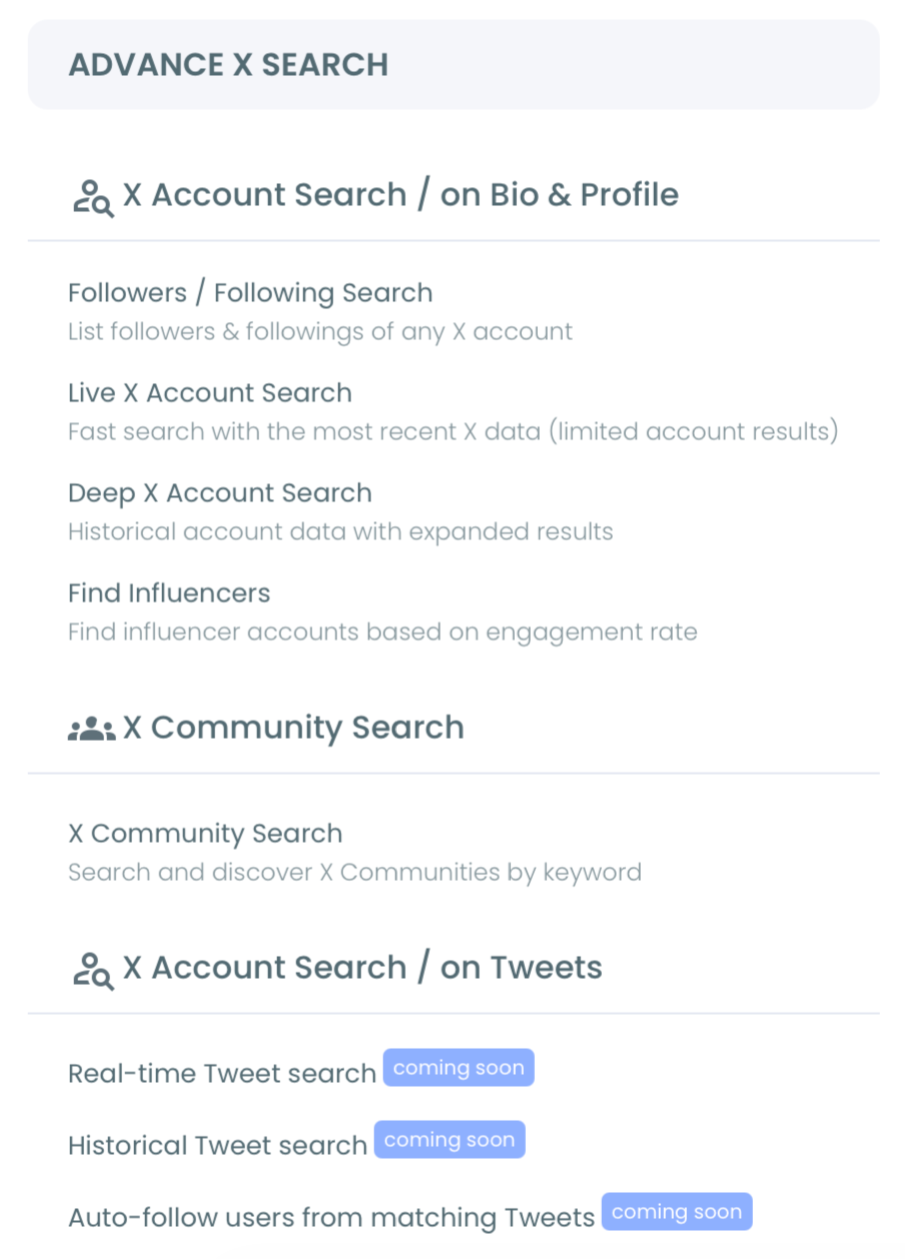
- Choose Real-time Tweet Search. Historical search queries a closed past window; live search collects forward from a moment you pick, which is what a running hashtag needs.
Define the tag, the window, and the volume
- Describe the search in plain language, naming the hashtag and any context around it. Circleboom reads the request and offers refined query variations you can accept or ignore.
- Open Filters and set your limits before running anything: exclude terms, language, engagement minimums, replies and links toggles, and match type. The active filters bar shows what is currently applied.
- Pick the start date and the collection size. Last 24 hours, last 7 days, last 30 days, or a custom date sets the window; the post count sets the depth and draws GetTweetTokens in proportion.
Read the results and pivot to accounts
- Run the search, then click "Display Profiles of this search" to switch from the post list to the account list, where you can follow, add to a list, or export the set.
That sequence works because each decision constrains the next. Filters set before collection cost fewer tokens than filters applied after the fact.
The start date decides whether the result is current or retrospective, and the profile pivot is what turns a pile of posts into a list of people you can contact.
Quick recap:
- Log in and open Advanced X Search.
- Select Real-time Tweet Search, not historical.
- Write the tag in plain language and set filters.
- Choose the start date and post count.
- Run, then switch to the profile view.
Choosing the start date that matches your goal
The start date is the single setting that changes what the search means. Everything else narrows the result; this one defines it.
Set it to the last 24 hours when the tag belongs to something happening now: a live event, a breaking story, an outage that has people posting in real time. The set stays small and every account in it is currently active on the topic.
Set it to the last 7 days when you are tracking a campaign or a recurring weekly conversation. The window is long enough to catch people who joined late and short enough that the context still holds when you reach out.
Set it to the last 30 days or a custom range when you want a fuller picture of who touches a tag over time.
Be aware of the tradeoff: a start date pushed far enough back behaves like a historical query, and the currency you were looking for fades.
For genuinely past coverage, Twitter advanced search is the more direct route.
A practical habit: for events, set the start date to the event's first morning rather than to "today." The people who posted on day one are usually the most engaged ones in the room.
The same logic applies to a competitor's public incident. Frustration is loudest in the first hours and fades quickly, so a start date anchored to the moment the complaints began produces a very different list than one anchored to the next morning.
Filter settings that keep a busy tag readable
A popular tag during an active moment generates volume fast, and volume without filters is noise you pay tokens to collect.
Start with engagement minimums. Requiring a floor of likes or retweets removes the posts nobody saw, which removes the accounts nobody follows. It is the fastest single improvement to result quality.
Add exclude terms next. Giveaway, follow-for-follow, and airdrop language attaches itself to almost any trending tag, and excluding those words strips a large share of the spam before it enters your list.
Language comes third, and it matters more on global tags than people expect. A tag trending across three continents produces a list you cannot write to; narrowing by language produces one you can.
Then decide about replies and links. Excluding replies keeps the list to people who posted the tag themselves rather than people who answered someone who did. Excluding link posts filters out automated content distribution. Neither is always right, so pick per tag.
The full Twitter advanced search filters set is worth reading once so you know what is available.
Match type is the last decision and the most commonly missed.
Exact phrase, contains, and partial behave differently on tags that share a stem, and choosing badly returns either almost nothing or almost everything.
Test a filter set on a small collection before running a deep one.
A hundred posts is enough to tell you whether your exclude terms are working, and it costs a fraction of what a full run costs. Adjust, then collect properly.
Reading the account view: what each column tells you
The profile view is where the search pays off, and each column answers a different question about whether an account is worth your time.
Follower and following counts, read together as the follow ratio, tell you roughly what kind of account you are looking at. A high follower count with a low following count reads as a broadcaster; a balanced ratio reads as a participant.
The join date separates established accounts from ones created last month. On a tag that attracts promotional traffic, join date is often the clearest spam signal you have.
Post count and the active or inactive classification tell you whether the account is genuinely present on X or posted once and left. An inactive account matching your tag is not a prospect, no matter how well the post fit.
Columns sort, the inline search bar looks across name, username, and bio, and pagination handles large sets.
If you want the same account-level reading applied to a broader discovery job, more targeted Twitter X account search covers that path.
Turning the account list into work
A list you never act on is a report. Circleboom keeps the actions on the same screen as the results so the list becomes work immediately.
Follow selectively, when the shared tag gives you a genuine reason to appear in someone's feed.
Auto Follow from matching keyword extends this to the live stream and keeps following accounts as they post, which is worth pointing at a narrow tag with quality filters already in place.
Add to List when the follow-up belongs after the moment. Event, launch, and incident lists let you keep watching a group without changing your follower graph, and they stay useful for weeks after the tag goes quiet.
Export when the list belongs in a spreadsheet, a report, or a CRM. Export draws tokens separately from collection, so check the balance first on large sets, and see export Twitter accounts for what the file contains.
Whichever action you pick, run it while the tag still means something. That timing pressure is the reason to launch a live hashtag search rather than reconstruct the moment later.
Mistakes that waste a live hashtag run
Four errors account for most disappointing results, and all four are set-up mistakes rather than tool problems.
Running a broad tag with no filters is the most expensive one. It burns tokens on posts you will delete from the list anyway and produces a set too large to review honestly.
Setting the start date too far back turns a live search into a slow historical one. If your goal was current activity, the extra weeks work against you.
Assuming the post count equals the account count is the third. The number you choose controls how many posts are collected, not how many unique authors come out. A tight community can produce a short name list from a large post set, and that is the tool working correctly.
Treating a keyword match as intent is the last and the costliest. Someone using your tag might be a critic, a competitor, or a bot.
Review the account view before any bulk action. Tools that monitor without judging are covered in a good app to monitor Twitter activity, but the review step stays yours.
Your next move
Tracking a hashtag on X is a setup job more than a research job.
Get the start date, the filters, and the collection size right, and the account list mostly builds itself.
Here is the short version to run this week:
- Pick one tag that matters on a deadline, not a general topic tag.
- Set the start date to the moment the conversation began.
- Set engagement minimums and exclude terms before running anything.
- Pivot to the profile view and read follow ratio, join date, and activity.
- Export or list the accounts worth keeping, then act while the tag is live.
Circleboom runs all of it as an official X Enterprise developer, so the collection happens through official API access rather than scraping and your account stays inside X's rules.
If you also want alerts when your own name comes up rather than a tag, track Twitter mentions handles that side.
→ begin tracking a hashtag on X
What to know before your first live hashtag search
How many tokens does a hashtag search use?
Collection draws GetTweetTokens in proportion to the number of posts you ask for, and the balance is shown during setup. Export draws tokens separately, so a large result set costs twice if you collect it and then download it. Start small on a new tag to see what the volume looks like before committing to a deep run.
What happens if my token balance runs out mid-collection?
The search stops at that point and the partial results are still saved and accessible. You do not lose what was already collected, and the search log lets you revisit the result without re-consuming tokens for the same run.
Can I track a hashtag and a keyword at the same time?
Yes. The search accepts plain-language requests and keyword filters together, so a tag plus a product name or a competitor name narrows the set to people talking about both. The approach is the same one described in Twitter hashtag search and trend search.
Will I see posts from private accounts using the tag?
No. Only public posts from public accounts are returned, which is a platform rule rather than a tool limit. Posts deleted before indexing may also be missing, and posts deleted after indexing can still appear in results even though they no longer exist on X. For finding accounts rather than posts, Twitter hashtag search to find relevant accounts covers the discovery angle.