
An online boutique with two Pinterest accounts has a pinning problem that grows with every new product. Each piece needs a pin, each pin needs the right board on the right account, and Pinterest rewards the stores that keep pins coming every week.
This guide shows how to schedule pins on multiple Pinterest accounts in one weekly sitting.
What this setup gives a boutique.
• A week of product pins for two Pinterest accounts, prepared in one session.
• Boards chosen per account, so dresses never land on the accessories board.
• Publishing times taken from each account's own audience, not guesswork.
Circleboom Publish schedules Pinterest pins to several accounts and their boards from one composer and one calendar. Schedule pins on multiple Pinterest accounts from one calendar.
Why scheduling pins for two boutique accounts breaks down by hand
The boutique in this guide runs two Pinterest accounts.
The main store account carries every product. A second styling account carries outfit ideas built from the same stock. Between them they have eight boards: dresses, knitwear, shoes, bags and jewelry on the store side, and workwear, weekend looks and gift ideas on the styling side.
What a weekly drop costs without a scheduler
A new drop of 20 pieces lands most weeks. Doing that by hand means:
- Switching accounts in the Pinterest app for every pin.
- Uploading each product image again for the second account.
- Finding the right board in two different board lists.
- Pinning at whatever moment the work happens to finish.
The last point costs more than it looks. Pinterest's own guidance on Pin performance and distribution tells businesses to aim to create original content weekly.
A boutique that pins 20 products on Monday and nothing until the next drop looks busy for one day and quiet for six.
The fix is deciding the whole week once, then letting the schedule release it.
That is what it means to schedule pins on multiple Pinterest accounts properly. Every pin is prepared in one session, matched to an account and a board, and given its own date and time.
The guide on how to get website traffic from Pinterest explains why that steady flow matters so much for a store.
A pin keeps being found in search for months. Every week without new pins is a week of traffic that never gets started.
What to have ready before you schedule the first Pinterest pin
Scheduling goes fast only when the inputs are ready. Before the weekly session, have four things in hand:
- One vertical image per pin, ideally 2:3 at 1000 by 1500 pixels, JPG or PNG, under 20 MB.
- The product page URL for each pin's destination link, tagged with UTM parameters if you track sales in Google Analytics.
- A list of which board on which account each product belongs to.
- A short note per product: the material, the occasion, the one phrase a shopper would search.
The image is not optional. A Pinterest pin cannot be published without one, and a pin holds exactly one image, so a product with four photos becomes up to four pins rather than one album.
The destination link is where the money is. For a store, the pin view is nice and the outbound click is the point.
The piece on Pinterest and ecommerce covers how product pins fit into a shop's wider sales path, which helps when deciding which products deserve two or three pins.
How Circleboom Publish schedules pins across Pinterest accounts
Circleboom Publish is a multi-platform publishing tool, and its Pinterest composer handles several accounts and their boards in one pass.
Circleboom also connects to X through the official Enterprise API program, a sign of how the company connects accounts: through approved platform access, not workarounds.
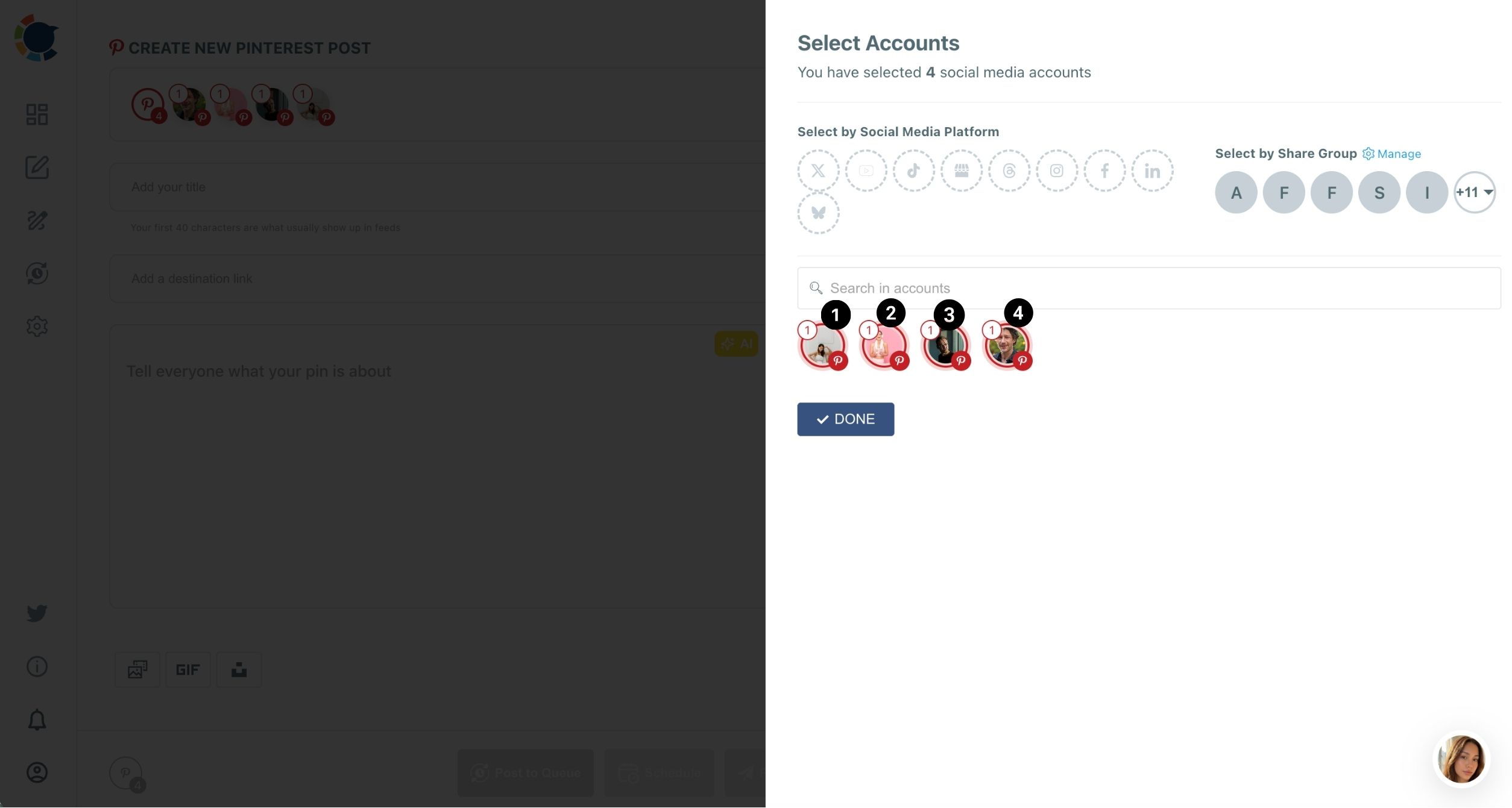
In the composer, you select the Pinterest accounts first. Each selected account opens its own board list, and at least one board must be ticked per account before you can write the pin. Once boards are chosen, each account avatar shows a small numbered badge with the number of boards selected.
For the boutique, that means the store account might show "2" (dresses and gift ideas) and the styling account "1" (weekend looks) for the same summer dress pin.
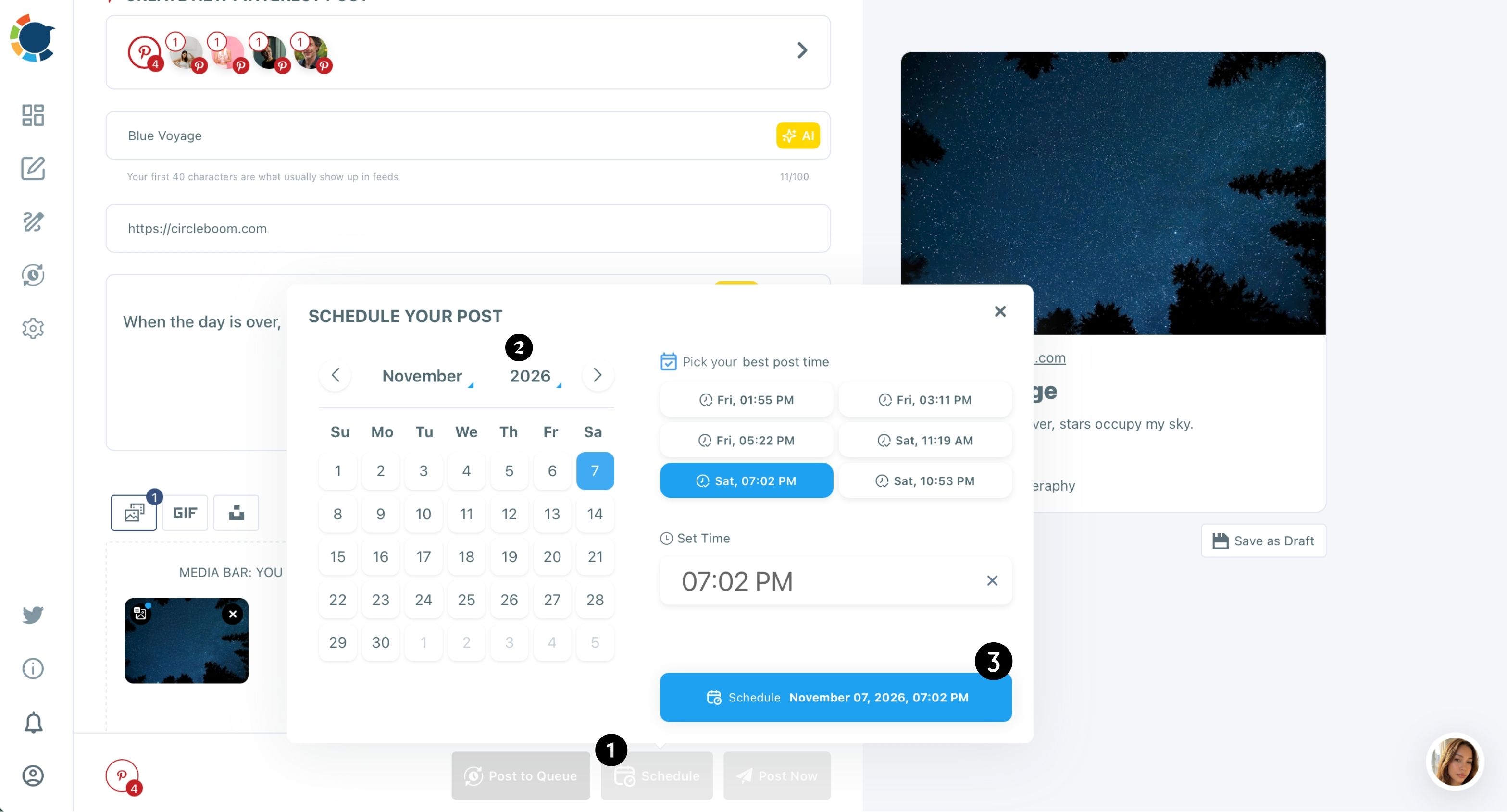
You schedule pins on multiple Pinterest accounts inside the same composer. Clicking Schedule opens the SCHEDULE YOUR POST window with a calendar, a manual Set Time field and a "Pick your best post time" panel of six suggested slots built from the account's own audience.
That combination is why you can plan and schedule pins for every boutique account without leaving one screen.
You can also watch this short clip to see account and board selection in motion.
How to schedule pins on multiple Pinterest accounts
Eight steps in three phases, grouped by what each phase settles.
Connect both boutique accounts and group them
- Open Circleboom Publish and go to Settings from the gear icon in the sidebar.

- Connect each Pinterest account in Manage Social Accounts with CONNECT NEW ACCOUNT.
- Save both accounts as a Share Group in Manage Share Groups, so Select by Share Group picks the boutique's accounts in one click.
Build each product pin for the right boards
- Open the Pinterest composer from the Pinterest Specific card and select the accounts this product belongs on.
- Tick the boards for each account and confirm with DONE, then check the numbered badge on every avatar.
- Add the image, title, description, destination link and Alt Text, using the separate AI buttons for the title and the description.
Give every pin its own publishing slot
- Click Schedule and pick a date, then choose one of the suggested best post times or type your own in Set Time.
- Repeat for the next product, giving each pin a different slot so the week fills evenly.
Accounts and groups are set once, boards are checked before any writing, and the timing decision comes last, when the pin is complete. Skip the badge check and a pin goes to the wrong board; skip the slot spread and twenty pins land in one afternoon.
The short version for a busy Monday:
- Group the accounts once.
- Pick boards per account on every pin.
- Give every pin its own slot.
How do suggested best times work across two Pinterest accounts?
When you schedule pins on multiple Pinterest accounts, each account gets its own suggested times, because Circleboom builds them from that account's own audience. The store account and the styling account can show different slots in the same week, and that is the point: they reach different people.
Pinterest is a search engine, so a pin's lifetime reach depends less on the exact minute than on a fast feed.
Still, the saves and closeups a pin earns in its first hours feed Pinterest's recommendation signals, so the early window shapes how far the pin travels. A suggested slot does not guarantee more saves or clicks; it gives the pin a better start.
For broad patterns before your own data builds up, see the guide to the best times to post on Pinterest. Then switch to your account's own slots. Circleboom's best time to post on Pinterest tool shows them right inside the Schedule window.
Turning on Add Best Times to Post in Time and Queue Settings applies the same timing to every pin you schedule, on both accounts.
Two accounts, two audiences, two sets of times. One calendar holds both.
Filling a boutique's whole Pinterest week in one sitting
Scheduling many pins in one session is what Circleboom calls bulk scheduling. It is how you schedule pins on multiple Pinterest accounts for a full week, and it is done with regular scheduling. You prepare the pins one after another in the composer, give each its own date and time, and review the spread in the Outbox.
The Pinterest bulk pinner page covers the same flow for larger catalogs.
Here is the arithmetic for the boutique's typical drop, as an illustration:
| Item | Per week |
|---|---|
| New products | 20 |
| Pins per product | 1 to 2 |
| Pins scheduled | about 30 |
| Pins per day | 4 to 5 |
Thirty pins spread across seven days means four or five a day, split between two accounts, all prepared in one session.
The Outbox's Calendar View, filtered by Share Group, shows quickly whether any day is empty or overloaded.
Once the weekly rhythm is steady, the Queue takes over the timing. It gives each account recurring day-and-time slots, filled automatically with Add Best Times to Post, and each new pin sent with Post to Queue drops into the next open slot.
The guide to how to automate Pinterest pins shows that hands-off setup.
On the product side, the Pinterest auto poster page explains how Queue slots work per account.
Is it safe to schedule the same product pin on both accounts?
It is safe to schedule pins on multiple Pinterest accounts when each account gets its own version of the pin. Sending the identical image and text again and again is the pattern to avoid.
Pinterest asks users not to repeatedly save the same Pins or upload content that already exists on the platform. Its help page on rate limit blocks adds that repeating the same action too many times in a short period can trigger a temporary block. Most of those limits lift on their own within 24 hours, but a boutique does not want its launch day spent waiting.
For the boutique, the practical rule is simple:
- Store account: the clean product shot, titled with the product name and material.
- Styling account: an outfit shot or a different angle, titled with the occasion ("linen dress for a summer wedding").
Writing two titles and two descriptions per product sounds like extra work, and it would be without help. The title field and the description field each have their own AI button, so a one-line instruction per field produces each version.
If you want the reasoning behind AI-written pin copy, the article on the AI-powered Pinterest description generator covers how to steer it toward searchable wording.
Which scheduled Pinterest pins bring in sales?
Scheduled pins are only worth the effort if you can see which ones sell. The answer sits in the destination link.
Tag each product link with UTM parameters before you schedule it. Circleboom's UTM Link Builder adds them, and Google Analytics then shows which pins sent visits and orders.
Because a pin keeps circulating for months, that tracking matters more on Pinterest than on almost any other platform. A dress pin scheduled in spring can still be sending shoppers in autumn.
For the boutique, the tag can carry the account name, so the report also answers a second question: does the styling account sell, or only inspire?
That answer decides how you schedule pins on multiple Pinterest accounts next season, and which account gets the second and third pin for a bestseller.
Track the link and the schedule pays for itself in sales data as well as reach.
The boutique's Pinterest setup in short
The whole system rests on three decisions made once a week: which account and board each product belongs on, which version of the pin each account gets, and which slot each pin takes.
Circleboom Publish keeps all three in one composer and one calendar, so two accounts cost little more time than one.
A steady stream of fresh pins is what Pinterest rewards, and it is what keeps product pages getting found long after launch week.
→ Schedule your boutique's pins on every Pinterest account
Pinterest pin scheduling questions from boutique owners
Can I change a scheduled pin after it is in the calendar?
Yes. Scheduled pins sit in the Outbox, where the List View gives each post its own Edit and Delete actions, so you can adjust the text, link or time before it publishes.
What happens if a scheduled pin fails to publish?
It moves to Failed Items in the Outbox, which lists every pin that was scheduled but not published along with the specific error reason, so you can fix it and schedule it again.
Can staff schedule pins without the store's Pinterest login?
Yes. Circleboom's Team Management gives staff access to only the accounts they need, and their pins can go through Admin approval before they go live.
Can I schedule a carousel pin for the boutique?
No. Pinterest has no carousel option in Circleboom Publish, so each product photo becomes its own pin with its own board and time slot.