
Most guides describe a quote tweet as a repost with a caption on top.
X handles it differently: once you post a quote, it's a post of yours, and the replies, the reply settings and the view count belong to you rather than to the author.
To quote tweet on Twitter, open the Repost menu under the post, pick the quote option, write your comment and post it.
- Select the Repost icon, the two arrows forming a loop, under the post you want to share.
- Choose the quote option, which X's help center calls Repost as Quote.
- Type your comment above the embedded post, and add one GIF, up to four photos or a video if you want.
- Post it, and your followers get your words with the original attached underneath.
The full walkthrough below adds the posts you can't quote, what the author sees, and what a quote earns you that a plain repost never does.
How to quote tweet on Twitter, step by step
To quote tweet on Twitter, you start from the same Repost icon as a plain repost, and X documents one flow for x.com and for its iPhone and Android apps. The only difference on desktop is that you hover over the post before you click.
X's help page on reposting and quoting lists the steps for all three.
You'll find the Repost icon in the strip of actions beneath every post, between Reply and Like: two arrows chasing each other around a loop. X's brand toolkit labels each icon in that strip.
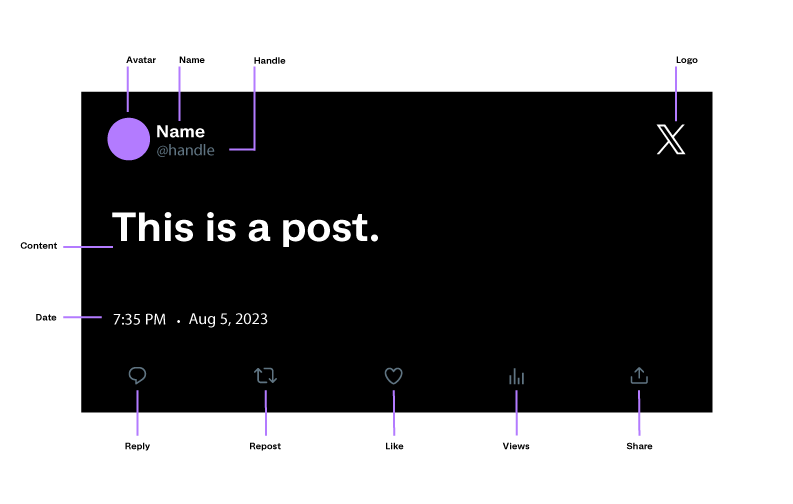
The whole job takes six small moves, in two parts.
Open the quote option under the post you want to share
- Find the post, whether it's in your timeline, in search results or on the author's profile.
- Select the Repost icon under it: tap it in the app, or hover over the post on x.com and click it.
- Choose the quote option in the menu that opens, which X's help center names Repost as Quote.
Picking plain Repost instead shares the post with no comment.
If the post links an article you haven't opened recently, X may ask whether you want to read it first, but you can go ahead without opening it.
Write your take above the embedded post and publish it
- Type your comment above the embedded post. The quoted post doesn't count toward your character limit, so you keep the full 280 characters, and X Premium subscribers can write longer quotes.
- Add media if it makes the point faster: X allows one GIF, up to four photos, or a video in a quote.
- Post it. On x.com, Ctrl+Enter (Cmd+Enter on a Mac) sends it straight from the keyboard.
Going through the Repost menu, rather than posting a screenshot, keeps the original attached with its author's name and handle. Anyone can open the source and read your comment against it.
Why some posts on X can't be quoted
Posts from protected accounts can't be quoted. X's repost FAQ says a lock icon next to an account's name means its posts are protected. Nobody can repost them, not even followers who can read them in their own timeline.
A quote is a repost with your comment added, so the same wall applies.
A block has the same effect from the other side. X's page on blocking accounts says accounts you block can still see your public posts but can't like, reply to or repost them.
If an author has blocked you, their posts will load, but they won't let you quote them.
Your own privacy setting doesn't stop you, though. If your posts are protected, you can still quote public posts, but only the followers you've approved will see your quote.
Does the original author see your quote on Twitter?
Yes, if your posts are public.
X's repost FAQ points authors to their Notifications tab for activity on their posts, reposts and quote posts included, and a post's detail page counts its reposts and its quotes separately.
That page also lists the accounts that quoted the post. X's help center calls it the Quote posts tab, and in the current app it opens from View quotes, just under the like and repost counts.

What the author doesn't get is a seat in your replies. X's help page says that when someone replies to your quote, the original author isn't added to that conversation automatically.
If you want them in it, mention their @username in the quote itself.
That choice shapes the discussion. Without the mention, people replying to your quote are talking to you. With it, the author is named in the thread and gets the mention in their Notifications tab, which invites them to answer.
Visibility can also run short in the other direction. A protected account can quote your post, but only the people it has approved can open that quote, so some quotes of your post may never open for you.
This explainer on who private quote retweeted me covers why certain names never appear in your lists.
Where the credit goes when you quote, repost or reply on X
A plain repost passes the original along untouched, and everything it collects stays with the author. X's glossary says reposts always keep the original attribution. When your followers like or reply to something you reposted, they're liking and replying to the author's post.
A quote works the other way. It's a separate post with its own view count, likes, replies and reposts.
X Premium subscribers can even change it for an hour after posting, under the same rules for editing posts that apply to an original post.
A reply sits in the author's conversation instead of starting yours. X's page on conversations on X says replies show up in the Home timelines of people who follow you and someone in that conversation.
Its own advice for reaching all your followers is to repost or quote.
The three options side by side
Here is how each option lands once it's posted:
| Plain repost | Quote | Reply | |
|---|---|---|---|
| What your followers see | The original, marked with your name as the reposter | Your comment, with the original embedded below | Your reply, mostly if they also follow someone in the thread |
| Where new likes and replies go | To the author's post | To your quote | To your reply |
| Editable for an hour with X Premium | Nothing to edit | Yes | No |
| Original author in its replies | Not applicable | Only if you mention them | Yes, you're replying to them |
X's own business advice splits the job the same way. Its tips for building your community on X suggest reposts for sharing posts your audience would find valuable, and quote posts to add humor, boost a response or add your perspective.
If your comment would only say "this," repost. If it adds a fact, a correction or a point of view, quote.
Sometimes the right home for the embedded post is inside a reply rather than on your own timeline. This walkthrough on how to quote tweet in a reply covers that route.
Quoting your own older tweets on Twitter
You can quote your own posts, and X's help center suggests it for bringing back an older post that's relevant again.
Quoting yourself beats a plain repost of your own post when something has changed since you wrote it:
- a result came in
- a date moved
- the advice now needs a caveat
A repost of your own post shows your followers the same words a second time. A quote puts the new context on top and leaves the original underneath, as the record of what you said then.
The quote is a new post, so it starts from zero and gathers its own views and replies, while the original keeps everything it already earned. Comparing the two later shows how the second airing did against the first.
Do quote tweets on X get their own views and engagement?
Yes, because a quote is a post in its own right. X's page on view counts says every logged-in person who sees a post counts as a view, wherever they see it.
Your quote collects its own views, likes, replies and reposts, separate from the post it quotes.
A plain repost adds nothing to your own totals. Its reach is real, since it lands in your followers' timelines, but every interaction it earns is counted on the author's post.
That makes quoting the way to share someone else's post and still learn something from the response.
The limit is how you read those numbers. On the post itself, X shows a quote's views and engagement one post at a time: you open a quote, check it, then open the next.
X's free activity dashboards help with that.
The Post Activity Dashboard lists impressions, engagements and engagement rate for each of your posts, and it shows the last 28 days by default. It also exports up to 30 days at a time as a CSV file you can sort in a spreadsheet.
Telling whether your quotes beat your original posts, or which kind of comment pulls replies instead of silent views, takes dozens of them side by side.
Lining up your quote tweets to see which ones earn replies
Ranking your tweets by what they earned is what Twitter Engagement Analytics in Circleboom Twitter does. It puts your tweets in one table, a row per post and a column per metric, and ranks the table by any column you pick:
- impressions and engagements
- engagement rate
- likes, reposts and replies
- profile clicks and URL clicks
- video views
Those numbers come from X itself. Circleboom is an official X Enterprise Developer company, so it reads your tweet metrics through X's official API.
Nothing is scraped from your profile, and you never type your X password into Circleboom.

Sorting your quotes by the response you wanted
For the quote question, sort by the column that matches what each quote was for:
- replies, for a quote meant to start a discussion
- reposts, for one meant to travel further
- URL clicks, for one that sends people to a link
Quotes that rank high on impressions but low on replies were seen and scrolled past, which is its own lesson about the comment you wrote.
Engagement rate is total engagements divided by impressions, so read it next to the raw counts. A quote that only a handful of people saw can show a high rate that means little on its own.
Post-type and date-range filters narrow the table to the posts and weeks you want to judge, such as the stretch after you started quoting more often.
The table covers up to your 3,200 most recent tweets, the window X's API returns, and some older tweets may have no impression data.
Acting on the quotes that worked
When a quote clearly worked, you can act on it from the same view:
- add it to the reshare queue
- set it to repost again on a schedule
- reschedule it for a new slot
- draft a rewrite with AI
AI drafts wait for your review, and nothing goes live until you schedule or publish it yourself.
Rescheduled posts follow the same rule as any scheduled post there: the new slot has to be at least 15 minutes ahead.
This post asks do you get impressions for quote tweets and answers from its author's own account: sorted by impressions, their quotes ranked among their top-performing tweets.
Before you quote your next post on X
A quote is a new post with your name on it, so give it the same care as anything else you publish:
- Check for the lock icon first, since protected posts can't be quoted.
- Put your point in the first line of the comment, above the embedded post.
- Mention the author's @username if you want them in the replies to your quote.
- Add a GIF, photos or a video only when it says something your words can't.
- Judge your quotes by replies as well as views, a few weeks at a time.
→ See which of your quotes started conversations with Circleboom's engagement analytics for X
Quote tweet questions that come up after you post
Does a quote follow the original post's reply limits?
No. According to X's help page on conversations, an author's reply restrictions pass down to replies and reposts of the post, but they stop at quotes.
Even a post with limited replies can be quoted, and the discussion under your quote runs on whatever reply setting you choose.
How do you delete a quote tweet?
Open your profile, find the quote, tap or click its three-dot More icon, choose the delete option and confirm.
X notes that a deleted quote leaves other timelines but can linger for a while in cached mobile timelines and in cross-posts on third-party sites.