
A recruitment agency rarely runs one LinkedIn Page. There is the main agency Page, and then a Page for each specialist desk, and every new role has to reach the right ones before a competitor fills it.
Doing that by switching between admin views, one Page at a time, eats the first hours of every new brief. This guide shows how to post to multiple LinkedIn Pages at once from one composer instead.
Manual on LinkedIn: open each Page's admin view, paste the opening, fix the link and repeat four times. Circleboom Publish: sends one job post to all four LinkedIn Company Pages from a single composer, scheduled in one action.
→ Post to multiple LinkedIn Pages in one scheduled send
Below: the one-time setup, the steps, and the wording choice that protects reach.
Why one job opening turns into four separate LinkedIn tasks
Take an agency with four Company Pages: the main brand, a technology desk, a finance desk and a healthcare desk. A client briefs a senior data analyst role. It belongs on the main Page and on the technology and finance desks, because candidates for that role follow either.
On LinkedIn itself, each Page is its own workspace. You switch into the first Page's admin view, write the post, publish it, switch to the next Page, paste, adjust and publish again. With three Pages that is three rounds of the same task, and the agency may brief five roles in a week.
The real cost is the switching, the forgotten Page and the post that went out at 11 p.m. because nobody had time earlier.
The same pattern shows up in most agency calendars: the main Page gets every role, and the specialist desks, the Pages candidates actually follow for their field, go quiet for days. A tool built to post to multiple LinkedIn Pages closes that gap. The Pages sit in one selector instead of four admin views.
A hiring post also has a short shelf life. Candidates who see the role on day one apply. The ones who see it on day four often find it already shortlisted.
The format itself matters too: the patterns behind a strong we are hiring LinkedIn post work better when the post reaches every relevant Page on the same day.
Should you use a hiring post or a LinkedIn job listing?
A hiring post is a regular feed post from a Company Page that announces a role, and it is the format this guide schedules to multiple LinkedIn Pages. A LinkedIn job listing is a separate product with its own rules.
Circleboom documented its own hiring experience on LinkedIn. The free job post allowed one active job at a time, paused after roughly 50 applicants or 21 days, and could not be reopened for 7 days. Promoting the job brought volume without targeting.
What worked was the simplest route: a plain-text hiring post from the Company Page, written with the built-in AI, scheduled for a strong time slot with relevant hashtags. LinkedIn's limits and prices change over time, so treat those numbers as one team's experience rather than fixed rules.
For an agency, the two formats sit side by side:
| Question | Hiring post | Job listing |
|---|---|---|
| Where it appears | Page feed | Jobs search |
| Several Pages at once | Yes, one send | One listing per post |
| Active-role limit | None | Plan-dependent |
| Best for | Reach and referrals | Structured applications |
Some clients also ask to keep their name off the post until the shortlist stage. The walkthrough on whether you can post a job anonymously on LinkedIn covers that case. An agency Page posting on a client's behalf is one of the cleanest ways to do it.
Which Page role do you need to connect a LinkedIn Page?
You need the Super Admin role on every Page you want to connect before you can post to multiple LinkedIn Pages from one tool. Circleboom's connection flow has you sign in with LinkedIn, approve access, then tick each Page you manage and click "Add to Circleboom," and the account signing in must be a Super Admin of that Page.
LinkedIn's own overview of Page admin roles explains the split. A super admin has every Page permission, including creating job postings and managing other admins. A content admin can create and manage Page content, including posts, while adding and removing admins stays with super admins.
In agencies, desk Pages are often created by whichever consultant set them up years ago. Before you connect anything, check that one person holds Super Admin on all four Pages, or ask the current super admin to assign the role from the Page's admin settings.
Sort out the roles first. It is the step that stalls most setups.
How to post to multiple LinkedIn Pages at once in Circleboom Publish
Circleboom Publish is a multi-platform publishing suite, and its LinkedIn composer mixes personal Profiles and Company Pages in one account selector. For an agency, that means every desk Page can be picked in one click and scheduled together.
You can schedule one job post across all your LinkedIn Company Pages instead of logging into each Page.
Behind the scheduler is a company with approved platform access. Circleboom is one of the companies on X's official Enterprise developers list, and that tells a cautious agency owner that connected accounts are handled through sanctioned access rather than workarounds.
Posting to several LinkedIn Company Pages from Circleboom, start to finish.
The steps below take an opening from connection to a scheduled post on every desk Page, in eight steps across three phases.
Connect each agency Page once
- Log in to Circleboom with the account that will own the agency's publishing.

- Open Settings, then Manage Social Accounts, click CONNECT NEW ACCOUNT, choose LinkedIn, sign in, click Allow, tick each Page and click "Add to Circleboom."
- Save the Pages as a Share Group under Settings, then Manage Share Groups, for example "Agency desks," so one click selects them in any composer.
Build the job post in the LinkedIn composer
- Open the LinkedIn Specific or Poll card and pick your Share Group under Select by Share Group, or tick each Page in the Select Accounts panel.
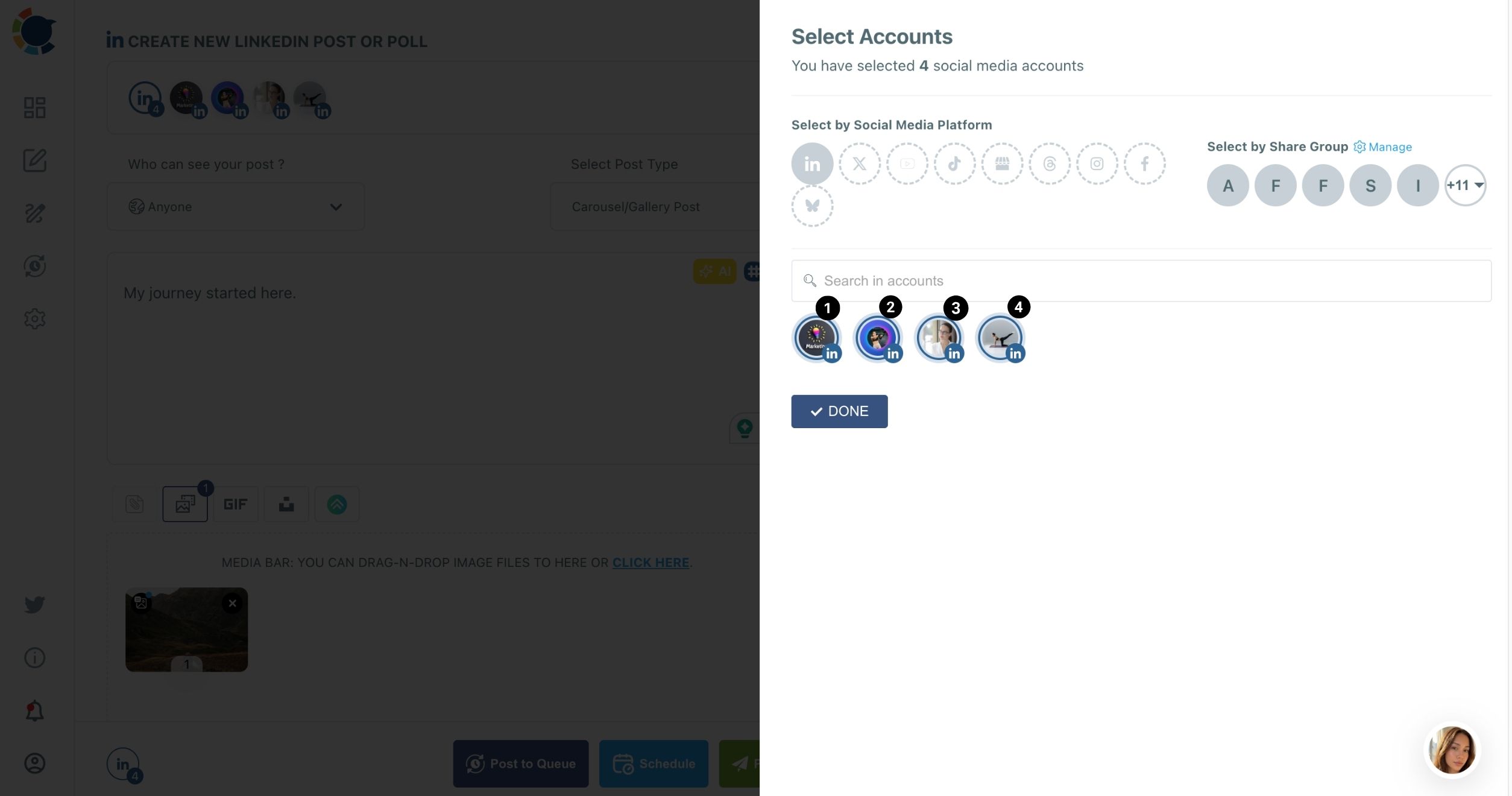
- Set Select Post Type to LinkedIn Post and leave "Who Can See Your Post?" on Anyone, since Connections Only is disabled for Company Pages.
- Write the opening in under 1,300 characters, then add the application link and salary details in the First Comment field so the post itself stays readable.
Schedule it and check the calendar
- Click Schedule and choose one of the six slots under "Pick your best post time," or type a time into Set Time, then confirm with Schedule.
- Check the Outbox in Calendar View and filter by Share Group to confirm the opening sits on every desk Page.
Connecting and grouping the Pages first turns every later opening into a two-minute job, and keeping the link in the First Comment means the post reads like an announcement rather than an advert.
Now that the opening is scheduled, two choices decide how well it performs: the wording each Page carries, and what you post around it.
Should each LinkedIn Page get the same wording?
Not when the Pages share an audience. When you post to multiple LinkedIn Pages in one send, Circleboom Publish targets every selected account with the same composed content, which is perfect for the facts of a role and risky for the wording.
Circleboom's own LinkedIn guidance is direct about this: LinkedIn doesn't reward duplicate content, and repeating the same text looks lazy to both the algorithm and the network. A candidate who follows the main Page and the technology desk will see the identical paragraph twice and scroll past both.
The fix keeps the speed of one composer session:
- Send the core announcement to the main Page and the most relevant desk together.
- Duplicate the post for the other desk and rewrite the opening line for that field.
- Use the AI button above the text field to rephrase, and keep the facts identical.
The AI LinkedIn post generator handles the rephrasing in seconds. Ask it to lead with the finance angle for the finance desk and the tooling angle for the technology desk. Same role, two posts that each read native to their Page.
One send for the facts, one rewrite per overlapping audience.
That rule keeps an agency's Pages from looking like a broadcast list.
For a deeper look at running several Company Pages day to day, the guide to manage multiple LinkedIn company pages is a useful companion.
What to post on LinkedIn after the job opening goes live
A single post rarely fills a role. Circleboom's own hiring example pairs the opening with a conversation starter. Post the role on the Company Page with a poll such as "What matters most in a new job?" and use First Comment for the application link and the details that didn't fit.
A poll asks for one click, which makes it one of the highest-response formats on LinkedIn, and the results become a ready topic for a follow-up post.
The LinkedIn poll scheduler lets you set the question, options and a duration of 1 day to 2 weeks. Then schedule it to the same desk Pages two days after the opening.
Two caveats apply to polls. The question is capped at 140 characters and each option at 30, and LinkedIn's own rules prohibit political, medical or other sensitive-data poll content, so keep the question about work preferences.
Hashtags are the other lever. On LinkedIn, they carry a post to people who follow a topic or industry rather than your Page. The LinkedIn hashtag generator reads the post text and suggests tags in one click.
Review them for genuine relevance, since a data analyst role wants three focused tags, not fifteen generic ones. The basics of choosing them are in this guide to LinkedIn hashtags.
How much LinkedIn posting time this saves a recruitment agency
The arithmetic is simple. An agency that briefs five roles a week, each going to three Pages, publishes fifteen posts. Done natively, that is fifteen admin-view switches and fifteen pastes. When you post to multiple LinkedIn Pages from Circleboom Publish, it is five composer sessions, plus a quick rewrite wherever two Pages share an audience.
The quieter gain is consistency. When posting to every desk takes one session, the specialist Pages stop going silent, and candidates who follow a desk see a steady stream of relevant roles. That steadiness gives candidates a reason to keep following each desk Page.
If you already plan a week of content ahead, the walkthrough on how to schedule LinkedIn posts shows how to fit job openings around the rest of the calendar.
One job opening, every LinkedIn Page, one session
To post to multiple LinkedIn Pages without the admin-view shuffle, connect every Page once with a Super Admin account and save them as a Share Group. Then send each opening from the LinkedIn composer with the application link in the First Comment. Where two Pages share followers, duplicate and rephrase instead of repeating.
I would start with the next role your agency briefs: post to multiple LinkedIn Pages in one sitting and watch how much of the morning comes back.
→ Share your next opening on multiple LinkedIn Pages
Recruiter questions about posting jobs to several LinkedIn Pages
Can I post to a client's LinkedIn Company Page too?
Yes, if the LinkedIn account you connect with holds the Super Admin role on that client's Page. Many agencies then give each client its own Team workspace in Circleboom Publish, so staff assigned to one client never see another client's Pages.
Does a hiring post appear in LinkedIn's Jobs search?
No. A hiring post is a regular feed post on your Company Page, so it reaches followers and their networks but is not a listing in Jobs search. Use LinkedIn's own job posting flow when you need a structured application form.
Can junior recruiters schedule posts without publishing directly?
Yes. In Circleboom Publish Team Management, a recruiter added as a User sees only the Pages assigned to them, and every post they schedule waits for an Admin's approval before it goes live.