

Two posts can carry the same clip, the same caption, and the same hashtags, and still land in completely different places. The one built around a pasted YouTube URL renders as a small summary card that sits still until somebody taps it. The one built around the uploaded video file plays in the timeline on its own.
That format gap is the part almost every "share your video" walkthrough skips.
Link route: X unfurls the URL into a static summary card, the play happens on YouTube, and your post works as a signpost. Native route: Circleboom uploads the video file and schedules the post to X through official API access, so the clip runs inside the feed where the audience already is.
→ posting a YouTube video on Twitter
Which route fits depends on three inputs: who owns the clip, how long it runs, and whether you want the view counted on X or on YouTube.
Why a pasted YouTube link underperforms on X
A YouTube URL inside a post is a link, not media. X reads it, fetches a thumbnail and a title, and renders a card. The card does not autoplay, does not loop, and does not hold anyone in place. The viewer has to decide to leave X before a single second of your video gets watched.
An uploaded file behaves the opposite way. X's own video requirements describe an uploaded clip as media the platform hosts and plays, which is why it starts in the timeline without a tap.
The consequence is easy to miss, because both posts look published. Only one of them is competing for attention where the attention is actually being spent.
I check format before I check copy whenever a video post lands flat, and the fix is usually structural rather than editorial. If your clips consistently trail your text posts, audit the routing decision before you rewrite another hook.
The same pattern runs through the analytics work behind getting more impressions on Twitter videos. Format outranks caption length as a variable far more often than people expect.
The cost that shows up in your calendar, not your feed
Manual uploading is slow in a way that quietly caps how often you do it. You leave whatever tool you plan in, open X, wait through the encode, type a caption into a cramped box, and publish whenever you happen to be at a keyboard.
That last part is the real damage. Posting time stops being a decision and becomes whatever the export schedule allowed.
Doing the same job inside a planner removes the constraint. You can share a YouTube video on X in a slot you picked on purpose. You can also batch a week of clips in one sitting and keep the caption work next to the media work instead of splitting them across two tools.
The three routes, and how to pick one
Most guides present a single method and stop. There are three, and they answer different goals.
| Route | Best when | What you give up |
|---|---|---|
| Native upload | The clip is yours, runs short, and you want the watch to happen on X | No automatic path to your YouTube channel |
| Link card | The video is long-form, or the goal is YouTube watch time and subscribers | Static card, no autoplay, far fewer people stop scrolling |
| Native teaser plus link | You want a short cut playing on X and the full video one tap away | Two assets to prepare instead of one |
The three inputs that decide your row
Ownership. You can only re-upload video you made or hold a licence for. YouTube's help pages are direct about it: you can download videos you have uploaded yourself, and other creators' uploads are not yours to republish. Re-cutting somebody else's video into your feed is a copyright claim waiting to happen, not a growth tactic.
Runtime. A single post carries one video, up to 512 MB, capped at 2 minutes 20 seconds through the planner. A three-minute Short overshoots that ceiling. A twelve-minute tutorial is not close.
Destination. Decide up front whether the metric you care about is X impressions or YouTube watch hours, because the two routes optimise for different scoreboards. Circleboom's Twitter Video Analytics reports what the native side actually returned, which is the only honest way to settle the argument for your own account.
The rule I use: if I own the clip and it fits under the runtime ceiling, it goes up native. Everything else gets a teaser or a card.
How to post a YouTube video on Twitter in three phases
Video walkthrough: what the composer looks like when the video is attached as a file rather than pasted as a URL.
https://www.youtube.com/watch?v=me751_eKoiE
The flow below runs in three phases: get the file, build the post around it, then place it on the calendar.
Get the file before you open the composer
- Open Circleboom Twitter and connect the account you publish video from. Circleboom is one of the companies on X's official Enterprise developers list, so the connection runs through sanctioned API access rather than a browser workaround, and your account keeps its standing.
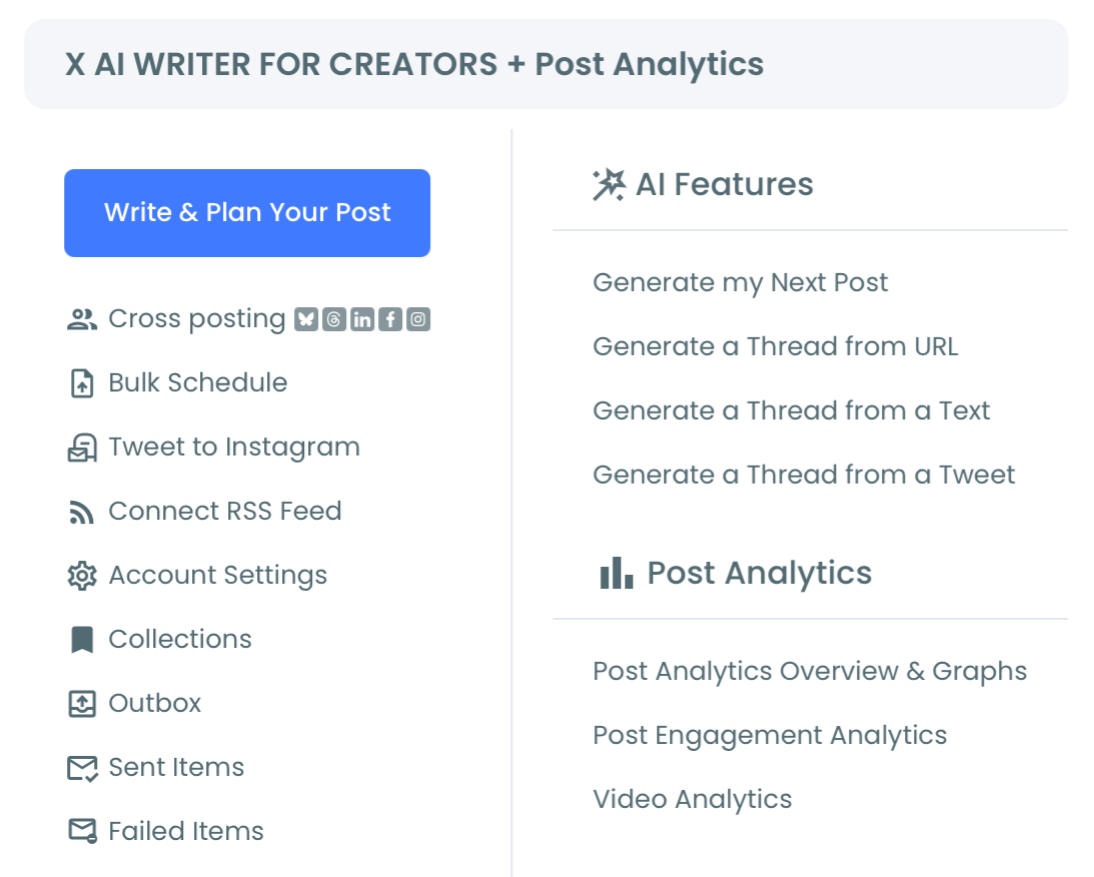
- Open the X Post Planner from the dashboard menu. Everything in this workflow, the upload, the caption, the media limits, and the schedule, lives inside that one composer.
- Save the video file to your device. For short-form content, Circleboom's YouTube Shorts Downloader takes the Shorts URL, shows a copyright agreement you have to accept, and opens the video in a new tab for your browser to save. For your own long-form uploads, pull the master file from YouTube Studio instead.
Build the post around the video, not around the link
- Attach the file using the image icon in the composer toolbar. One video per post, up to 512 MB, and video cannot share a post with photos, a GIF, or a poll.
- Write the caption as a standalone post. The clip is the payload now, so the text has to earn the stop on its own: a claim, a number, or a question. Dropping the YouTube URL into the same post re-introduces the card you just worked around.
- Add the link in a reply instead, if you want the channel click. The parent post stays pure media, and the reply carries the destination for anyone who wants the full version.
Place it where the audience is already awake
- Click SCHEDULE, then set the date and time. The Find your best posting time control returns six suggested slots built from your own audience activity, which saves a separate trip into analytics.
- Confirm with the Schedule button and toggle any cross-post destinations in the same pass. If the clip belongs on LinkedIn, Threads, Bluesky, Facebook, or Instagram as well, those go out from the same composer with their own text variants.
That order matters more than it looks. Pulling the file first means you never discover a runtime problem after writing the caption, keeping the link out of the parent post protects the format you chose, and scheduling last lets timing be a decision rather than an accident.
Quick recap:
- Connect the account, then open the planner.
- Save the file; do not paste the URL.
- Attach, caption, and keep the link in a reply.
- Schedule against a real audience-activity window.
Two mistakes that quietly undo a native upload
The first is treating the caption as a label. A pasted link came with its own title and thumbnail, so the caption could be lazy and the card still explained the post. Native video removes that safety net. The first line now carries the whole job of stopping a scroll, and a caption that reads like a file name will waste a clip that would otherwise have performed.
The second is uploading the wrong crop. A YouTube Short is vertical, a standard YouTube video is wide, and both play in a feed that rewards whichever shape fills more screen. Exporting the clip at the aspect ratio you want on X, rather than the one YouTube handed you, is a two-minute job that changes how much of the display your post occupies.
Neither mistake shows up as an error message. Both show up as a video that technically published and quietly went nowhere.
The fix for both is having the composer, the media, and the schedule in one place so the caption and the crop get reviewed before anything goes out. That review window is most of the reason to schedule a YouTube video on Twitter rather than publish it the moment the export finishes.
What if the video is too long to upload?
Use the link card deliberately instead of accidentally. Long-form video is the case the card was built for. X Premium accounts also get much longer upload allowances, so testing the native route at length is possible before you commit to it.
The stronger play for long-form is the teaser. Cut 40 to 90 seconds that stands alone, upload that natively, and put the full YouTube link in the first reply. The feed gets media it will play, and the people who want the whole thing still have one tap to reach it.
That structure also keeps the parent post eligible for the playback behaviour covered in why Twitter videos keep pausing, which starts to matter once your clips accumulate real watch time.
Running this repeatedly rather than once changes the tooling question. Our walkthrough on automatically posting YouTube videos on Twitter covers the feed-driven version for channels that publish on a fixed cadence.
If your posts mix formats, the media mechanics are worth reading separately. The rules for scheduling a video tweet or GIF tweet explain which media types can and cannot share a single post.
What changes once the video plays in the feed
The obvious gain is reach, but it is not the interesting one. The interesting one is that your video finally produces data you can act on.
A link card gives you a click count and nothing else. You know somebody tapped through; you do not know whether they watched four seconds or four minutes, whether the first frame worked, or where people dropped. A native upload turns the clip into a measured asset on X: views, completion behaviour, and engagement all attach to the post itself rather than disappearing into another platform's dashboard.
That is what makes iteration possible. Once two native clips can be compared honestly, hook length, crop, caption structure, and posting slot all stop being opinions.
The second change is compounding. A channel that publishes one native cut per video builds a library of X-hosted media, and that library keeps working long after the YouTube upload has cycled out of subscribers' feeds. Nothing about that requires more production; it requires a different export and a different destination for the same footage you already made.
The third is cadence. Because scheduling is decoupled from exporting, publishing frequency stops depending on when you are free, which is usually the real ceiling on how much video a small team gets out.
Which route to build first
Pick the row you are actually in, then act on it.
If you own the clip and it runs under two minutes twenty: upload it natively and stop pasting URLs entirely. That is the whole change, and it takes one workflow to build.
If your library is long-form: build the teaser habit. One short native cut per video, full link in the reply, every time.
If you are not sure which is working: run both formats for two weeks on comparable content and let the numbers settle it rather than the theory.
Whichever row you land in, the composer is the same, and the scheduling is the part that makes it repeatable. Set the workflow up once and upload a YouTube video to Twitter on your own calendar instead of the platform's.
Practical questions about native uploads
Can I upload someone else's YouTube video to my X account?
No, not without permission or a licence. YouTube's guidance on copyright treats a re-upload as a use of the creator's work, and the safe versions are your own footage, licensed footage, or a link to the original.
Do I need X Premium to post video this way?
No. Premium raises the ceiling on how long an uploaded video can run, but the standard path works fine inside the planner's own limits, and a teaser plus a reply link covers most long-form cases without a subscription.
Will scheduling the post reduce its reach compared with posting live?
No. A scheduled post publishes as a normal post at the time you set, and the format of the media matters far more than whether a human pressed the button. Choosing the slot deliberately usually helps, because engagement in the first minutes shapes how far the post travels.
Can I send the same clip to other platforms at the same time?
Yes. The cross-post toggles inside the composer let one upload go to LinkedIn, Threads, Bluesky, Facebook, and Instagram alongside X, each with its own text variant so nothing gets truncated on the way out.

