

X has no export button for bookmarks and no Notion integration, so the fastest way to export Twitter bookmarks to Notion is to download them as a CSV first. With Circleboom's Export Bookmarks feature, you can get every saved post with its author, date, engagement numbers, and full text, then import that file into Notion as a database. From there, each bookmark becomes a row you can tag, filter, link, and actually use.
Bookmarking on X takes one tap. Finding that bookmark again takes much longer.
The list only goes one way: newest first, endless scroll. There is no folder system for most accounts, no tags, and the search inside bookmarks is not much help when you only half remember what the post said. After a few months, the bookmarks tab turns into a pile of good intentions. Threads you meant to read. Examples you wanted to reuse. Data points you planned to cite.
Notion is where a lot of people already keep that kind of material. Research notes, content calendars, reading lists, swipe files. Getting bookmarks from X into Notion, though, usually means copying links one at a time, and nobody does that for 400 posts.
With Circleboom Twitter, you can export your whole bookmark collection, or a filtered part of it, as a structured CSV and drop it straight into Notion. One import, and your saved posts become a searchable database instead of a scroll.
Why the export step goes through Circleboom
Notion can import a CSV, but it needs a CSV to start with, and X does not give you one for bookmarks. Its own data archive download also leaves bookmarks out.
Circleboom is an Official X Enterprise Developer and retrieves your bookmarks through X's official API. It does not scrape them. Scraping based tools can miss posts or return partial lists. An export from the official API reflects the posts you actually saved, so 300 bookmarks means 300 rows in the file.
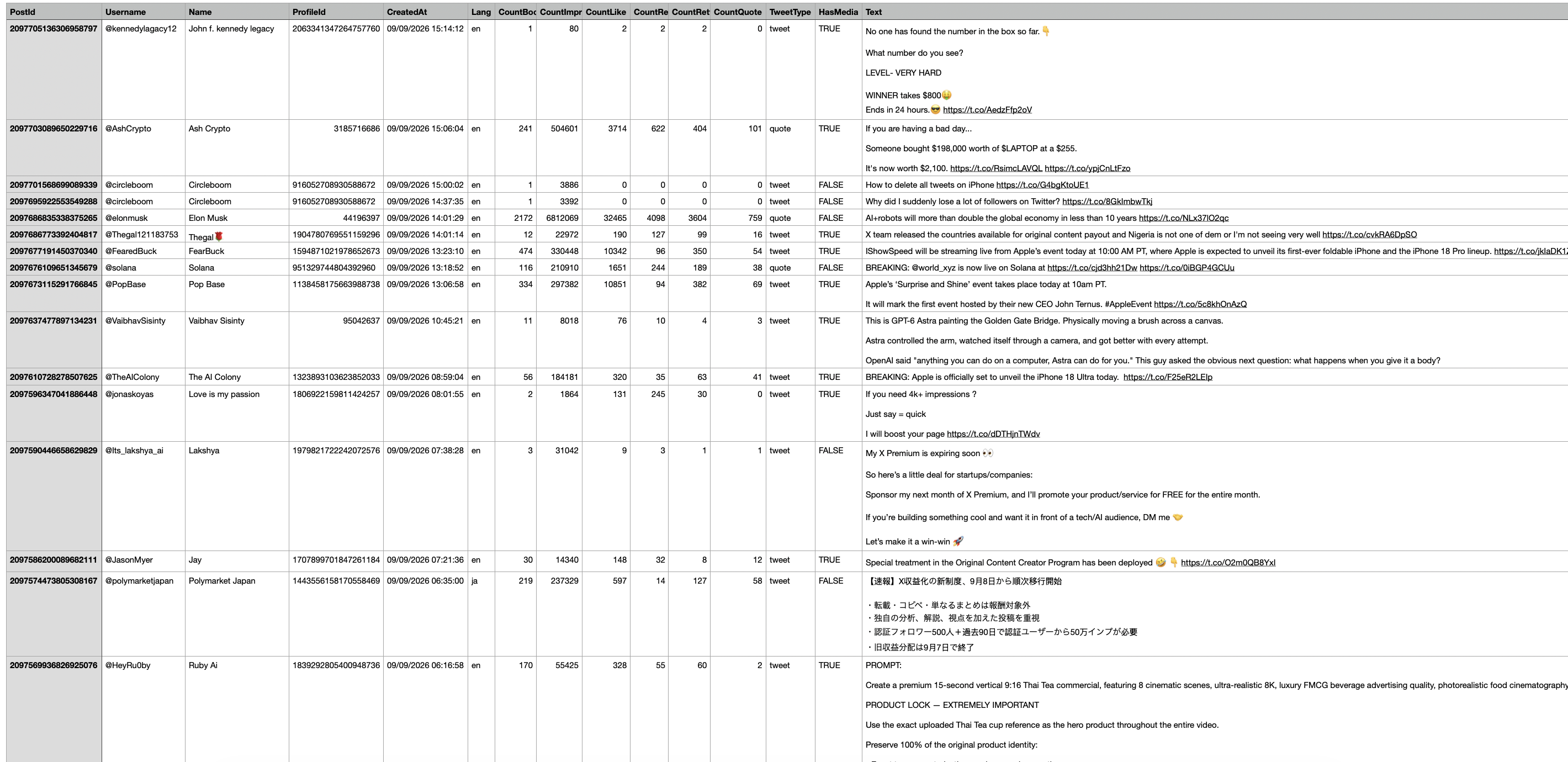
Here is what comes out of the export and why it matters in Notion:
- Post ID and author details. Each row has the post ID, username, display name, and profile ID. The post ID lets you rebuild a direct link to the tweet inside Notion.
- Date and language. The CreatedAt and Lang columns become sortable date and select properties.
- Engagement numbers. Bookmark, impression, like, reply, retweet, and quote counts for each saved post, so you can sort your library by what performed best.
- Post type and media flag. TweetType shows tweet or quote, and HasMedia shows whether the post had images or video.
- Full text. The complete post text, not a preview. This is what makes the Notion database searchable.
Because the text is saved in the file, it stays in your Notion database even if the original tweet is later deleted or the account gets suspended.
How to export Twitter bookmarks to Notion with Circleboom
Step 1: Open Export Bookmarks. Log in to Circleboom Twitter, connect your X account, and open the Twitter Bookmarks Manager. Click "Sync My X Data for fresh insights" so the list includes your latest saves.
Step 2: Narrow the list if you want. All bookmarks are selected by default. If you only want part of them in Notion, use Filter Options to narrow by keyword, @username, hashtag, date, language, media, or engagement counts. For example, filter by a keyword to build a Notion database on one topic.
Step 3: Export the CSV. Click Export and confirm. Circleboom processes the request and gives you a CSV file of the selected bookmarks.
Opened in a spreadsheet, the file looks like this, one bookmark per row:
Step 4: Import the CSV into Notion. In Notion, open the page where you want the bookmarks, then use Import from the sidebar and choose CSV, or drag the file onto the page. Notion turns it into a database. Each column becomes a property and each bookmark becomes an entry.
📌 Don't open and re-save the CSV in Excel before importing. Spreadsheets often turn long post IDs into scientific notation like 2.09E+18, which breaks the tweet links you will build in Notion. Import the original file directly.
How to set up the database after you export Twitter bookmarks to Notion
The import gives you raw data. A few minutes of setup turns it into something you will actually open again.
Fix the property types. Notion imports CSV columns as text. Change CreatedAt to Date, the count columns to Number, HasMedia to Checkbox, and TweetType and Lang to Select. Sorting and filtering only work properly once the types are right.
Rebuild the tweet link. The file has the post ID, so a formula property can turn it into a clickable link. Add a Formula property called "Link" and use "https://x.com/i/status/" + prop("PostId"). Every row now opens the original post in one click.
Add a Topic property. Create a Multi-select called Topic and tag each bookmark: marketing, AI, design, hiring, whatever you saved things for. This is the step X never gave you, and it is the one that makes the library useful.
Add a Status property. A Select with To read, Read, and Used works well. "Used" is the important one. It shows which saved posts already became a thread, a newsletter section, or a client slide.
Rename and hide the noise. Notion uses the first CSV column, PostId, as the title. You can keep it, since it is a stable unique ID, and hide ProfileId and the counts you don't care about so the table stays readable.
Ways to use your Twitter bookmarks in Notion
Once your saved posts are a database, the same data can serve very different jobs. Here are the setups that tend to stick.
A swipe file for content ideas. Create a Board view grouped by Topic. Each column is a pile of examples for one subject. When you sit down to write, open the pile, pick three posts, and write your own take. Sort by CountLike or CountBookmark inside each group to put the strongest examples on top.
A content calendar feed. If you already run a content calendar in Notion, add a Relation property from bookmarks to calendar entries. When a saved post inspires a planned piece, link them. Months later you can still see where the idea came from.
A research library with sources. For reports, articles, or client work, filter by keyword and date to collect every saved post on a subject. The author, date, and rebuilt link give you what you need to cite each one.
A reading queue. Filter the table to Status is To read, sort by CreatedAt, and keep that view on your dashboard. Long threads you bookmarked "for later" finally get a later.
A competitor and industry watch. Add a view filtered by Username to group everything you saved from specific accounts. It shows what kind of content from competitors or industry voices you kept coming back to.
A gallery for visual references. Filter by HasMedia is checked to separate posts with images or video. Designers and social media managers often save visual posts for layout ideas, and this view keeps them apart from text-only posts.
A Notion AI summary. If your workspace has Notion AI, you can add an AI property that summarizes the Text column or suggests a topic for each row. On a big import, that saves a lot of manual tagging.
Keeping the Notion database up to date
Bookmarks keep piling up after the first import, so it helps to decide how new ones get in.
Export, import, then clear. After the CSV is safely in Notion, you can use Delete Bookmarks to reset your X bookmarks. The next export then only contains posts saved since the last round, so nothing gets imported twice. Our guide on how to unbookmark everything on Twitter covers this cleanup in more detail.
Merge into the same database. Notion lets you merge a new CSV into an existing database from the database menu, so each round adds rows to the same table instead of creating a new one. Keep the same columns and your property setup stays in place.
Run it on a rhythm. Monthly works for most people. Heavy researchers do it after each project. Either way, the CSV is a snapshot from the moment of export, and posts saved after that will be in the next file.
⚠️ Delete bookmarks only after you have checked that the import worked. Bookmark deletion on X can't be undone, so the CSV and the Notion database are your record. If you have ever lost saved posts, read can you recover deleted bookmarks on Twitter.
Why your bookmarks belong outside X
Bookmarks disappear with the original post. A bookmark only points to a tweet. If the author deletes it or the account gets suspended, the bookmark is gone. A Notion database with the full text keeps it. More on that in how to see deleted Twitter bookmarks.
X's bookmark tools stay basic. Search inside bookmarks is limited, and there are no tags or custom views. If you have run into this, how to search bookmarks on Twitter and Twitter bookmarks not working explain what you are up against.
Saved ideas turn into published posts. A bookmark library you can sort and tag is easier to write from. When an idea is ready, Circleboom's X Post Planner can turn it into a scheduled post, and AI Writer can build a thread from a saved post or article.
Your research becomes portable. Notion is one destination. The same CSV works in Google Sheets or any other tool, as in how to export your Twitter data and save it on Google Sheets.
FAQ
Can I export Twitter bookmarks directly to Notion?
There is no direct integration between X and Notion. Export your bookmarks as a CSV with Circleboom's Export Bookmarks tool, then import that CSV into Notion. Notion turns it into a database with one row per bookmark.
Does the X data archive include bookmarks?
No. X's archive download does not include your bookmarks, which is why a separate export is needed. Circleboom retrieves them through X's official API with no archive upload.
Will the tweet links work in Notion?
The CSV includes the post ID for each bookmark. Add a Formula property in Notion with "https://x.com/i/status/" + prop("PostId") and each row gets a working link to the original post.
Can I export only some of my bookmarks?
Yes. Use Filter Options before exporting to narrow by keyword, @username, hashtag, date, language, media, or engagement counts. Only the filtered bookmarks go into the CSV.
What happens in Notion if the original tweet is deleted?
The text stays in your Notion database because it was saved in the CSV at export time. The link to the post will stop working, but the content is not lost.
Can I add new bookmarks to the same Notion database later?
Yes. Export the new bookmarks and use Notion's merge with CSV option on your existing database. Clearing your X bookmarks after each export keeps duplicates out.
Does exporting remove my bookmarks from X?
No. Exporting and deleting are separate actions. Your bookmarks stay on X unless you choose to delete them.
Final thoughts
Bookmarking was always the easy half. The hard half was getting anything back out of a list that only scrolls. Once you export Twitter bookmarks to Notion, every saved post becomes a row you can tag, link, filter, and build on, and it stays there even if the original tweet does not. Circleboom handles the part X never offered, a clean and complete export, and Notion handles the rest.
Export your bookmarks with Circleboom:
https://circleboom.com/twitter-management-tool/twitter-bookmarks-manager/export-twitter-bookmarks

