
You export the members of a Twitter List to Excel by opening the list inside Circleboom Twitter, clicking Export to download the members as a CSV file, then opening that CSV in Excel where every member becomes a row with full profile data in columns.
Circleboom Twitter pulls every member of your X List through the official X API and turns them into a clean spreadsheet of usernames, bios, follower counts, and quality flags. No copy-pasting List IDs into a scraper, no browser extension grabbing your session cookie.
→ export Twitter list members to Excel
One click in, one spreadsheet out.
A Twitter List can hold up to 5,000 members, and X gives you no button to get that membership out of the platform. You can scroll the list, but you cannot select it, copy it, or save it. The moment you need that membership as data, to import into a CRM, to build an X Ads custom audience, or to hand a colleague a contact sheet, the native interface stops being useful.
Circleboom Twitter closes that gap. As an official X Enterprise developer, Circleboom reads your list membership directly through X's sanctioned data channel and writes it to a CSV file that Excel opens without conversion. The result is the full list, every member, every available field, in a format you can sort, filter, and pivot.
Why Excel Beats the Native Twitter List View
Excel turns a list into a dataset. Inside X, a list is a scrolling feed of avatars and bios that you can read but not work with. Once the same members sit in a spreadsheet, every property becomes a sortable column: follower count, following count, tweet count, account age, verification status, and Circleboom's quality flags for fake, inactive, and egghead accounts.
That shift matters because lists are usually built for a reason. A prospect list, a competitor-monitoring list, a journalist list, a brand-advocate list, each one represents a decision about who deserves attention. When you can sort that group by follower count or filter it by location, you stop guessing and start prioritizing.
The same logic explains why people search for how to export Twitter lists in the first place. The list is a deliberate answer to a question, and a spreadsheet is where that answer becomes something you can act on rather than just read.
It is the natural companion to the broader move toward exporting Twitter followers to a spreadsheet, where the goal is always the same: get social data out of a feed and into a grid you control.
If you only need the followers behind a list rather than the members themselves, Circleboom also handles a direct export of followers on Twitter and a separate Twitter following list export. The list-member export is the right path when the list itself is the asset you care about.
The Safe-Export Distinction Most Guides Skip
Most tutorials point you at a Chrome extension or a public scraper that asks for a List ID. Those tools read your data by mimicking your logged-in browser session or by hitting unofficial endpoints, which is exactly the behavior X's automation rules treat as risky. The export still works until the day it gets your access revoked.
Circleboom takes the opposite route. Membership is fetched through the official X API List members endpoint, the same authorized channel X documents for developers. There is no extension intercepting your session and no scraper pretending to be you. When you export Twitter list members to a spreadsheet through Circleboom, the operation is one X recognizes and permits.
That is the load-bearing difference between Circleboom and the scraper crowd: same spreadsheet, very different risk profile.
What Lands in Your Spreadsheet
The CSV Circleboom produces is richer than a raw scrape because the data is enriched before it is written. Each member row can include:
- ProfileId, Username, and display Name
- Follower count, following count, and tweet count
- Verification status and verified type (blue, business, government, or none)
- Quality flags for Fake/Spam, Inactive, Egghead, and Overactive accounts
- Account creation date, location, and bio text
A plain scrape gives you names and numbers. Circleboom gives you names, numbers, and judgment, the quality signals that let you tell a real contact from a dead account before you act on the row.
That enrichment is why the export is worth more than what a one-click extension produces. The same approach powers Circleboom's broader Twitter follower export to CSV, where the value sits in the columns the platform never surfaces on its own.
Two of those columns deserve a closer look. Verified_Type is not a yes/no field; it records whether the badge is blue, business, government, or none, which matters when a press list needs to separate official agency handles from paid blue checks. The CreatedAt field carries the full account creation timestamp, so a list of supposed industry veterans that turns out to be full of accounts opened last quarter becomes obvious the moment you sort that column.
The Filters That Shape Your Export Before It Runs
You can narrow a list before exporting it, which means the CSV arrives already trimmed to the segment you care about. Circleboom's X List Manager exposes a Filter Options panel inside the members view, and each filter targets a different decision.
- Follower Count, Following Count, and Tweet Count each take a minimum and maximum range
- Follow Ratio filters by follower count divided by following count, surfacing balanced versus lopsided accounts
- Join Date filters by account creation window, isolating veterans or newcomers
- Find in Bio & Name searches profile text for a keyword, useful for role or industry terms
- Follower Quality flags screen out Eggheads, Fake/Spam, Inactive, Overactive, and Protected accounts
Layering filters is where the real targeting happens. Combine a Location filter with an Engagement classification and a minimum follower count, and the export that downloads is a ready-made outreach shortlist rather than a raw dump you still have to clean.
The Active Filters bar at the top of the table shows exactly what is in effect, so the row count you see is the row count you get. This is the same precision behind a clean filter of X followers by follower count applied to list members instead of your wider audience.
How to Export Twitter List Members to Excel
The whole flow takes a few clicks once your X account is connected.
Open Your Lists in Circleboom
- log in to Circleboom Twitter and connect the X account that owns the list you want to export.

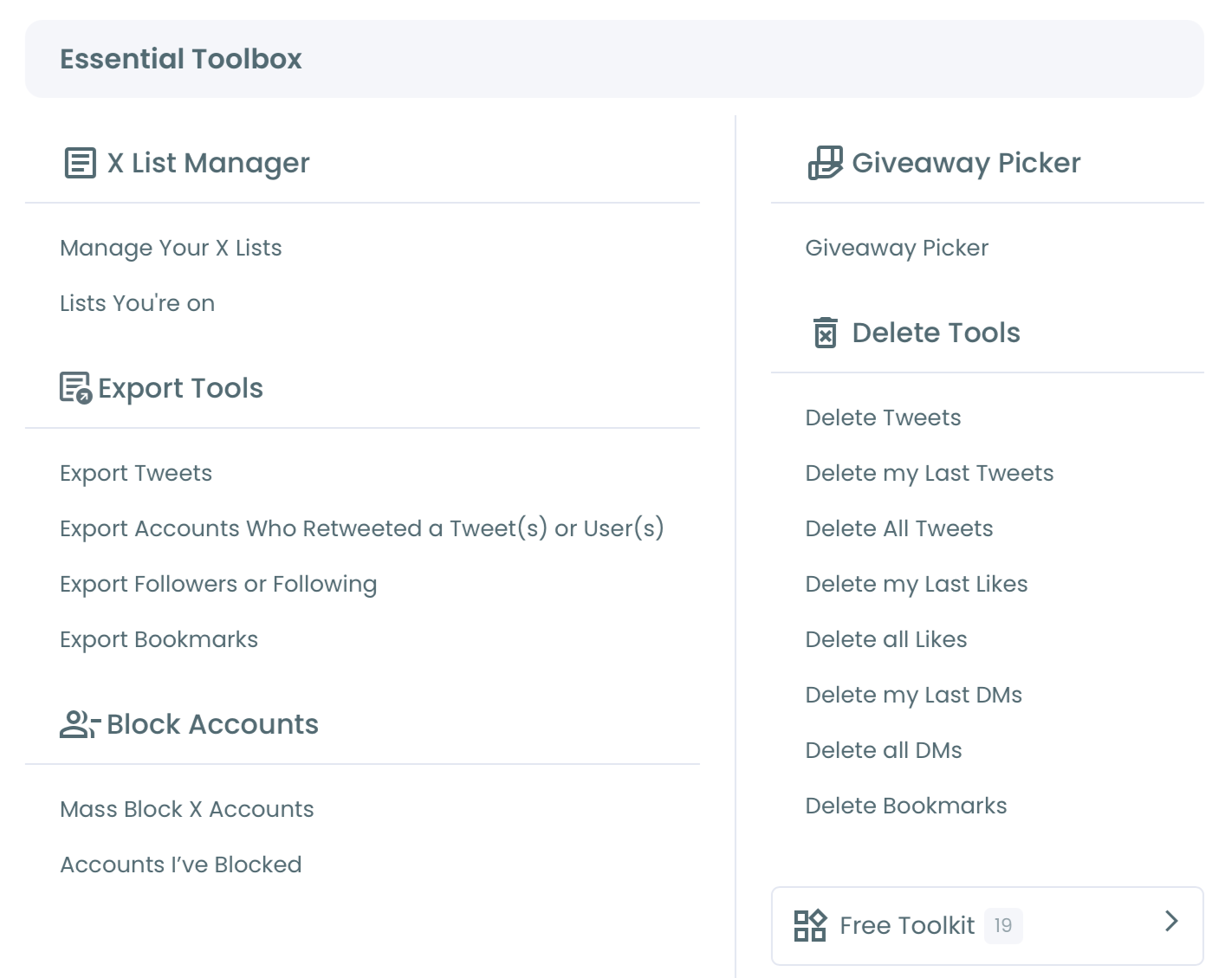
- Open the Essential Toolbox menu and select the X List Manager to see every list on your account in a visual grid.
Pull the Members Into a CSV
- Click the list you want to export to open its members view, where each account appears as a row with full profile data.
- Apply filters if you only want part of the list, for example follower count above a threshold or accounts that are not flagged as inactive, so the export reflects exactly the segment you need.
- Click the Export button above the table, checking the remaining token count shown next to it, and Circleboom downloads the members as a CSV file.
Open the File in Excel
- Double-click the downloaded CSV to open it in Excel, where every member sits on its own row and every data field becomes a column you can sort, filter, or pivot.
Running the export this way means the spreadsheet you hand to a teammate or import into a CRM is complete, current, and built from data X actually authorized you to pull.
Putting the Exported List to Work
A spreadsheet of list members is a starting point, not an endpoint. Sort by follower count to find the highest-reach accounts in a competitor list. Filter by the inactive flag to clean a monitoring list before your next campaign. Pivot by location to see where a community list actually lives.
If you discover new accounts worth tracking while you work, Circleboom's Twitter account finder feeds straight back into a list you can export again later.
Segmentation is the first move most people make. A competitor list, once in Excel, splits cleanly into reach tiers: the handful of accounts above 100,000 followers that set the conversation, the mid-tier accounts worth direct engagement, and the long tail you only monitor. The quality flags do the second pass. Filtering the inactive column before a campaign keeps you from wasting outreach on accounts that went dark, and the same flags identify accounts worth a closer look in a Twitter follower quality score review. Each of these moves is impossible inside the scrolling list view and trivial inside a grid.
This is also where Excel and CSV stop being interchangeable. A scraped CSV is a flat dump; the enriched export behaves more like a working database, which is the whole reason exporting tweets to Excel or CSV became a standard analyst move in the first place. The list-member version applies the same discipline to people instead of posts.
The point of getting the data into Excel is control. Once the list is a dataset, every decision about who to engage, follow, or drop becomes evidence-based instead of a scroll-and-guess.
Summary
Exporting a Twitter List to Excel takes three moves: open the list in Circleboom's X List Manager, click Export to download the members as a CSV, and open that CSV in Excel. Circleboom does this through the official X API, so you get the full membership with enriched quality data and none of the account risk that comes with scrapers or session-grabbing extensions.
The spreadsheet you end up with is sortable, filterable, and ready for a CRM, an ad audience, or a team review.
→ export your Twitter list to a spreadsheet
Common Questions About Exporting Twitter List Members
Can I export only part of a Twitter List instead of all members?
Yes. Apply filters in the members view, such as follower count, location, or quality flags, before clicking Export, and the CSV will contain only the accounts that match your active filters.
Does exporting a list require a browser extension?
No. Circleboom reads list membership through the official X API, so the list-member export runs entirely in the web app with no extension and no session-cookie access.
What format does the export download in?
The export downloads as a CSV file, which Excel, Google Sheets, and Numbers all open directly with each member on its own row and each data field in its own column.
How many members can a single Twitter List hold?
A Twitter List can contain up to 5,000 members, an X platform limit, and Circleboom can export the full membership up to that ceiling in one operation.
Does the export cost tokens, and how do I know my balance?
The export is token-based, and the remaining token count is shown directly beside the Export button, for example "Remaining token: 1,505." A larger list consumes tokens in proportion to its member count, so a 5,000-member list draws more than a 200-member one. Checking the balance before you click means no half-finished export.
How current is the data in the export?
List membership syncs automatically within a 24-hour window, and the sync timestamp appears on the list overview page so you always know when the data was last refreshed. If you added or removed members directly on X within that window, run the export after the next sync to catch the change.