X keeps your posting history visible and almost impossible to work with.
You can scroll it and you can search it, but you cannot sort it by impressions, cut it down to one campaign month, or hand it to a client as a file. The moment you need your posts as rows instead of a timeline, the platform stops helping.
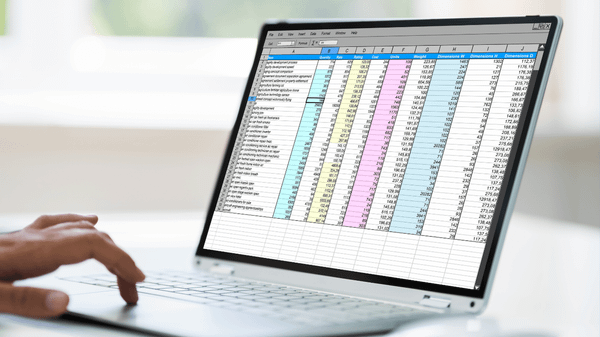
Circleboom pulls up to 3,200 of an account's most recent posts from X and writes them into a CSV you can open in any spreadsheet app, with likes, impressions, retweets, replies, quotes, and bookmarks already sitting in their own columns.
→ download all tweets as a spreadsheet
The number doing the most work in that sentence is 3,200, and the next section is about when it matters.
What "all your tweets" actually means on X
There are two different files hiding behind the word "all," and they are not interchangeable. Picking the wrong one costs you either a day of waiting or a chunk of your history, so it is worth two minutes up front.
Circleboom sits on the first of those two paths, and you can export your X posts to CSV from it without leaving the dashboard.
The first is the live path. Circleboom reads your timeline through official API access and returns the most recent 3,200 posts as a structured CSV, usually within the same working session. That ceiling is set by X's public timeline endpoint, not by a Circleboom plan tier, so no upgrade lifts it.
The second is X's own data archive. You request it from your account settings, and X's archive request process reaches your full history rather than the most recent slice.
X puts that wait at a few days and gives no firmer number than that. Faster turnarounds get quoted around, but they are user experience rather than a published commitment, so plan the work against the slower promise and treat an early delivery as a bonus.
The archive is complete and slow. The API export is capped and immediate.
There is one more difference nobody mentions until you have the ZIP open. The archive is not a spreadsheet.
It arrives as a file called tweets.js, which is a JavaScript assignment wrapped around your data, and it needs cleaning before a spreadsheet app will read it as rows. X's own developer team publishes 5 ways to convert JSON to CSV precisely because this conversion is a known chore.
So the honest framing is not "which tool is better." It is which definition of "all" you actually need, and whether the older tail is worth a conversion step.
Which export path fits the number of posts you have?
Compare your account's total post count against 3,200 before you do anything else, because that single comparison decides the whole job.
If your account shows fewer than 3,200 posts, the two paths return the same set. "All" and "all" agree, and the immediate CSV is simply the faster way to get there. Nothing older is being left behind, because nothing older exists.
If your account shows more, the shortfall is exact: total posts minus 3,200. An account sitting at 8,400 posts has 3,200 reachable through the live export and 5,200 older ones that live only in X's archive. That arithmetic is illustrative, but it is the arithmetic you should run on your own number.
Most working questions land inside the recent 3,200 anyway. Campaign reporting, content audits, and performance reviews almost always look at the last year or two of output, and a year of daily posting rarely crosses the ceiling.
The older tail matters for legal records, book projects, and full account histories, which is a different job with a different deadline.
Circleboom's Export Tweets feature shows you that total count for the account before you commit to the export, so you get to make this decision with the real number in front of you rather than a guess. If you also want the same treatment applied to your saved posts and profile numbers, you can export Twitter analytics from the analytics side of the same account.
What lands in the file
Each row is one post, and each column is one attribute of that post.
The CSV carries PostId, Name, Username, ProfileId, CreatedAt, Lang, CountBookmark, CountImpression, CountLike, CountReply, CountRetweet, CountQuote, TweetType, HasMedia, and Text. That is the full column set, and knowing it in advance tells you which questions the file can answer before you build a report around it.
TweetType is the column people underestimate. It marks each row as a tweet, a retweet, or a reply, which means you can separate what you published from what you amplified without reading a single line of text. HasMedia does the same job for image and video posts.
Circleboom applies your filters before the file is built, so you can scope the export to:
- a date range that matches one campaign window.
- a minimum like, retweet, reply, or impression threshold.
- one post type, which is how you drop retweets and keep originals.
- a single language.
- a keyword that appears in the post text.
A scoped file beats a raw dump every time.
Exporting only posts above a set like count gives you a library of what worked, without the low-engagement noise you would have to filter out by hand later. This is also the standard move before any cleanup: people who plan to delete all tweets usually want the record first, because deletions cannot be reversed afterward.
How to download all tweets as a spreadsheet with Circleboom
Here is the flow, in order, from login to labelled file.
Point the export at an account and read its count
- Log in to Circleboom Twitter and connect the X account you post from.

- Open the Essential Toolbox menu, where Circleboom groups its data and utility tools, and choose Export Tweets.

- Enter the handle you want to export, and let Circleboom fetch the account and show its total post count before you commit to anything.
Narrow the file before you buy it
- Apply the filters that match the question you are answering, so the file arrives pre-scoped instead of raw.
- Confirm the export and type the email address that should receive the CSV.
Take delivery and label what you got
- Complete the purchase on the secure Stripe page, then collect the file from your inbox or from your Circleboom account page, where every export you have run is stored.
That order matters because each step removes a way the job can go wrong.
Reading the count first tells you whether this path can answer your question at all. Filtering before payment means you are not buying rows you will delete anyway. Taking delivery from the account page means a lost email never costs you the file.
Export Tweets is bought per export through Stripe rather than drawing down the token balance that the account exports use, so the count you check in step three is also the scope you are paying for.
The sequence in short form:
- Check the reachable count before you pay.
- Filter to the slice you actually need.
- Save the file with its export date in the name.
Screen recording: the account lookup step that tells you how many posts are reachable before you pay for anything.
https://www.youtube.com/watch?v=CWcEnT_mKaY
Why a spreadsheet beats the analytics tab
X shows you analytics one post at a time, and it will not let you rank the whole history by any of those numbers.
That is the practical gap. A spreadsheet lets you sort 3,200 rows by CountImpression in one click, group them by month, and find the format that keeps outperforming.
The insight almost never sits in a single post. It sits in the pattern across a few hundred of them, and patterns only show up when the data is sortable.
Circleboom is registered as an X Enterprise Developer, so the export runs inside X's own permission boundary. Your account is never the thing being risked to produce the file, which matters when the alternative tools in this category ask you to paste credentials into a browser extension.
The download all tweets spreadsheet route also works on accounts you do not own, as long as they are public. Competitor content audits, influencer research, and benchmark reports all run off the same export, pointed at a different handle.
The file is dated, not live
One thing to hold onto: the numbers freeze at export time. A file pulled today reflects today's counts, and posts that keep collecting impressions afterward will look understated in an old file. Treat the CSV as a dated record rather than a live report, which is also why the export date belongs in the filename.
Our walkthrough on how to download tweets from Twitter covers the same ground starting from X's own settings, which is the version to read if you want the platform-side steps in full.
Who reaches for this file
Analysts reach for it because sorting beats scrolling.
Agencies and freelancers reach for it because a client report needs to exist outside the tools the client cannot log into. A CSV of published posts with dates and engagement columns is a deliverable; a screenshot of a dashboard is not.
People planning a rebrand reach for it because they want a record of what the account said before it changes direction. The question behind that search is usually can I download my tweets at all, and the answer is yes on both paths, with different ceilings.
Researchers and long-term archivists reach for it because the spreadsheet is a working copy they can annotate, tag, and merge with other sources. If reading an old account history is the goal, our notes on the Twitter archive viewer cover the other end of that job.
And anyone about to clean up an account reaches for it first, because the export is the only record that survives a deletion. That instinct is the one worth building a habit around, and our notes on how to back up my tweets explain why the timing matters more than the tool.
Once the file is open, the numbers inside it usually raise a second question about which posts are worth repeating. Tweet Stats reads the same performance data inside Circleboom, which is useful when you want the answer without opening a spreadsheet at all.
Your download checklist
Run this list before you call the job done:
- Compare your account's total post count against the 3,200 ceiling.
- Decide whether the older tail is worth requesting X's archive and converting it.
- Apply your filters before you pay, not after the file lands.
- Put the export date in the filename.
- Store the file somewhere private, because old posts can carry sensitive content.
Get the file, and the questions you have been answering by scrolling become questions you answer by sorting.
→ download your tweet history as a spreadsheet
Spreadsheet questions people ask before their first export
How many posts can I export at once?
Up to 3,200, which is the most recent slice X's public timeline endpoint returns. Older posts beyond that number are reachable only through X's own account data archive, and only for the account you own.
Can I export tweets from an account I do not own?
Yes, as long as the account is public. Protected accounts cannot be exported no matter what your follow relationship with them is, and deleted posts are not retrievable on either path.
Does the file include retweets and replies?
Yes. The TweetType column labels every row as a tweet, a retweet, or a reply, so you can split them in your spreadsheet app after the export rather than deciding up front.
Why are some impression numbers empty?
Impression availability depends on the account type and the API access level X grants for that account, so some accounts return zero or incomplete impression data. A column of zeros there is a data-access limit rather than a sign the posts went unseen.