
To delete retweets of a specific user on X, you filter your retweet history by that account's @username and remove only the matching reposts in one batch, instead of scrolling your timeline and undoing each one by hand. X has no built-in control for this. A bulk tool that reads the username inside each repost is what makes it precise.
The confusion most people hit: "Turn off Retweets" on X stops a person's future reposts from showing in your feed, but it does nothing to the reposts you already shared. Those stay on your profile until you remove them yourself.
Want to clear every repost you made of one account without touching your originals?
Circleboom finds and removes your reposts of any X account by reading the @username inside each retweet, so you can delete retweets of a specific user through official X Enterprise developer access while your own tweets stay untouched.
→ Delete retweets of a specific user

Why You Would Remove Reposts of One Account
The usual trigger is a relationship that changed. You retweeted someone heavily for months, the account turned out to be something you no longer want to boost, and now dozens of their posts sit on your profile under your name.
A retweet is an endorsement that lives on your timeline. Anyone reviewing your account, a potential client, a journalist, a partner, reads your reposts as signals of who you stand behind. When the account you boosted goes off-brand, gets controversial, or simply stops aligning with your direction, every old repost becomes a small liability you did not choose to keep.
Removing them is rarely about hiding a mistake. More often it is account hygiene. You boosted a voice when it made sense; the context shifted; the reposts no longer represent your judgment today. Some people run the same pass after a falling-out, which is a recurring theme in guides like how to delete tweets within seconds.
Clearing them by source is the cleanest fix. It targets exactly the accounts that changed and leaves the rest of your retweet history alone, which is why a tool that can clear your reposts of one account beats any all-or-nothing option.
What X Lets You Do (and What It Doesn't)
X gives you two relevant controls, and neither one removes existing reposts.
"Undo Retweet" works on a single post, one at a time, only if you can still find it in your timeline. "Turn off Retweets" hides a user's future reposts from your home feed. The question in how do I find my retweets of a certain account is where most people get stuck. The platform has no view that lists your reposts grouped by who you reposted.
That gap is the whole problem. To remove every repost of one account, you need a tool that can read the original author's @username out of each retweet and filter on it. That filtering is exactly what makes bulk removal by source possible, and it is the core difference between manual scrolling and a one-pass cleanup.
How to Delete Retweets of a Specific User with Circleboom
To remove your reposts of one account, connect Circleboom, load your retweet history, filter by that account's @username, and run the deletion on the matching set. This is exactly what the remove every repost of one user workflow is built for. Circleboom is an official X Enterprise developer, so the whole operation runs through sanctioned API access rather than scraping. The flow below moves through three phases.
Watch it run: the one-click pass that clears every repost of a single account at once.
Connect your X account and load your retweets
- Log in to Circleboom Twitter and authorize your X account with official OAuth.
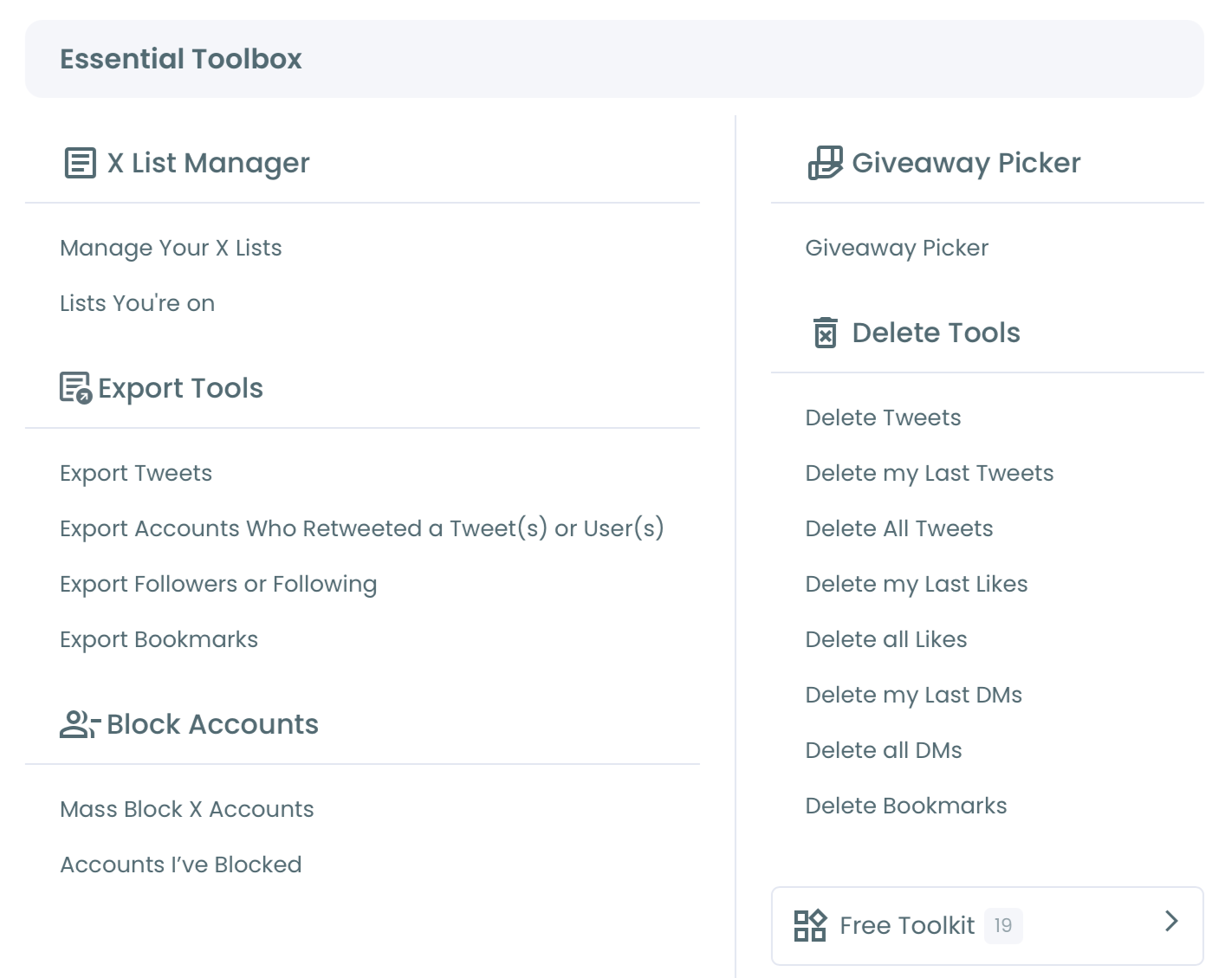
- Open the Essential Toolbox and choose the retweet-deletion tool. Your recent reposts load into a filterable table; for history beyond the API window, upload your X archive's tweet.js file.
Filter the list down to one account
- Check ReTweets as the post type. The post-type control has three boxes, Tweets, ReTweets, and Replies, all checked by default. Uncheck Tweets and Replies so your originals and conversations stay out of scope from the start.
- Enter the target account's @username in the Keyword / Username or Hashtag filter. This field searches inside the post text, the @mentions, and the hashtags, so it matches the handle that sits inside each repost and isolates only the reposts you made of that account.
Review and remove
- Confirm the count, then run the deletion on the filtered set so only your reposts of that one user are removed.
The Approve and Delete panel shows the exact number of posts queued, broken out as tweets, retweets, and replies, before anything is removed. That number is your last look at the scope.
That order is what keeps the operation safe. Checking ReTweets first protects your originals, the @username filter narrows the scope to one account, and the count review is your last checkpoint before a permanent action.
Skip the filter step and you risk clearing far more than you meant to. That is the trap how do I delete all retweets, bulk delete in a click warns about, since every post is selected by default.
At a glance: connect, filter by ReTweets plus @username, confirm, delete. Your originals and every other repost stay in place.
Recent Reposts vs. Reposts Going Back Years
Which path you use depends on how far back the reposts go. Circleboom splits this into two tools, and the @username filter behaves the same in both.
The live tool reads up to your most recent 3,200 posts straight from the X API. If you reposted the account inside that recent window, you can connect, filter by ReTweets plus @username, and delete in one sitting with no extra setup. This is the fast path, and it covers most cleanups.
When the reposts predate that window, the API alone cannot see them. That is when you switch to the archive path and upload your X archive's tweet.js file. Circleboom reads the full history out of that file, and you apply the identical ReTweets plus @username filter to reach reposts the API never returned.
One detail worth knowing: you can re-upload the same tweet.js file more than once. Circleboom drops already-deleted posts before applying filters, so a second pass with a different filter never tries to remove something twice. If you also want to clear weak originals after the repost pass, a bulk delete tweets run works on the same uploaded file.
Is It Safe to Bulk-Remove Reposts This Way?
Yes, because the action runs on official infrastructure rather than a scraping workaround. Circleboom holds verified Enterprise partner status with X, which means every deletion goes through sanctioned API endpoints in line with platform rules. You are clearing your own reposts, an action X permits, through a path X authorizes.
The permanence is the part to respect, not the safety. Once a repost is removed it is gone, so the count-review step before you confirm matters. Run an export first if you want a record of what you reposted, the same precaution covered in best methods to delete tweets.
The export comes out as a CSV with the post text, the engagement numbers, the date, and the link. There is no undo button anywhere in the flow, so that file is your only record of what was cleared. Run it before you delete, not after.
There is no suspension exposure here. The only risk is removing more than you intended, which the @username filter and the confirmation count are built to prevent. One thing the cleanup cannot reach: quote tweets and replies that other people posted referencing your repost. Those belong to their accounts, not yours, so they stay live even after your copy is gone.
What Changes After the Cleanup
Your profile stops endorsing an account you no longer stand behind, without any visible gap where your own content used to be. The reposts of that one user are gone; everything else, your original tweets, your replies, your reposts of accounts you still support, remains exactly as it was.
There is a quieter benefit too. Removing reposts you made of low-value or off-topic accounts can tighten how your timeline reads to a first-time visitor. If clearing weak reposts is part of a broader cleanup, pair it with a pass that targets delete low-engagement tweets. Then the profile a stranger sees is only your strongest signal.
The same filter logic also covers a delete tweets by keyword pass when the unwanted content is defined by topic rather than source. Either way, you stay inside a sanctioned workflow, so none of it puts your account at risk.
FAQ
Can I delete only the retweets I made of one specific person?
Yes. You filter your retweet history by that account's @username, which matches the handle inside each repost, and remove only the matching set. Your originals and your other reposts are untouched.
Does deleting my retweet remove the original tweet?
No. A retweet is your repost of someone else's content. Removing it only takes your repost off your timeline; the original author's tweet stays live on their account.
What if my reposts of that account go back years?
The live API window covers your recent reposts. For older history, upload your X archive's tweet.js file, then apply the same ReTweets plus @username filter to reach reposts beyond the recent window.
How is this different from turning off retweets from a user?
Turning off retweets hides that account's future reposts from your feed. It leaves the reposts you already made fully visible on your profile. Filtering and deleting by @username is what actually removes the existing ones.
What is the most common mistake when running this?
Forgetting that every loaded post is selected by default. If you hit delete without applying the ReTweets plus @username filter first, you clear far more than one account's reposts. Set the filter, watch the count drop to the target set, then confirm.
The Bottom Line
Deleting retweets of a specific user comes down to one move X never built: filtering your reposts by the author's @username and removing only that set. Do that and you withdraw your endorsement of one account cleanly, while every original tweet and every other repost stays exactly where it was.
When you are ready to pull your reposts of one account in a single pass, here is where to start: → Delete retweets of a specific user
)