
On the right day, your X feed can be full of smart insights, useful threads, breaking news, and interesting conversations. You learn something new, discover great people to follow, and enjoy scrolling.
But the experience can also be the exact opposite.
Some days the For You feed becomes chaotic. Endless low-quality posts, spammy accounts, toxic arguments, and irrelevant content take over. Instead of learning or enjoying the platform, it becomes frustrating to scroll.
What many people don’t realize is that the quality of your Twitter feed is mostly shaped by your own activity. The algorithm continuously learns from your behavior and builds your feed based on the signals you send.
If your signals are messy, your feed becomes messy.
The good news is that you can completely change this.
With a few adjustments and some account cleanup, you can turn your Twitter feed into something far more useful and enjoyable.
What Actually Affects Your Twitter Feed?
Twitter’s algorithm doesn’t randomly choose what to show you. It constantly studies how you interact with the platform and uses several signals to decide what appears in your For You feed.
Some of the most important factors include:
🟢 The accounts you follow
🟢 Tweets you like
🟢 Tweets you bookmark
🟢 Accounts you interact with
🟢 Topics you engage with
Every like, follow, bookmark, and interaction acts as a signal. Over time, these signals train the algorithm on what you want to see.
That means if your feed feels low quality, the issue usually isn’t the platform itself. It’s often the signals your account has been sending.
The solution is simple: clean and restructure your account activity.
1. Clean Up Your Following List on X
One of the biggest factors shaping your feed is the list of accounts you follow.

Over time, most users follow hundreds or even thousands of accounts. Some were interesting at the time, but many eventually become inactive, spammy, or simply irrelevant to your interests.
When your following list contains too many low-quality accounts, your feed starts filling up with the type of content those accounts produce.
Cleaning this list can dramatically improve your Twitter experience.
Instead of manually checking thousands of accounts, I use Circleboom Twitter for this process.

Circleboom is an Official X Enterprise Developer, and it provides advanced analysis for Twitter accounts.
It analyzes both your followers and your following list and helps you identify different types of accounts, such as:
➡️ Spam accounts
Once the analysis is complete, you can quickly review these accounts and take action. Circleboom allows you to unfollow accounts in bulk, which makes cleaning your following list much faster than doing it manually.
After removing inactive or spammy followings, the difference in your feed becomes noticeable. The algorithm starts showing content from more relevant and higher-quality accounts.
How to clean up your following list with Circleboom Twitter
Step #1: Log in to your Circleboom Twitter dashboard.
From the left-side menu, go to Followers / Following Management & Analytics, then click on All Your Following.
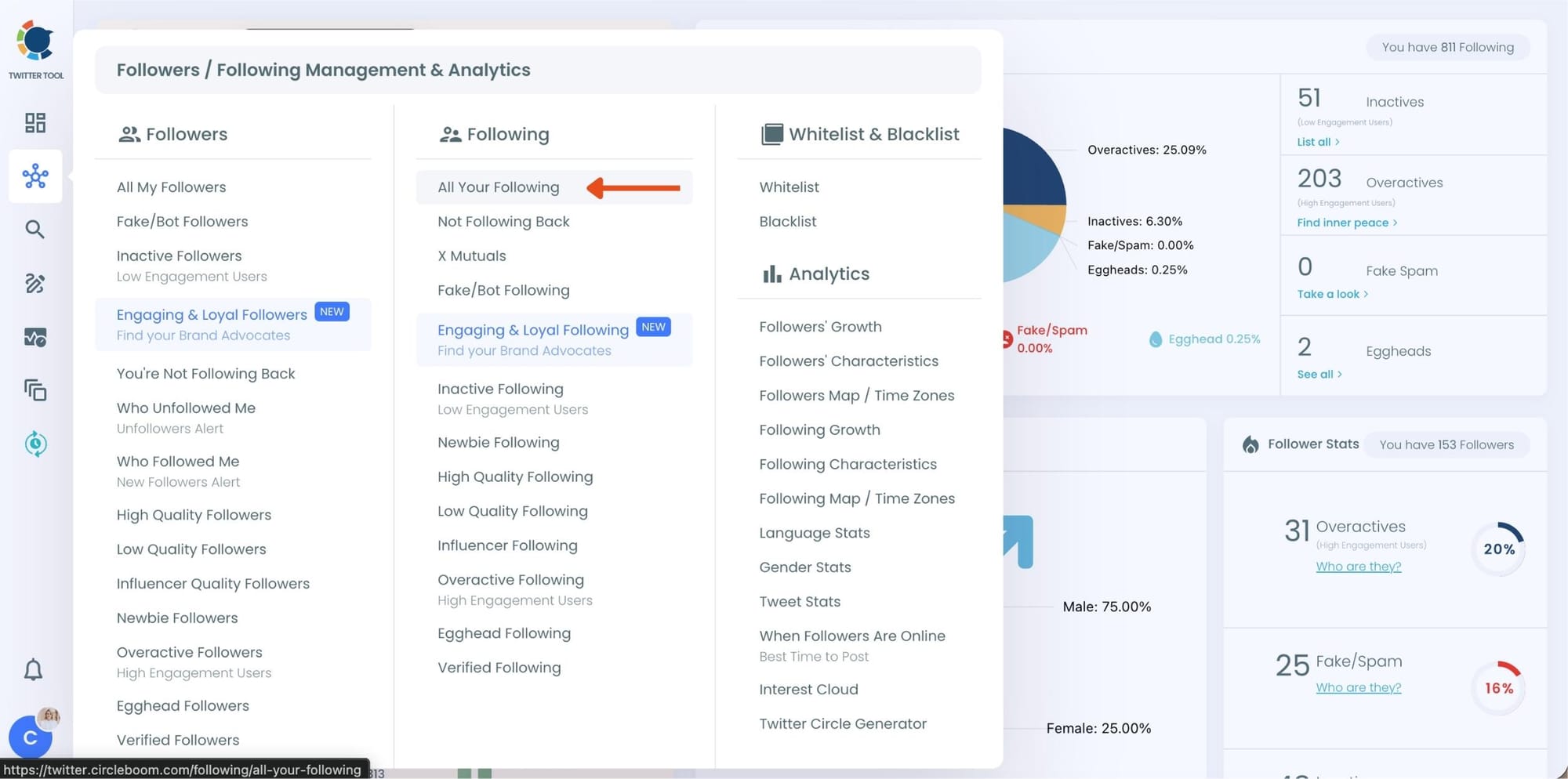
At this point, Circleboom loads your entire following list and displays each account with detailed metrics such as tweet count, join date, follower and following numbers, follow ratio, and activity level.
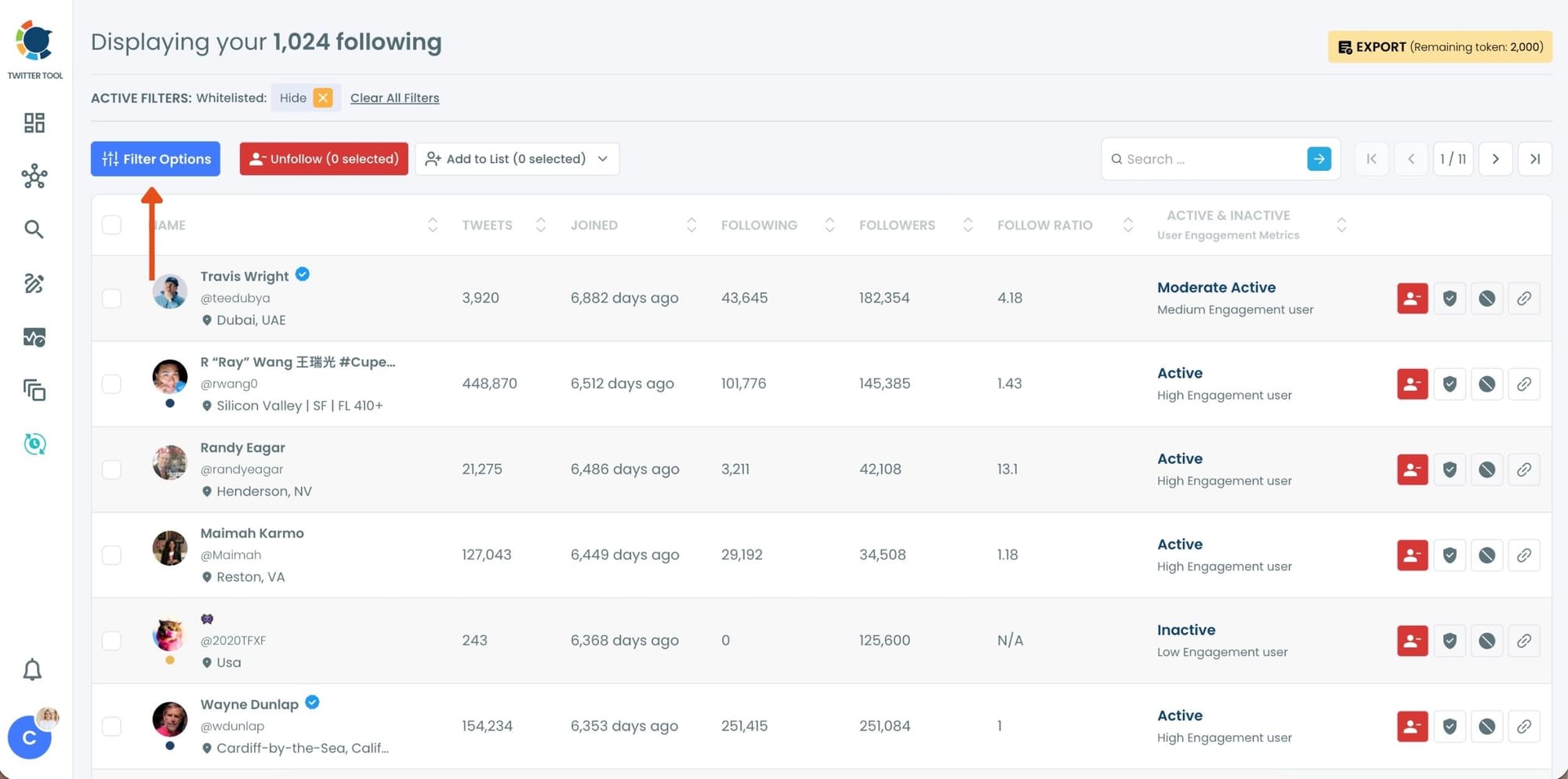
Step #2: Once your following list is visible, click on Filter Options at the top of the page.
Inside the filter panel, use the Follower Quality section to define what you want to see.
Select Fake/Spam and enable Show only. You can also adjust additional quality filters depending on how strict you want the cleanup to be.
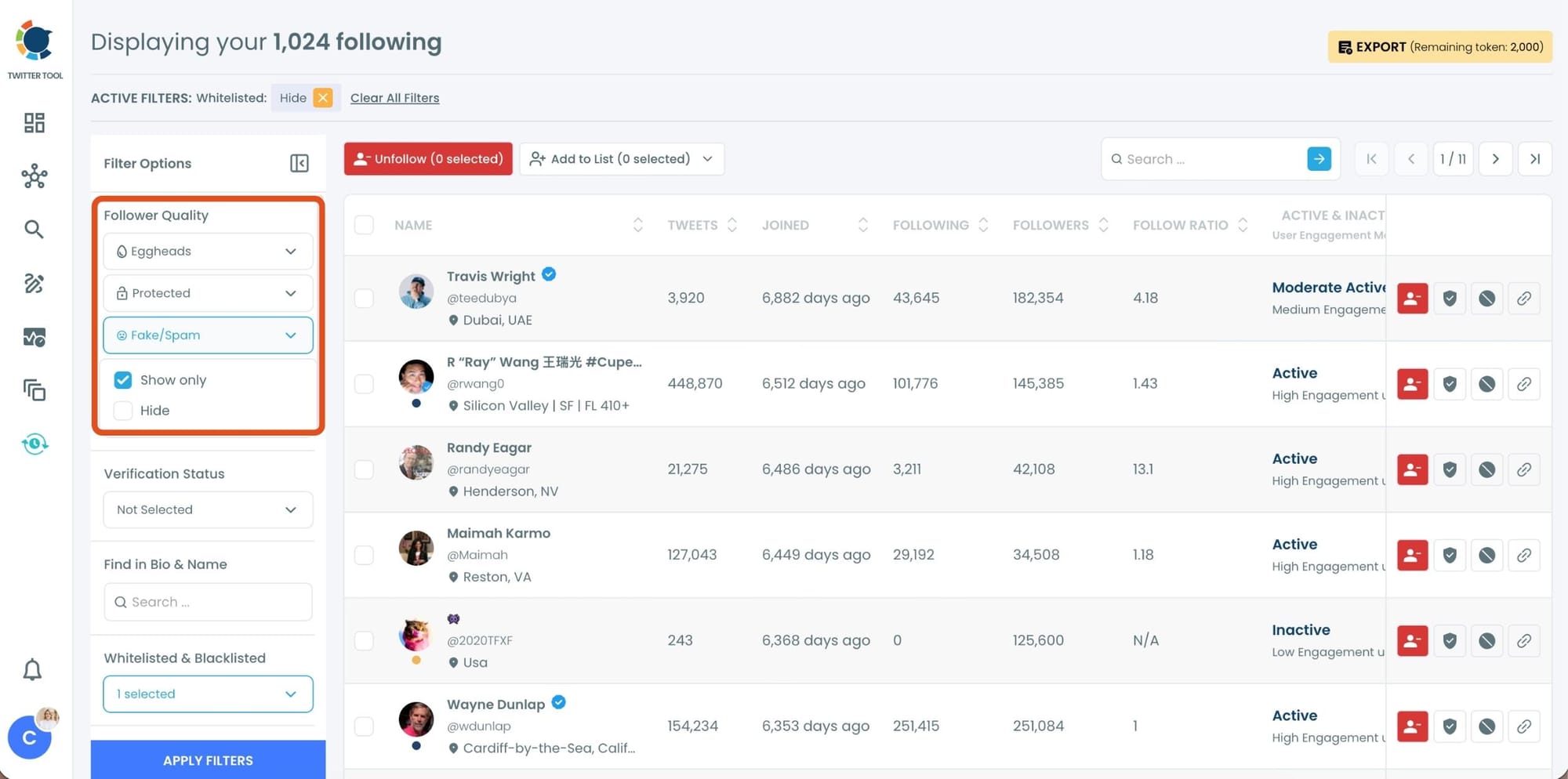
After setting your filters, apply them. Circleboom now lists only fake and low-quality following accounts.
Step #3: Circleboom now shows only low-quality or fake following accounts, each clearly labeled with engagement and activity indicators.
Select the accounts you want to remove by using the checkboxes on the left. You can select multiple accounts at once.
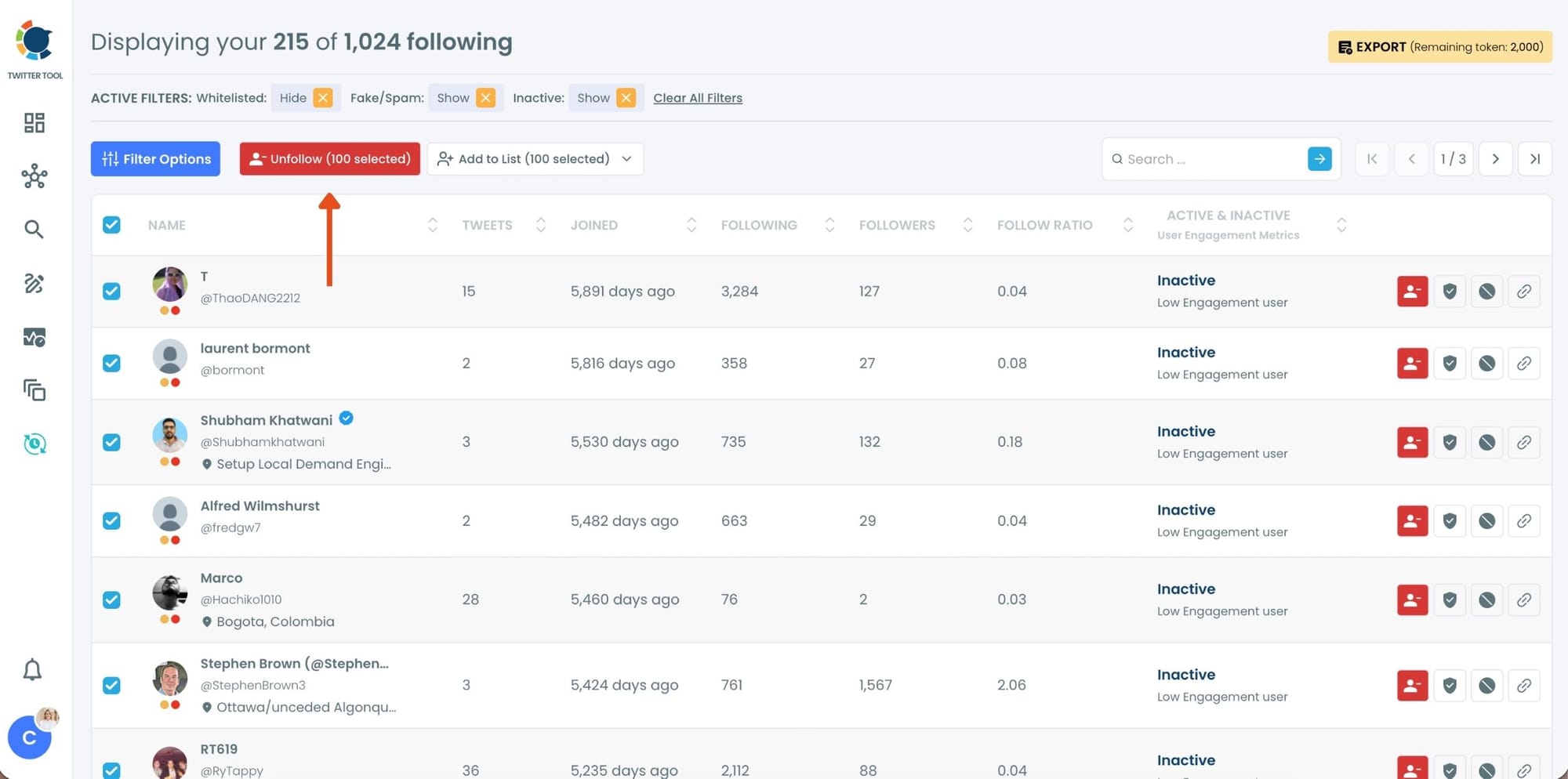
Click the red Unfollow button at the top of the list after making your selection.
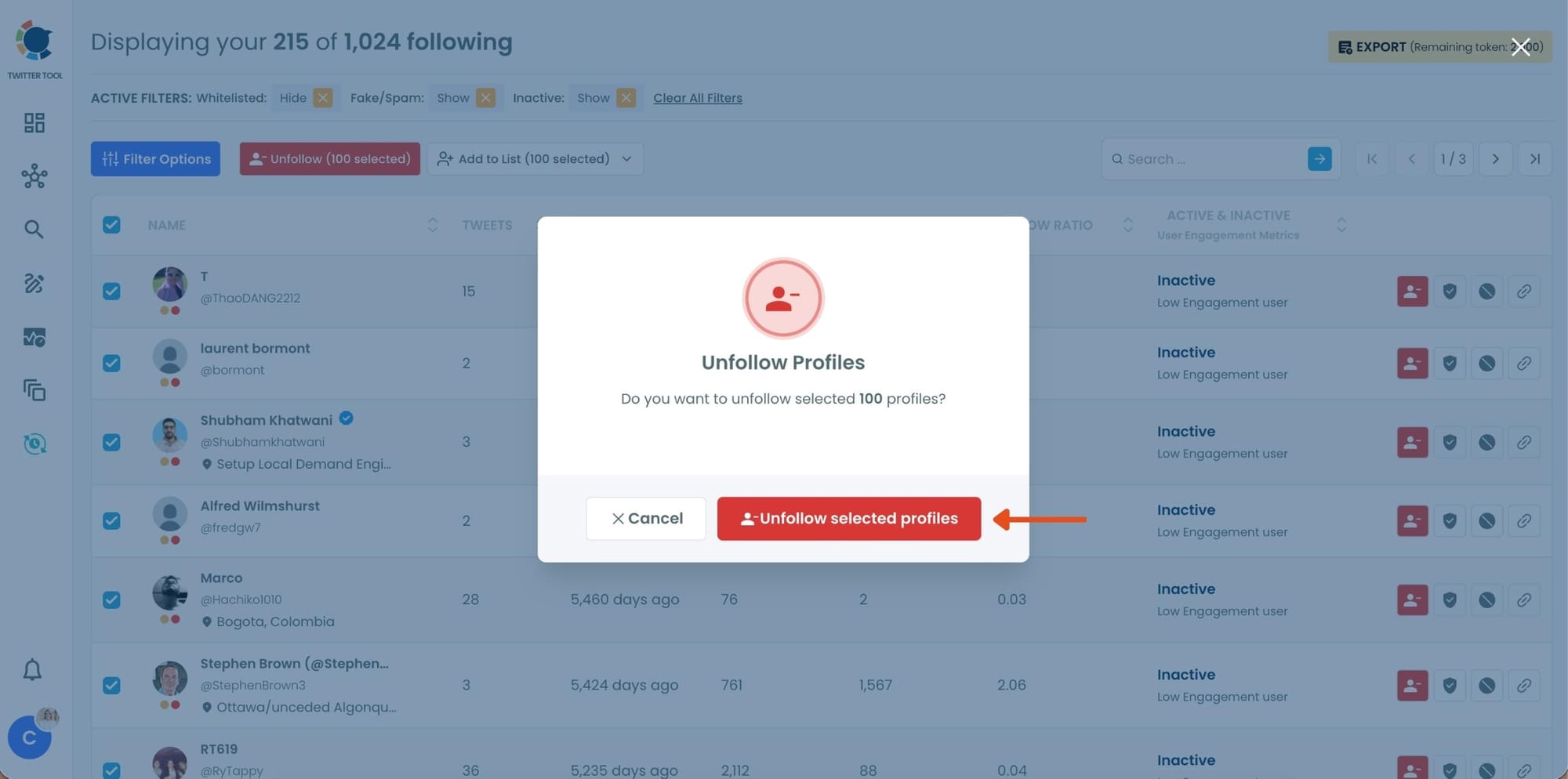
Step #4: Circleboom will show a confirmation pop-up to prevent accidental unfollow actions.
Confirm the action by clicking Unfollow selected profiles.
2. Manage Your Likes: They Shape Your Feed More Than You Think
Likes might look like a simple interaction, but they play a major role in shaping your feed.

Every time you like a tweet, Twitter interprets it as a strong signal that you want to see more of that type of content. Over time, these signals accumulate and strongly influence what appears in your timeline.
Many users like tweets casually. Sometimes you like something just because it’s funny or viral, even if it’s not the kind of content you actually want to see regularly.
If this happens often, the algorithm begins prioritizing those types of tweets in your feed.
One effective way to improve your feed is to clean up your likes and reset those signals.
 Fatih Kemal Oksuzoglu
Manually scrolling through years of liked tweets and unliking them one by one is extremely time-consuming. Instead of doing that, I use Circleboom Twitter again.
Circleboom allows you to list all of your liked tweets in seconds, giving you a clear overview of what you’ve liked over time. From there, you can quickly review and remove likes without endlessly scrolling through your profile.
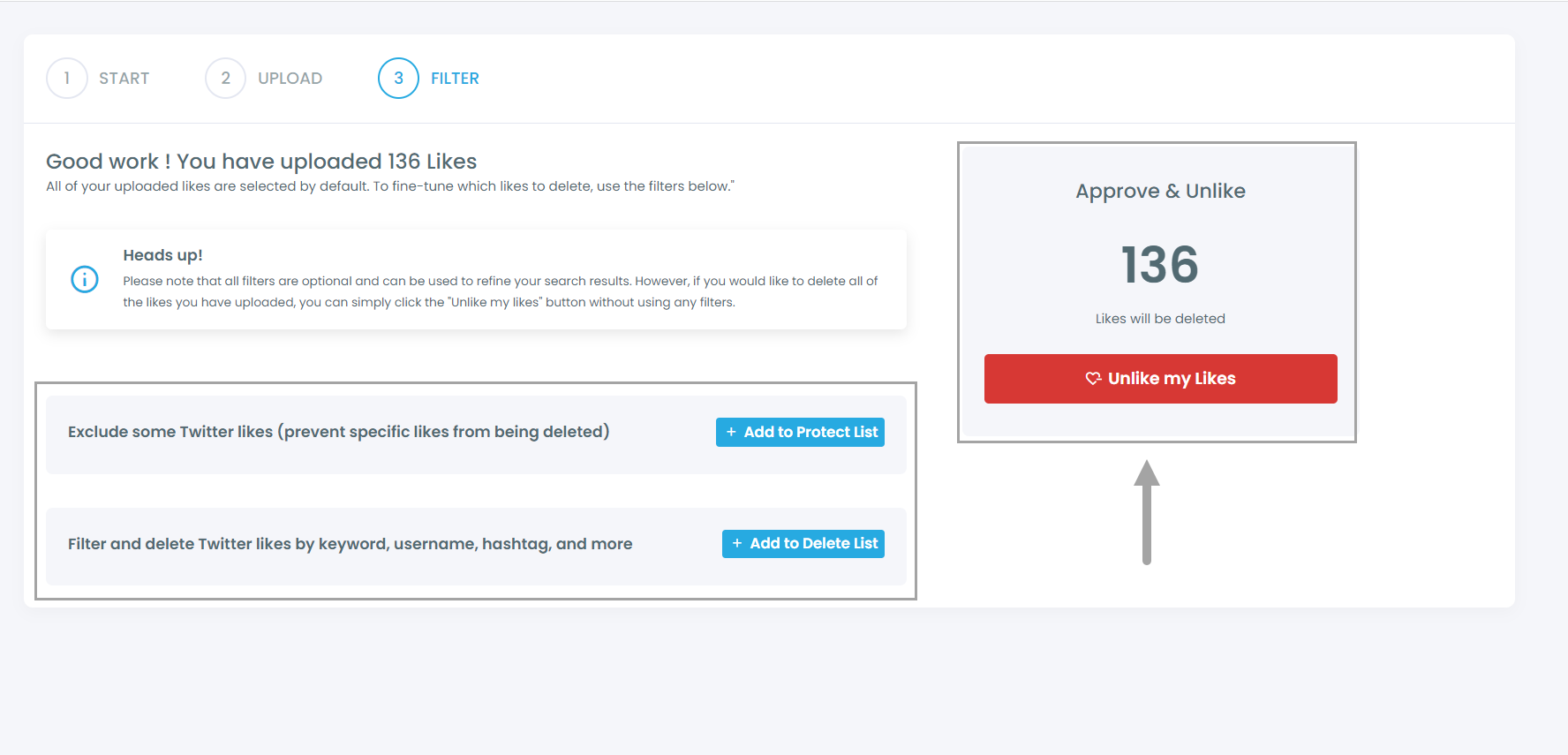
Once your likes are cleaned up, you can start using them more intentionally. Only like tweets that are truly valuable or relevant to your interests. This helps train the algorithm to show you higher-quality content.
3. Clean Your Bookmarks to Reset Content Signals
Bookmarks are another signal many people overlook.
When you bookmark tweets, Twitter assumes those posts represent topics you want to revisit or explore further. Over time, bookmarking too many unrelated tweets can send mixed signals to the algorithm.

For example, if your bookmarks include a random mix of memes, controversial threads, news posts, and unrelated discussions, the algorithm may struggle to understand what you actually want to see more of.
Cleaning your bookmarks can help reset those signals.
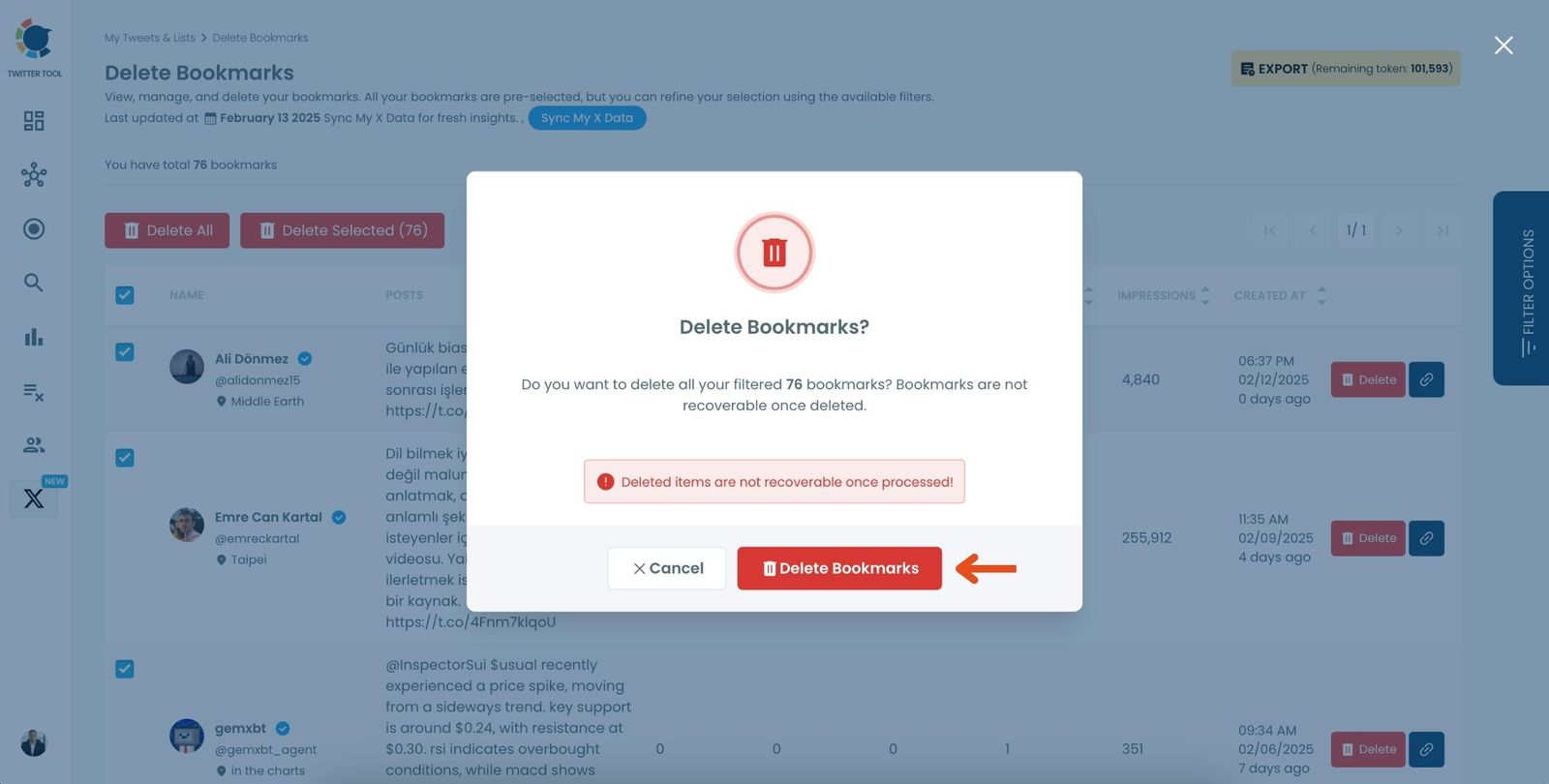
I manage my bookmarks using Circleboom’s Bookmarks Manager. This feature allows you to see all the tweets you’ve bookmarked in one organized interface.
 Arif Akdogan
Instead of manually opening each bookmark, you can review them with detailed information in one place. Circleboom also lets you export your bookmarks if you want to keep a record of them.

After saving what you want, you can delete the bookmarks and start fresh. This allows you to rebuild your bookmark signals with content that actually matches your interests.
4. Build Custom Feeds with Twitter Lists
Once your account is cleaned up, you can take your feed quality even further by using Twitter Lists.
 infocircleboom.com
Lists on X allow you to create your own curated feeds based on specific topics. Instead of relying entirely on the algorithm, you can build focused timelines around the subjects you care about. It is like creating your private X feed.
For example, you can create lists for:
- AI influencers
- Tech founders
- Startup news
- Crypto analysts
- Sports commentators
- Journalists or researchers
Each list becomes its own timeline, filled only with posts from those selected accounts. This makes it much easier to follow specific conversations without noise from unrelated content.
Finding the Best Accounts for Your Lists
One challenge with building lists is discovering the right accounts to add.
Searching manually on Twitter can take a lot of time, especially if you want to find influential or active users within a specific topic.
This is another area where Circleboom helps.
Circleboom provides advanced search tools that allow you to search accounts by keywords and topics. This makes it much easier to find relevant users in a specific niche.
 infocircleboom.com
Once you identify the right accounts, Circleboom also allows you to add multiple users to a Twitter list in bulk, saving a lot of time compared to adding them one by one.
With this approach, you can quickly build high-quality curated feeds around the topics you care about.
How I Build Lists with Circleboom
Here’s an example of how I built my NFT List in under 15 minutes using Circleboom:
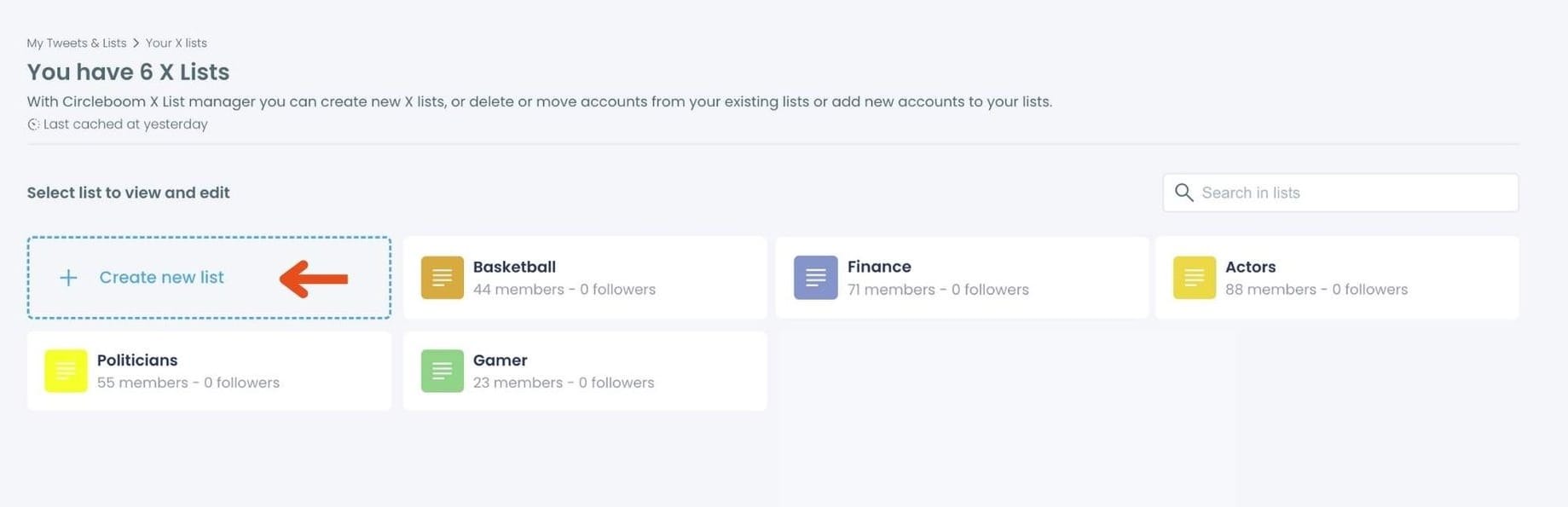
Step #1: On the main Twitter X Lists page, click the "Create new list" option (indicated by the plus sign).
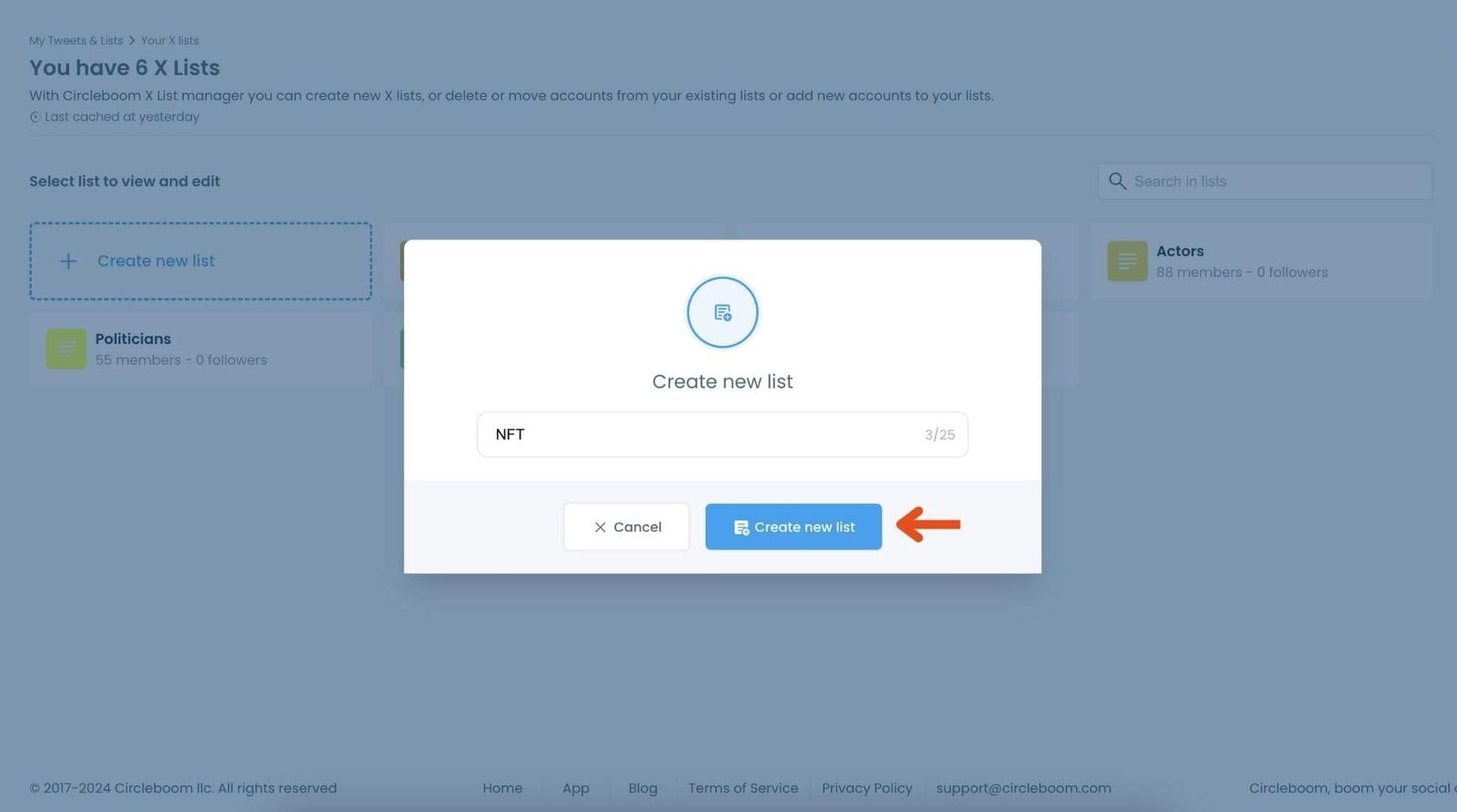
In the pop-up window, enter a name for your new list. For example, if you’re creating a list for NFT accounts, type "NFT" in the text field.
Click on "Create new list" to finalize and create your Twitter X List.
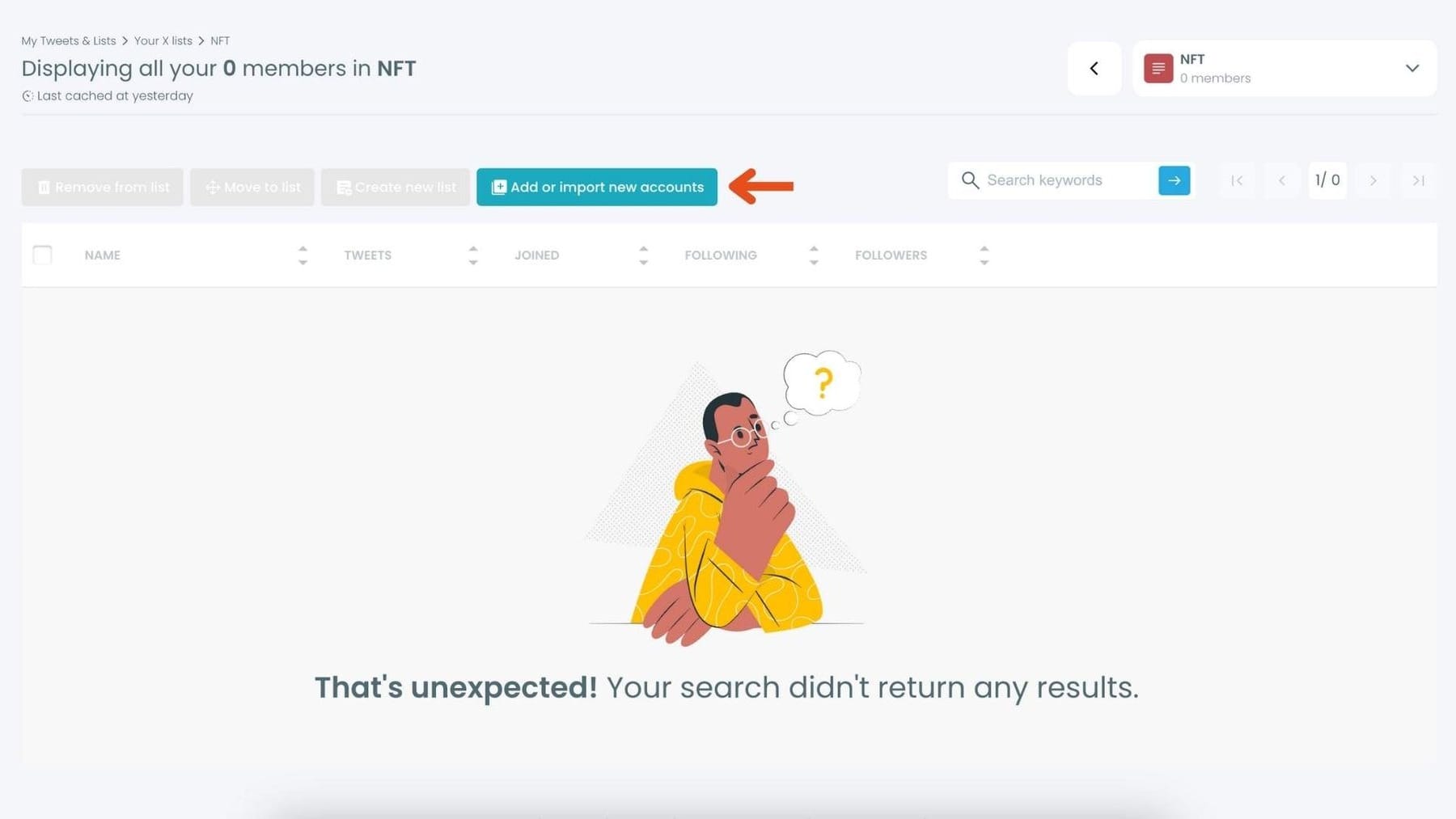
Step #2: Click on the "Add or import new accounts" button at the top of the page.
In the dialog box that appears, enter the usernames or account IDs you want to add, separated by commas.
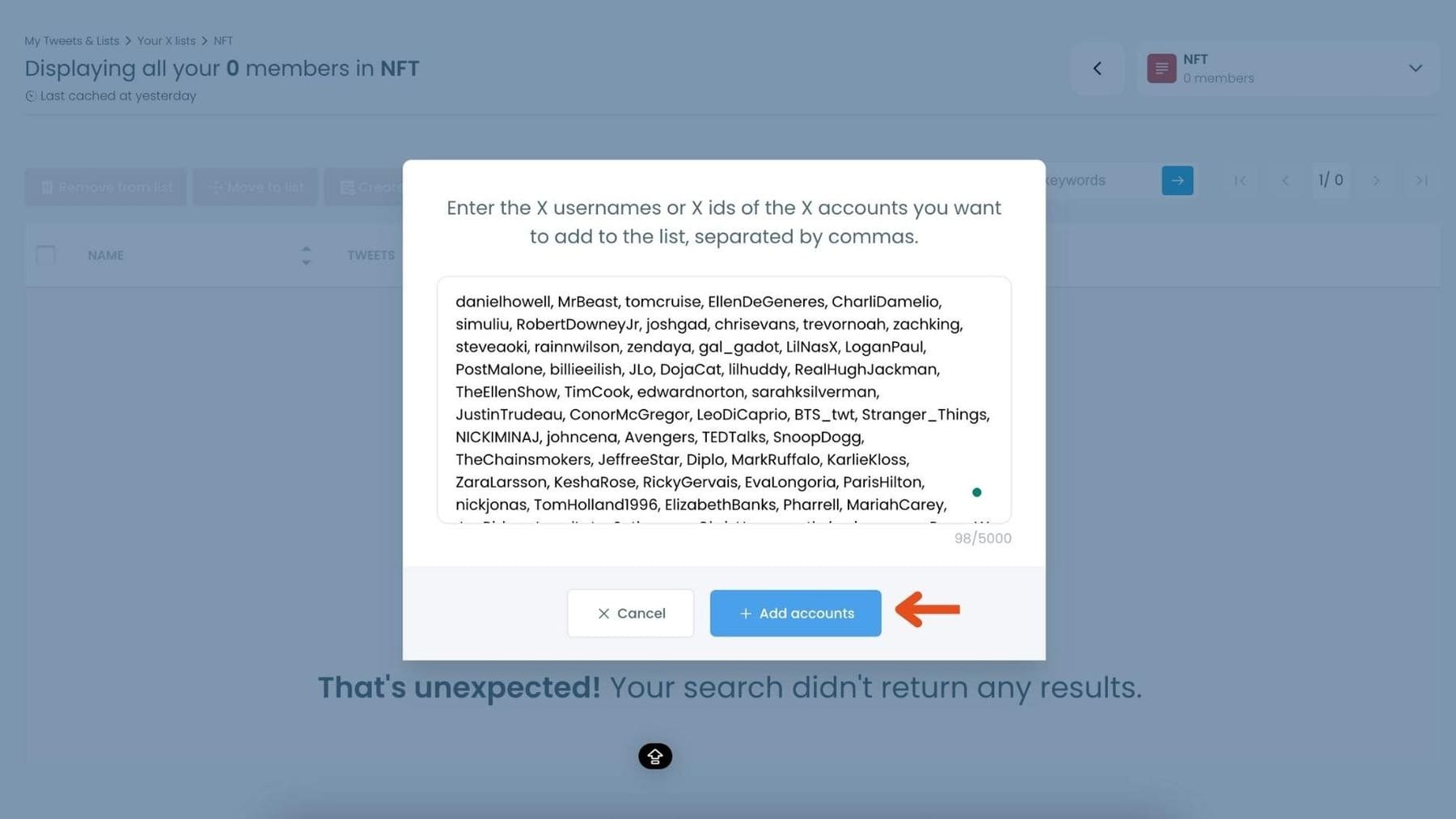
Once you’ve entered the accounts, click "Add accounts" to import them into your list.
Step #3: After importing, you’ll see the members of your list displayed along with details like their Twitter handle, follower count, and location.
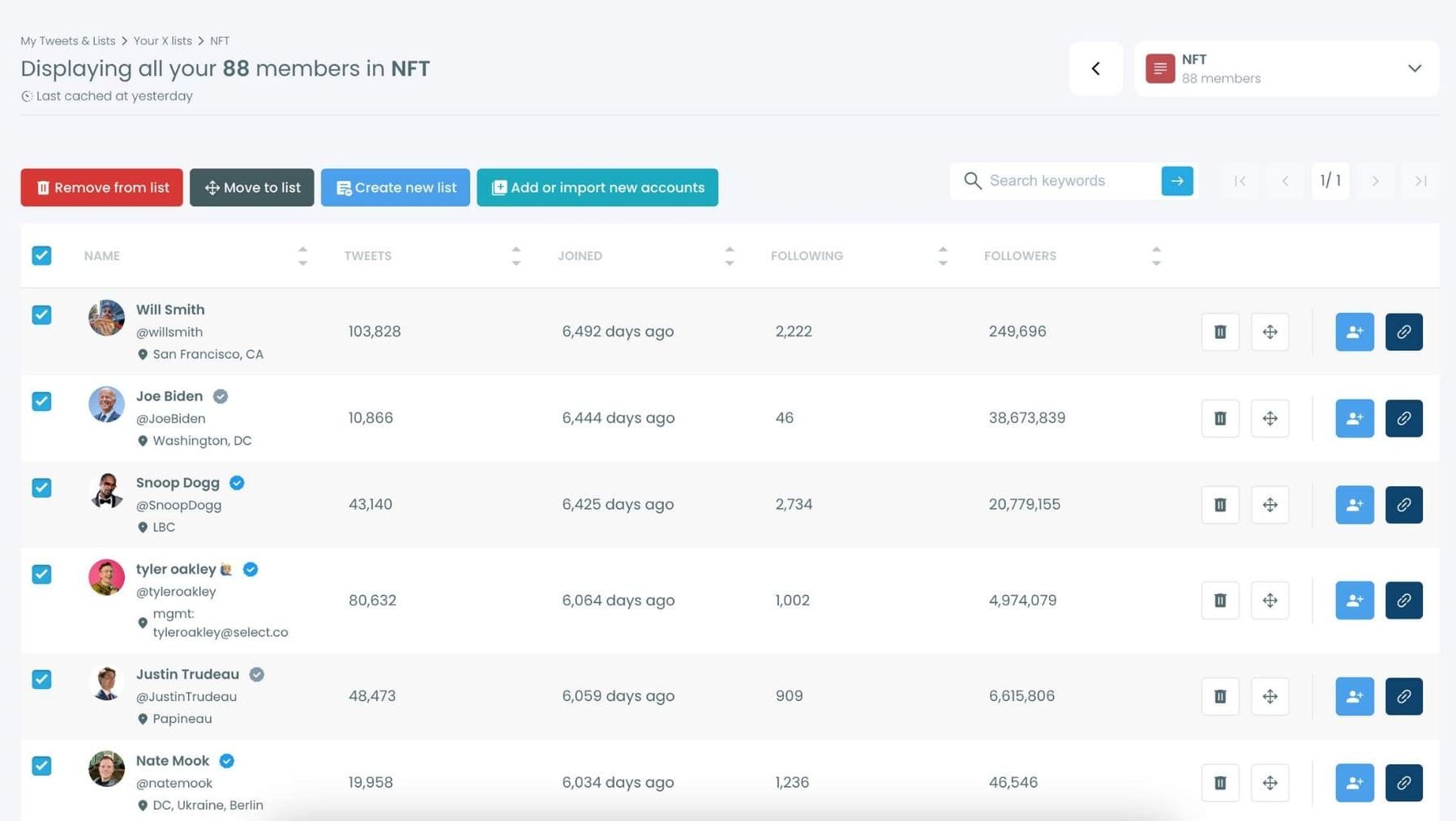
Use the options next to each account to remove them from the list, move them to another list, or edit their settings within the list.
Your Twitter Feed Is a Reflection of Your Signals
The quality of your Twitter experience is not random.
Your feed is built from the signals you send to the platform over time. Who you follow, what you like, what you bookmark, and how you interact all shape the algorithm’s understanding of your interests.
If those signals are messy, your feed will be messy.
But by cleaning your following list, managing your likes, resetting your bookmarks, and creating curated lists, you can completely transform your timeline.
Once your feed is optimized, Twitter becomes far more useful. Instead of endless noise, you start seeing insightful posts, valuable discussions, and the content that actually matters to you.
Circleboom Twitter makes this process much easier by helping you analyze your following and followers, manage likes and bookmarks, and organize your account so your feed reflects the content you actually want to see.