

Sometimes you need a tweet that doesn’t actually exist.
Maybe you’re creating a meme, writing a blog post, designing a presentation, or showing an example of how a tweet might look. Screenshots from real tweets work when you already have the content, but what if the tweet hasn’t been posted yet?
Editing a screenshot manually in Photoshop takes time. Many fake tweet generators also look unrealistic and don’t fully match the interface of X (formerly Twitter).
That’s why I use Circleboom Twitter’s Fake Tweet Generator.
 infocircleboom.com
It provides one of the most realistic tweet templates among similar tools and lets you create unlimited tweet images in seconds. You can customize every detail of the tweet and download it as an image ready to use anywhere.
Let’s look at how it works.
Why I Use Circleboom Fake Tweet Generator
There are many fake tweet generators online, but most of them are limited or don’t look exactly like the real X interface.
Circleboom’s Fake Tweet Generator stands out because it allows you to fully customize the tweet while keeping the design identical to the real platform.
Here are some of the features that make it useful.
➡️ Free to Use
Circleboom Fake Tweet Generator is 100% free.
You don’t need a subscription or payment to access its features. You can generate as many tweet images as you want, which makes it perfect for creators, marketers, bloggers, or designers who need tweet visuals frequently.
➡️ Verification Options
The tool also lets you add different verification badges to the tweet.
You can choose:
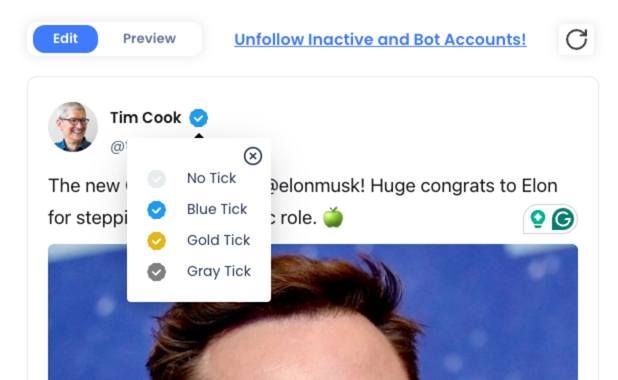
- Blue checkmark for verified individual accounts
- Gold badge for brand or business accounts
- Grey badge for government or official institutions
This allows you to simulate tweets from different types of accounts depending on your example or design needs.
➡️ Full Customization
One of the best things about Circleboom’s tweet generator is how much you can customize.
You can edit:
- Profile picture
- Display name
- Username (handle)
- Tweet text
- Emojis and formatting
- Timestamp
This means you can create tweets that look exactly how you want them to appear.
➡️ Control Every Detail
Circleboom also allows you to customize engagement numbers so the tweet looks realistic.
You can adjust:
- Likes
- Retweets
- Replies
- Views
Whether you want a tweet with 10 likes or 50,000 likes, you can easily control how the post appears.
How to Fake an X Post with Circleboom (Step-by-Step)
Creating a fake tweet with Circleboom only takes a few seconds.
Here is how to do it.
Step #1: Go to Circleboom Fake Tweet Generator
Head over to the Circleboom Fake Tweet Generator. You’ll be greeted by a simple and intuitive interface where you can start customizing your fake tweet.

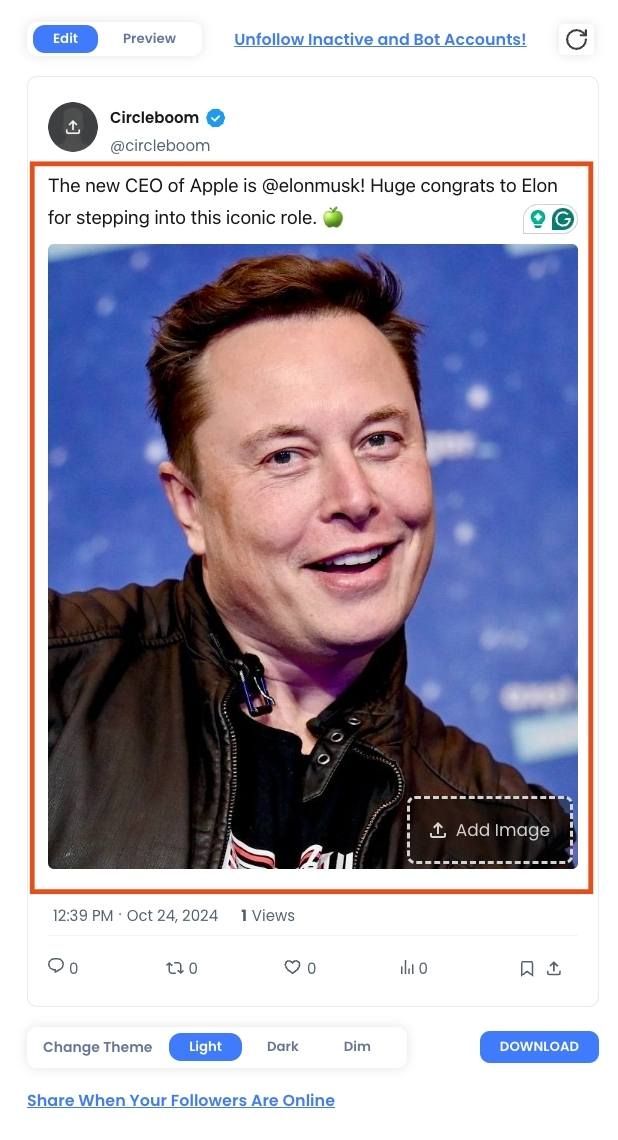
Step #2: Enter Your Tweet Text
Type the text of your fake tweet. You can add emojis, hashtags, or even @ mentions to make it more realistic. Think about the message you want to send and make it as creative or funny as you like.
Step #3:: Customize the Profile Details
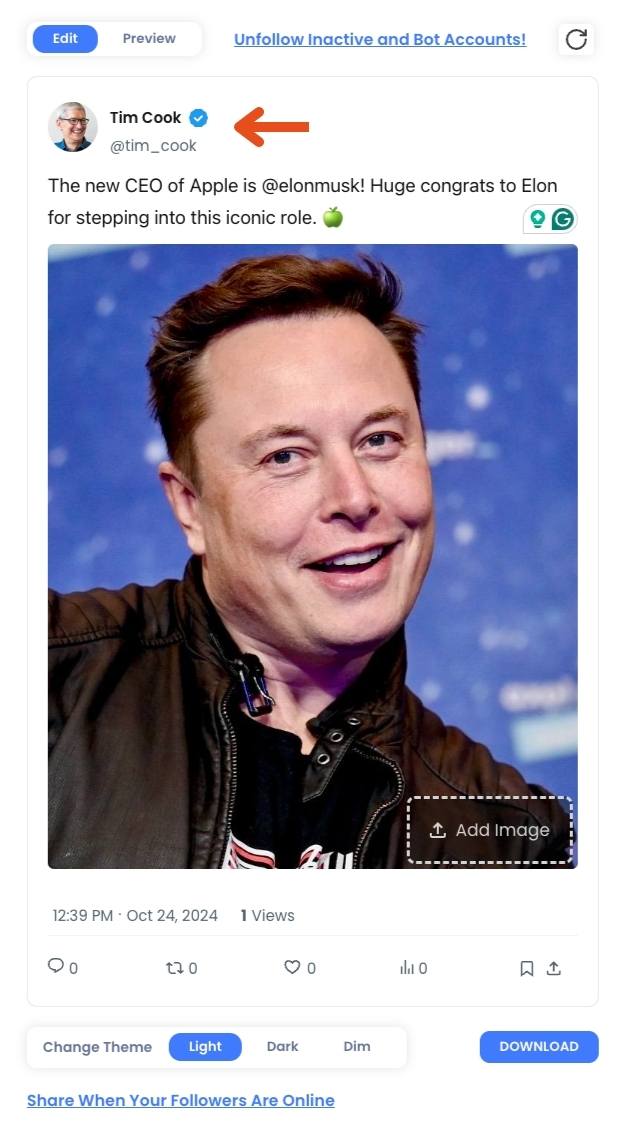
Now, you can customize the profile picture, username, and Twitter handle of your fake tweet. If you're creating a tweet for a well-known figure or brand, you can upload their profile image and add their official Twitter handle to make it look authentic.
Step #4: : Choose Your Verification Badge
Circleboom lets you choose between a blue, gold, or grey verification checkmark. This feature allows you to mimic tweets from verified accounts, businesses, or government entities.
Step #5: Add Engagement Stats
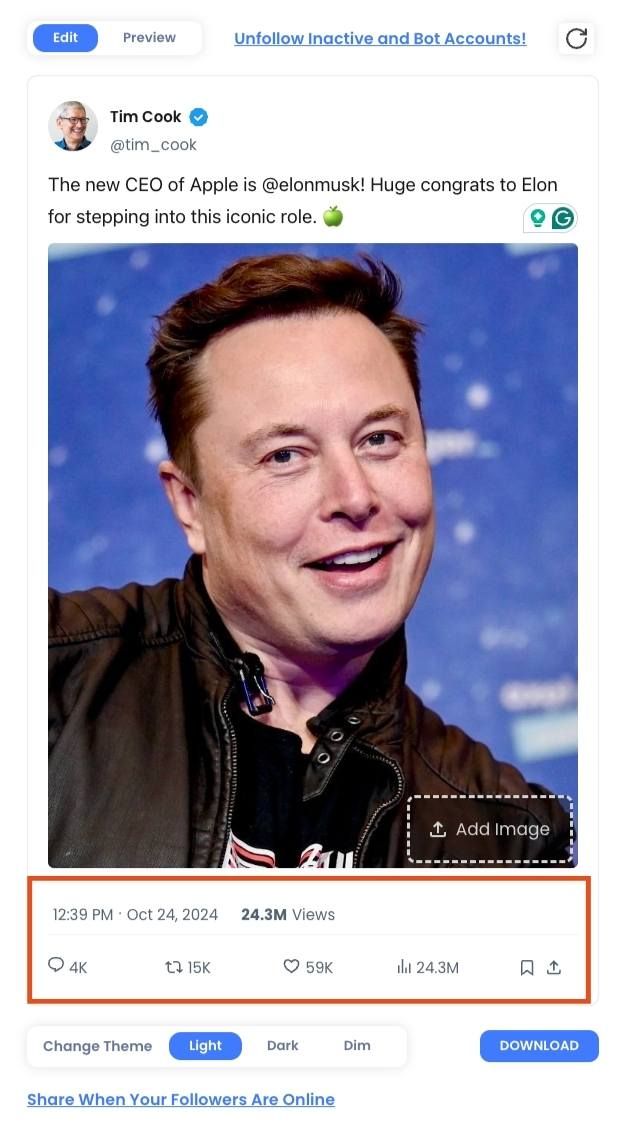
Want your fake tweet to look viral? You can easily add likes, retweets, and views to the tweet. Just type in the numbers you want, and they’ll appear on the image, making your tweet look like it’s been seen by thousands of people.
Step #6: Preview Your Fake Tweet
Once you’ve filled out all the details, click on the preview button to see how your fake tweet looks. This step allows you to review and make any last-minute changes before finalizing the tweet.
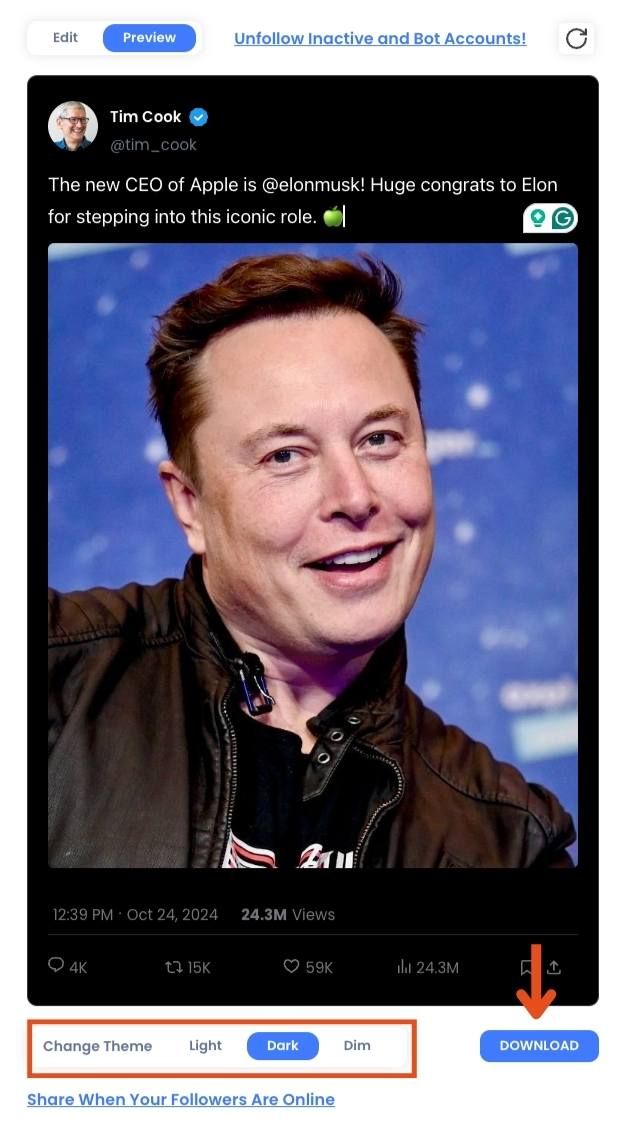
When you’re happy with your creation, simply download the image to your device or share it directly on social media. The download is quick, and you’ll have your customized fake tweet ready to go in seconds!
Here is the result:

If you need help, you can watch our video guide on how to create fake tweets! ⬇️
Use Fake Tweets Responsibly
Fake tweet generators are powerful tools, but they should always be used responsibly.
They are best used for:
- entertainment
- design examples
- educational content
- demonstrations
Avoid using fake tweets to mislead people or impersonate real individuals.
Final Thoughts
Creating realistic tweet images used to require manual editing or complicated design tools.
With Circleboom Fake Tweet Generator, the process becomes incredibly simple. You can customize every part of a tweet, add verification badges, control engagement numbers, and generate unlimited tweet images for free.
If you need a quick way to create realistic X post visuals for memes, articles, or presentations, Circleboom makes the process fast and effortless.




)


