
I once needed to find every tweet where a specific keyword was mentioned by a certain Twitter account. The goal was simple: I wanted to see how often that topic appeared and review how the account talked about it over time.
My first thought was to use Twitter’s built-in search.
Twitter actually lets you search tweets from a specific account using a keyword. For example, you can search something like:
from:username keyword
This will show tweets from that account that contain the keyword.

At first, this seems useful. You scroll through the results and find a few tweets that match the keyword. But after a while, you notice something frustrating.
The results eventually stop.
Twitter shows only part of the tweets, and there is no way to download the results or analyze them properly. If you want to review many tweets or perform a detailed analysis, simply scrolling through the platform isn’t enough.
To properly analyze tweets containing a specific keyword, you need to download the tweets first.
Why Twitter search is not enough for keyword analysis
Twitter search is designed for quick discovery, not detailed analysis.
It works well if you only want to find a few tweets. But if your goal is to analyze a topic or study how often a keyword appears in someone’s tweets, the limitations quickly become clear.
For example, you might want to:
- find every tweet where a keyword appears
- analyze how often the topic is mentioned
- review how the discussion changed over time
- study how a creator talks about a specific subject
Unfortunately, Twitter does not provide a way to export those tweets as a dataset.
Without exporting the tweets, it’s very difficult to filter, count, or analyze them properly.
The practical solution: export tweets and search them in a spreadsheet
The easiest way to extract tweets containing a keyword is actually a two-step process.
First, download the tweets from the account.
Then search for the keyword inside the downloaded file.
Once the tweets are stored in a spreadsheet like Excel or Google Sheets, finding the keyword becomes extremely easy. You can search, filter, and analyze the tweets in seconds.
Extracting tweets with Circleboom Twitter
To export tweets, I use Circleboom Twitter.

Circleboom Twitter is an official X Enterprise Developer, which means it works with the platform through official infrastructure rather than unreliable scraping methods.
One of its useful features is the ability to extract tweets from a Twitter account and download them as a clean CSV or Excel file.
 infocircleboom.com
Instead of scrolling endlessly through tweets on the platform, you can download the tweets and analyze them in a structured format.
This makes keyword analysis much easier.
Once you have the exported dataset, finding tweets containing a specific keyword becomes a simple filtering task.
How to extract tweets and find a specific keyword
Here is the process I use when I need to find tweets containing a specific keyword.
Step #1: Enter the Username
On the Circleboom export page, type in the Twitter/X username of the account you want to export tweets from (without the “@” symbol) and click on the blue “Search” button.

Step #2: Confirm the Tweet Count
Circleboom will display the total number of tweets available for export from the selected account. Review this information, then click the “Next” button to proceed with the export process.

Step #3: Enter Your Email Address
Enter the email address where you’d like to receive the exported tweet file. Circleboom also recommends creating an account for easy access to your export file at any time. After entering your email, click the “Next” button to continue.

Step #4: After entering your email address, Circleboom sends the exported tweets in a CSV format directly to your inbox.
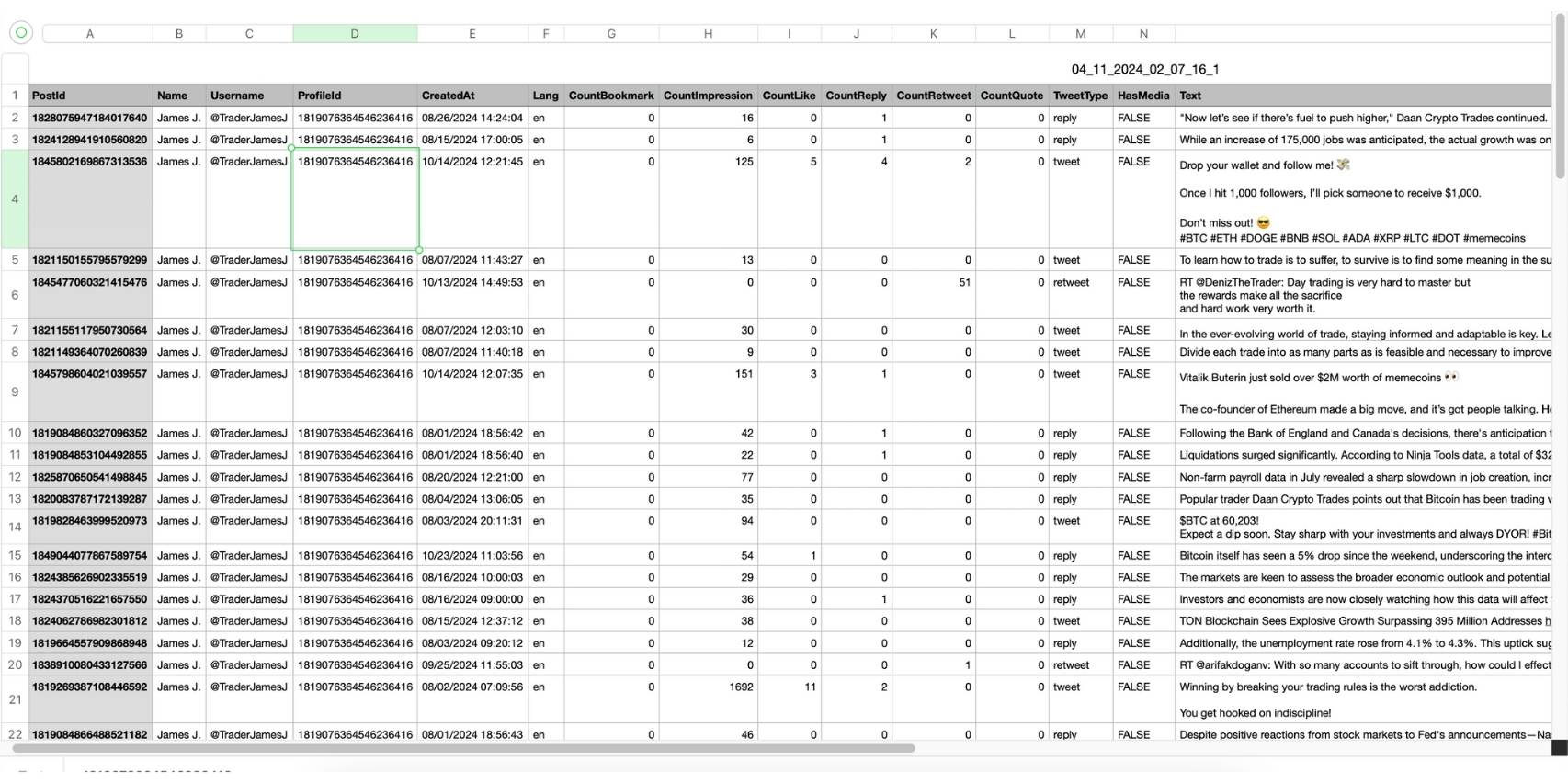
This CSV file includes essential details like Post ID, username, tweet text, engagement metrics (likes, retweets, replies), language, and timestamps, making it easy to review, analyze, or archive the tweets.
Here's how you can export all tweets of someone. Watch the video: 📥 ⬇️
Final thoughts
Twitter allows you to search tweets from an account using keywords, but the results are limited and cannot be exported.
If you need a complete list of tweets containing a keyword, the best approach is to export the tweets first and analyze them in a spreadsheet.
Circleboom Twitter makes this process simple by allowing you to extract tweets from an account and download them as a CSV or Excel file.
Once you have the dataset, finding every tweet that contains a specific keyword becomes quick, accurate, and much easier to analyze.
%20Account%3F)