

A hashtag lookup is a quick check of every public post sitting under one tag right now, so you can read the conversation before you join it. You type the tag, set how far back to look, and read both the tweets and the accounts posting them. The reason most people get a thin answer is that X's native search shows you a scrolling feed, not a structured view you can filter, size, or act on.
You might want to size a conversation, vet a tag before you use it, or pull the accounts driving it. For that you need a tool that reads live tweets from a chosen start date and shows who is behind each one. That is exactly what a hashtag lookup inside Circleboom does.
What is a hashtag lookup, exactly?
A hashtag lookup pulls every public tweet posted under one tag from a date you choose, then shows both the tweets and the deduplicated accounts behind them. Circleboom collects this live X data through official API access, so you see real, complete activity instead of a partial scroll.
→ Check what's being said under any hashtag
The difference between a lookup and ongoing tracking matters here. Tracking is a standing monitor you leave running. A lookup is a one-time read: you check the tag, understand it, and move on. Most articles blur the two, which is why people end up setting up a dashboard when all they wanted was a five-minute answer.
Why X's Native Search Falls Short for a Real Hashtag Check
X's search bar will show you recent posts under a tag, but it stops there. You get a feed, not a dataset. You cannot filter that feed by engagement, language, or media type in any structured way, and you cannot pull the list of accounts posting under the tag without scrolling and copying by hand.
That gap is the whole problem. When you are checking a hashtag to decide whether it fits your brand, or to see who is already active under it, a scrolling feed forces you to eyeball hundreds of posts and guess. You miss the volume, you miss the quality split, and you miss the accounts worth following.
A structured hashtag lookup fixes this by collecting the matching tweets and extracting the unique accounts behind them in one pass. Circleboom reads live X data as an official X Enterprise Developer company, so the activity you see is complete and policy-compliant. You get the real conversation, not a scraped sample.
A feed cannot sort; a lookup can
The structured view also shows per-tweet metrics in columns you can sort: impressions, likes, retweets, quotes, bookmarks, and replies. Sort by impressions and the loudest posts under the tag float to the top in one click, which is exactly what a feed never lets you do.
If you also want to compare a live tag against its past behavior, the keyword hashtag tracker is the page to start from. It is the same lens, applied to whichever tag you are checking. The piece on mistakes to avoid while performing a Twitter search covers the read-quality traps that turn a quick check into a wrong conclusion.
How to Run a Hashtag Lookup on X with Circleboom
To check what is being said under a hashtag, open Circleboom's Real-time Tweet Search, type the tag in plain language, set a start date, and read both the tweet view and the account view. The flow below runs that check end to end in four short moves.
Open Circleboom and connect your X account
- Log in to Circleboom Twitter and connect your X account with official OAuth.
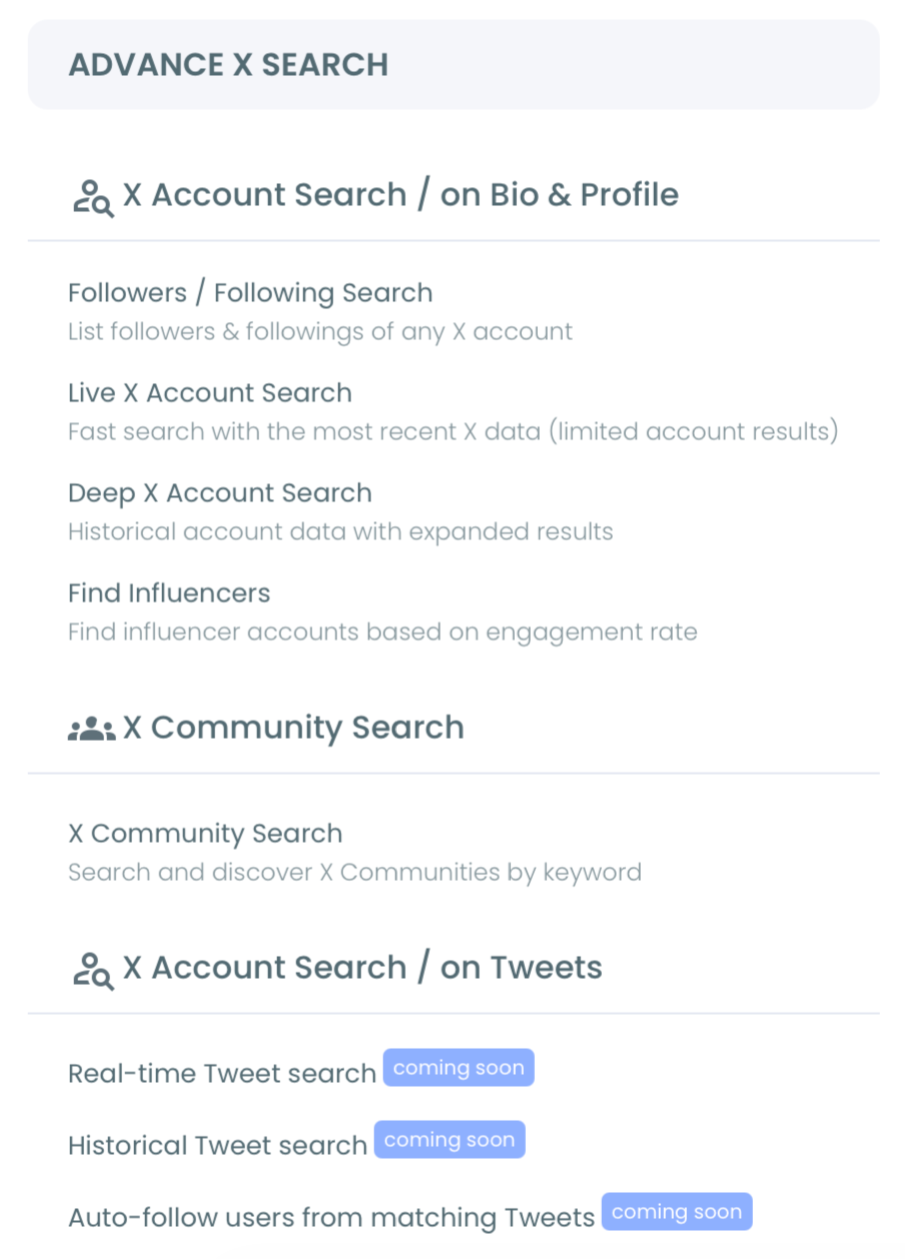
- Go to the Advanced X Search menu and open Real-time Tweet Search.
Describe the hashtag and set your window
- Type the hashtag you want to check in plain language, then add filters for language, replies, links, or verified-only accounts if you want a cleaner read.
- Select a start date (Last 24 Hours, Last 7 Days, Last 30 Days, or a custom date) so the lookup pulls activity from the moment that matters for your check.
Read the tweets, then read the accounts
- Run the search and review the tweet view, where each post shows impressions, likes, retweets, replies, and a direct link to the original tweet on X.
- Click "Display Profiles of this search" to flip to the account view, a deduplicated list of every unique account posting under the tag, with follower counts, activity classification, and per-row actions.
That order is what makes a hashtag lookup useful rather than noisy. The login earns official-API access first. The start date scopes the read to the window you care about, and the tweet-then-account pivot lets you judge what is being said and who is saying it. Skip the start-date step and a broad tag returns a wall of stale posts; skip the account view and you never learn who is driving the conversation.
One detail trips people up on the first run. A collection of 500 tweets might resolve to 120 accounts in the profile view, because that list is deduplicated and a few accounts post heavily under a live tag. The tweet view sizes the conversation; the account view names the people in it.
Live walkthrough: how a real-time hashtag read pulls current tweets and the accounts behind them in one view.
What a Hashtag Lookup Tells You That a Feed Can't
A proper lookup answers three questions a scroll never will. It tells you how busy the tag is, what the quality split looks like, and who is worth your attention. Reading those three signals together is the entire value of checking a tag before you commit to it.
Here is what the structured view surfaces that a raw feed hides:
- The real volume of posts under the tag in your chosen window.
- The engagement spread, so you can tell a live conversation from a ghost tag.
- The accounts behind the posts, ranked by activity and follower quality.
- A clean export of those accounts for outreach or a watch list.
The lookup is only as good as the window you set. A start date that reaches too far back behaves like a historical search and buries current signal under old noise. For a "what's being said right now" check, keep the window tight.
Once you know which accounts matter, the natural next step is to act on them. You can add the strongest accounts to a Twitter List Manager so the conversation stays in view without changing your follow graph.
Want to study the structure of the tag instead? The guide on how to perform a Twitter hashtag search to find relevant accounts walks through the discovery angle in depth.
Filtering a Noisy Tag Down to a Clean Read
A broad or trending tag returns a large, messy set. The fix is the filter panel, which turns volume into signal before you read a single row.
A few filters do most of the work on a busy tag:
- An engagement minimum hides every post under a like or retweet floor, so ghost replies drop out.
- The language filter scopes the read to the audience you actually care about.
- The verified-only toggle narrows a tag to accounts with a confirmed identity.
- An exclude term strips a recurring spam phrase or off-topic word from the set.
Set those before you run, not after, and a wall of posts collapses to a few hundred worth reading. The keyword match type matters too: exact phrase, contains, and partial each behave differently, and the wrong choice is the usual reason a lookup returns either too much or nothing at all.
When a Hashtag Lookup Is the Right Move
Reach for a lookup when the question is time-sensitive and one-time. You are about to launch and want to size the tag you picked. A competitor's tag is spiking and you want to read the room. An event hashtag is live and you want the accounts in the room before it ends. Each of those is a check, not a standing monitor.
The check pays off most when you act while the context still exists. An account complaining under a competitor's tag is most receptive in the first hours; an event attendee is easiest to connect with while the event runs. A lookup captures that moment; a feed makes you scroll past it.
If your check turns into a recurring need, that is the signal to graduate from a lookup to tracking. The piece on how many people saw my hashtag covers the measurement side.
To read which tags are worth checking, the trending hashtags on Twitter breakdown helps. The walkthrough on how to effectively perform a Twitter hashtag and trend search pairs the lookup with trend reading.
If your check shifts from one tag to finding people, Find Twitter Influencers surfaces the strongest accounts in a niche. For the native side, X's own advanced search reference outlines the built-in filters that Circleboom then turns into a structured, exportable dataset.
The Bottom Line
A hashtag lookup is the fastest way to know what a tag actually contains before you build on it. Native X search shows you a feed; Circleboom shows you the tweets, the accounts, and the activity behind a tag from any start date, all pulled through official, policy-compliant access. That turns a guess into a five-minute read you can act on.
When you are ready to check a tag for real, here is where to do it: → Run a hashtag lookup on X
FAQ
Can I see all the tweets under a hashtag at once?
You can see all public tweets posted under a hashtag from the start date you choose. Protected, private, and deleted-before-indexing posts are excluded, but every public post in your window appears in the tweet view, with the accounts behind them in the profile view.
How far back can a hashtag lookup go?
You pick the window. Last 24 Hours, Last 7 Days, and Last 30 Days are quick presets, and a custom start date lets you scope the lookup to a specific moment. For a current "what's being said right now" check, a tight window gives the cleanest read.
Is a hashtag lookup different from hashtag tracking?
Yes. A lookup is a one-time check you run to read a tag and move on. Tracking is a standing monitor you leave running over time. Real-time Tweet Search handles the lookup; if you find yourself checking the same tag repeatedly, that is when ongoing tracking becomes worth setting up.
Why does my lookup show fewer accounts than tweets?
Because the account view is deduplicated. The tweet count is how many posts the search collects, while the profile view lists each account once. A few prolific accounts can post many tweets, so a large tweet collection often resolves to a smaller, cleaner list of accounts.
Is it safe to look up hashtags with a third-party tool?
It is safe when the tool uses official access. Circleboom reads public X data as a verified Enterprise partner of X, so your account stays compliant with X's rules and you never rely on scraping or unofficial workarounds.

