
If you use Twitter regularly, you’ve probably experienced this more than once.
You scroll through your timeline, come across a useful thread, a smart insight, or a video you want to watch later, and you think you’ll remember it.
A few minutes pass, the timeline refreshes, and suddenly it’s gone. You try scrolling back, searching keywords, even checking the account you think posted it. Nothing.
That moment usually leads to one simple question:
Does Twitter have a watch history?
The Clear Answer: Twitter Does Not Have a Watch History
Twitter, now called X, does not have a watch history or view history feature.
Unlike platforms such as YouTube or TikTok, Twitter does not track or store a list of tweets you have viewed. There is no section where you can open a timeline of past activity and recover content just because you saw it earlier.
Once you scroll past a tweet, Twitter does not remember that interaction unless you take a deliberate action.
This means:
❌ You cannot see a list of tweets you viewed earlier
❌ You cannot reopen content just because you watched or read it
❌ You cannot rely on scrolling back, especially after refreshing
In short, if you did not interact with a tweet, Twitter gives you no way to retrieve it later.
What Actually Counts as “History” on Twitter
Although Twitter does not have a watch history, it does save certain intentional interactions.
There are only two actions that reliably help you find a tweet again.
Likes
If you like a tweet, it appears in your Likes tab. This can help you find posts again.
 Altug Altug
Bookmarks
Bookmarks are private and designed specifically for saving content.
 Arif Akdogan
If you bookmark a tweet, it is stored in your Bookmarks section, where you can access it later without anyone else seeing it. For practical use, bookmarks are the closest thing Twitter has to a watch history.
But even bookmarks come with limitations.
Why Bookmarks Alone Are Not Enough
At first, bookmarks feel like a complete solution. You save what matters, come back later, and move on.
Over time, a few problems appear.
Bookmarks can be accidentally removed, especially when you try to clean up old saves. The original tweet can also be deleted or restricted, which means the bookmark no longer leads anywhere. In addition, bookmarks live entirely inside Twitter. If something changes on the platform, you have no backup.
I realized that bookmarks were useful, but fragile. They needed a second layer of protection.
How I Built My Own “Watch History” System
Instead of relying on Twitter to remember what I watched or read, I started treating bookmarks as a first step, not the final one.
Anything important gets bookmarked immediately. Then, instead of leaving it there forever, I export those bookmarks using Circleboom Twitter.

Circleboom Twitter is an official X Enterprise Developer and includes a bookmark management feature that goes beyond Twitter’s native interface. It allows you to load, review, and export all your bookmarked tweets.
✅ Once exported, the tweet content exists outside Twitter. Even if the bookmark is deleted or the tweet disappears later, the information is still accessible.
In practice, this becomes a personal archive of content that actually mattered.
Step-by-Step: How to Export Twitter Bookmarks With Circleboom Twitter
Step #1: Log In to Circleboom Twitter
Go to the Circleboom Twitter website and log in with your credentials. If you’re a new user, sign up—it’s quick and easy!

Step #2: Go to your Bookmarks
In the left-side menu, click on “Delete Tools” and then select “Delete Bookmarks” from the dropdown.

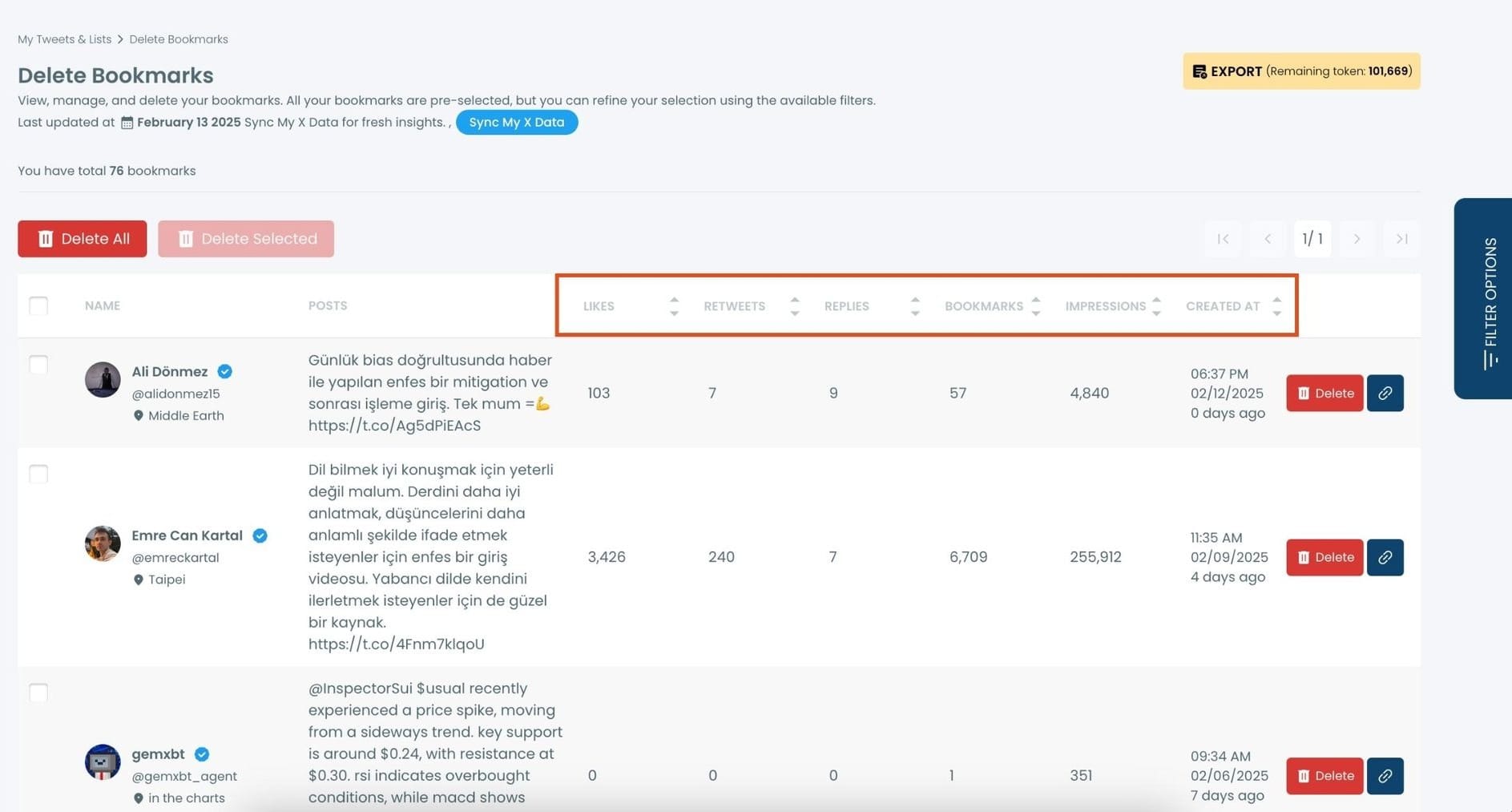
Step #3: View and Manage Your Bookmarks
After opening the "Delete Bookmarks" section, you'll see all your saved tweets.
The page will display essential details such as likes, retweets, replies, and impressions for each bookmarked tweet.
This allows you to filter, organize, and select bookmarks for export.
Step #4: Use Filters to Find Specific Bookmarks
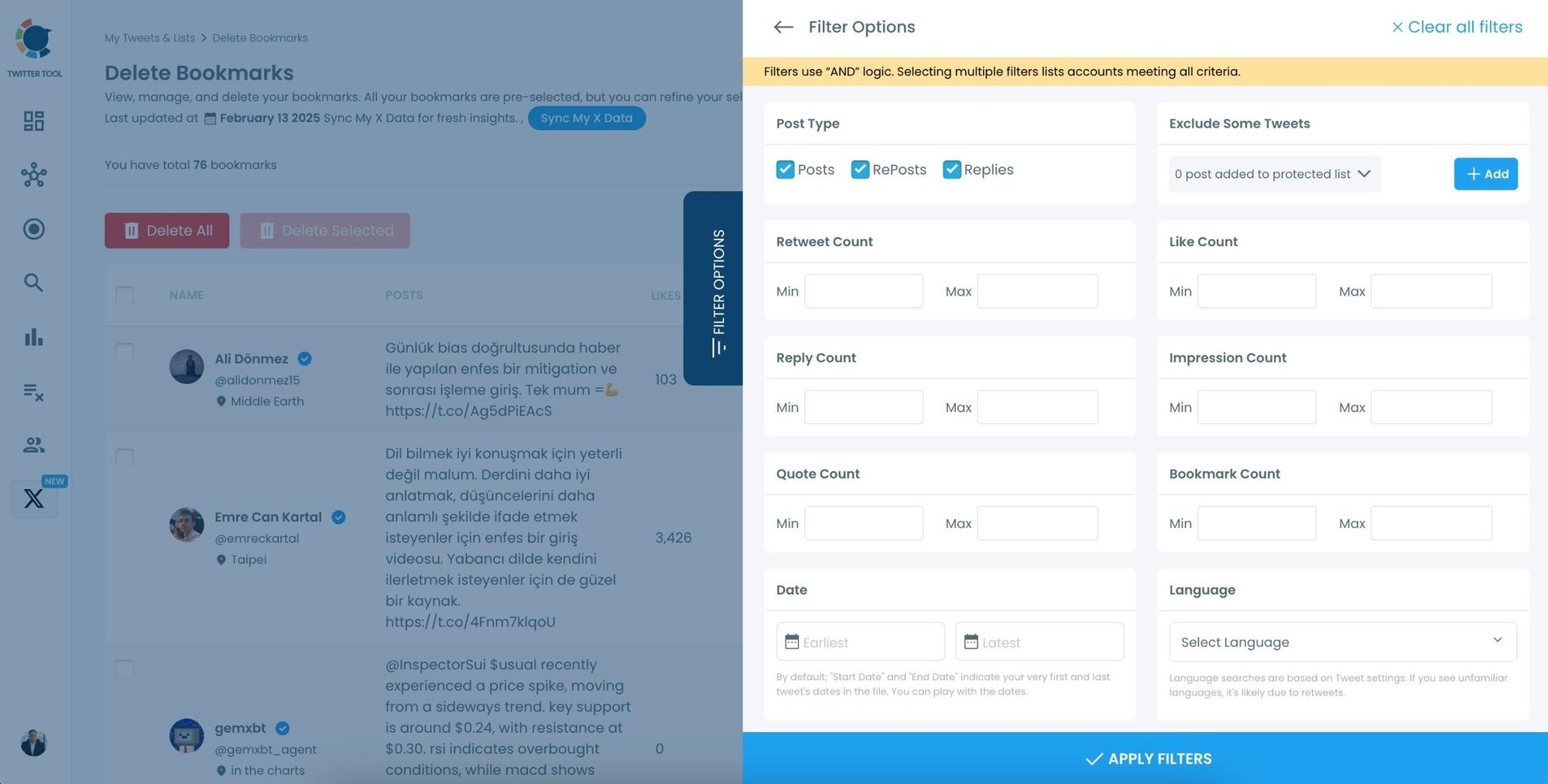
Click on “Filter Options” on the right side of the screen.
You can refine your bookmarks based on engagement (likes, retweets, impressions), date, language, and tweet type (posts, replies, or reposts).
Step #5: Select and Export Your Bookmarks
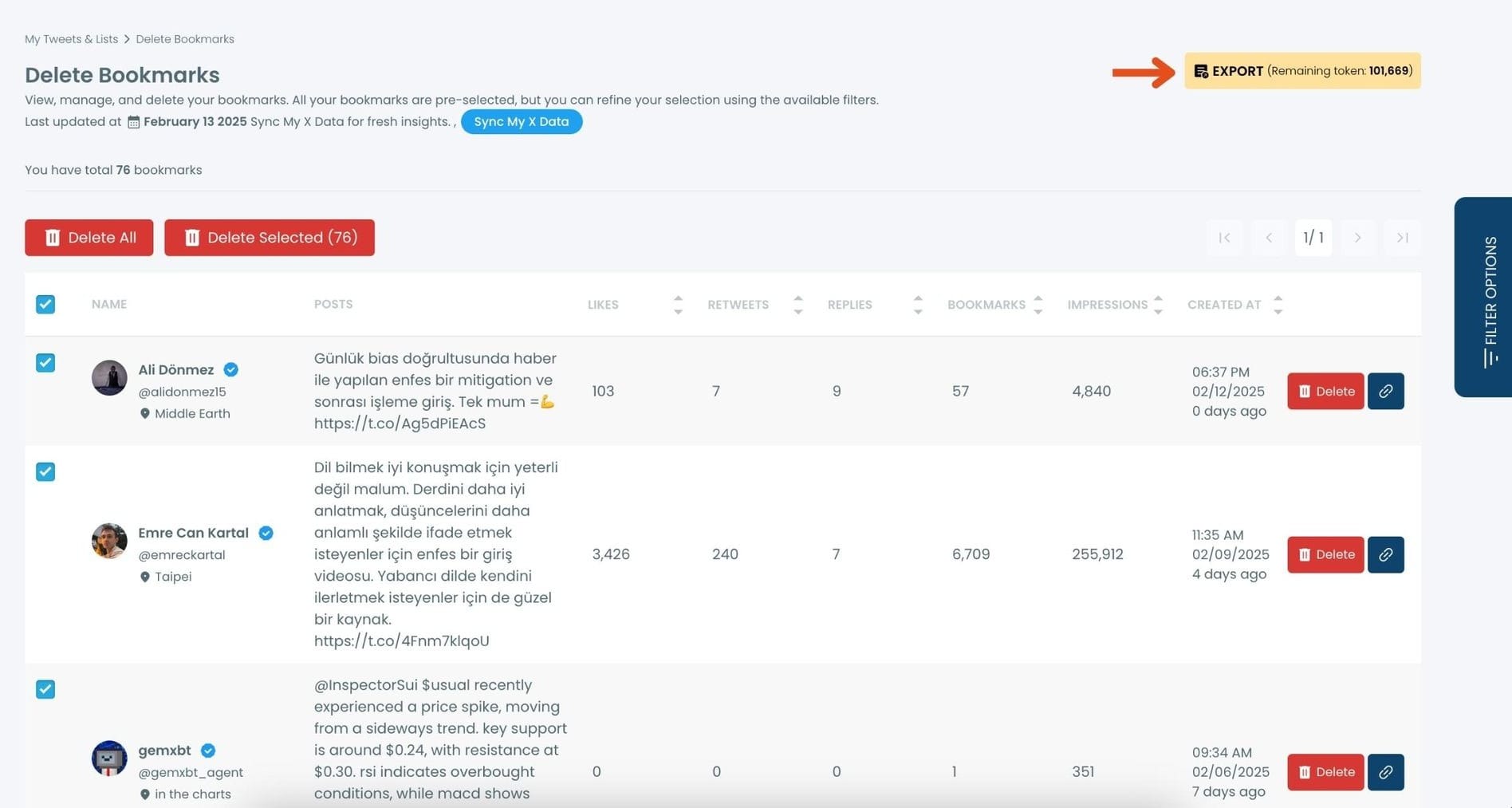
Check the box next to each tweet you want to export, or click "Select All" to export all bookmarks.
Click on the “Export” button at the top right. You are one step away from downloading all your Twitter bookmarks.
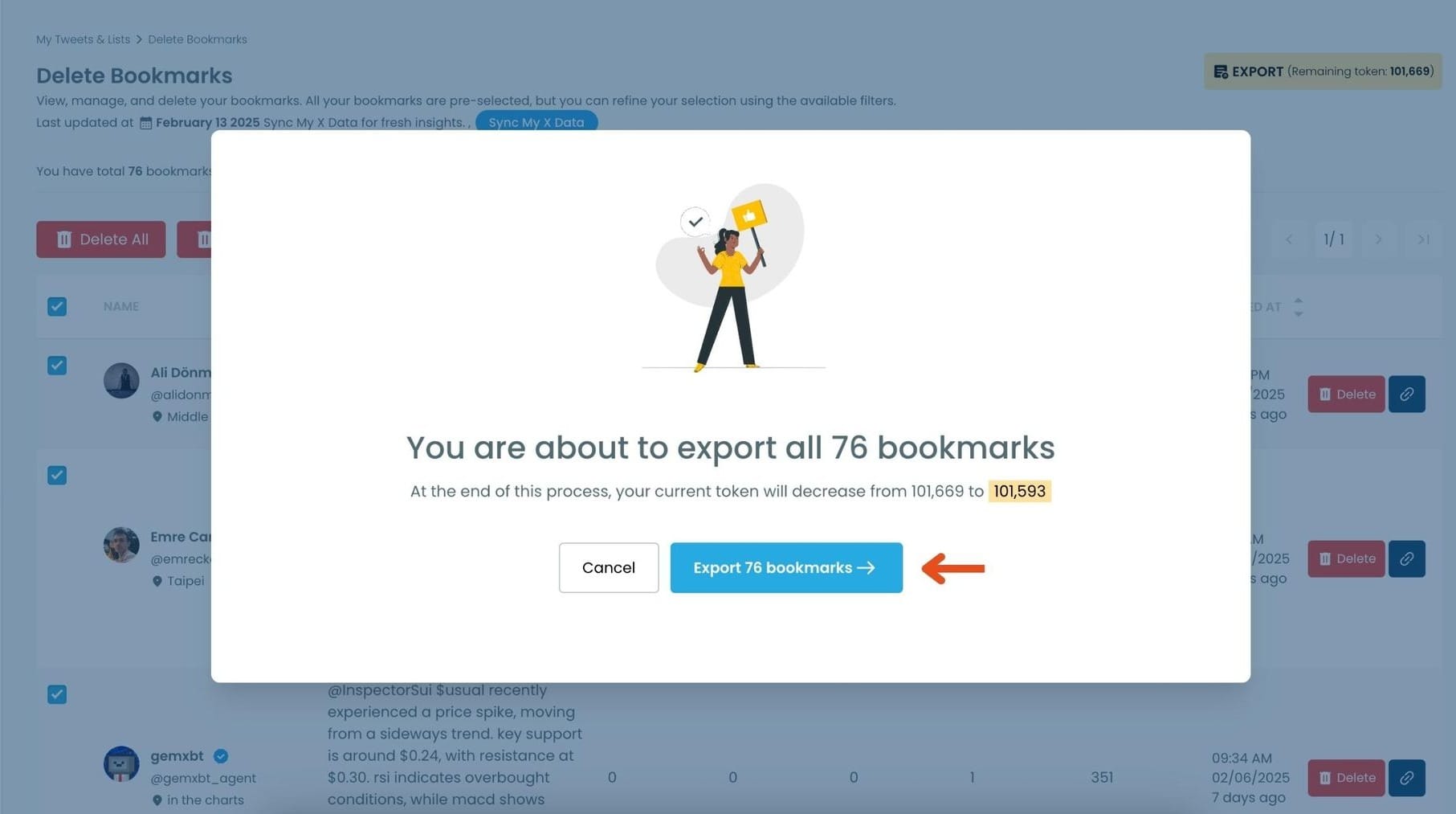
A confirmation message will pop up showing the number of bookmarks you’re about to export.
Click “Export X Bookmarks”, and your bookmarks will be downloaded as a file.
Step #6: Access and Use Your Exported Bookmarks
Once the bookmarks are exported, they will be saved in a spreadsheet format (CSV or Excel file).
The file contains detailed tweet information
This organized format makes it easy to search, sort, and reference your saved tweets whenever needed.
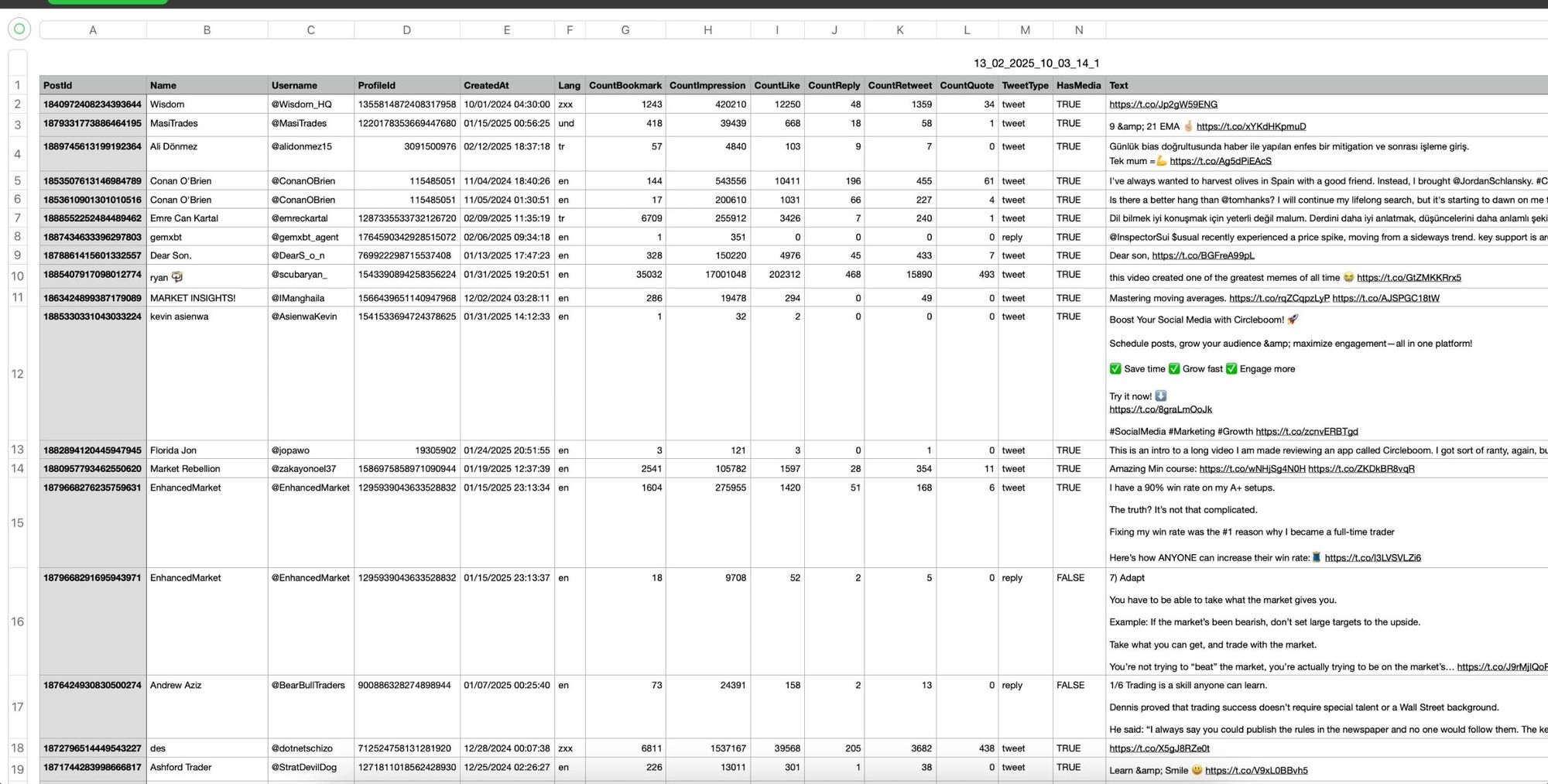
By exporting your X bookmarks, you ensure that important tweets remain accessible even if they get deleted or lost.
Why Exporting Bookmarks Changes How You Use Twitter
Once you know important content is safely stored, the platform feels less stressful.
You no longer worry about losing posts, forgetting threads, or missing valuable ideas. Over time, you build a collection of content that reflects what you actually care about, instead of relying on memory or endless scrolling.
This is not an official watch history, but in practice, it works better because you control it.
Best Practices for Never Losing Tweets Again
A few habits make this system reliable:
➡️ Bookmark anything you might want to revisit
➡️ Export bookmarks regularly, such as weekly or monthly
➡️ Keep exported files organized by topic or purpose
➡️ Treat bookmarks as temporary, exports as permanent
With this approach, Twitter becomes easier to use without fear of losing valuable information.
Final Thoughts
Twitter does not have a watch history, and there is no setting that changes that.
If you want to find tweets again, liking and bookmarking are the only built-in options. And if you want to make sure important content never disappears, exporting bookmarks is the most reliable solution.
By combining intentional bookmarking with exports through Circleboom Twitter, you can effectively create your own watch history and take control of the content you care about.
%20Have%20a%20Watch%20History%3F)