
Yes, you can automate your posts on Google My Business, and it is one of the easiest ways to keep your profile active without turning it into a daily task.
Many business owners know that posting regularly on Google My Business helps keep their profile fresh, improves visibility, and gives customers more reasons to interact with the business. The problem is that doing it manually all the time takes effort. After a few posts, most people get busy and stop.
That is why automation matters.
➡️ If you have a website, you can automatically share your website content on Google My Business by connecting your RSS feed.
➡️ And if you do not have a website, or simply want to create your own posts and schedule them ahead of time, that is also possible.
This is where Circleboom Publish helps.
Why staying active on Google My Business matters
An active Google My Business profile builds trust.
When people visit your business listing and see recent updates, posts, or content, it signals that the business is active and reliable. It also gives you more opportunities to highlight your services, blog content, announcements, or offers.
 Arif Akdogan
The challenge is not knowing what to post. It’s keeping up with posting regularly.
That’s where automation becomes useful.
What is Circleboom Publish?
Circleboom Publish is a social media management tool that helps you manage and publish content across multiple platforms from a single dashboard.

For Google My Business, it simplifies everything and removes the need to handle posts manually every time.
Instead of switching between accounts or logging in repeatedly, everything can be controlled from one place.
With Circleboom Publish, you can:
🟢 connect your RSS feed and automatically share website content on Google My Business
 infocircleboom.com
🟢 manage multiple Google My Business accounts from a single dashboard
🟢 create and schedule posts in advance
🟢 generate post content with the built-in AI Google My Business Post Generator
🟢 design visuals using integrations like Canva, Unsplash, and Giphy
🟢 organize your posts with a structured content calendar
This turns Google My Business from a manual task into a system that runs consistently in the background.
Automate your Google My Business posts with RSS feed
If you have a website, this is the simplest way to automate your content.
By connecting your RSS feed to Google My Business through Circleboom Publish, every new post published on your website can automatically be shared on your business profile.
This means:
- your profile stays active without extra work
- your website content gets more visibility
- you don’t need to create separate posts every time
It’s a set-and-forget system that keeps your business updated in the background.
How to automate Google My Business posts with RSS feed
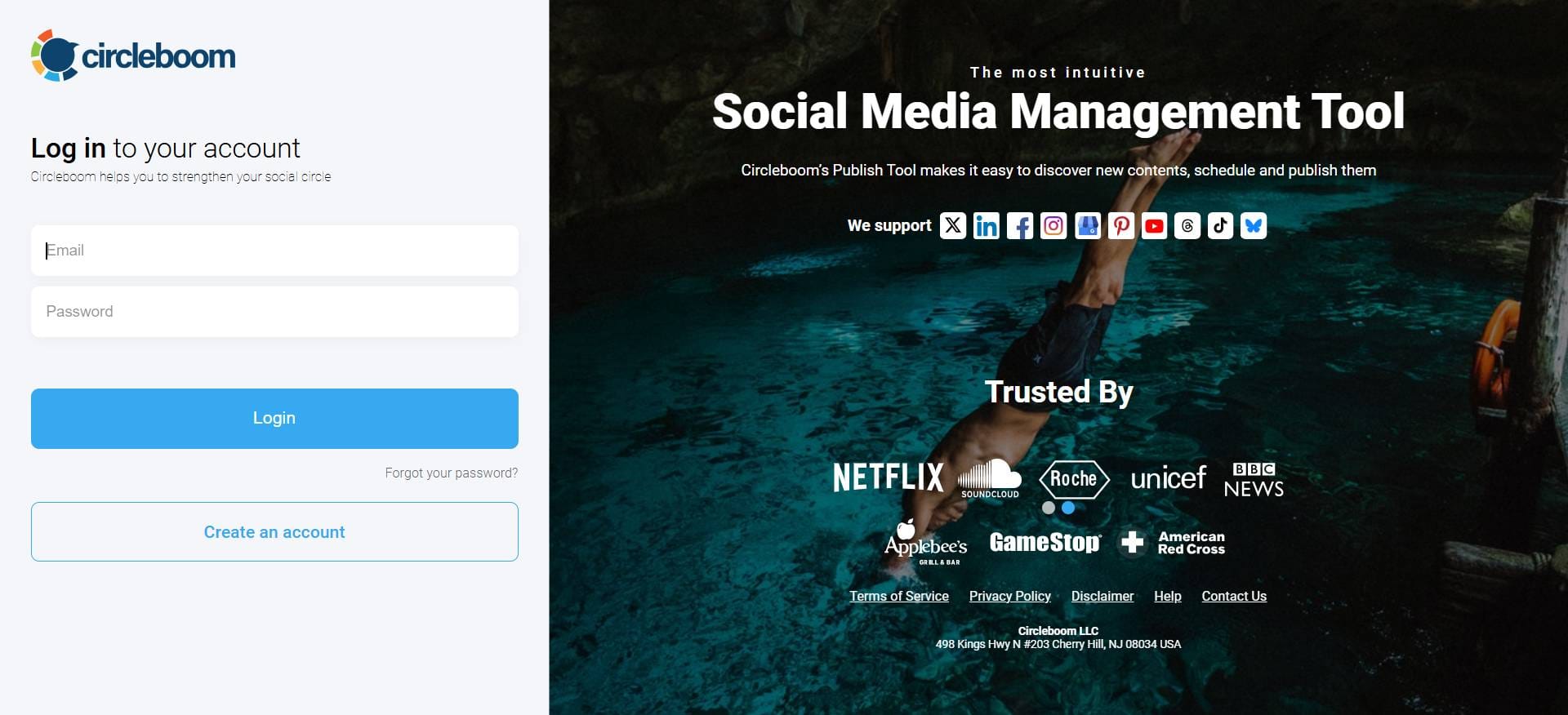
Step #1: Log in to Circleboom Publish.
If you don’t have an account yet, creating a new one takes only a few clicks.
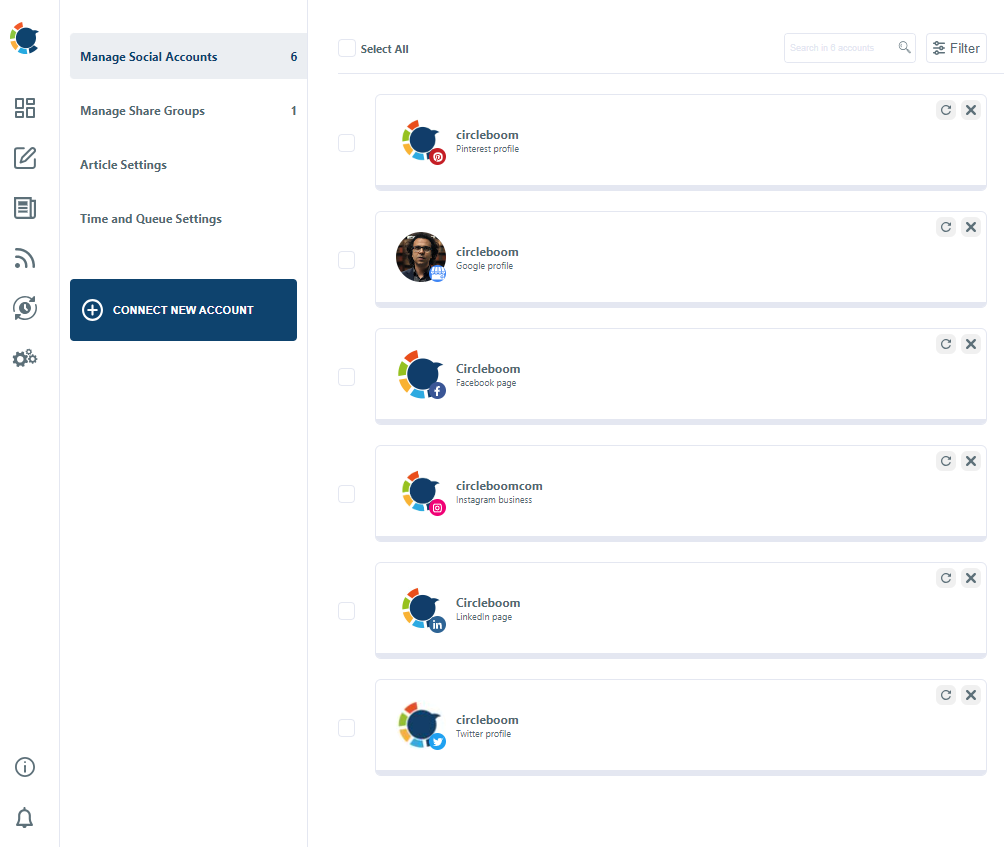
Step #2: As you complete the authorization step, your Google My Business account will be visible on the dashboard.
In Circleboom Publish, you can manage multiple social media accounts. You can add multiple accounts by basically clicking “Add New Account.”
Step #3: Locate the “Connect RSS Feeds” option on the left-hand menu and tap it.
You will be presented with the RSS feed dashboard where you can manage your linked RSS feeds.
Step #4: Click “Add an RSS Feed Now” to link the RSS feed to GMB.
Once you select this option, you will see the settings page to auto-post RSS to social media.
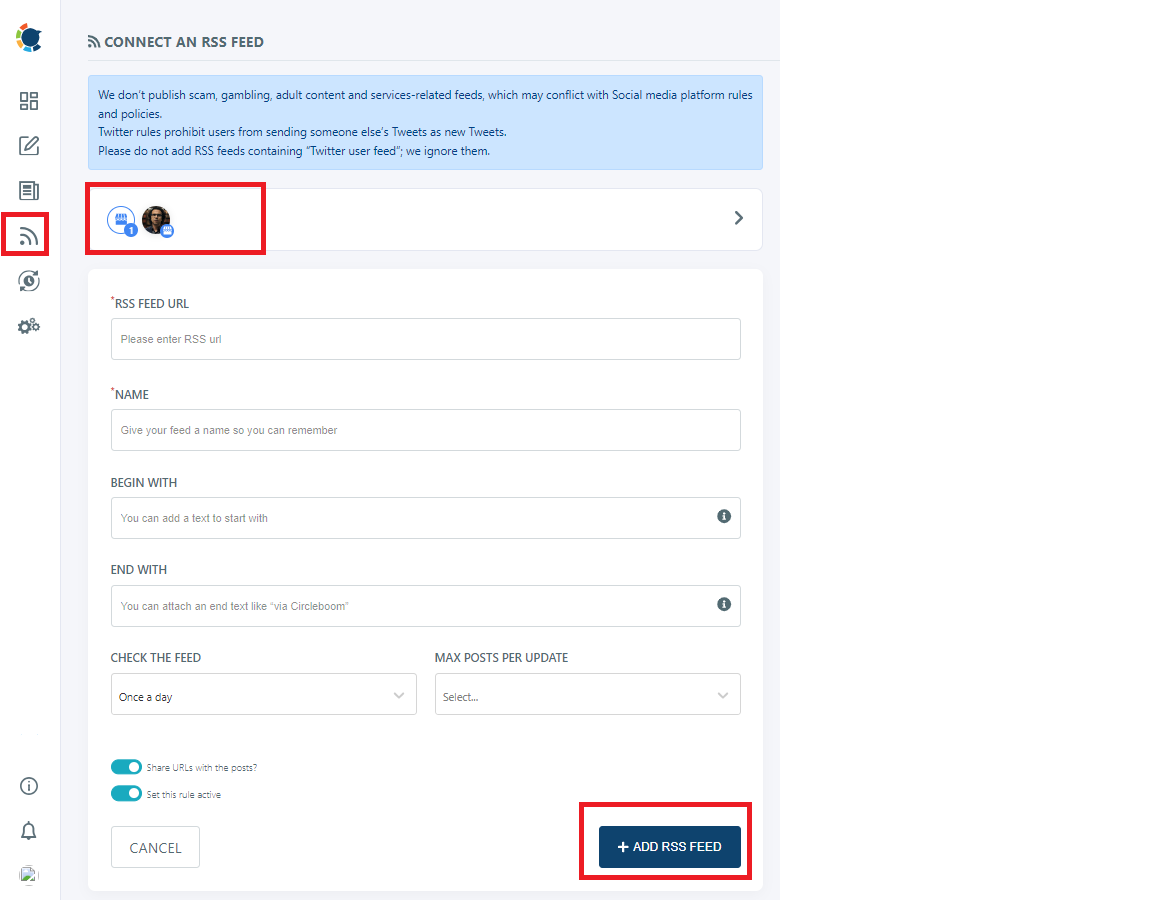
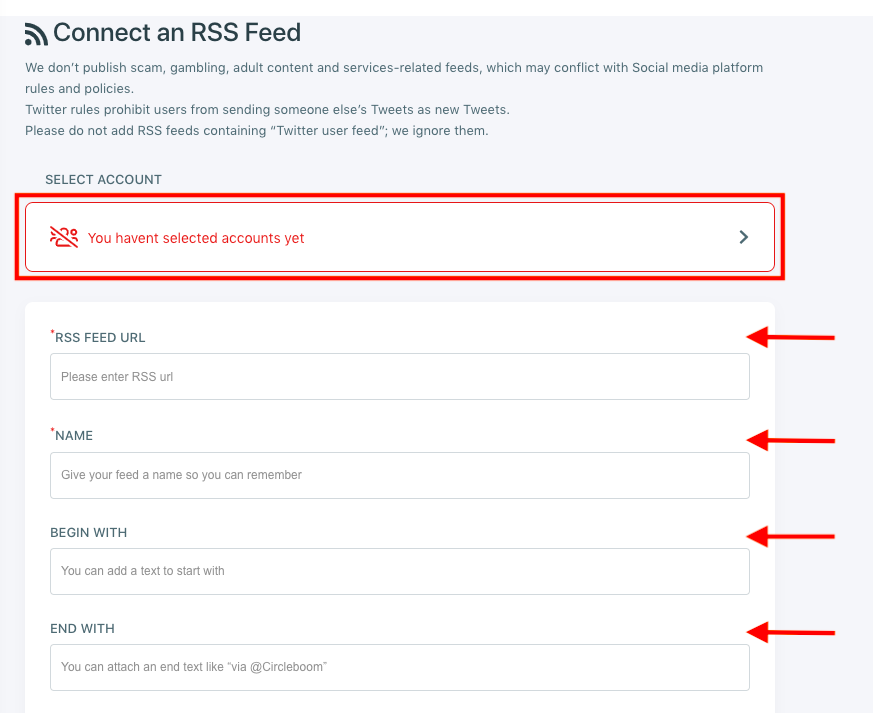
Step #5: After selecting your GMB account, enter the relevant RSS feed URL. You can also give your feed a name to help you remember the content.
If you want your posts to begin and end with specific text, fill out the “begin with” and “end with” sections.
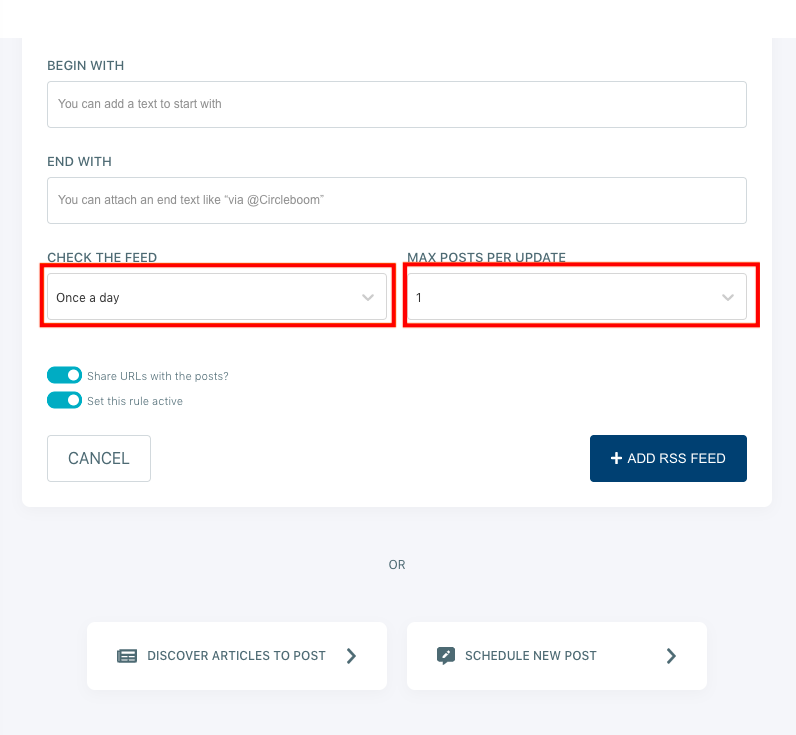
Step #6: Select the frequency you want Circleboom Publish to check the RSS feed source for new updates.
You should also determine the desired maximum number of posts per update.
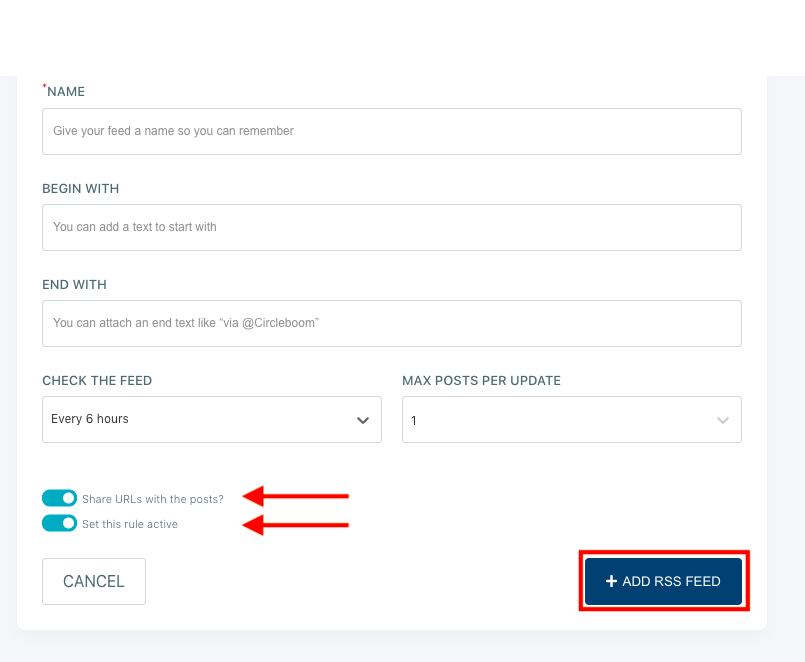
Step #7: If you want to share the URL within your GMB posts to generate leads, keep the URL option on; otherwise, you can turn it off.
Once you have completed all the necessary settings, turn on the rule activation option and click the “Add RSS Feed” button.
How to create and schedule Google My Business posts
Not every business relies on website content. Sometimes you want to share promotions, updates, events, or custom messages.
Instead of creating these posts one by one inside Google My Business, you can handle everything from Circleboom Publish.
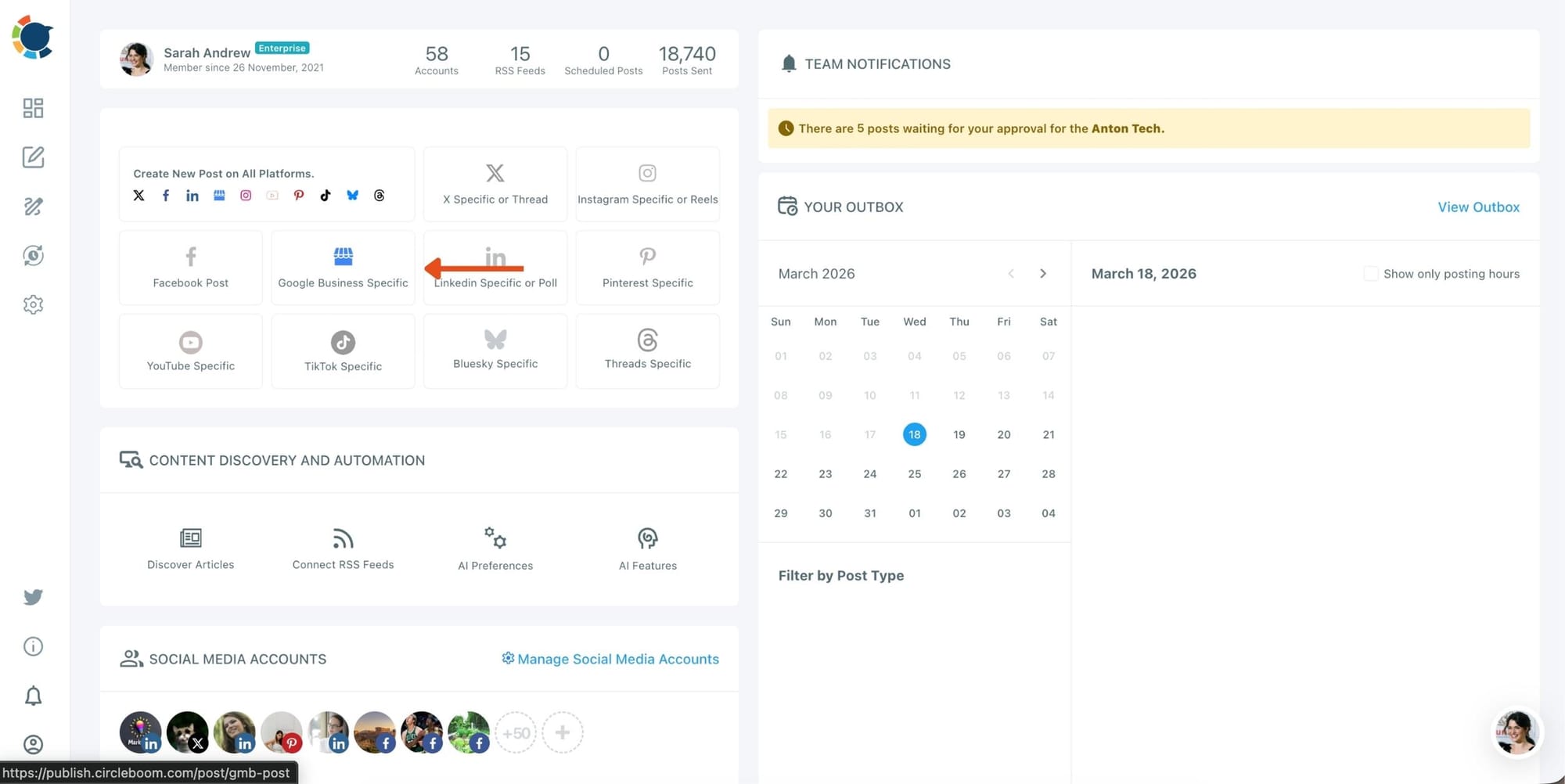
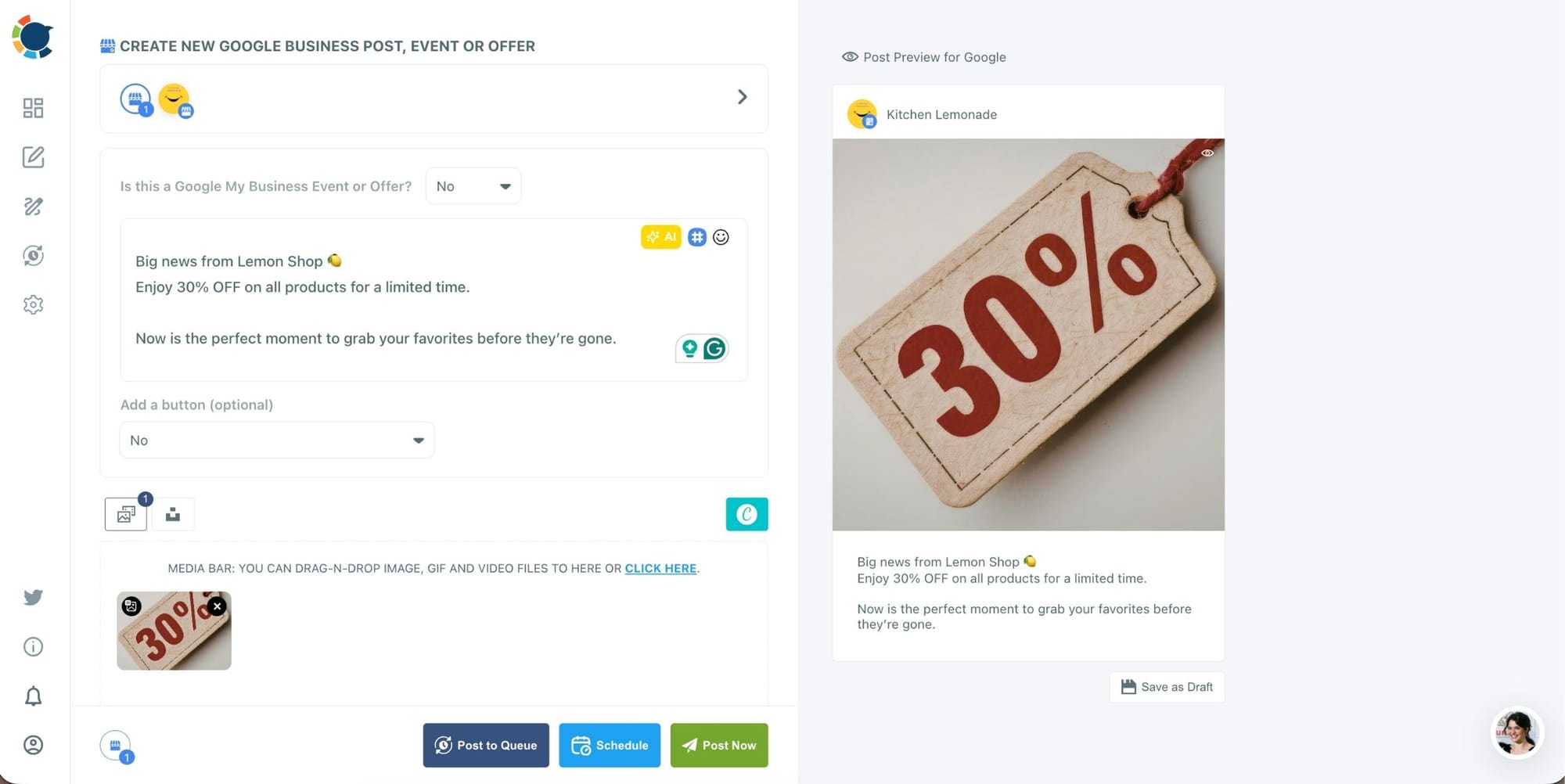
Step #1: You should click on the “Create New Post” button to create your social media posts. As you see, there are specific post options for each platform.
You can choose “Google Business Specific,” too.
You’ll proceed to account selection.
Step #2: Next station is the social media text generator.
Thanks to OpenAI integration, you can create auto-generated social media descriptions, captions, texts, and all kinds of texts enriched by AI-generated hashtags, emojis, and other extras like grammar checks or translations.

You can define the style of your words, warmth, etc., on Circleboom Publish.
And, you can enrich your auto-generated Google Business posts with extras.
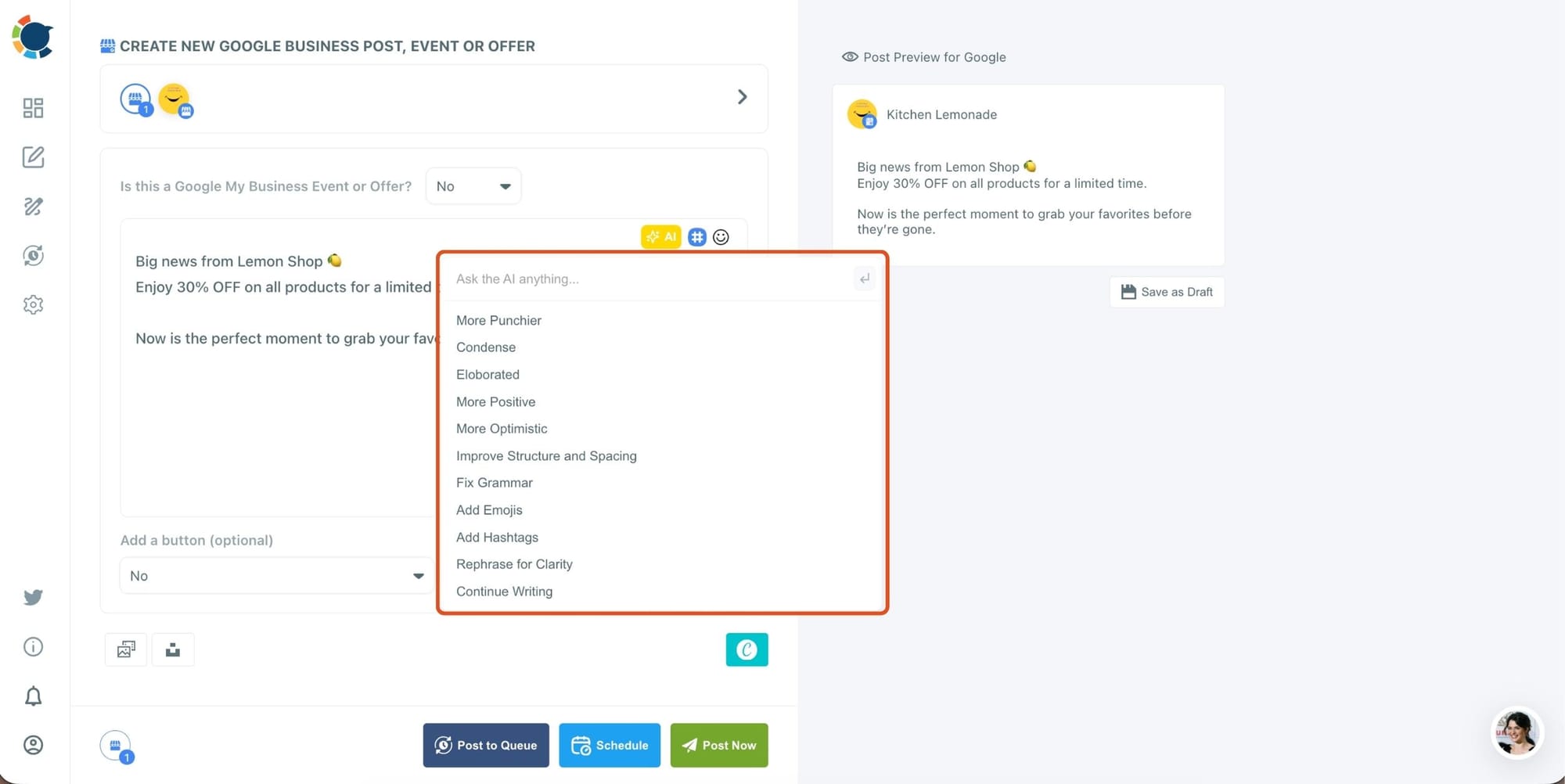
Also, on Circleboom, you can create GMB Event and Offer posts. So, you can add CTA buttons and coupon codes to your posts.
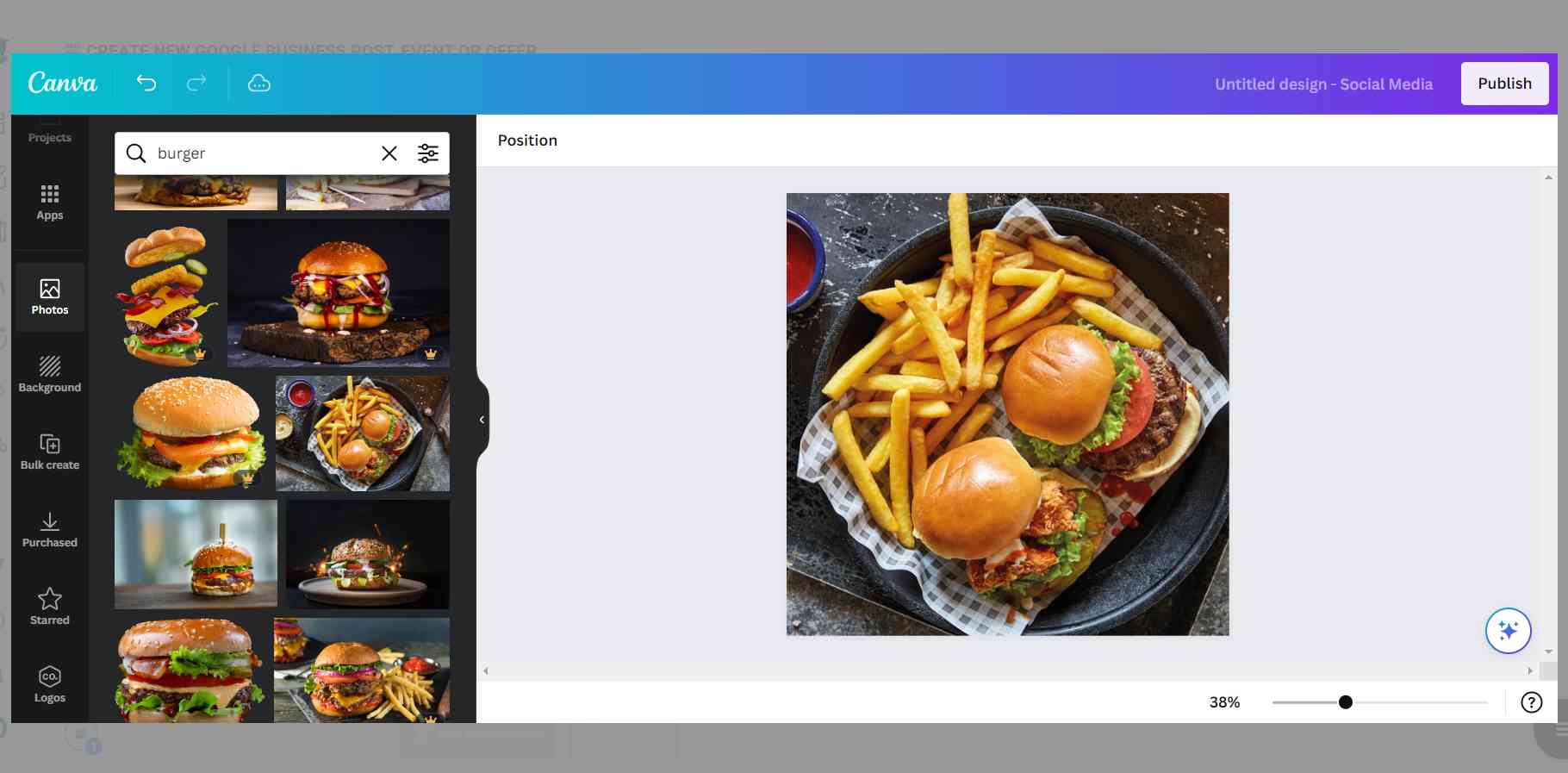
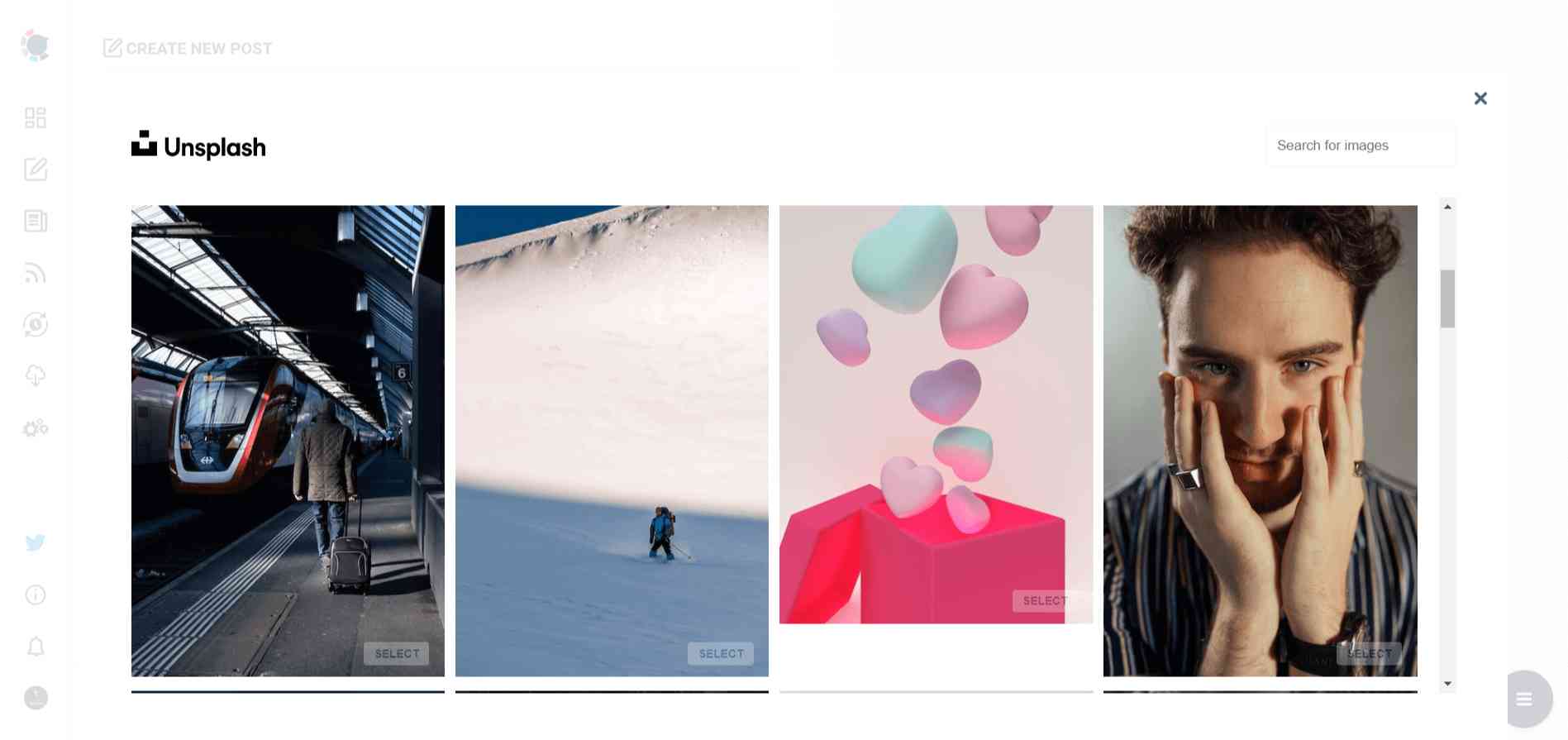
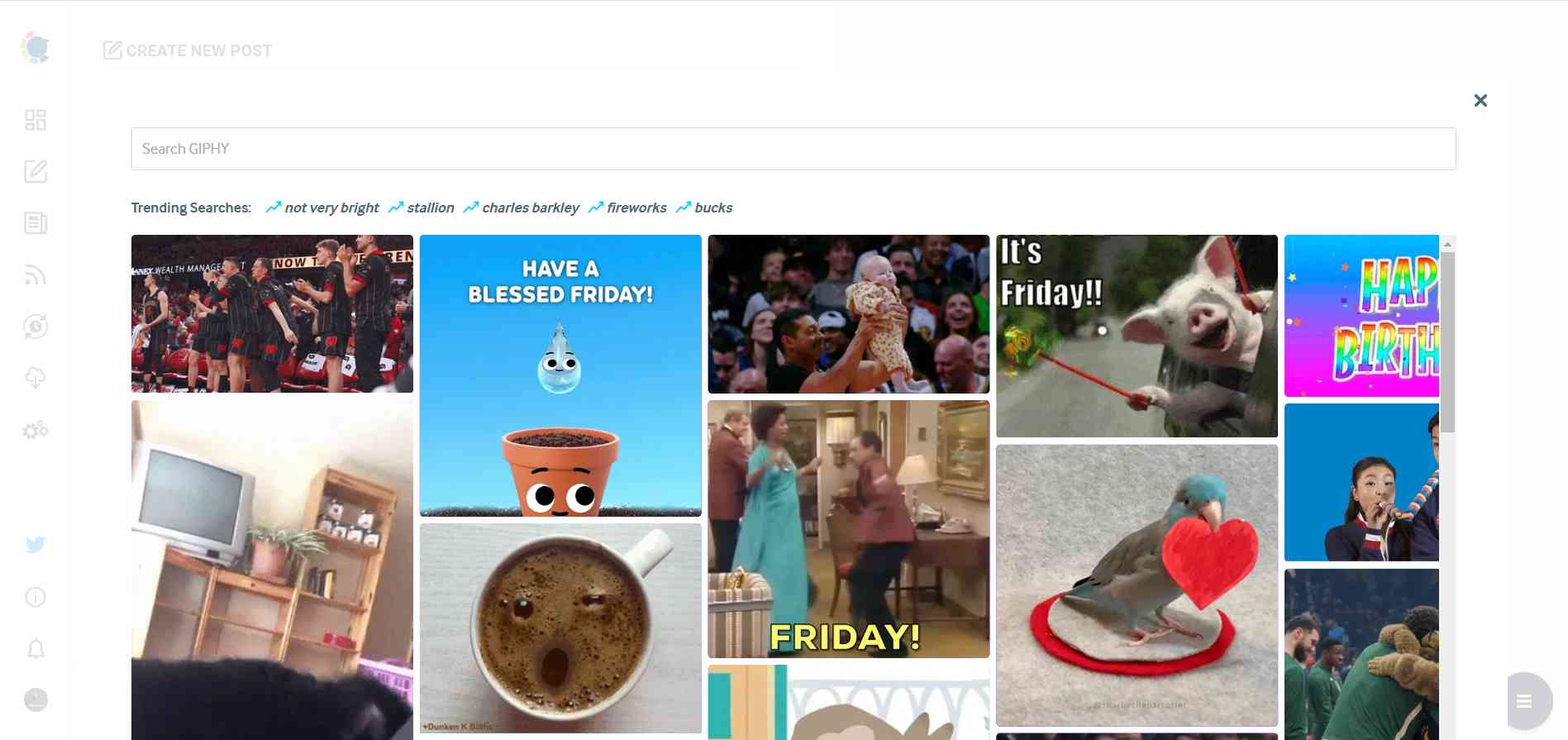
Step #3: Social media image generator on Circleboom has 3 options: Canva, Unsplash, and Giphy. You can also upload your own files to send them directly.
Canva is where you can curate and design images as you wish. You can apply ready-made templates, filters, effects, and other kinds of elements to edit your image.
Also, you can use Unsplash to find auto-generated, high-quality images to share on your Google My Business accounts.
Giphy is where you can generate high-quality GIF images for your auto-generated Google Business posts.
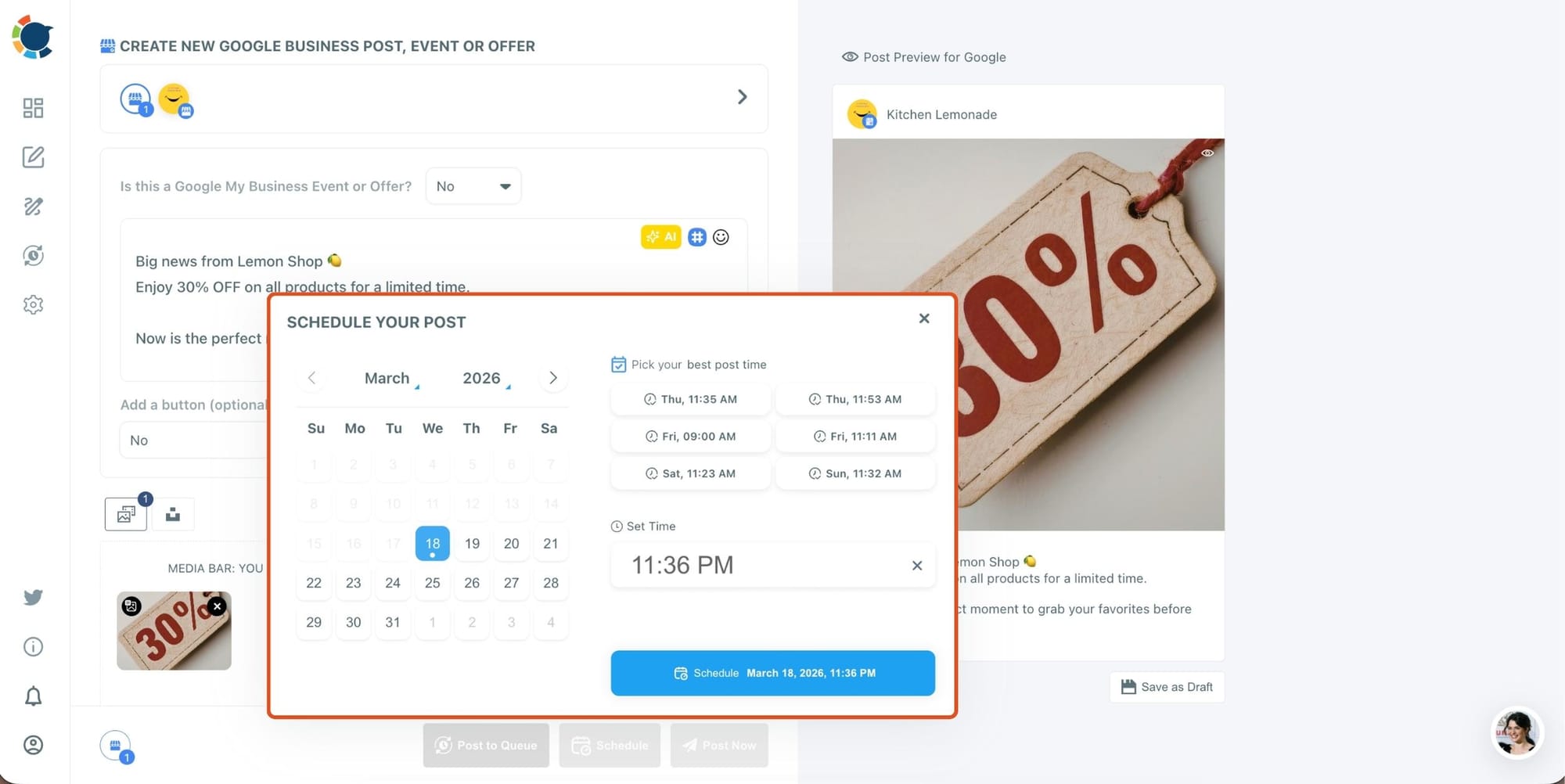
Step #4: Once you generate your Google Business posts, you can share them immediately, Or you can schedule them for the future.
Also, you can set time intervals and automate your Google Business posts.
Manage multiple Google My Business accounts easily
If you manage more than one business location, posting manually becomes even harder.
Circleboom Publish allows you to manage multiple Google My Business accounts from a single dashboard. This removes the need to switch between accounts and makes it much easier to keep all profiles active.
This is especially useful for agencies, franchises, or businesses with multiple locations.
Final thoughts
Automating Google My Business posts is not just possible, it is one of the smartest ways to stay consistent.
If you have a website, connecting your RSS feed allows you to automatically share new content without extra work. If you prefer creating custom posts, you can use AI tools, design integrations, and scheduling features to manage everything more efficiently.
Instead of treating Google My Business as something you update occasionally, you can turn it into a system that works continuously in the background.
And that’s what makes the difference between an inactive listing and one that consistently brings visibility.