
Which file actually holds your Twitter likes, the X archive or a CSV export? Both do, but they hold different likes, arrive at different speeds and answer different questions.
To back up Twitter likes, request your X archive for the complete history in its like.js file, and export a CSV of your latest 3,200 likes for a file you can sort today. Circleboom saves that recent CSV from your X likes table through X's official Enterprise APIs, with each post's engagement numbers attached.
→ back up Twitter likes
The comparison below shows what each file contains and which one to trust for which job.
What the X archive and a CSV export each contain
The X archive is the complete record of your likes, and the CSV export is a fast, sortable copy of the most recent 3,200. The table sets the two files side by side.
| X archive (like.js) | CSV export (Delete My Last Likes) | |
|---|---|---|
| Where it comes from | X's own account-data download | Circleboom, reading your likes through the X API |
| How far back it reaches | Your full like history | Your latest 3,200 liked posts |
| How long it takes | 24 to 48 hours to generate, per Circleboom's docs | Ready when you click Export |
| What each row carries | The liked post, kept in X's own data format | Impressions, likes, retweets, quotes, bookmarks, replies and created date |
| What it costs | Nothing beyond the wait | Export tokens, counted by volume |
| What it is best for | Proving a like existed, and full-history cleanups | Sorting, reading and sharing recent likes |
The archive answers "did I ever like this?" and the CSV answers "which of my recent likes mattered?"
Why the two files work as a pair
Most people need both questions answered at some point. That is why the two files are partners, not rivals: the archive guarantees completeness, and the CSV makes the newest slice usable without waiting on X.
Circleboom produces the CSV side of that pair by loading your recent likes into its Delete My Last Likes table and exporting the list as a spreadsheet file. If the recent slice is all you need, you can back up Twitter likes that way in a few minutes.
What is like.js in the X archive?
The like.js file is the part of your X archive that records the posts your account has liked, across the account's whole life. It is the likes counterpart of tweet.js, the archive file that records your own posts, and it sits in the archive's data folder next to it.
For anyone who wants to back up Twitter likes from an older account, this is the file to protect.
Two facts make like.js the anchor of any serious backup. It is not limited by the API window, so it reaches likes from the account's earliest years. And Circleboom's documentation calls the archive the only record that remains after a full unlike run, which makes this file the one copy of your history you cannot replace.
When is a CSV alone a complete backup of your X likes?
A CSV alone is complete when your account has 3,200 likes or fewer. Delete My Last Likes displays the number of likes it loaded above the table, so the check takes a glance: if that count matches your full like history, the export holds every like you have.
For an account that has been liking posts for years, the count often tops out at 3,200, and the archive is still needed. Treat a loaded count of exactly 3,200 as a signal that older likes exist beyond the window.
Why there is no download button for likes on X
X lets you scroll your own likes, but the Likes tab has no export option, so any backup has to come from one of the two files above. Copying posts by hand captures links, loses the engagement numbers, and rarely reaches the end of a long history.
That leaves two honest ways to back up Twitter likes, and both start outside the Likes tab.
The gap matters more now that likes have stopped being a profile tab other people browse. Your own view is where they live, and one cleanup can empty it.
Most backups start because a cleanup is coming. Likes also act as engagement signals that shape the For You feed and recommendations, so people unlike in bulk to steer the feed back toward their real interests.
That cleanup is exactly when a backup matters.
A like removed through the X API is gone for good, and Circleboom's docs state plainly that there is no undo once an unlike is processed.
Can you back up more than 3,200 Twitter likes?
Yes, through the X archive. The X API returns only your most recent 3,200 likes, so any tool that reads likes through the API, the Circleboom CSV included, stops at that number.
The like.js file inside your archive has no such limit and holds the full history.
Circleboom's help center describes the same split. Its answer on whether you can delete more than 3,200 Twitter likes puts the latest 3,200 within the API's reach. Everything older lives in the like.js file from your archive.
To get that file, request your archive in X's settings. X's help page on how to download your X archive covers the request, and when the download arrives, like.js sits in the archive's data folder.
For an account with more than 3,200 likes, a CSV alone is a partial backup, and only the archive closes the gap.
How Circleboom saves the recent half of your likes
Circleboom reads your likes with X Enterprise developer status, which matters for a backup more than for most jobs. Each row arrives as data X returns, so the file does not hinge on a page rendering correctly or a layout staying the same.
Inside the table, each liked post appears as a row with its author, its text and the engagement columns the CSV later carries. Every row also has an external link icon that opens the post on X, which is handy when you want to check a liked post in context before deciding whether it belongs in your saved research.
The same table offers Filter Options for date, keyword, language and media. For a backup, export before you apply any of them, so the file holds the whole loaded list rather than one filtered slice of it.
Requesting the archive gets you everything, but only after X builds it. The Circleboom export trades that depth for speed and structure, which is why I run it first and let the archive fill in behind it.
You can copy your Twitter likes to a CSV from the same table that later handles any cleanup. The backup and the decision about what to remove stay in one place.
The bookmark list needs its own copy
Likes are only one of the lists people use to save posts on X. Bookmarks are the platform's private save feature, as X's own page about bookmarks explains, and they need a separate copy. The walkthrough to extract Twitter bookmarks handles that second list.
Organizing the other save list: how the Twitter Bookmarks Manager sorts and handles saved posts before you export them.
The Twitter Bookmarks Manager is where that list lives inside Circleboom.
Is it safe to back up Twitter likes with a third-party tool?
Yes, when the tool reads your likes through X's official APIs. An export only reads the list and writes a file; it does not unlike, hide or change any post on your account. Circleboom runs its actions through official X APIs, within the platform's rules and limits.
The risk sits with tools that collect data by scraping pages. Those can return a file that looks complete but is missing rows.
A backup with silent gaps is worse than no backup, because you only find the gap after the cleanup.
A backup is only as good as its completeness, which makes the data source the first thing to check.
How to back up Twitter likes as a CSV on X
Backing up your recent likes as a CSV takes four actions, numbered below. The table loads up to your latest 3,200 liked posts, and the export saves that list with its metrics. Pair the file with your X archive for anything older.
- Open Circleboom Twitter Management and authorize the X account whose like history you are saving.

- Choose Essential Toolbox from the left-hand menu.

- Load Delete My Last Likes from Delete Tools, and let the page show how many likes it found.
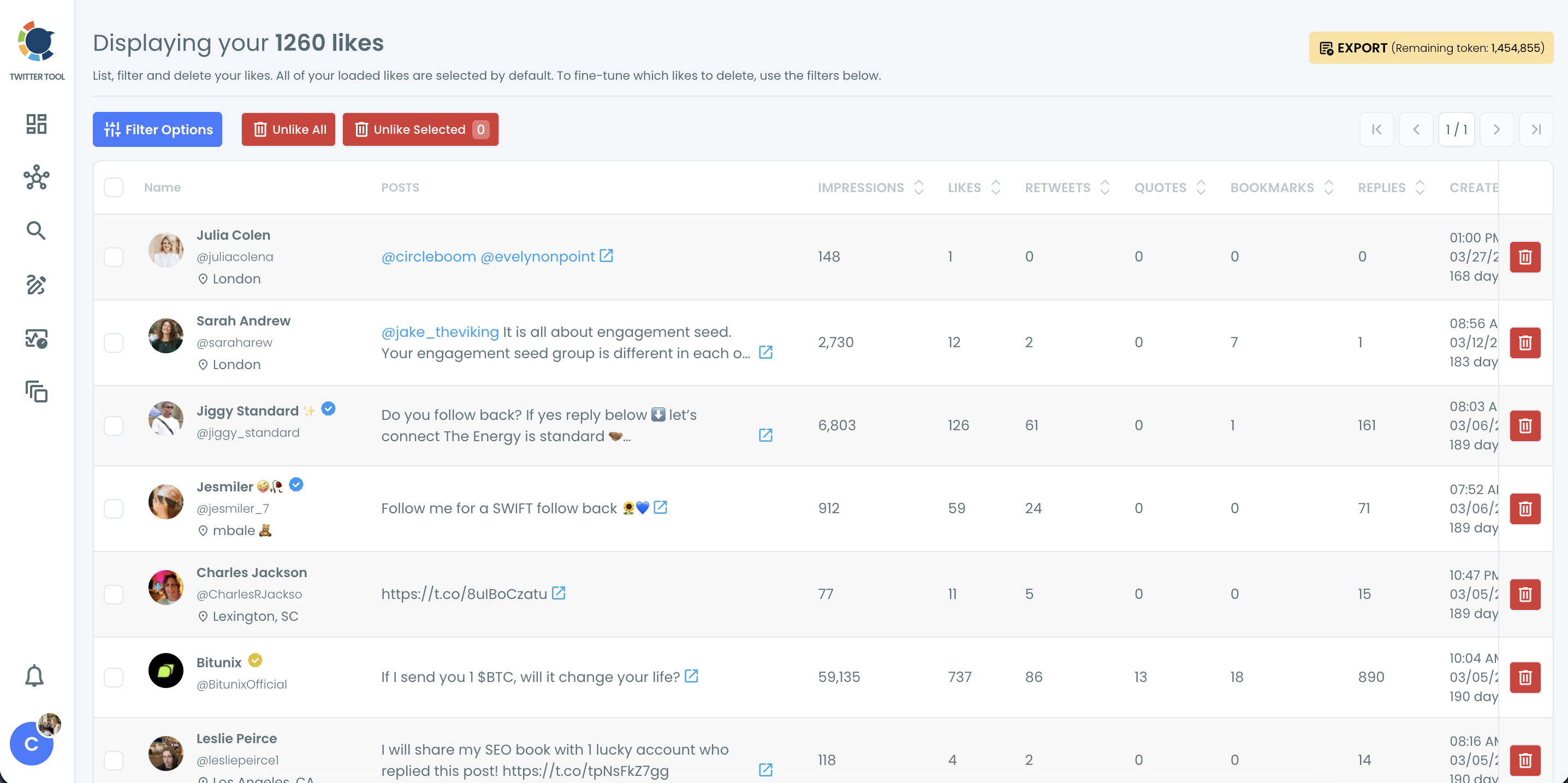
- Click Export after checking the remaining token count on the button, then save the CSV.
The export runs before anything else on that screen because every loaded like starts out selected for removal. Saving the file first means no later click on the same table can cost you the record.
It also gives you a precise before-picture: the CSV lists exactly the likes a careless Unlike All would have removed.
What to do after the backup: unliking on X
Once the CSV and the archive are saved, the unlike run is the usual next step, and it happens on the same table.
Nothing in the backup forces that step, though. Plenty of people back up Twitter likes simply to keep a record, and never unlike anything at all.
Delete My Last Likes removes recent likes in bulk, and Delete All Likes uses your like.js file for the older ones.
The clip below shows that run: the list loads, likes are selected, and the confirmation pop-up starts the removal.
Keep the cleanup as narrow as the problem. Circleboom's guidance is to start with recent likes when only recent activity is the issue and to reach for the full archive only when the whole history needs a reset.
The unlike step has its own playbook, and the post on how to delete Twitter likes covers it end to end.
Many people do their liking on a phone, and the page on how to delete Twitter likes on iPhone covers that device. Whichever device you like from, keep the Circleboom tab open during a large run, since X's rate limits set its pace.
Your likes backup checklist for X
A complete likes backup comes down to five checks. Work through them in order, and the copy exists before the cleanup question even comes up:
- Request your X archive from X's settings today, since it can take a day or two.
- Export the CSV of your latest 3,200 likes from Delete My Last Likes.
- Copy like.js out of the archive's data folder and keep it beside the CSV.
- Export your bookmarks if you also saved posts that way.
- Open both files once before any unlike run touches your account.
Run the list in that order and the backup is finished before any cleanup decision is made. The archive request goes first only because it is the slow part; everything else takes minutes.
Circleboom is named in X's Enterprise directory, so the CSV half of that list comes straight from X's records, and any cleanup that follows runs at X's own pace.
→ Run the export: back up your X likes
Questions about where your saved X likes live
How do I open the like.js file after I download it?
Open it through a tool that reads X archive data instead of a text editor, because like.js is raw account data. The guide to retrieve your archived tweets covers getting back to what an archive holds.
Do I upload the whole archive ZIP or only like.js?
Only like.js. When a Circleboom tool asks for your archive, it wants that single file from the archive's data folder, not the full ZIP X sends you.
Can I use a like.js file from a different X account?
No. The like.js file has to come from the X account connected to your Circleboom subscription, so an archive from a second account will not be accepted.
Does the CSV update itself when I like new posts?
No. The file freezes your likes as they stood on export day, and anything you like afterward stays out of it. Export again before any cleanup if weeks have passed since the last copy.
Should I download my tweets as well?
Yes, if your own posts might ever be cleaned up too. The steps to download your tweets cover that history, which sits in a separate file from your likes.